
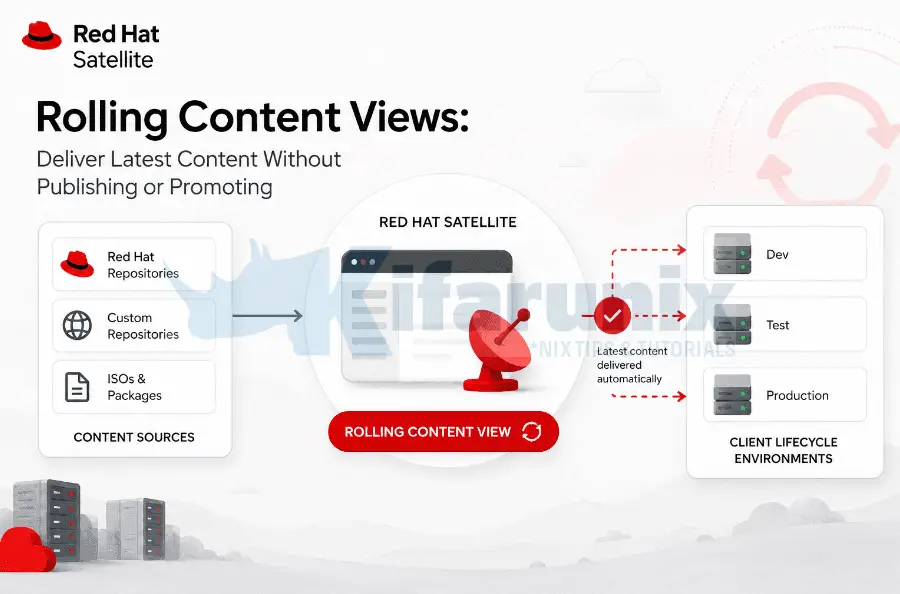
Red Hat Satellite rolling content views, introduced in Satellite 6.18, eliminate the publish and promote steps from your content lifecycle entirely. Every time a repository syncs, every host registered to a rolling content view sees the updated packages and errata immediately, with no manual or scripted intervention required. If you manage Red Hat Satellite at any scale, you already know the operational tax of the standard content view workflow: trigger a publish, wait for it to finish, then promote through each lifecycle environment before hosts see anything new. In our previous guide on automating content view publish and promote, we tackled that overhead with a shell script that chains Hammer commands together. Rolling content views go a step further: they remove those steps from existence altogether. This guide covers exactly what rolling content views are, when they are the right tool and when they are not, how to configure them via the web UI and Hammer CLI, and how they fit alongside the scripted automation patterns you may already have in place.
Table of Contents
Rolling Content Views: Automate Satellite Content View Updates Without Publish or Promote Steps
What Is a Rolling Content View?
A rolling content view is a curated subset of content that your hosts can access. It is a subset of the Library environment and contains the latest synchronized content from one or multiple repositories. The critical operational difference from a standard content view is update behaviour: when you synchronize repositories to Satellite, all rolling content views that contain them get automatically updated to include the latest changes.
This eliminates an entire class of manual or scripted work. There is no version to publish. There is no environment to promote through. The moment a sync plan or on-demand sync completes, every host subscribed to that rolling content view can see the new packages and errata immediately.
Unlike standard or composite content views, rolling content views are automatically updated whenever their repositories are synchronized, so there is no need to publish or promote them. You can create rolling content views in the Satellite web UI or CLI and then assign them to activation keys.
Rolling content views were formally released as a major feature of Satellite 6.18, listed among the release’s major changes: rolling content views are available as a convenient method for providing the latest content.
Rolling vs Standard vs Default Organization View
Before adopting rolling content views, it is worth understanding exactly where they sit in the Satellite content model alongside the two other options you may already use.
Standard Content View
A standard content view requires you to define repositories, optionally apply filters, publish a versioned snapshot, and then promote that version through lifecycle environments. Each publish creates an immutable, point-in-time snapshot. This is the model our previous automation guide targets.
The publish-and-promote model is intentional: it gives you a staging gate. A new version lands in Development first, you test it, then you promote to QA and finally Production. That controlled progression is the entire point. It costs operational overhead, but in regulated or change-controlled environments, that overhead is the mechanism that keeps production stable.
Default Organization View
The Default Organization View is the default content view in Satellite that contains all the content synchronized to Satellite. After you update your content, such as by adding or removing a repository, the update is immediately reflected in Default Organization View.
The Default Organization View is available in the Library lifecycle environment. Red Hat notes that assigning the Library environment to a Capsule Server is not recommended, as it triggers an automated Capsule sync every time the CDN updates a repository, consuming significant network bandwidth and disk space. This caveat applies to Capsule Servers, not to hosts registered directly to Library.
Rolling Content View
A rolling content view sits between these two extremes. Like the Default Organization View, it updates automatically on sync without requiring publish or promote. Like a standard content view, it is scoped: you choose exactly which repositories it includes. You cannot publish or promote your rolling content view. Instead, you continue by adding it to your activation key.
When to Use a Rolling Content View
Rolling content views are the right tool when your primary requirement is that hosts always have access to the latest synchronized content from a defined set of repositories, and when a staging gate through lifecycle environments would add overhead without adding safety.
Practical scenarios where rolling content views make sense:
- Dev and build infrastructure: CI runners, build agents, and developer workstations where the expectation is always-latest and velocity matters more than stability gates.
- Internal tooling hosts: Monitoring agents, jump hosts, and automation nodes where you own the full stack and regressions from package updates are low-risk.
- Environments where sync plans are already the control gate: If your sync plan only pulls content after it has been validated upstream (for example, syncing from an internal mirror that already represents a vetted state), the publish-promote pipeline may be redundant.
- Teams with no formal change management process for internal systems: Small teams that cannot justify the operational weight of version management for non-production infrastructure.
Rolling content views are the wrong tool when:
- You need to roll back to a specific content version because a package update broke something.
- Your organization requires change approval before content reaches production hosts.
- You need to apply content filters (errata-only, package exclusions, date-bounded updates).
- You need to test content in a non-production environment before production hosts see it.
If you fall into any of those categories, the scripted automation approach from our previous guide remains the correct answer.
Prerequisites
Before proceeding, confirm the following:
- Red Hat Satellite 6.18 or later installed and configured. Rolling content views were introduced in this release.
- At least one repository synced to your Satellite organization.
- Hammer CLI configured with appropriate credentials and organization context, typically via
/etc/hammer/cli_config.ymlor~/.hammer/cli_config.yml. - An activation key to attach the rolling content view to, or the intent to create one.
- Appropriate RBAC permissions to create content views and manage activation keys in your organization.
Verify your Satellite version:
sudo rpm -q satelliteCreating a Rolling Content View
Via the Web UI
Log into the Satellite web UI and navigate to Content > Lifecycle > Content Views.
Step 2: Create the Content View
Click Create content view. In the dialog that appears:
- Enter a Name for the content view. Satellite auto-populates the Label field from the name you enter.
- Optionally enter a Description.
- On the Type tab, select Rolling content view.
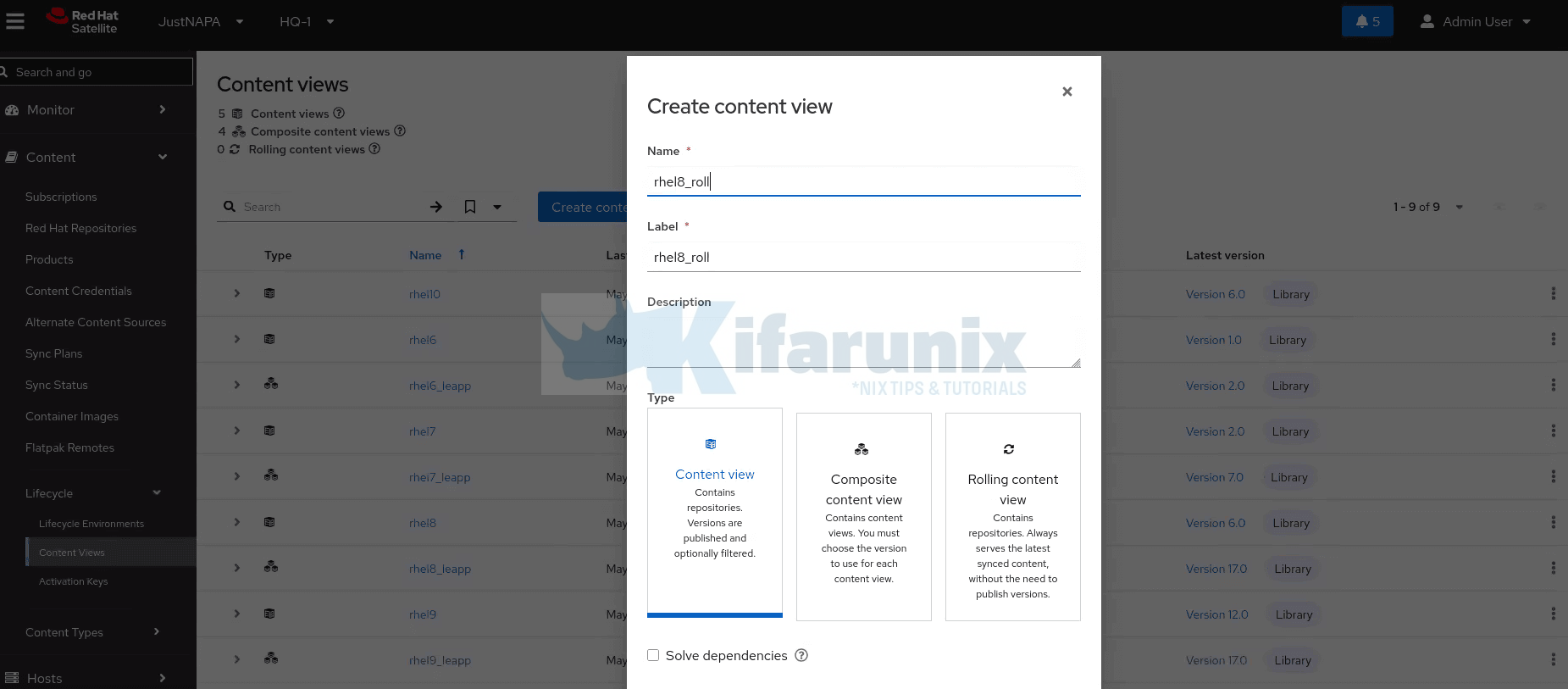
- Choose the Lifecycle Environment. We will use the default Library here.
- Click Create content view.
Step 3: Add Repositories
After creation, the view opens directly to the repository selection interface:
- Click Show repositories.
- Select the repositories that you want to add to your rolling content view. \
- Click Add repositories to add all selected repositories to your rolling content view.
There is no publish step. The content view is immediately active and reflects the current state of the repositories you added. From this point, every future sync of those repositories automatically updates what the content view delivers to registered hosts.
Via Hammer CLI
The Hammer CLI approach is cleaner for scripting, Ansible playbooks, or infrastructure-as-code workflows. The key flag is --rolling.
Step 1: Identify Repository IDs
hammer repository list \
  --fields id,name,product \
  --organization "My_Organization"
Note the IDs of the repositories you want to include.
Step 2: Identify the Library Lifecycle Environment ID
Retrieve the lifecycle environment ID with:
hammer lifecycle-environment list \
  --organization "My_Organization" \
  --fields id,name
Your output will look similar to this:
---|-----------
ID | NAME
---|-----------
2  | Dev
1  | Library
4  | Production
3  | Test
---|-----------
Step 3: Create the Rolling Content View
hammer content-view create \
  --lifecycle-environment-ids 1 \
  --name "My_Rolling_Content_View" \
  --organization "My_Organization" \
  --repository-ids My_List_Of_Repository_IDs \
  --rolling
A concrete example targeting RHEL 9 BaseOS and AppStream (replace IDs with those from your environment):
hammer content-view create \
  --lifecycle-environment-ids 1 \
  --name "rhel9_rolling" \
  --description "Always-latest RHEL 9 content for dev hosts" \
  --organization "My_Organization" \
  --repository-ids 3,4 \
  --rolling
Verify creation:
hammer content-view list --organization "My_Organization"You should see your new view listed with ROLLING = yes. Because rolling content views have no versioned publications, you will not see numbered versions. The LAST PUBLISHED field reflects the last time content was automatically updated following a repository sync.
Attaching the Rolling Content View to an Activation Key
You cannot publish or promote your rolling content view. Instead, you continue by adding it to your activation key. This is the bridge between the content view and the hosts that consume it.
Via the Web UI
Navigate to Content > Lifecycle > Activation Keys and click Create Activation Key.
- Enter a Name for the key.
- Optionally clear the Unlimited hosts checkbox if you want to limit registrations.
- Optionally enter a Description.
- From the Environment list, select the lifecycle environment, e.g Library.
- From the Content View list, select your rolling content view.
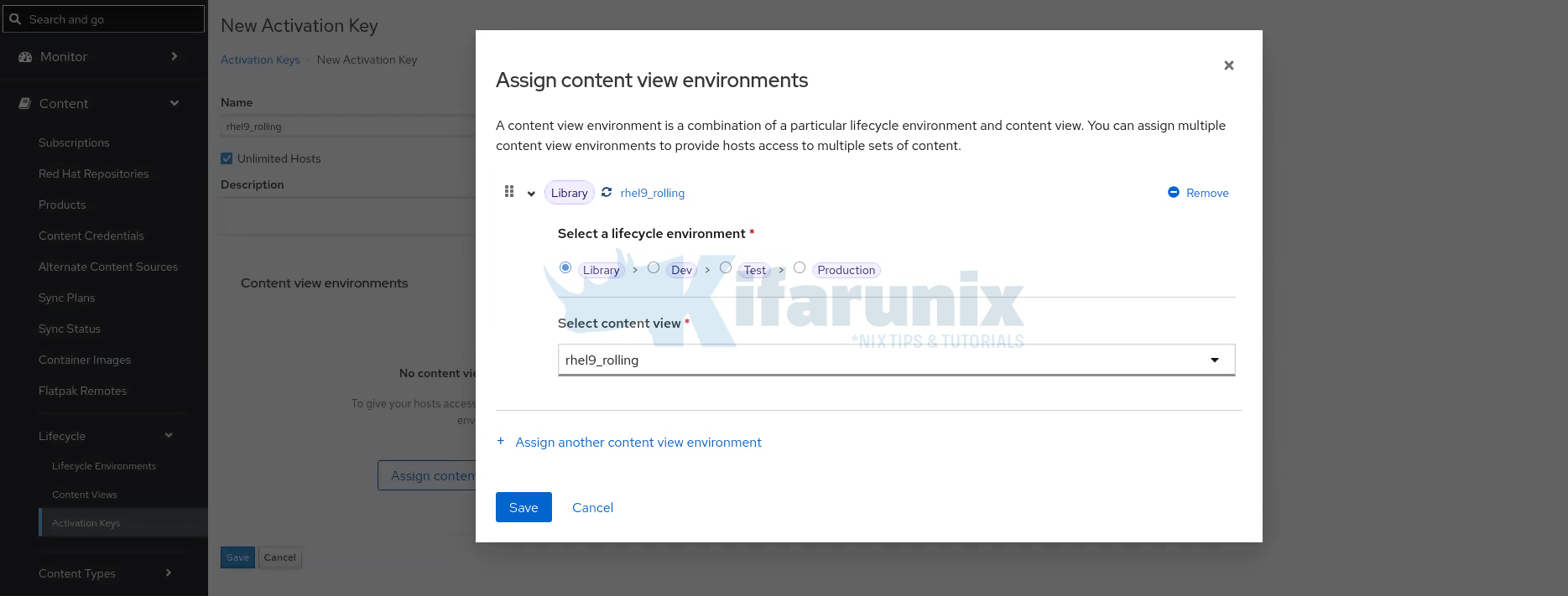
- Click Save to save the selected content view
- Click Save to save the activation key.
Under the Repository Sets tab, you can enable or disable certain repositories. Repository set availability on the activation key depends on the enabled state of each repository in your organisation. Use content overrides to explicitly enable or disable specific repository sets for hosts that register with this key.
Via Hammer CLI
hammer activation-key create \
  --name "<ak-name>" \
  --organization "<org>" \
  --lifecycle-environment "<library>" \
  --content-view "<content-view>" \
  --unlimited-hosts
Enable repository sets on the key if overrides are needed:
List the repository sets available on the activation key to find the correct content labels:
hammer activation-key product-content --name "<ak-name>" --organization "<org>"Override a specific repository set to enabled (value 1) or disabled (value 0):
hammer activation-key content-override \
  --name "<ak-name>" \
  --organization "<org>" \
  --content-label "<repository-label>" \
  --value 1
Registering Hosts to a Rolling Content View
Registration uses the same path as any other activation-key-based registration.
Generate the Registration Command
From the web UI, navigate to Hosts > Register Host. Select your activation key from the list, configure any additional options, and click Generate.
From Hammer CLI:
hammer host-registration generate-command \
  --activation-keys "<ak-name>" \
  --organization "<org>" \
  --location "<location>"
Run on the Target Host
Copy the generated command and execute it on the RHEL host as root.
If the host was already registered, you can add force=true to the query string. See example URL with force option added;
set -o pipefail && curl --silent --show-error \
  'https://satellite.example.com/register?activation_keys=My_Activation_Key&location_id=3&organization_id=1&force=true' \
  --header 'Authorization: Bearer My_Bearer_Token' | bash
After registration, verify the host sees the correct content view:
subscription-manager repos --list-enabledVerifying Content Delivery
After a repository sync, confirm that the rolling content view reflects updated content without any manual intervention.
Trigger or Monitor a Sync:
hammer repository synchronize \
  --organization "My_Organization" \
  --product "Red Hat Enterprise Linux for x86_64" \
  --name "Red Hat Enterprise Linux 9 for x86_64 - BaseOS RPMs 9" \
  --async
Monitor the task:
hammer task list --search "label = Actions::Katello::Repository::Sync"Verify Host Can See Updated Content
On a registered host:
dnf clean all
dnf repolist
dnf check-update
The host should immediately see packages from the latest sync without any publish or promote operation having been performed on the Satellite side.
Check Content View Details via Hammer
hammer content-view info \
  --name "RHEL9-Rolling" \
  --organization "My_Organization"
You will notice the output does not list versioned publications. This is expected behaviour for a rolling content view.
Operational Considerations and Limitations of Rolling Content View
- No Versioned Rollback: This is the most important limitation to internalize. With a standard content view, if a package update breaks an application, you promote the previous version back to the affected environment. With a rolling content view, that option does not exist. Content is always the current synchronized state. If rollback capability matters, rolling content views are not appropriate for that workload.
- No Content Filters: Rolling content views do not support content filters. You cannot exclude specific packages, restrict to security-only errata, or apply date-bounded errata rules. The content a rolling CV delivers is exactly what is in the synced repository at the time hosts request it. If your patch management strategy relies on filters, stay with standard content views.
- Sync Plan Is Your Gate: Because rolling content views update on every sync, your sync plan cadence becomes the effective content control mechanism. A repository syncing daily means hosts potentially see new packages daily. Align your sync plan timing with your maintenance window expectations.
- Capsule Propagation: Content in a rolling content view reaches Capsule Servers through the normal Capsule sync process. Ensure Capsule Servers are configured to sync the lifecycle environment the rolling content view is associated with. This is a general Satellite Capsule best practice, not specific to rolling content views. Assigning the Library lifecycle environment to any Capsule Server triggers an automated sync every time the CDN updates. Evaluate your Capsule sync schedule accordingly, regardless of whether you use rolling or standard content views.
- Not a General-Purpose Replacement: Rolling content views solve a specific problem: eliminating publish and promote overhead for workloads that want always-latest content. They are not a general-purpose replacement for standard content views. Both types should coexist in any reasonably complex Satellite deployment, each serving the appropriate class of host.
Summary
Rolling content views, introduced in Red Hat Satellite 6.18, remove the publish and promote steps entirely for workloads that need always-current content. They auto-update whenever their source repositories sync, and hosts consume them directly via activation keys with no further content lifecycle actions required from the Satellite administrator.
The tradeoffs are equally clear: no versioned rollback, no content filters, no lifecycle staging. For production workloads under change control, the scripted automation approach covering publish and promote remains the correct model. Both patterns can and should coexist in the same Satellite deployment, targeting different host populations based on their content requirements.