
Red Hat Satellite 6.16 is approaching end of life, making this a good time to plan your upgrade to a supported release. Upgrading Red Hat Satellite from 6.16 to 6.19 requires sequential minor-version upgrades. You cannot skip directly to 6.19, so the supported upgrade path is:
- 6.16 > 6.17
- 6.17 > 6.18
- 6.18 > 6.19
If you are still on Satellite 6.16, you may have seen this message on your dashboard:
Satellite 6.16 is estimated to reach its End of Life by the end of May 2026.
For up to date information about Satellite’s lifecycle see Red Hat Satellite Product Life Cycle. Kindly plan to upgrade Satellite to the supported version, for upgrade guidance see Red Hat Satellite Upgrade Helper.
The Extended Update Support (EUS) offering is available for selected versions of Red Hat Satellite, beginning with Red Hat Satellite 6.16. For more details, refer to this article Red Hat Satellite Extended Update Support (EUS) Offering Overview + FAQ.
This guide walks through the complete upgrade process step by step, including preparation tasks, required repositories, health checks, upgrade execution, Capsule upgrades, and post-upgrade validation.
If you are delaying upgrades for operational reasons, note that Extended Update Support (EUS) is available starting with Satellite 6.16 for eligible environments.
Table of Contents
Upgrading Red Hat Satellite from 6.16 to 6.19
You cannot upgrade Red Hat Satellite directly from 6.16 to 6.19. The mandatory sequential path is 6.16 to 6.17 to 6.18 to 6.19. That is three separate upgrade runs, a realistic total downtime of 3 to 6 hours on average installations, and a unique set of traps at each hop.
Upgrade Path: Why Sequential Hops Are Required
Red Hat Satellite applies the N-1 upgrade policy applies to the Satellite Server itself: you can only upgrade the Server from the immediately preceding minor version. From 6.17 onward, Satellite supports Capsules up to two minor versions older (N-2), so Capsules do not need to be upgraded at the same time as each Satellite Server hop.
From 6.16, your path is fixed:
6.16 > 6.17 > 6.18 > 6.19Each arrow is a full upgrade cycle: take a backup, enable the target maintenance repo, run satellite-maintain self-upgrade, run satellite-maintain upgrade check, run satellite-maintain upgrade run, sync new repositories, upgrade Capsules. Three times.
The reason for this is database integrity. Each minor release ships its own schema migrations, Pulp data migrations, and API changes. These are cumulative and ordered. The installer enforces the version check and aborts if the source version is not the expected one.
What this means in practice:
- Three separate maintenance windows, or one large combined one.
- Each hop has its own prerequisites, commands, and post-upgrade tasks.
- You cannot begin Stage 2 until Stage 1 is fully complete, including the repository synchronization step.
Total Timeline Estimated: Planning Your Maintenance Window
These timings below come directly from the Red Hat upgrade documentation for each target version.
Satellite Server Timings Per Hop:
| Hop | Average Install | Large Install |
|---|---|---|
| 6.16 to 6.17 | Up to 1 to 2 hours | 1 to 2 hours |
| 6.17 to 6.18 | Up to 30 minutes | Up to 1 to 2 hours |
| 6.18 to 6.19 | Up to 30 minutes | Up to 1 to 2 hours |
The 6.17 guide quotes 1 to 2 hours as the general estimate. The 6.18 and 6.19 guides differentiate explicitly: up to 30 minutes on average installs, up to 1 to 2 hours on very large ones.
Capsule Server Timings Per Hop
| Hop | Average | Large |
|---|---|---|
| Each Capsule per hop | Up to 10 minutes | 15 to 30 minutes |
Additional Time Budget Per Hop
| Activity | Estimate |
|---|---|
| Full backup before each hop | 20 to 60 minutes depending on DB and Pulp size |
| Repository sync after each hop | 15 to 45 minutes |
| Health check plus issue resolution | 10 to 30 minutes |
| Post-upgrade validation | 15 minutes |
Total Realistic Budget
| Scenario | Estimate |
|---|---|
| Single Satellite, average size, 3 hops plus backups plus syncs | 4 to 6 hours |
| Single Satellite, large DB and Pulp, 3 hops | 7 to 10 hours |
| Satellite plus 2 Capsules, all upgraded each hop | Add 20 to 60 minutes per hop |
I would recommend you book a 10-hour window. Do not begin a hop if fewer than 2 hours remain in your window.
Pre-Flight Checklist
Complete this checklist once before starting Stage 1. Items marked [each hop] must be repeated before every upgrade run.
- System State
- All Satellite Servers are on the same patch version of 6.16.
- All Capsule Servers are on a compatible version.
- No foreman tasks are stuck in a running or locked state.
hammer task list --search "state = running OR state = paused" --per-page 50 - Satellite services are healthy. All must be OK.
sudo satellite-maintain health check
- Storage [each hop]
- Verify sufficient space on
/var/lib/pulpfor new repository metadata.df -h /var/lib/pulp - Estimate backup size to ensure your backup destination has sufficient space. Ensure at least the combined size of both directories plus 20% overhead is available at your intended destination.
sudo du -sh /var/lib/pgsql/data /var/lib/pulp - Verify sufficient space for the full backup destination. The backup destination is the path you will pass when running satellite-maintain backup offline.
df -h <your-backup-destination>
- Verify sufficient space on
Configuration
- Identify all files you have manually customized outside satellite-installer management. These are overwritten at every hop.
sudo satellite-installer --noop --verbose 2>&1 | tee /mnt/installer-noop-$(date +%Y%m%d).log
- Back up all custom configuration files before each hop:
sudo tar czf <your-backup-destination>/satellite-configs-$(date +%Y%m%d).tar.gz \
    /etc/foreman/ \
    /etc/foreman-proxy/ \
    /etc/httpd/conf.d/foreman*.conf \
    /etc/zones.conf \
    /etc/dhcp/dhcpd.conf 2>/dev/null
- Custom Certificates
- If you use custom certificates, verify that
/root/ssl-buildand the directory containing your custom certificate source files are present and intact. The Red Hat upgrade docs state explicitly: “Failure to retain these files during an upgrade causes the upgrade to fail. If these files have been deleted, they must be restored from a backup in order for the upgrade to proceed.”ls -la /root/ssl-build/
- If you use custom certificates, verify that
- Custom Templates
- If you have edited any default provisioning templates, back them up by cloning them before starting. Cloning is recommended method because it prevents the originals from being overwritten during the upgrade.
- Subscriptions and Manifest
- Do not delete the manifest from the Customer Portal or from the Satellite web UI at any point.
- Doing so removes all entitlements from your content hosts.
- Backup [each hop]
- Identify your backup destination and verify it has sufficient space using the storage check above.
- Before each hop, the first three steps of the upgrade procedure are: stop Satellite services, take a backup or snapshot, start Satellite services.
- If your Satellite Server is a virtual machine, take a hypervisor-level snapshot of the Satellite VM before each hop instead of running
satellite-maintain backup offline. If it is a physical machine, runsatellite-maintain backup offline. The same applies to each Capsule Server. - For all available backup command options, run
satellite-maintain backup offline --help.
- Hammer and API Scripts:
- Identify all scripts using Hammer CLI or the Satellite REST API. Syntax changes between versions. Review the release notes for the target version before each hop.
Stage 1: Upgrading Red Hat Satellite from 6.16 to 6.17
What changes at this hop
- RHEL 8 is removed as a supported OS for Satellite Server and Capsule Servers. You must be on RHEL 9 before or during this hop.
- RHEL 8 remains fully supported as a managed host OS.
- RHEL 10 host management support is added.
- Flatpak repository support is introduced.
- Configuring Satellite with Red Hat Single Sign-On (RH SSO) as an external authentication source is deprecated in 6.17. The RH SSO 7 product family has reached End of Full Support. Red Hat build of Keycloak is the replacement. Migration is not automatic; you must reconfigure your authentication source settings on your 6.17 Satellite Server to follow the requirements for Red Hat build of Keycloak.
- RHV compute resources were deprecated in 6.13. In 6.17 this deprecation is still in effect and the RHV provider will be removed at the 6.18 hop. Plan your migration off RHV before starting Stage 2.
- A background pre-migration runs automatically after the 6.17 upgrade, pulling container manifest data into the database. Satellite remains fully functional during this time but uses more hardware resources.
- iPXE firmware for network-boot provisioning is deprecated in 6.17. Use HTTP booting for UEFI hosts instead.
RHEL 8 to RHEL 9 OS Upgrade at This Hop
As documented in the Satellite 6.17 release notes, Satellite is no longer supported on RHEL 8. You must be running RHEL 9 before completing the initial Satellite upgrade from 6.16 to 6.17.
This means if your Satellite Server and Capsule Servers are still on RHEL 8, the OS upgrade is not optional at this point. You cannot complete the 6.16 to 6.17 hop on a RHEL 8 host.
As such, I recommend that you upgrade the OS while still on Satellite 6.16 before touching the Satellite version. If the OS upgrade encounters issues, your Satellite remains on a known good version. Combining an OS upgrade and a Satellite version upgrade in the same window doubles the failure surface.
Ensure the node is subscribed to Red Hat CDN repositories.
The in-place Leapp method is the fastest path:
- Install Leapp upgrade utility
dnf install leapp-upgrade --disableplugin=foreman-protector
- Run pre-upgrade checks
leapp preupgrade
- Review the report and fix all inhibitors before proceeding
cat /var/log/leapp/leapp-report.txt
- Re-run preupgrade after fixing inhibitors until no inhibitors remain
- Then run the upgrade
leapp upgrade
- System reboots automatically multiple times
Check our guides on how to automate RHEL OS upgrade.
After final reboot you are on RHEL 9 with Satellite 6.16 still intact.
After the RHEL 9 system comes back up, satellite-installer re-runs automatically. Confirm Satellite is fully functional on RHEL 9 before proceeding with the 6.17 upgrade steps.
The same requirement applies to your Capsule Servers. Note that cloning is not supported for Capsule Servers. Your options are Leapp in-place or backup and restore to a fresh RHEL 9 host.
Satellite Server Upgrade
You can confirm your current version from Web or CLI;
rpmquery satelliteSample output;
satellite-6.16.7-1.el9sat.noarchAlso, verify the OS version:
cat /etc/redhat-releaseRed Hat Enterprise Linux release 9.7 (Plow)Step 1: Stop all Satellite services.
sudo satellite-maintain service stopStep 2: Take a full backup. On a virtual machine, take a snapshot. On a physical machine, you can backup Satellite on to the host. Replace backup path accordingly.
sudo satellite-maintain backup offline <your-backup-destination>/satellite-pre-617-$(date +%Y%m%d-%H%M)Sample output;
...
| All services started                                                [OK]
--------------------------------------------------------------------------------
Compress backup data to save space:                                   [OK]
--------------------------------------------------------------------------------

Done with backup: 2026-05-13 22:09:42 +0200
**** BACKUP Complete, contents can be found in: /backup/satellite-pre-617-20260513-2204/satellite-backup-2026-05-13-22-04-33 ****
For other command line options, check; sudo satellite-maintain backup offline –help.
Step 3: Start all Satellite services.
sudo satellite-maintain service startStep 4: If you manage DNS or DHCP through Satellite and have made manual edits to /etc/zones.conf or /etc/dhcp/dhcpd.conf, disable installer management before each hop to avoid overriding the changes:
You can as well backup the configurations:
sudo cp /etc/zones.conf{,$(date +%Y%m%d)sudo cp /etc/dhcp/dhcpd.conf{,$(date +%Y%m%d)Step 5: Power off and Delete Discovered hosts
Discovered hosts are bare metal or virtual machines detected on your network via the Foreman Discovery plugin but not yet provisioned. They boot from a discovery image and check in with Satellite, sitting in a pending state waiting to be provisioned.
If you have any, navigate to Hosts > Discovered hosts in the Satellite web UI, power them off using Satellite’s built-in power management, and delete their records for each organization before each Satellite Server upgrade.
Make a note to reboot them after the upgrade completes so they re-discover and check back in cleanly. If the list is empty, skip this step.
Step 6: Enable the Satellite Maintenance repository for 6.17.
This must happen before satellite-maintain self-upgrade. Note that the Satellite Server must be registered to the Red Hat Customer Portal. If subscription-manager status does not show Overall Status: Current, resolve registration before proceeding. You cannot enable any Red Hat repositories on an unregistered system.
sudo subscription-manager repos --enable satellite-maintenance-6.17-for-rhel-9-x86_64-rpmsVerify it is enabled:
sudo dnf repolistExpected output includes:
satellite-maintenance-6.17-for-rhel-9-x86_64-rpms Red Hat Satellite Maintenance 6.17 for RHEL 9 x86_64 (RPMs)Step 7: Upgrade satellite-maintain to its latest version.
sudo satellite-maintain self-upgradeSample output:
Running Enables the specified version's maintenance repository and,
updates the satellite-maintain packages
================================================================================
Update package(s) rubygem-foreman_maintain, satellite-maintain:       [OK]
--------------------------------------------------------------------------------
If you see [OK] they are good to proceed. If you see [FAIL] then stop and investigate.
Step 8: Run the health check and resolve all errors before proceeding.
sudo satellite-maintain upgrade checkSample output;
Checking for new version of satellite-maintain, rubygem-foreman_maintain...
Nothing to update, can't find new version of satellite-maintain, rubygem-foreman_maintain.
Running preparation steps required to run the next scenarios
================================================================================
Check whether all services are running:                               [OK]
--------------------------------------------------------------------------------
Check whether system has any non Red Hat repositories (e.g.: EPEL) enabled:
| Checking repositories enabled on the system                         [OK]
--------------------------------------------------------------------------------


Running Checks before upgrading
================================================================================
Check number of fact names in database:                               [OK]
--------------------------------------------------------------------------------
Clean old Kernel and initramfs files from tftp-boot:                  [OK]
--------------------------------------------------------------------------------
Check for verifying syntax for ISP DHCP configurations:               [OK]
--------------------------------------------------------------------------------
Check whether all services are running:                               [OK]
--------------------------------------------------------------------------------
Check whether all services are running using the ping call:           [OK]
--------------------------------------------------------------------------------
Check for paused tasks:                                               [OK]
--------------------------------------------------------------------------------
Check to verify no empty CA cert requests exist:                      [OK]
--------------------------------------------------------------------------------
Check whether system is self-registered or not:                       [OK]
--------------------------------------------------------------------------------
Check to verify if any hotfix installed on system:
| Checking for presence of hotfix(es). It may take some time to verify.
                                                                      [OK]
--------------------------------------------------------------------------------
Check if TMOUT environment variable is set:                           [OK]
--------------------------------------------------------------------------------
Check if any upstream repositories are enabled on system:
\ Checking for presence of upstream repositories                      [OK]
--------------------------------------------------------------------------------
Check to make sure root(/) partition has enough space:                [OK]
--------------------------------------------------------------------------------
Check to make sure /var/lib/candlepin has enough space:               [OK]
--------------------------------------------------------------------------------
Check to make sure PostgreSQL data is not on an own mountpoint:       [OK]
--------------------------------------------------------------------------------
Make sure server is running on required database version:             [OK]
--------------------------------------------------------------------------------
Check that external databases have proper EVR extension permissions:  [OK]
--------------------------------------------------------------------------------
Check for roles that have filters with multiple resources attached:   [OK]
--------------------------------------------------------------------------------
Check for duplicate permissions from database:                        [OK]
--------------------------------------------------------------------------------
Check if system requirements match current tuning profile:            [OK]
--------------------------------------------------------------------------------
Check whether reports have correct associations:                      [OK]
--------------------------------------------------------------------------------
Check for running tasks:                                              [OK]
--------------------------------------------------------------------------------
Check for old tasks in paused/stopped state:                          [OK]
--------------------------------------------------------------------------------
Check for pending tasks which are safe to delete:                     [OK]
--------------------------------------------------------------------------------
Check for tasks in planning state:                                    [OK]
--------------------------------------------------------------------------------
Check for running pulpcore tasks:                                     [OK]
--------------------------------------------------------------------------------
Check if system has any non Red Hat RPMs installed (e.g.: Fedora):    [OK]
--------------------------------------------------------------------------------
Check to validate dnf configuration before upgrade:                   [OK]
--------------------------------------------------------------------------------
Check whether system has any non Red Hat repositories (e.g.: EPEL) enabled:
\ Checking repositories enabled on the system                         [OK]
--------------------------------------------------------------------------------
Check if ipv6.disable=1 is set at kernel level:                       [OK]
--------------------------------------------------------------------------------
Check to make sure PostgreSQL 13 work directory has enough space for upgrade:
                                                                      [OK]
--------------------------------------------------------------------------------
Check if any organizations are using entitlement mode:
| Checking organization content access modes                          [OK]
--------------------------------------------------------------------------------
Check if server certificate authority is sha1 signed:                 [OK]
--------------------------------------------------------------------------------
Validate availability of repositories:
- Validating availability of repositories for 6.17                    [OK]
--------------------------------------------------------------------------------
All output must be okay, investigate any issue.
Step 9: Start the upgrade inside tmux
Because of the lengthy upgrade time, use tmux to suspend and reattach the session. Hence install it and create upgrade session as follows. Use of tmux is actually optional, but it is just there to cushion you against SSH timeouts during upgrade process).
sudo satellite-maintain packages install tmuxtmux new -s sat-upgradeThen launch the upgrade process now.
sudo satellite-maintain upgrade runIf prompted to accept, proceed and do so:
...
Validate availability of repositories:
\ Validating availability of repositories for 6.17                    [OK]
--------------------------------------------------------------------------------


The pre-upgrade checks indicate that the system is ready for upgrade.
It's recommended to perform a backup at this stage.
Confirm to continue with the modification part of the upgrade, [y(yes), n(no), q(quit)] yes
Running preparation steps required to run the next scenarios
================================================================================
Check whether all services are running:                               [OK]
--------------------------------------------------------------------------------


Running Procedures before migrating
...
Monitor progress from a second terminal:
tail -f /var/log/foreman-installer/satellite.logIf the command instructs you to reboot after completion;
--------------------------------------------------------------------------------
Check if system needs reboot:                                         [WARNING]
Updating Subscription Management repositories.
Core libraries or services have been updated since boot-up:
  * kernel

Reboot is required to fully utilize these updates.
More information: https://access.redhat.com/solutions/27943
--------------------------------------------------------------------------------
Initialize and expose container image metadata in the pulpcore db:
/ Adding image metadata to pulp.                                      [OK]
--------------------------------------------------------------------------------
Import container manifest metadata:
- Adding image metadata to Katello.                                   [OK]
--------------------------------------------------------------------------------


--------------------------------------------------------------------------------
Upgrade finished.
then proceed:
sudo rebootStep 10: Log back in and confirm Satellite 6.17 is healthy before proceeding to repository sync;
sudo satellite-maintain health checkSample expected output;
Running preparation steps required to run the next scenarios
================================================================================
Check whether all services are running:                               [OK]
--------------------------------------------------------------------------------


Running ForemanMaintain::Scenario::FilteredScenario
================================================================================
Check number of fact names in database:                               [OK]
--------------------------------------------------------------------------------
Check whether all services are running:                               [OK]
--------------------------------------------------------------------------------
Check whether all services are running using the ping call:           [OK]
--------------------------------------------------------------------------------
Check for paused tasks:                                               [OK]
--------------------------------------------------------------------------------
Check whether system is self-registered or not:                       [OK]
--------------------------------------------------------------------------------
sudo hammer pingSample expected output;
database:
    Status:          ok
    Server Response: Duration: 0ms
cache:
    servers:
     1) Status:          ok
        Server Response: Duration: 0ms
candlepin:
    Status:          ok
    Server Response: Duration: 29ms
candlepin_auth:
    Status:          ok
    Server Response: Duration: 32ms
candlepin_events:
    Status:          ok
    message:         0 Processed, 0 Failed
    Server Response: Duration: 0ms
katello_events:
    Status:          ok
    message:         0 Processed, 0 Failed
    Server Response: Duration: 2ms
pulp3:
    Status:          ok
    Server Response: Duration: 367ms
pulp3_content:
    Status:          ok
    Server Response: Duration: 136ms
foreman_tasks:
    Status:          ok
    Server Response: Duration: 5ms
Check Satellite version:
rpm -q satelliteExpected:
satellite-6.17.x-1.el9sat.noarchSynchronizing the new Satellite repositories
You must enable and synchronize the new Satellite 6.17 repositories before you can upgrade Capsule Servers and Satellite clients.
- Step 1: In the Satellite web UI, navigate to Content > Red Hat Repositories.
- Step 2: Toggle the Recommended Repositories switch to the On position.
- Step 3: From the list of results, expand the following repositories and click the + icon to Enable:
- Red Hat Satellite Client 6 for all RHEL versions your client hosts use.
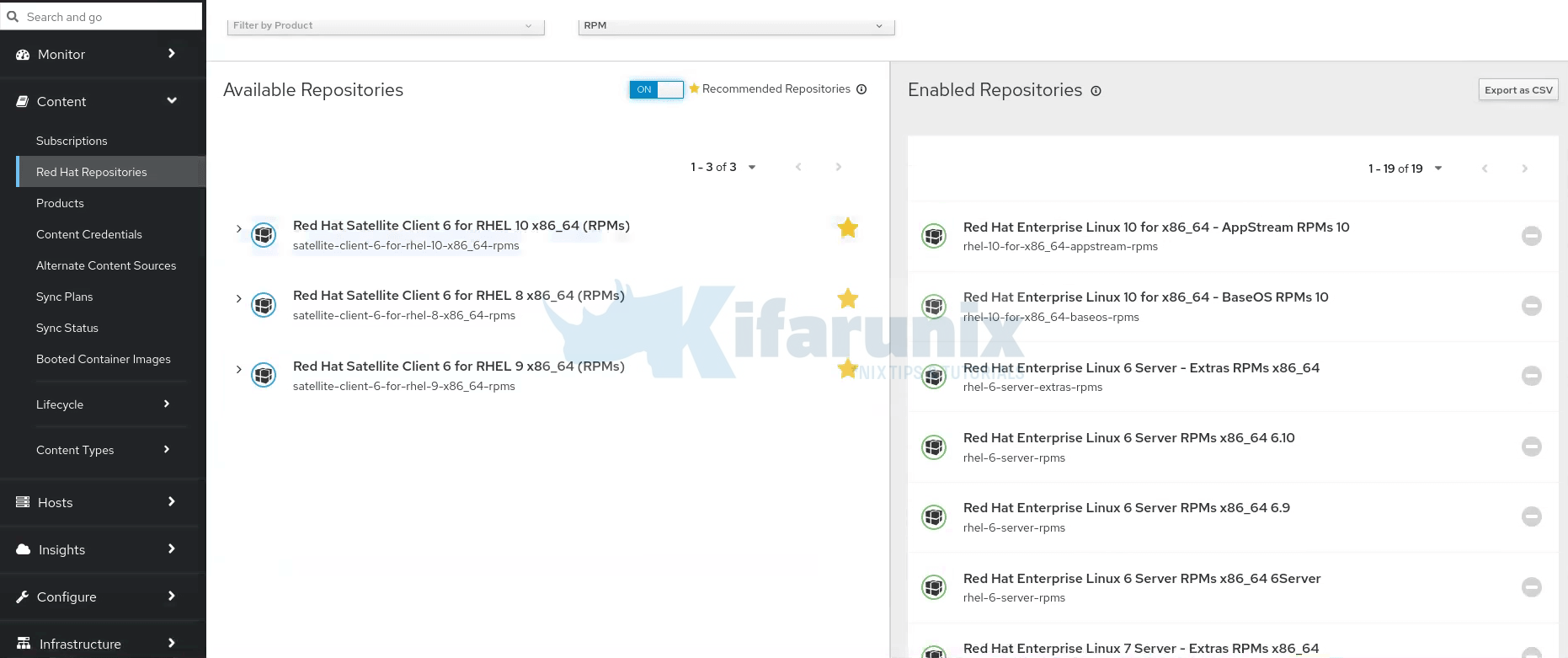
If you toggle the recommended option, some forlike RHEL 7 may not be displayed. If you have RHEL 7 clients, untoggle and search Red Hat Satellite Client 6 for the respective OS version. - If you have Capsule Servers, also enable:
- Red Hat Satellite Capsule 6.17 (for RHEL 9 x86_64) (RPMs)
- Red Hat Satellite Maintenance 6.17 (for RHEL 9 x86_64) (RPMs)
- Red Hat Enterprise Linux 9 (for x86_64 – BaseOS) (RPMs)
- Red Hat Enterprise Linux 9 (for x86_64 – AppStream) (RPMs)
- Red Hat Satellite Client 6 for all RHEL versions your managed hosts use
- Red Hat Satellite Client 6 for all RHEL versions your client hosts use.
- Note: If the 6.17 repositories are not available, refresh the Red Hat Subscription Manifest. Navigate to Content > Subscriptions, click Manage Manifest, then click Refresh.
- Step 4: Navigate to Content > Sync Status, click the arrow next to the product to view available repositories, select the repositories, and click Synchronize Now at the bottom.
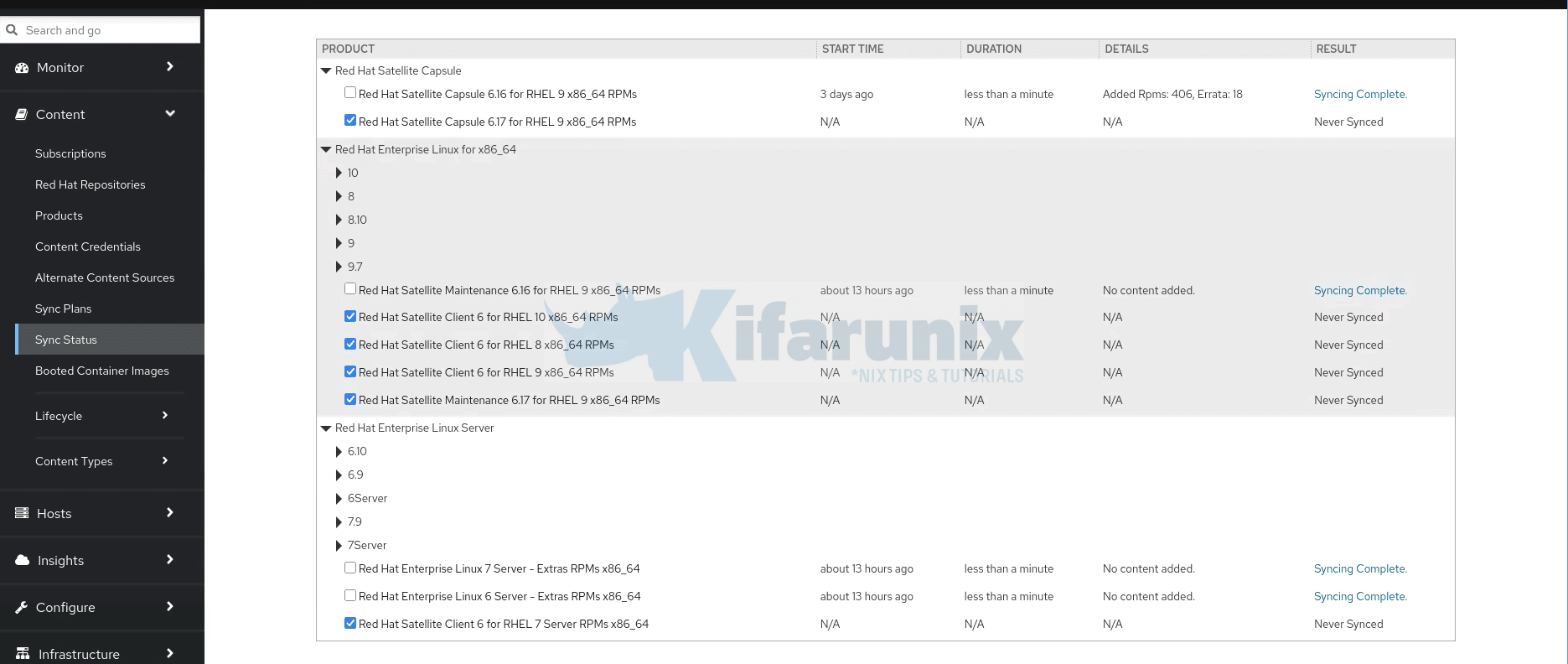
- Important: If a sync error occurs, refresh the manifest. If the problem persists, raise a support request. Do not delete the manifest from the Customer Portal or the Satellite web UI; this removes all entitlements from your content hosts.
- Step 5: If you use content views to control updates to the base OS of Capsule Servers, update those content views with the new 6.17 repositories, publish, and promote the updated versions before upgrading Capsules.
Post-upgrade tasks
- If default provisioning templates changed during the upgrade, recreate any templates cloned from the default templates. To check, navigate to Monitor > Audits and search for the template to see a record of changes.
- Reboot the discovered hosts you powered off before the upgrade.
- A background pre-migration is now running automatically to pull container manifest data into the database. Satellite is fully functional but uses more hardware resources. Allow this migration to complete before starting Stage 2.
To confirm no migrations are still running before starting Stage 2:
hammer task list --search "state = running OR state = paused" --per-page 50Step-by-step: Capsule Servers Upgrade
Run these steps on each Capsule node after the Satellite Server upgrade and repository sync are fully complete. You may upgrade Capsule nodes in parallel if your environment allows it.
- Step 1: Create a backup of the respective Capsule node. Take a snapshot if it is a virtual machine, or create a backup if it is a physical machine. But it doesn’t matter, you can also take on-system backup on virtualized Capsule node. Hence, login to the Capsule node and run the command below it back it up.
sudo satellite-maintain backup offline <your-backup-destination>/capsule-pre-617-$(date +%Y%m%d-%H%M) - Step 2: Clean yum/dnf cache.
sudo yum clean metadata - Step 3: Ensure the Red Hat Satellite Capsule 6.17 and Red Hat Satellite Maintenance 6.17 repositories are added to the content view your Capsules are registered to, synchronized, and that a new version of the content view has been published and promoted to the correct lifecycle environment. If not done already, do it now before proceeding.
- Step 4: Ensure the Capsule’s base system is registered to the newly upgraded Satellite Server and the Capsule has the correct organization settings.
On the Capsule server you can run, the command below to check registration status.
Confirmsudo subscription-manager statusOverall Status: Registered. If you seeOverall Status: UnknownorOverall Status: Invalid, resolve registration before proceeding. Also confirmContent Access Mode is set to Simple Content Access. If it shows entitlement mode instead, you must migrate to SCA before upgrading.
Then, verify that the node is registered to your Satellite Server FQDN, notsubscription.rhsm.redhat.com.
Ensure it shows your Satellite server.grep ^host /etc/rhsm/rhsm.conf
To check organization, query the identity information.
Check the following from the outputsudo subscription-manager identity- name confirms the correct hostname of the Capsule
- org name and org ID confirm the Capsule is registered to the correct organization
- environment name confirms which content view and lifecycle environment the Capsule is registered to. This tells you exactly which content view needs to be updated with the 6.17 repos before upgrading. In your case
Library/rhel9means lifecycle environmentLibraryand content viewrhel9.
- Step 5: Ensure the Satellite Maintenance repository is enabled on the Capsule.
Confirm with:sudo subscription-manager repos --enable satellite-maintenance-6.17-for-rhel-9-x86_64-rpmssudo dnf repolist - Step 6: Upgrade
satellite-maintainon the Capsule:sudo satellite-maintain self-upgrade - Step 7: Verify that the
foreman_urlsetting points to your Satellite FQDN.sudo grep foreman_url /etc/foreman-proxy/settings.yml - Step 8: Run the health check.
Address all errors before proceeding.sudo satellite-maintain upgrade check - Step 9: Similarly, because of the lengthy upgrade time, use
tmuxto suspend and reattach the session.
Then create the session:sudo satellite-maintain packages install tmuxtmux new -s capsule-upgrade - Step 10: Perform the upgrade.
sudo satellite-maintain upgrade run - Step 11: If instructed to reboot:
sudo systemctl reboot -i - Step 12: Confirm it is fully functional before proceeding with the Satellite version upgrade:
Check Satellite Capsule versionsudo satellite-maintain health check
Expected:sudo rpmquery satellite-capsulesatellite-capsule-6.17.x-1.el9sat.noarch.
- Step 13: Optional: If you made manual edits to DNS or DHCP configuration files, check and restore any changes using the backups made earlier.
- Step 14: Repeat entire capsule upgrade process for the other Capsule nodes if you didn’t do them concurrently.
Stage 2: Upgrading Red Hat Satellite from 6.17 to 6.18
The upgrade procedure is identical to Stage 1. Follow the same steps in the same order. The only differences are noted below.
What changes at this hop
- RHV compute resource is removed. All hosts in RHV compute resources will be automatically dissociated from the compute resource and host entries kept in the Satellite database during an upgrade to Satellite 6.18. There is no confirmation dialog. Migrate RHV workloads before starting this hop.
- Red Hat Lightspeed advisor in Satellite is fully supported.
- Rolling content views are available.
- Flatpak content receives enhanced support.
- The new Hosts overview page introduced as a Technology Preview in 6.16 becomes the default UI.
puppet-agentandpuppetserverpackages are deprecated. Satellite will stop providing these in a future release.- Legacy content host pages in the UI are deprecated.
- If you use Red Hat Lightspeed, after upgrading you must refresh Lightspeed registration on all managed hosts.
Read more on release notes page.
Before you start this hop
- Confirm the background 6.17 pre-migration is complete. No tasks should be running or paused:
hammer task list --search "state = running OR state = paused" --per-page 50
- Only if you use Red Hat Lightspeed in Satellite: Red Hat Lightspeed runs as container images on the Satellite Server. During the upgrade,
satellite-maintainautomatically pulls updated Lightspeed container images fromregistry.redhat.io. Ensure valid credentials are stored before running the upgrade:
If you do not use Lightspeed, skip this step.podman login --authfile /etc/foreman/registry-auth.json registry.redhat.io
What differs in the upgrade steps
Repositories to enable and sync in Satellite web UI after upgrade:
- Red Hat Satellite Capsule 6.18 (for RHEL 9 x86_64) (RPMs)
- Red Hat Satellite Maintenance 6.18 (for RHEL 9 x86_64) (RPMs)
- Red Hat Enterprise Linux 9 (for x86_64 – BaseOS) (RPMs)
- Red Hat Enterprise Linux 9 (for x86_64 – AppStream) (RPMs)
Optional: If you intend to continue to 6.19 immediately after this hop, you can pre-enable the 6.19 Capsule and Maintenance repos now to save time later:
- Red Hat Satellite Capsule 6.19 (for RHEL 9 x86_64) (RPMs)
- Red Hat Satellite Maintenance 6.19 (for RHEL 9 x86_64) (RPMs)
After syncing, add the Capsule and Maintenance 6.18 repositories to the content view your Capsules are registered to, publish a new version, and promote it to the lifecycle environment your Capsules are in. Your Capsules cannot receive the 6.18 upgrade packages until this is done.
Run through the upgrade process like before for:
- Satellite server
- Capsules
Steps Summary (follow Stage 1 procedure, replacing version-specific values)
Satellite Server:
- Stop services, take a fresh backup or snapshot of the current 6.17 state, start services
- Clear discovered hosts
- Enable the maintenance repo:
sudo subscription-manager repos --enable satellite-maintenance-6.18-for-rhel-9-x86_64-rpms
- Run
satellite-maintain self-upgrade - Run
satellite-maintain upgrade check - Run
satellite-maintain upgrade runinsidetmux - Reboot if required.
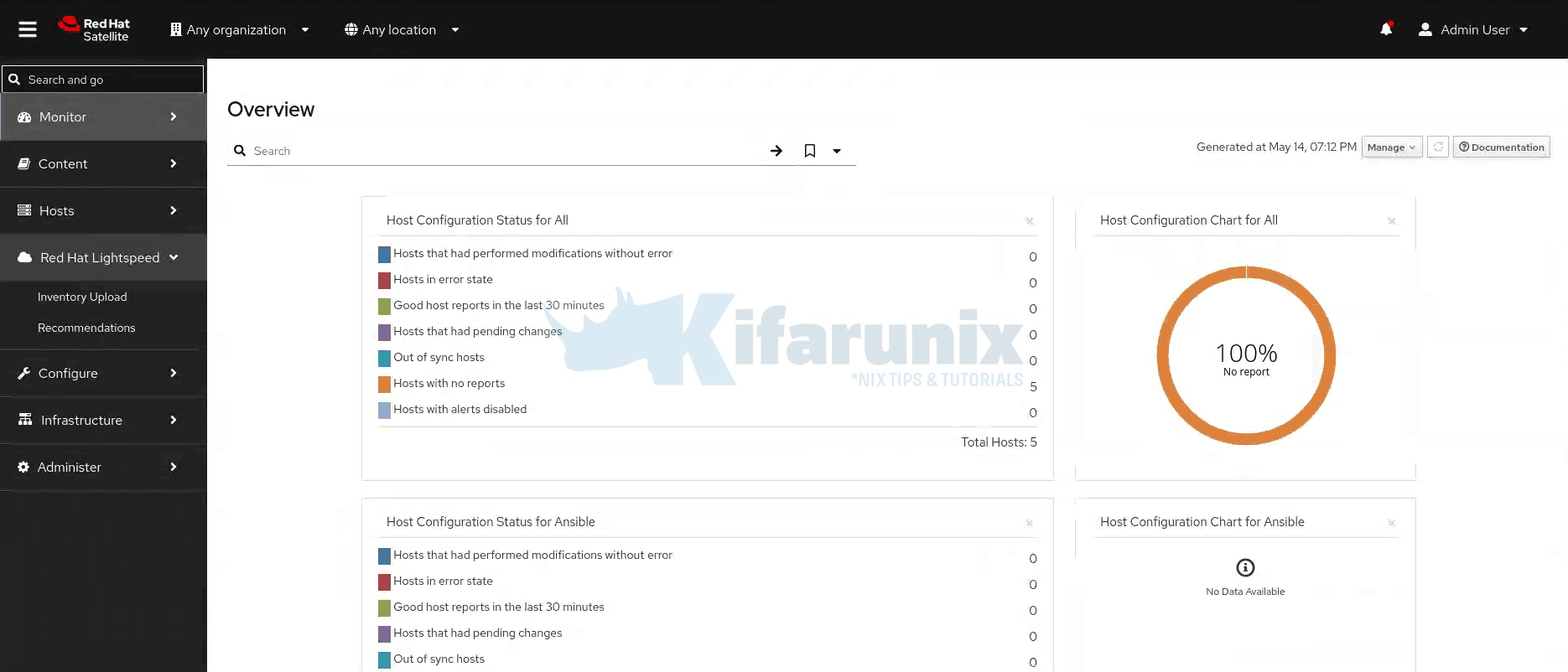
- Validate the Satellite upgrade by checking system health, service responsiveness, and installed Satellite version.
Expected versions after upgrade:
- Satellite Server:
satellite-6.18.x-1.el9sat.noarch
Capsule Servers (run on each Capsule node):
- Log in to the Capsule node
- Take a snapshot if it is a virtual machine, or create a backup if it is a physical machine
- Clean yum cache medata.
- Ensure the Capsule and Maintenance 6.18 repos are synced, content view published and promoted.
- Enable the maintenance repo on the Capsule:
sudo subscription-manager repos --enable satellite-maintenance-6.18-for-rhel-9-x86_64-rpms
- Run
satellite-maintain self-upgrade - Run
satellite-maintain upgrade checkand address all errors before proceeding - Install tmux and create tmux session for upgrade
- Run the Satellite Capsule upgrade:
sudo satellite-maintain upgrade run - Reboot if required
- Validate the Capsule upgrade by checking system health and installed Satellite version.
Expected version after the upgrade: satellite-capsule-6.18.x-1.el9sat.noarch
Post-upgrade tasks specific to this hop
- Check for changes to default provisioning templates and update any cloned templates.
- Reboot discovered hosts.
- If you use Red Hat Lightspeed, refresh registration on all managed hosts:
insights-client --register --force
Stage 3: Upgrading Red Hat Satellite from 6.18 to 6.19
The upgrade procedure is identical to Stage 1/2. Follow the same steps in the same order. The only differences are noted below.
What changes at this hop
Read more on the 6.19 release notes page.
Before you start this hop
Only if you use Red Hat Lightspeed in Satellite: ensure valid credentials are stored before running the upgrade:
podman login --authfile /etc/foreman/registry-auth.json registry.redhat.ioIf you do not use Lightspeed, skip this step.
If you use Puppet, verify module compatibility with OpenVox 8 and Ruby 3.2 before proceeding.
What differs in the upgrade steps
Repositories to enable and sync in Satellite web UI after upgrade:
- Red Hat Satellite Capsule 6.19 (for RHEL 9 x86_64) (RPMs)
- Red Hat Satellite Maintenance 6.19 (for RHEL 9 x86_64) (RPMs)
- Red Hat Enterprise Linux 9 (for x86_64 – BaseOS) (RPMs)
- Red Hat Enterprise Linux 9 (for x86_64 – AppStream) (RPMs)
- Red Hat Satellite Client 6 for all RHEL versions your managed hosts use
- If you use Puppet: Red Hat Satellite Client 6 OpenVox for each RHEL version your Puppet-managed hosts use
After syncing, add the Capsule and Maintenance 6.19 repositories to the content view your Capsules are registered to, publish a new version, and promote it to the lifecycle environment your Capsules are in. If you use Puppet, also update your host content views to include Red Hat Satellite Client 6 OpenVox, publish and promote.
Expected versions after upgrade:
- Satellite Server:
satellite-6.19.x-1.el9sat.noarch - Each Capsule:
satellite-capsule-6.19.x-1.el9sat.noarch
Steps Summary (follow Stage 1/2 procedure, replacing version-specific values)
Satellite Server:
- Stop services, take a fresh backup or snapshot of the current 6.18 state, start services
- Clear discovered hosts
- Enable the maintenance repo
- Run
satellite-maintain self-upgrade - Run
satellite-maintain upgrade check - Run
satellite-maintain upgrade runinsidetmux - Reboot if instructed
- Run validation checks
- Enable and sync repositories in Satellite web UI and update content view per What differs in the upgrade steps section above.
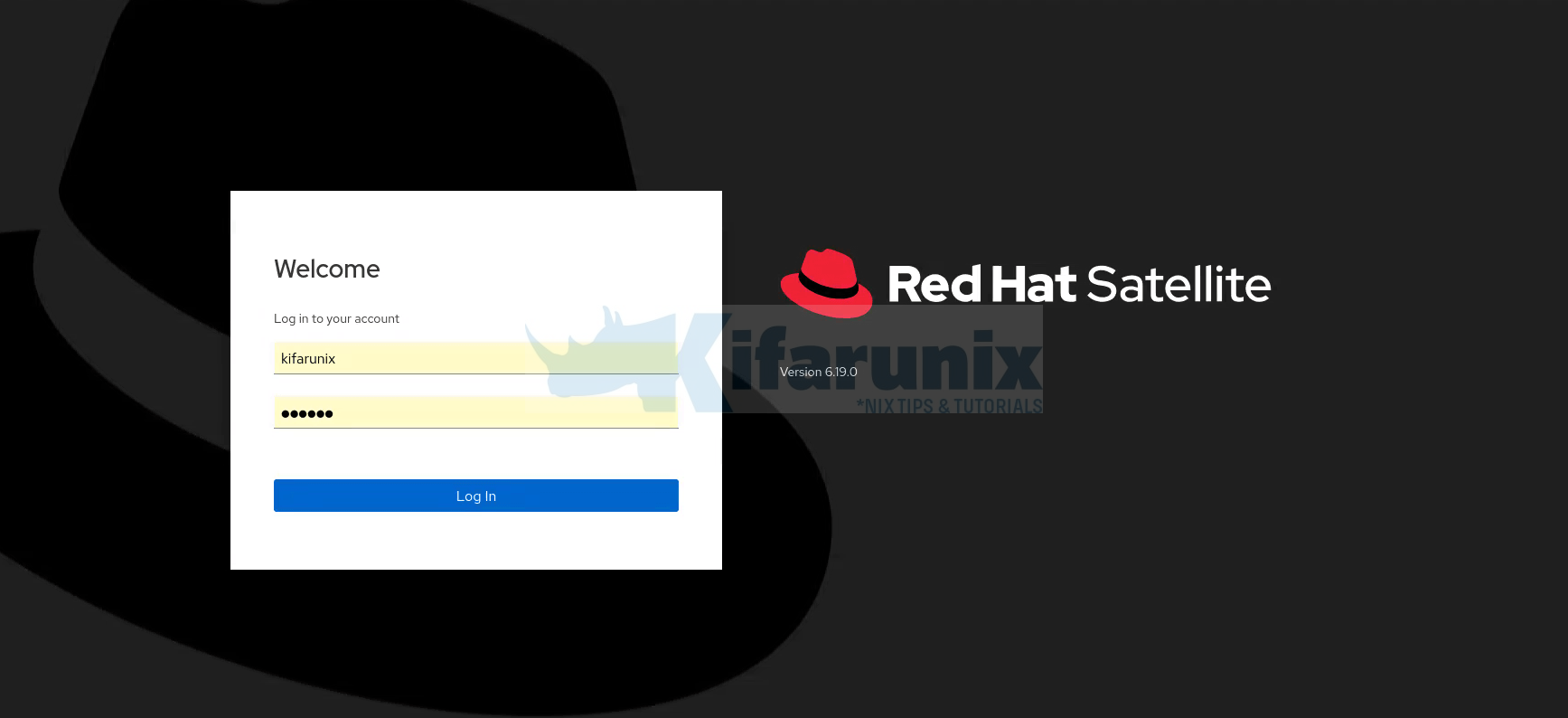
Red Hat Satellite 6.19.0.
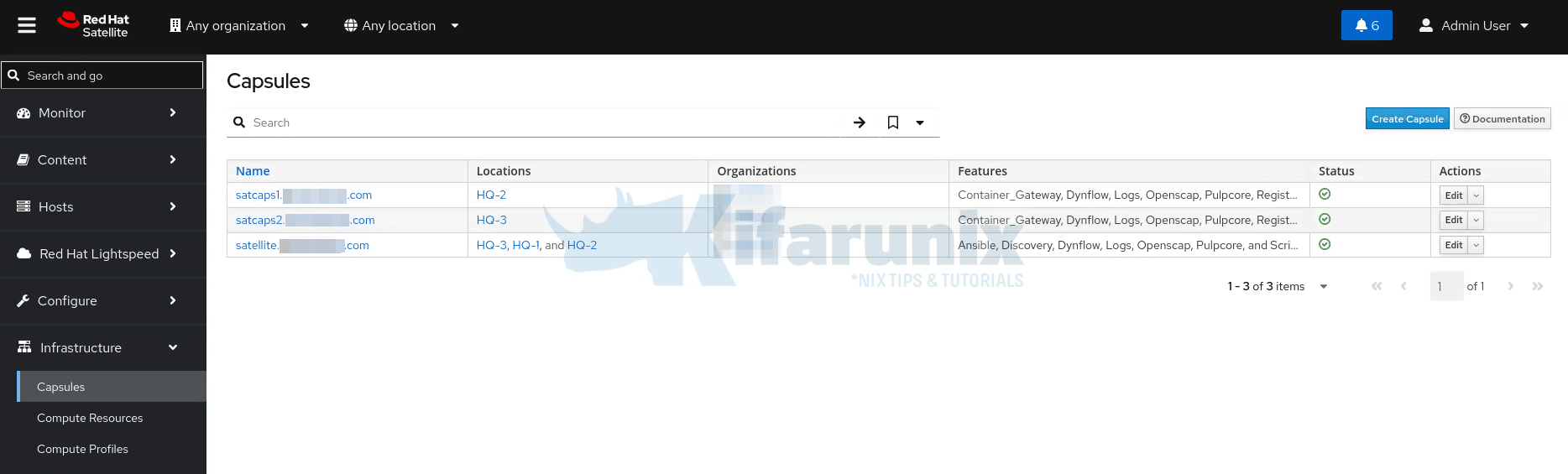
Capsule Servers (run on each Capsule node):
- Log in to the Capsule node
- Take a snapshot if it is a virtual machine, or create a backup if it is a physical machine
- Clean yum cache
- Ensure the Capsule and Maintenance 6.19 repos are synced, content view published and promoted (per What differs above)
- Enable the maintenance repo on the Capsule
- Run
satellite-maintain self-upgrade - Run
satellite-maintain upgrade checkand address all errors before proceeding - Install tmux and run the upgrade
- Reboot if instructed
- Validate the upgrade
Expected: satellite-capsule-6.19.x-1.el9sat.noarch
Post-upgrade tasks specific to this hop
- Check for changes to default provisioning templates and update any cloned templates.
- Reboot discovered hosts.
- If you use Red Hat Lightspeed, refresh registration on all managed hosts
- If you use Puppet, upgrade from Puppet agent 7 to OpenVox agent 8. Run on each host or via remote execution
Rollback Strategy
There is no automated rollback for a Satellite upgrade. Your only path back from a failed hop is a restore from the backup taken before that hop. This is why the backup before every hop is not optional.
If an upgrade run fails:
Step 1: Do not restart the upgrade immediately. Check the log first.
sudo tail -200 /var/log/foreman-installer/satellite.logsudo grep -iE --color "error|fatal|failed" /var/log/foreman-installer/satellite.logStep 2: If the failure is recoverable, such as a permission issue, disk space, or repo sync error, fix the root cause, re-run the health check, then re-run the upgrade.
sudo satellite-maintain upgrade checksudo satellite-maintain upgrade runStep 3: If the system is in an unrecoverable state, restore from the backup taken before this hop.
satellite-maintain restore <your-backup-destination>/Where where <your-backup-destination> is the directory created by the backup, not the parent destination directory you passed to satellite-maintain backup offline. The backup command creates a timestamped subdirectory inside your destination.
This restores Satellite to the state it was in before the failed hop. You can then investigate the root cause before attempting the hop again.
Similarly, if you had taken snapshot, you can simply revert to the last working state. But at least investigate the root cause first.
Permission errors during upgrade check
If satellite-maintain upgrade check fails with a permission error such as:
ERF73-0602 [Foreman::PermissionMissingException]: some permissions were not foundFix it with:
sudo satellite-maintain health check --label duplicate_permissionssudo foreman-rake db:seedsudo satellite-maintain health check --label duplicate_permissionsThen re-run satellite-maintain upgrade check before proceeding.
Read more on:
- Troubleshooting issues on Satellite 6.17
- Troubleshooting issues on Satellite 6.18
- Troubleshooting issues on Satellite 6.19
Conclusion
You have completed the full upgrade chain from Red Hat Satellite 6.16 to 6.19 across three sequential hops. Satellite 6.19 is the current Full Support release as of May 6, 2026, with Maintenance Support estimated until November 2027.
For detailed information on anything covered in this guide, the authoritative sources are:
- Upgrading connected Red Hat Satellite to 6.17
- Upgrading connected Red Hat Satellite to 6.18
- Upgrading connected Red Hat Satellite to 6.19
- Red Hat Satellite 6.17 Release Notes
- Red Hat Satellite 6.18 Release Notes
- Red Hat Satellite 6.19 Release Notes
- Red Hat Satellite Product Life Cycle
- Red Hat Satellite Upgrade Helper