
If you manage Red Hat Enterprise Linux at scale across multiple data centers, remote offices, or cloud regions, a single Satellite Server will eventually become your biggest bottleneck. Content synchronization becomes slow, remote execution jobs pile up, and a temporary Satellite outage can leave hundreds or thousands of hosts with no access to patches or content. The answer is the Red Hat Satellite Capsule Server.
This guide explains how to add Capsule servers to Red Hat Satellite from scratch, covering everything from architecture planning to adding lifecycle environments, assigning organizations and locations, and migrating hosts. Whether you are scaling from one node to two capsules, or building a global multi-site Satellite topology, every step is here.
We are running Satellite 6.16.7 on a single node. By the end of this guide, two fully functional Capsule Servers will be integrated into that Satellite, ready to serve content, handle host registration, run remote execution jobs, and provide PXE/DHCP/DNS provisioning services locally.
Table of Contents
How to Add Capsule Servers to Red Hat Satellite: A Complete Step-by-Step Guide
What Is a Satellite Capsule Server?
A Red Hat Satellite Capsule Server is a lightweight proxy that extends your Satellite infrastructure into remote locations, isolated network zones, or high-density environments. Think of it as a local representative of your Satellite that hosts can talk to instead of the central server.
A Capsule Server handles several critical functions that you might otherwise be pushing across WAN links or expecting a single Satellite to absorb:
- Content delivery at scale. A Capsule mirrors content from the Satellite Server and caches it locally. Hosts in that location pull packages, errata, and kickstart trees from the Capsule rather than from the central Satellite. This massively reduces WAN bandwidth usage and speeds up patching operations.
- High availability for content. When a Capsule is configured with the
ImmediateorBackgrounddownload policy, content is fully cached locally. Hosts can install packages and apply patches even when the Satellite Server is temporarily unreachable. WithOn Demand(the default), metadata is cached locally but package binaries are fetched from Satellite on first access.
- Distributed remote execution. Remote execution jobs dispatched to hosts in a capsule’s scope are proxied through that capsule. This means you can run Ansible playbooks or shell scripts at scale without routing every SSH connection through the central Satellite.
- Local provisioning services. Each Capsule can run its own DNS, DHCP, and TFTP services. New hosts being provisioned in a remote site talk to the local Capsule rather than traversing the WAN to reach Satellite.
- Scalability for large environments. Capsule Servers help distribute load when managing thousands of systems, maintaining performance across bulk operations like patching and remote execution.
The key version rule: for steady-state production operation, Capsule and Satellite versions must match. However, Red Hat supports a one-minor-version gap (N-1) specifically during upgrade windows, a 6.15 Capsule will continue working with a 6.16 Satellite Server, though any features new in 6.16 will not be available on that Capsule until it is also upgraded. Plan to bring all Capsules to 6.16 promptly after upgrading Satellite.
Architecture Overview: Single Satellite + Two Capsules
Our starting point is a single Red Hat Satellite 6.16.7 node. We are adding two external Capsule Servers. A typical layout for this scenario looks like this:
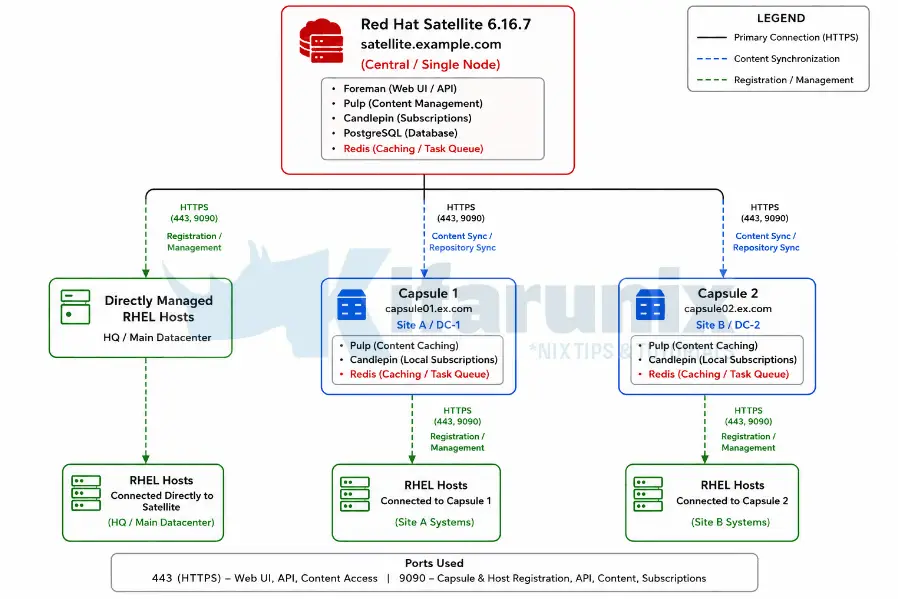
Hosts in Site A register to and receive content from capsule01, while hosts in Site B use capsule02 for local content access and lifecycle management. Hosts located in the primary datacenter or central site can also connect directly to the central Red Hat Satellite Server without using a Capsule. Both capsules remain synchronized with the central Satellite over HTTPS for repository content, subscriptions, and host management data. The Satellite Server acts as the centralized management plane for provisioning, lifecycle management, patching, reporting, and orchestration, while Capsules provide distributed services that reduce WAN traffic and improve performance for remote locations.
Planning Your Capsule Deployment
You need to answer these questions for each capsule you intend to deploy before you can proceed:
- Location and purpose. Is this capsule serving a geographic remote site, an isolated network segment, a cloud VPC, or simply distributing load from a single data center? This determines what services it needs to run.
- Content scope. Which lifecycle environments and content views will this capsule sync? Avoid assigning the
Librarylifecycle environment to a Capsule. The documentation explicitly warns that assigning Library triggers an automated sync every time the CDN updates a repository, which can exhaust system resources, network bandwidth, and disk space. - Download policy. Choose between:
On Demand(default): metadata is synced immediately, packages are pulled from Satellite on first host request and then cached on the capsule.Immediate: all content is pulled to the capsule during sync. Hosts are fully independent if Satellite goes down.Background: similar to Immediate but syncs asynchronously after the metadata sync completes.- For sites where network connectivity to Satellite is unreliable, use
Immediate. For sites with good WAN links and large repositories,On Demandsaves significant disk space.
- Services needed. Does this site need PXE provisioning? Then enable DHCP, DNS, and TFTP on the capsule. Only remote execution? A minimal capsule with content sync is enough.
- Storage. Plan generously. The
/var/lib/pulpdirectory can grow to 300 GB or more depending on the content you sync. The PostgreSQL data directory at/var/lib/pgsqlcan grow to double or triple the size of Satellite’s own database in large environments.
Prerequisites and Requirements
System Requirements
Each Capsule Server host must meet the following specifications before installation begins:
- Architecture: x86_64 only
- OS: Latest RHEL 9 or RHEL 8 (only these two are supported for Satellite 6.16 Capsules)
- CPU: Minimum 4-core 2.0 GHz
- RAM: Minimum 12 GB. At least 4 GB of swap space is also recommended. A capsule running with less than the minimum RAM may not operate correctly.
- Hostname: Fully qualified domain name (FQDN). Short names are not supported. Forward and reverse DNS must resolve correctly before installation starts.
- Locale: UTF-8 system locale required (e.g.,
en_US.UTF-8) - SELinux: Must be enabled in enforcing or permissive mode. Disabled SELinux is not supported.
- Time synchronization: The system clock must be synchronized with NTP/Chrony. If time is incorrect, SSL certificate verification will fail.
- Fresh system: Capsule must be installed on a freshly provisioned system with no other roles. The system must not have the following users pre-created by external identity providers:
apache,foreman-proxy,postgres,pulp,puppet,redis. - Satellite subscription manifest: Your Satellite must have the Red Hat Satellite Infrastructure Subscription manifest. The
satellite-capsule-6.16repository must be enabled and synced on Satellite. - Version match: Capsule version must exactly match Satellite version. Capsule 6.16 cannot register with Satellite 6.15 or any other version.
- No CDN registration: Do not register the Capsule host directly to the Red Hat Content Delivery Network. It must register through Satellite.
Important note on FIPS mode: if your organization requires FIPS, enable it on the RHEL host before installing Capsule. You cannot enable FIPS mode after the Capsule installation is complete.
Storage Requirements
The following table shows minimum and expected runtime storage for key directories, measured with RHEL 7, 8, and 9 repositories synchronized:
- /var/lib/pulp
- Installation Size: 1 MB
- Runtime Size: 300 GB
- /var/lib/pgsql
- Installation Size: 100 MB
- Runtime Size: 20 GB
- /usr
- Installation Size: 3 GB
- /opt/puppetlabs
- Installation Size: 500 MB
Storage guidelines to follow:
- Mount
/varon LVM storage so it can grow as content scales. - Use high-bandwidth, low-latency storage for
/var/lib/pulpand/var/lib/pgsql. Red Hat recommends a minimum of 60-80 MB/s. Use thestorage-benchmarkscript (available via the Red Hat KCS article Impact of Disk Speed on Satellite Operations) to validate your storage. - Do not use NFS for
/var/lib/pulp. NFS has a significant negative performance impact on content synchronization. - Do not use GFS2. Its I/O latency is too high.
- Use XFS as your file system. Because Capsule uses many symbolic links, ext4’s inode limitations can cause issues at scale.
- If
/tmpis mounted separately, ensure it uses theexecmount option in/etc/fstab. Thepuppetserverservice requires this. - You cannot use symbolic links for
/var/lib/pulp/.
Network and Firewall Requirements
The installation will fail if the required ports are not open before the installer runs. Open these ports on the Capsule host before proceeding.
Ports Capsule must accept (incoming):
| Port | Protocol | Purpose |
|---|---|---|
| 53 | TCP/UDP | DNS (optional) |
| 67 | UDP | DHCP (optional) |
| 69 | UDP | TFTP (optional) |
| 80, 443 | TCP | Content retrieval, host registration |
| 1883 | TCP | MQTT for pull-based REX (optional) |
| 8000 | TCP | Provisioning templates, PXE boot |
| 8140 | TCP | Puppet agent (optional) |
| 9090 | TCP | Capsule API, host registration endpoint, OpenSCAP |
Ports Capsule must reach outbound:
| Destination Port | Purpose |
|---|---|
| 22/TCP | Remote execution (SSH push mode) |
| 443/TCP | Satellite Server (sync, config, REX result upload) |
Open the ports and services on the capsule host for clients and Satellite:
sudo firewall-cmd \
  --add-port="8000/tcp" \
  --add-port="9090/tcp" \
  --permanent
sudo firewall-cmd \
--add-service=dns \
--add-service=dhcp \
--add-service=tftp \
--add-service=http \
--add-service=https \
--add-service=puppetmaster \
--permanentReload:
sudo firewall-cmd --reloadStep 1: Prepare the Capsule Host Operating System
All steps in this guide install and configure a single Capsule Server. We are deploying two capsules. Complete every step from here through Step 10 for capsule01.example.com first, then run through the entire guide again for capsule02.example.com. The only things that change on the second run are the hostname, the certificate files, and the satellite-installer command
On each future Capsule host, start with a clean RHEL 8 or RHEL 9 minimal installation. We are using RHEL 9 in this setup. Do not install additional packages or configure additional services.
Verify the hostname resolves correctly in both directions:
On the Capsule host
hostname -fShould return the FQDN, e.g.: capsule01.example.com
Verify forward resolution:
dig +short capsule01.example.comMust return the capsule’s IP
On Satellite Server, verify reverse resolution
dig +short -x <capsule_IP>Must return Capsule’s FQDN.
If either direction fails, fix DNS before continuing. Installation will not succeed without full forward and reverse DNS resolution.
Ensure time is synchronized:
Check chrony status
chronyc trackingIf not running, enable it
systemctl enable --now chronydVerify the locale:
localectl statusSystem Locale should show LANG=en_US.UTF-8
If needed:
localectl set-locale LANG=en_US.UTF-8Step 2: Register the Capsule Host to Satellite Server
The Capsule host must be registered to your Satellite Server, not directly to the Red Hat CDN.
Before registering, ensure your Satellite has:
- A subscription manifest installed containing the Red Hat Satellite Infrastructure Subscription for your organization
- The RHEL base OS repositories (RHEL 9 or RHEL 8 BaseOS and AppStream) enabled and synced
- The
satellite-capsule-6.16and satellite-maintenance-6.16 repositories enabled and synced for your respective OS version. - An activation key for the organization the capsule will belong to.
Register via Satellite web UI:
- In the central Satellite web UI, navigate to Hosts > Register Host.
- From the Activation Keys list, select the activation key for your organization.
- Click Generate to create the registration command.
- Copy the command using the files icon.
- SSH to the Capsule host and run the registration command.
Register via Hammer CLI (on Satellite Server):
Generate the registration command
hammer host-registration generate-command --activation-keys "Activation_Key"Switch to root user or prefix the bash with sudo and run the output command on the Capsule host.
Example registration command
set -o pipefail && curl --silent --show-error 'https://satellite.example.com/register?activation_keys=rhel9' --header 'Authorization: Bearer eyJhbGciOiJIUzI1NiJ.....' | sudo bashRegister via API:
curl -X POST https://satellite.example.com/api/registration_commands \
  --user "<username>" \
  -H 'Content-Type: application/json' \
  -d '{ "registration_command": { "activation_keys": ["Activation_Key"] }}'
After running the registration command on the Capsule host, verify the repositories are enabled:
sudo subscription-manager repos --list-enabledYou should see the enabled repositories your activation key subscribes to.
Step 3: Configure Repositories on the Capsule Host
After registering, explicitly enable only the required repositories and disable all others. This prevents conflicts and ensures only supported packages are installed.
For RHEL 9:
Disable all currently enabled repos
sudo subscription-manager repos --disable "*"Enable only the required repos for Satellite Capsule 6.16 on RHEL 9.
sudo subscription-manager repos \
  --enable=rhel-9-for-x86_64-baseos-rpms \
  --enable=rhel-9-for-x86_64-appstream-rpms \
  --enable=satellite-capsule-6.16-for-rhel-9-x86_64-rpms \
  --enable=satellite-maintenance-6.16-for-rhel-9-x86_64-rpms
For RHEL 8:
Disable all currently enabled repos:
sudo subscription-manager repos --disable "*"Enable only the required repos for Satellite Capsule 6.16 on RHEL 8
sudo subscription-manager repos \
  --enable=rhel-8-for-x86_64-baseos-rpms \
  --enable=rhel-8-for-x86_64-appstream-rpms \
  --enable=satellite-capsule-6.16-for-rhel-8-x86_64-rpms \
  --enable=satellite-maintenance-6.16-for-rhel-8-x86_64-rpms
RHEL 8 additionally requires enabling the satellite-capsule DNF module
sudo dnf module enable satellite-capsule:el8If you receive a warning about Ruby or PostgreSQL conflicts when enabling the satellite-capsule:el8 module on RHEL 8, consult the Troubleshooting DNF Modules appendix in the official documentation at Troubleshooting DNF modules.
Verify the correct repos are active:
sudo dnf repolist enabledSample output’
Updating Subscription Management repositories.
repo id                                                                         repo name
rhel-9-for-x86_64-appstream-rpms                                                Red Hat Enterprise Linux 9 for x86_64 - AppStream (RPMs)
rhel-9-for-x86_64-baseos-rpms                                                   Red Hat Enterprise Linux 9 for x86_64 - BaseOS (RPMs)
satellite-capsule-6.16-for-rhel-9-x86_64-rpms                                   Red Hat Satellite Capsule 6.16 for RHEL 9 x86_64 (RPMs)
satellite-maintenance-6.16-for-rhel-9-x86_64-rpms                               Red Hat Satellite Maintenance 6.16 for RHEL 9 x86_64 (RPMs)
Step 4: Install Capsule Server Packages
Before installing, update all packages on the host to pick up the latest security and bug fix updates from the enabled repositories:
sudo dnf update -yWait for this to complete. Then reboot if needed
sudo dnf install dnf-utils -yneeds-restarting -r || sudo systemctl reboot -iThen install the Capsule Server package:
sudo dnf install satellite-capsule -yThis pulls in all dependencies including foreman-proxy, pulpcore, and everything else the Capsule needs to function. The package itself does not configure or start any services; that happens in the next step via satellite-installer.
Step 5: Generate and Deploy SSL Certificates
Red Hat Satellite uses mutual TLS for all communication between Satellite Server, Capsule Servers, and managed hosts. Each Capsule must have its own unique certificate. You cannot reuse a certificate bundle from one capsule on another.
Choose one of the two options below based on your organization’s PKI requirements.
Option A: Default Certificate (Signed by Satellite’s Internal CA)
This is the simplest path. Satellite generates a certificate for the Capsule signed by Satellite’s own internal CA. All hosts that trust Satellite’s CA will automatically trust this Capsule’s certificate.
On Satellite Server, create a directory to store the certificate files:
mkdir ~/capsule_certOn Satellite Server, generate the certificate bundle for your first Capsule:
sudo capsule-certs-generate \
  --foreman-proxy-fqdn <first-capsule-fqdn> \
  --certs-tar ~/capsule_cert/first-capsule-fqdn-certs.tar
For example:
sudo capsule-certs-generate \
  --foreman-proxy-fqdn capsule01.example.com \
  --certs-tar ~/capsule_cert/capsule01.example.com-certs.tar
Replace capsule01.example.com with the actual FQDN of your Capsule host.
The command will produce output ending with a satellite-installer command block.
Sample output;
Preparing installation Done
  Success!

  To finish the installation, follow these steps:

  1. Register the Capsule to the Satellite instance.
  2. Ensure that the satellite-capsule package is installed on the system.
  3. Copy the following file /home/kifarunix/capsule_cert/satcaps1.example.com-certs.tar to the system satcaps1.example.com at the following location /root/satcaps1.example.com-certs.tar
  scp /home/kifarunix/capsule_cert/satcaps1.example.com-certs.tar [email protected]:/root/satcaps1.example.com-certs.tar
  4. Run the following commands on the Capsule (possibly with the customized
     parameters, see satellite-installer --scenario capsule --help and
     documentation for more info on setting up additional services):

  satellite-installer\
                    --scenario capsule\
                    --certs-tar-file                              "/root/satcaps1.example.com-certs.tar"\
                    --foreman-proxy-register-in-foreman           "true"\
                    --foreman-proxy-foreman-base-url              "https://satellite.example.com"\
                    --foreman-proxy-trusted-hosts                 "satellite.example.com"\
                    --foreman-proxy-trusted-hosts                 "satcaps1.example.com"\
                    --foreman-proxy-oauth-consumer-key            "DshSL4TrHuGoZwZNRz2NqMJZu6G6XEnc"\
                    --foreman-proxy-oauth-consumer-secret         "wdRZy4AK7Vh3sFxBKdVWtVV2oF7mgDY7"
Copy this entire block. It contains OAuth credentials and certificate paths specific to this capsule.
sudo satellite-installer --scenario capsule \
  --certs-tar-file "/root/capsule_cert/capsule01.example.com-certs.tar" \
  --foreman-proxy-register-in-foreman "true" \
  --foreman-proxy-foreman-base-url "https://satellite.example.com" \
  --foreman-proxy-trusted-hosts "satellite.example.com" \
  --foreman-proxy-trusted-hosts "satcaps1.example.com" \
  --foreman-proxy-oauth-consumer-key "GENERATED_KEY_HERE" \
  --foreman-proxy-oauth-consumer-secret "GENERATED_SECRET_HERE"
Copy this command exactly. The OAuth key and secret are unique to this capsule and will not be shown again.
Copy the certificate tarball to the Capsule host:
scp /root/capsule_cert/capsule01.example.com-certs.tar \
  [email protected]:/root/capsule01.example.com-certs.tar
On the Capsule host, run the satellite-installer command you copied from the output of capsule-certs-generate:
sudo satellite-installer --scenario capsule \
  --certs-tar-file "/root/capsule01.example.com-certs.tar" \
  --foreman-proxy-register-in-foreman "true" \
  --foreman-proxy-foreman-base-url "https://satellite.example.com" \
  --foreman-proxy-trusted-hosts "satellite.example.com" \
  --foreman-proxy-trusted-hosts "satcaps1.example.com" \
  --foreman-proxy-oauth-consumer-key "GENERATED_KEY_HERE" \
  --foreman-proxy-oauth-consumer-secret "GENERATED_SECRET_HERE"
Note: If network connections or ports between Satellite and Capsule are not yet fully open, add --foreman-proxy-register-in-foreman false to the installer command. This prevents the Capsule from attempting to contact Satellite during installation and avoids misleading errors. Once your network and firewall rules are correctly configured, re-run the full installer command with --foreman-proxy-register-in-foreman true to complete the registration.
The installer will configure all Capsule services and register the Capsule with Satellite. This takes several minutes. Successful completion looks like:
  Success!
  * Capsule is running at https://capsule01.example.com:9090
  The full log is at /var/log/foreman-installer/capsule.log
Do not delete the certificate tarball. It is required again when you upgrade the Capsule in the future.
Repeat the process for the second capsule node.
Option B: Custom SSL Certificate
Use this path if your organization requires certificates signed by an external PKI or corporate CA.
Create a directory on Satellite Server:
sudo -imkdir /root/capsule_certGenerate a private key for the Capsule (skip if you already have one):
openssl genrsa -out /root/capsule_cert/capsule_cert_key.pem 4096The private key must be unencrypted. If you have a password-protected key, strip the password before proceeding.
Create an OpenSSL configuration file for the CSR at /root/capsule_cert/capsule01-openssl.cnf:
[ req ]
req_extensions = v3_req
distinguished_name = req_distinguished_name
prompt = no

[ req_distinguished_name ]
commonName = capsule01.example.com
countryName = US
stateOrProvinceName = Oregon
localityName = Portland
organizationName = Example Organization
organizationalUnitName = IT Infrastructure

[ v3_req ]
basicConstraints = CA:FALSE
keyUsage = digitalSignature, keyEncipherment
extendedKeyUsage = serverAuth, clientAuth
subjectAltName = @alt_names

[ alt_names ]
DNS.1 = capsule01.example.com
The subjectAltName must match the Capsules FQDN exactly.
Generate the Certificate Signing Request:
openssl req -new \
  -key /root/capsule_cert/capsule_cert_key.pem \
  -config /root/capsule_cert/openssl.cnf \
  -out /root/capsule_cert/capsule_cert_csr.pem
Submit capsule_cert_csr.pem to your CA. You will receive back a signed certificate file and a CA bundle. The same CA must sign both the Satellite Server certificate and all Capsule Server certificates.
When the CA returns your signed certificate, you will typically receive one or both of the following:
- A signed certificate file for your capsule (the CA has signed your CSR). This is your capsule’s certificate. It may come as a
.pem,.crt, or.cerfile depending on your CA. - A CA bundle or CA chain file containing the intermediate and/or root CA certificates.
Before proceeding, save both files into /root/capsule_cert/ and confirm what you have:
Rename/copy the signed cert your CA returned to a consistent name
cp /path/to/returned_capsule_cert.pem /root/capsule_cert/capsule01_cert.pemRename/copy the CA bundle your CA returned:
cp /path/to/returned_ca_bundle.pem /root/capsule_cert/ca_cert_bundle.pemVerify the signed cert looks correct and matches the private key you generated.
Check the cert contents.
openssl x509 -in /root/capsule_cert/capsule01_cert.pem -noout -subject -issuer -datesVerify the cert and private key are a matching pair. Both commands must return the same MD5 hash
openssl x509 -noout -modulus -in /root/capsule_cert/capsule01_cert.pem | openssl md5openssl rsa -noout -modulus -in /root/capsule_cert/capsule_cert_key.pem | openssl md5If the two MD5 hashes do not match, you have the wrong cert or the wrong key. Do not proceed until they match.
Also verify the SAN is present in the signed cert:
openssl x509 -in /root/capsule_cert/capsule01_cert.pem -noout -ext subjectAltNameThe output must show DNS:capsule01.example.com. If the SAN is missing, your CA did not honour the CSR extensions. Contact your CA and request a reissue with SAN extensions preserved.
On Satellite Server, generate the certificate bundle using your custom certificate:
Now that you have the signed cert and CA bundle in place, generate the Satellite certificate tarball:
capsule-certs-generate \
  --foreman-proxy-fqdn capsule01.example.com \
  --certs-tar ~/capsule01.example.com-certs.tar \
  --server-cert /root/capsule_cert/capsule_cert.pem \
  --server-key /root/capsule_cert/capsule_cert_key.pem \
  --server-ca-cert /root/capsule_cert/ca_cert_bundle.pem
Copy the tarball to the Capsule host and run the satellite-installer command from the command output, exactly as described in steps above.
Deploy the custom CA certificate to hosts:
When Satellite uses its own internal CA (Option A), every host already trusts Satellite’s CA because the katello-ca-consumer package installed during registration bundles that CA. The host can therefore also trust any Capsule signed by the same CA without any extra steps.
When you use a custom CA (this option), hosts do not automatically trust it. Each host that will talk to this Capsule needs to install the Capsule’s CA bundle so it can verify the Capsule’s certificate during HTTPS connections. Without this, package installs, content sync, and host registration through the Capsule will fail with SSL errors.
The katello-ca-consumer-latest.noarch.rpm package served by the Capsule at /pub/ does two things: it installs your custom CA certificate into the host’s trust store, and it configures the host’s subscription-manager to point at this Capsule as its content source.
Run this on every host that will register to or receive content from this Capsule:
sudo dnf install http://capsule01.example.com/pub/katello-ca-consumer-latest.noarch.rpmThis replaces any previously installed katello-ca-consumer package on the host. If the host was previously pointing at a different Capsule or at Satellite directly, this command updates that configuration. For hosts that are already registered and you are migrating to this Capsule, run this command before running the Change Content Source job in Step 10, otherwise the host will fail to connect to the new Capsule.
Step 6: Assign Organization and Location to Capsule
After the installer completes, the Capsule is registered in Satellite but may not yet be visible to the correct organization and location context. If you have more than one organization or location, you must manually assign them.
The organization and location you want to assign to the Capsule must already exist in Satellite before you can assign them. Satellite creates one default organization and one default location during installation. If you need additional ones for separate sites, create them first.
To create a location:
- Navigate to Administer > Locations.
- Click New Location.
- Enter a name (for example
Site-AorDC-Q). - Optionally, click the Capsules tab and move your Capsule from Available items to Selected items to assign it in one step rather than separately later.
- Click Submit.
To create an organization:
- Navigate to Administer > Organizations.
- Click New Organization.
- Enter a name.
- Click Submit.
Note that Satellite does not require different IP subnets for different locations. Location assignment is purely administrative. You can assign Capsules in different locations even if all three nodes share the same subnet as Satellite Server. Subnets in Satellite are a separate concept managed under Infrastructure > Subnets and are used for provisioning purposes only.
Assign the organization:
- Log in to the Satellite web UI.
- Set the Organization context selector in the top-left to Any Organization.
- Set the Location context selector to Any Location.
- Navigate to Hosts > All Hosts and find the Capsule host.
- Select it, click Select Actions, then Assign Organization.
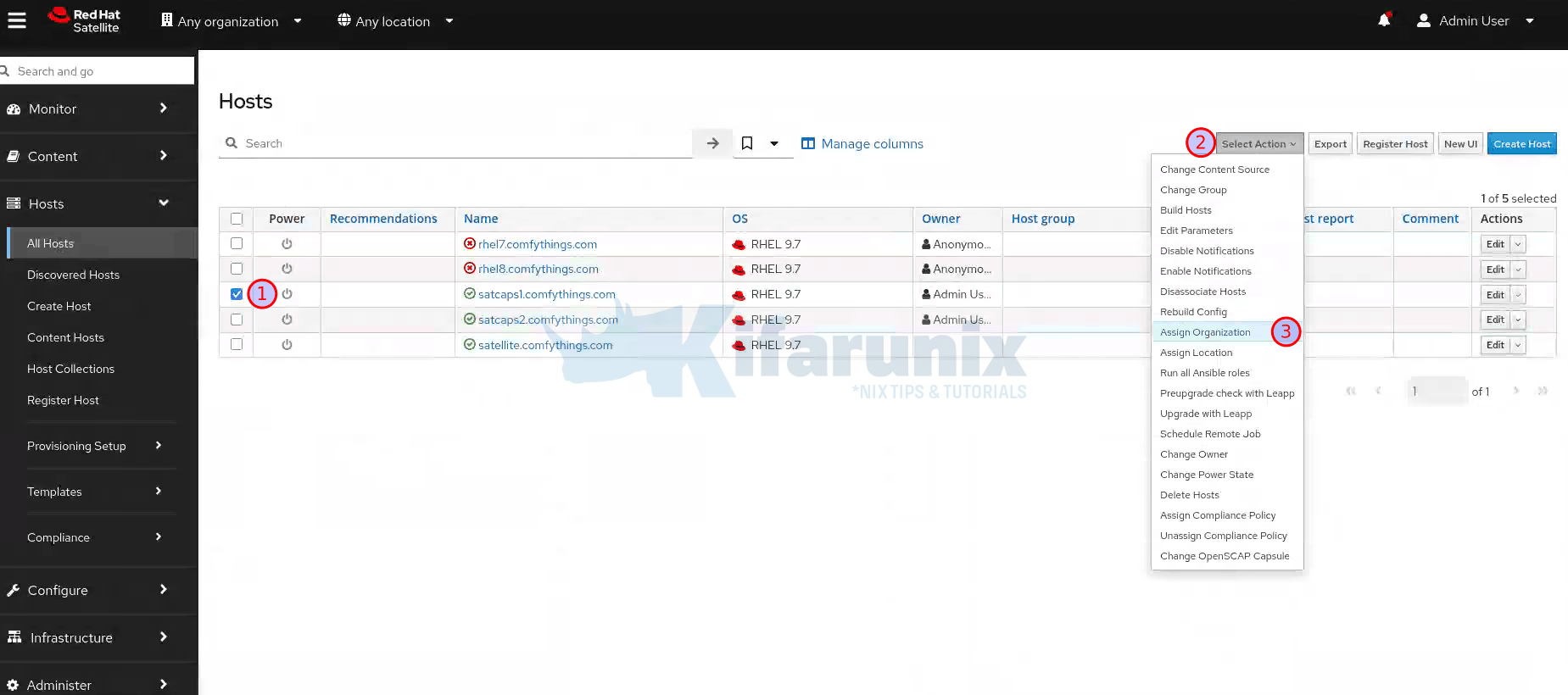
- Choose the correct organization from the list.
- Click Fix Organization on Mismatch, then Submit.
Assign the location:
Before assigning a location to the Capsule, the location must already exist in Satellite. If you are working with the default setup, Satellite creates one default organization and one default location during installation. If your two capsules are serving different sites, you need a separate location for each site so you can scope content, provisioning, and host management per site.
Create a location if it does not already exist:
- Navigate to Administer > Locations.
- Click New Location.
- Enter a name for the location (for example
Site-AorDC-15). - Optionally nest it under a parent location if you have a hierarchy.
- Click Submit.
- You can then assign a capsule to that specific location directly from the edits page.
Repeat for each site your capsules will serve. Once the locations exist, proceed with assigning them to the Capsule, if you didn’t assign while creating the location.
- Ensure you set the Organization context selector in the top-left to Any Organization.
- On the Hosts > All Hosts > select the Capsule host entry, click Select Actions, then Assign Location.
- Choose the correct location.
- Click Fix Location on Mismatch, then Submit.
Verify the organization and location assignments:
- Navigate to Administer > Organizations, click your organization.
- Go to the Capsules tab. Confirm the Capsule appears under Selected items.
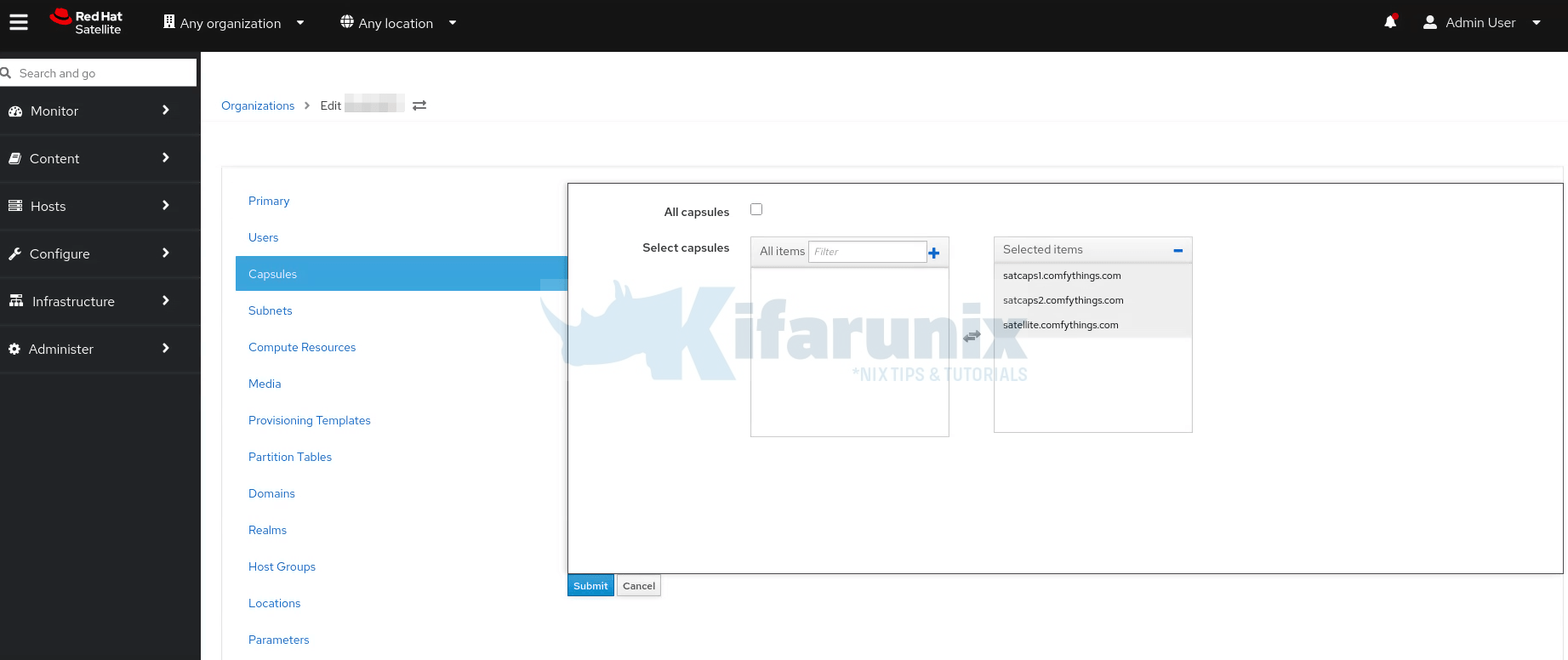
- Click Submit.
- Navigate to Administer > Locations, click your location.
- Go to the Capsules tab. Confirm the Capsule appears under Selected items. Click Submit.
Now set the correct context:
- Select your organization from the Organization selector at the top menu.
- Select your location from the Location selector at the top menu.
- Navigate to Infrastructure > Capsules.
Your Capsule should now appear in the list with its status visible.
Step 7: Add Lifecycle Environments to the Capsule
A Capsule only synchronizes content for the lifecycle environments assigned to it. You must assign at least one lifecycle environment before any content will flow to the Capsule.
Red Hat explicitly recommends against assigning the Library lifecycle environment to a Capsule because Library receives an automated sync trigger every time any repository updates from the CDN, which can happen multiple times per day. This consumes significant disk space, bandwidth, and CPU on the Capsule with no content curation or control. However, if Library is the only lifecycle environment available in your Satellite at this point, you can assign it temporarily to get the Capsule functioning while you plan your lifecycle environment structure. Refer to Managing Content for guidance on creating lifecycle environments and promoting Content Views when you are ready.
Create a dedicated lifecycle environment for each capsule’s scope (e.g., Site-A-Production, Site-A-Dev) and assign those instead.
Via web UI:
- Navigate to Infrastructure > Capsules.
- Click on the Capsule name.
- Click Edit, then click the Lifecycle Environments tab.
- From the left panel, select the lifecycle environment(s) you want to sync to this Capsule.
- Click Submit.
Via Hammer CLI:
List all capsules to find your capsule’s ID
hammer capsule listView details of the capsule, say capsule of ID 2.
hammer capsule info --id 2See lifecycle environments available for this capsule
hammer capsule content available-lifecycle-environments --id 2Add a specific lifecycle environment to the capsule
hammer capsule content add-lifecycle-environment --id 2 --lifecycle-environment-id 3 --organization "My_Organization"Repeat for each lifecycle environment
Step 8: Synchronize Content to the Capsule
After assigning lifecycle environments, trigger the initial synchronization.
Via web UI:
- Navigate to Infrastructure > Capsules.
- Click on your Capsule.
- On the Overview tab, click Synchronize. Choose one of:
- Optimized Sync: Syncs only content that has changed since the last sync, checking metadata before downloading. This is the standard routine sync option.
- Complete Sync: Syncs all content without checking existing metadata. Use this for the first sync, after a corrupted repository, or when content appears missing on the Capsule. This is equivalent to running
hammer capsule content synchronize --skip-metadata-check true. - Reclaim Space: Does not sync new content. Instead it removes cached packages from the Capsule that are no longer needed based on the current download policy. Use this when
/var/lib/pulpis consuming more disk space than expected, particularly after switching repositories fromImmediatetoOn Demanddownload policy. This frees disk space without affecting what hosts can access.
For the very first sync, Complete Sync is recommended to ensure a clean state.
Via Hammer CLI:
Sync all lifecycle environments assigned to the capsule
hammer capsule content synchronize --id <capsule-id>Sync a specific lifecycle environment only
hammer capsule content synchronize --id 2 --lifecycle-environment-id 3Complete sync (skip metadata check, equivalent to Complete Sync in the UI)
hammer capsule content synchronize --id 2 --skip-metadata-check trueThe first synchronization can take a significant amount of time depending on the size of your content views and the network speed between Satellite and the Capsule. Monitor progress in Infrastructure > Capsules > [Capsule Name] > Content tab or in Satellite’s background tasks.
Note, after the initial sync you performed in this step, Capsule content stays current automatically. Every time a new Content View version is published and promoted to a lifecycle environment assigned to this Capsule, Satellite automatically triggers a Capsule sync for that environment. No cron jobs or additional sync schedules are required for the Capsule itself. Sync Plans in Satellite manage the Satellite-to-CDN sync cadence, not the Satellite-to-Capsule sync. The Capsule sync is driven by Content View promotion events.
Step 9: Configure Additional Capsule Features
At this point the Capsule is installed and syncing content. The following subsections cover additional features you may want to enable based on your use case.
Host Registration and Provisioning (Trusted Proxies)
For Satellite to correctly identify client IP addresses forwarded by Capsule in the X-Forwarded-For HTTP header, you must add the Capsule to Satellite’s trusted proxy list.
Run this on Satellite Server. Note: this command overwrites the existing trusted proxy list, so include all existing capsule IPs and the localhost entries:
satellite-installer \
  --foreman-trusted-proxies "127.0.0.1/8" \
  --foreman-trusted-proxies "::1" \
  --foreman-trusted-proxies "192.168.10.50" \
  --foreman-trusted-proxies "192.168.20.50"
Replace the IP addresses with the actual IPs of your two Capsule Servers. The 127.0.0.1/8 and ::1 entries for localhost are required and must always be included.
Verify the current trusted proxies list:
sudo satellite-installer --full-help | grep -A 2 "trusted-proxies"Pull-Based Remote Execution (MQTT)
By default, remote execution uses SSH push from Capsule to hosts (Capsule initiates the connection). If your network topology prevents outbound connections from Capsule to hosts, you can enable pull-based transport using MQTT. In pull mode, hosts initiate a persistent MQTT connection to the Capsule and listen for job notifications.
Pull mode works only with the Script provider. Ansible jobs use their own connection plugin and are not affected by the Script provider’s pull-mqtt mode setting.
On the Capsule host:
Enable pull-mqtt mode
sudo satellite-installer --foreman-proxy-plugin-remote-execution-script-mode=pull-mqttOpen MQTT port:
sudo firewall-cmd --add-service=mqtt --permanent
sudo firewall-cmd --reload
In the Satellite web UI:
- Navigate to Administer > Settings.
- On the Content tab, set Prefer registered through Capsule for remote execution to Yes.
This ensures Satellite routes remote execution jobs to the Capsule through which a host registered, rather than defaulting to Satellite’s own Capsule.
After enabling pull mode on the Capsule, you must also configure each host for pull transport. See Transport modes for remote execution in the official documentation.
OpenSCAP on Capsule
OpenSCAP is enabled by default on the Satellite Server’s integrated Capsule. On external Capsules, you must enable it explicitly.
On each Capsule host:
sudo satellite-installer \
  --enable-foreman-proxy-plugin-openscap \
  --foreman-proxy-plugin-openscap-ansible-module true \
  --foreman-proxy-plugin-openscap-puppet-module true
If you plan to deploy compliance policies using Puppet, ensure Puppet integration is configured on this Capsule before enabling these options. Refer to Managing configurations by using Puppet integration.
DNS, DHCP, and TFTP for Provisioning
If this Capsule will handle PXE-based provisioning for its local site, configure DNS, DHCP, and TFTP during or after installation. You can run this command multiple times; each run updates all configuration files with changed values.
On each Capsule host:
In the command below, adjust all IP addresses, DNS zone names, and DHCP ranges to match your environment. You must know the correct dns-interface and dhcp-interface names before running this. Contact your network team to confirm.
sudo satellite-installer \
  --foreman-proxy-dns true \
  --foreman-proxy-dns-managed true \
  --foreman-proxy-dns-zone example.com \
  --foreman-proxy-dns-reverse 2.0.192.in-addr.arpa \
  --foreman-proxy-dhcp true \
  --foreman-proxy-dhcp-managed true \
  --foreman-proxy-dhcp-range "192.0.2.100 192.0.2.150" \
  --foreman-proxy-dhcp-gateway 192.0.2.1 \
  --foreman-proxy-dhcp-nameservers 192.0.2.2 \
  --foreman-proxy-tftp true \
  --foreman-proxy-tftp-managed true \
  --foreman-proxy-tftp-servername 192.0.2.3
Monitor the installer progress in /var/log/foreman-installer/satellite.log.
For integrating with external DNS or DHCP servers (ISC DHCP, Infoblox, IdM), refer to Chapters 4 through 7 of the official Installing Capsule Server guide.
BMC / Power Management
To manage host power state (on/off/cycle) via IPMI or similar protocols, enable the BMC module.
Prerequisite: Each host must have a BMC network interface configured in Satellite before power management can work. See Adding a Baseboard Management Controller Interface in the Managing Hosts guide.
sudo satellite-installer \
  --foreman-proxy-bmc "true" \
  --foreman-proxy-bmc-default-provider "freeipmi"
Step 10: Migrate Existing Hosts to the Capsule
With the Capsule running and syncing content, you can migrate existing hosts from the Satellite’s integrated Capsule to the new external Capsule. This changes where hosts fetch their content and send their registration traffic.
Via web UI:
- Navigate to Hosts > All Hosts.
- Select the host(s) you want to move to this Capsule.
- Click Select Actions, then Change Content Source.
- In the Change Content Source dialog:
- Content source: Select your new Capsule (e.g.,
capsule01.example.com) - Lifecycle environment: Select the lifecycle environment you assigned to this Capsule
- Content View: Select the correct Content View for these hosts
- Content source: Select your new Capsule (e.g.,
- Click Run job at the bottom of the screen.
- On the Run job screen, click Run on selected hosts.
After the job completes, verify that the hosts’ redhat.repo now points to the Capsule:
grep baseurl /etc/yum.repos.d/redhat.repoOutput should show the Capsule’s FQDN in the URL
# e.g.: baseurl = https://capsule01.example.com/pulp/content/...Step 11: Repeat for the Other Capsules
The entire process above covers one Capsule. To add the second Capsule (capsule02.example.com), repeat every step for the second host:
- Prepare the OS on
capsule02.example.com - Register it to Satellite
- Enable repositories (with the second capsule’s appropriate lifecycle environment in mind)
- Install
satellite-capsule - Generate a new certificate bundle on Satellite Server for
capsule02.example.com. - Copy the tarball to
capsule02.example.comand run its uniquesatellite-installercommand from the output - Assign it to the appropriate organization and location for Site B
- Assign the Site B lifecycle environments
- Synchronize content
- Configure any additional features (pull-REX, OpenSCAP, DNS/DHCP/TFTP)
- Migrate Site B hosts to
capsule02
Do not reuse the certificate tarball or the satellite-installer command from capsule01. Every capsule must have a distinct certificate bundle and a distinct OAuth key/secret pair.
Verifying Your Capsule Deployment
After completing setup for both capsules, verify everything is working correctly.
Check Capsule status in the web UI:
- Navigate to Infrastructure > Capsules.
- Both capsules should appear in the list.
- Click each capsule and go to the Overview tab.
- Click Refresh features and confirm all features show green status.
Verify content sync:
Navigate to Infrastructure > Capsules > [Capsule Name] > Content tab. Verify the assigned lifecycle environments show synchronized status.
Check Capsule via Hammer:
List all capsules
hammer capsule listGet detailed info on a specific capsule:
hammer capsule info --id 2Check content sync status:
hammer capsule content info --id 2Verify from the Capsule host:
Check that the foreman-proxy service is running
systemctl status foreman-proxyVerify the Capsule API is accessible
curl -k https://capsule01.example.com:9090/featuresThe API should return a JSON list of enabled features such as Pulp3, Dynflow, Script, etc.
Verify a host is using the Capsule:
On a migrated host:
grep baseurl /etc/yum.repos.d/redhat.repoEach baseurl should reference your Capsule’s FQDN
Test that yum can reach the Capsule
dnf clean all
dnf repolist
Optional: Alternate Content Sources (ACS)
Alternate Content Sources allow a Capsule to download Red Hat content directly from the Red Hat CDN rather than pulling it from the central Satellite Server. Metadata is still managed through Satellite, and Content View curation still happens on Satellite. Only the actual package binary download is redirected.
This is valuable when your Capsule has a better network path to the nearest Red Hat CDN node than to your central Satellite. It reduces WAN bandwidth costs and can significantly improve sync times.
To configure Simplified ACS (Red Hat CDN source):
- In the Satellite web UI, navigate to Content > Alternate Content Sources.
- Click Add source.
- Select Simplified and then Yum. Click Next.
- Name the ACS source. Click Next.
- Select the Capsule Server(s) that should use this ACS. Click Next.
- Select the Red Hat products to sync via ACS. Click Next.
- Review and click Add.
After adding the ACS, trigger a sync from the Capsule content screen to see it take effect.
Troubleshooting Common Capsule Issues
Installation fails with “port not open” error
The Satellite installer validates connectivity before proceeding. If ports 443 or 9090 are blocked between Satellite and the Capsule, installation will fail. Open all required ports and re-run the installer.
Certificate errors after installation
Verify that the FQDN in the certificate matches the actual hostname resolving to the Capsule. Check with:
openssl s_client -connect capsule01.example.com:9090 </dev/null 2>/dev/null | openssl x509 -noout -subject -issuerIf you see CN mismatches, regenerate the certificate bundle on Satellite with the correct FQDN.
Capsule shows “Unknown” status in web UI
Try clicking Refresh features on the Capsule’s Overview tab. If it remains Unknown, check:
On the Capsule:
systemctl status foreman-proxyjournalctl -u foreman-proxy -n 50 --no-pagertail -100 /var/log/foreman-proxy/proxy.logContent sync stuck or failing
Check for disk space issues on /var/lib/pulp. Full disk is the most common reason sync fails. Also check:
On Satellite:
foreman-maintain service statustail -200 /var/log/foreman/production.log | grep -i errorDNF module conflicts on RHEL 8
When enabling satellite-capsule:el8, you may see conflicts with existing Ruby or PostgreSQL modules. Refer to the official troubleshooting appendix at DNF module conflicts on RHEL 8.
Hosts cannot reach Capsule after migration
Confirm that port 443 is open from the host subnet to the Capsule. Also check whether the katello-ca-consumer RPM on the host is pointing to the correct CA. If the Capsule uses a custom certificate, reinstall the CA bundle from the Capsule:
sudo dnf install http://capsule01.example.com/pub/katello-ca-consumer-latest.noarch.rpmCapsule Scalability Considerations
Capsule performance depends directly on the hardware underneath it. The official documentation (Appendix A of the Installing Capsule Server guide) provides detailed Capsule Server Compute Performance guidelines covering how throughput scales with increasing CPU cores and RAM.
Key points:
- For environments with a very large number of concurrent host connections, consider placing
/var/lib/pulpand/var/lib/pgsqlon separate high-IOPS volumes. - Capsule Server supports horizontal scaling across multiple capsules; there is no hard limit on how many capsules you can attach to a single Satellite Server.
- Capsules are asynchronously connected to Satellite. Periodic network interruptions between them do not disrupt host access to content (provided the Capsule’s download policy is
Immediateor content is already cached). - Satellite supports running a Capsule that is one minor version (one Y-stream release) behind the current Satellite version during upgrade windows, for example, a 6.15 Capsule with a 6.16 Satellite. This is not a major version gap. There is no support for running Capsules across major version boundaries.
Summary and Next Steps
Adding Capsule Servers to Red Hat Satellite transforms a single-node management platform into a scalable, resilient, and distributed RHEL management topology. Here is the condensed version of everything covered:
- Plan your capsule deployment: identify sites, choose lifecycle environments, decide on download policy, and size your storage correctly.
- Provision a clean RHEL 8 or RHEL 9 host meeting the minimum requirements (12 GB RAM, 4-core CPU, FQDN with full DNS resolution, XFS filesystem, synchronized time).
- Open the required firewall ports before starting the installer.
- Register the capsule host to Satellite via global registration and an activation key.
- Enable only the required repositories and (for RHEL 8) enable the
satellite-capsule:el8DNF module. - Install the
satellite-capsulepackage. - Generate a unique SSL certificate bundle using
capsule-certs-generateon Satellite Server. - Copy the tarball to the capsule and run the
satellite-installercommand from the output. - Assign the correct organization and location to the capsule in the Satellite web UI.
- Add lifecycle environments (never Library directly) and trigger a Complete Sync.
- Configure optional features: trusted proxies, pull-based REX, OpenSCAP, DNS/DHCP/TFTP, BMC.
- Migrate existing hosts using Change Content Source from the Hosts menu.
- Repeat the entire process for the second capsule with its own unique certificate bundle.
With two capsules in place, you have the foundation for a production-grade, multi-site Satellite topology that can scale to thousands of managed RHEL hosts without taxing a single central server.