
Follow this guide to deploy Ansible Automation Platform (AAP) using containers on RHEL 9 or RHEL 10, covering everything from a bare host to a fully running AAP stack. As of AAP 2.5, the containerized installer powered by Podman is no longer optional or experimental: it is the standard. The RPM era is ending. This guide gives you OS requirements, inventory files, online and offline installs, production hardening, and the errors that will trip you up if nobody warns you about them, all in one place.
Table of Contents
How to Deploy Ansible Automation Platform (AAP) Using Containers
Why Containerized AAP?
Red Hat made containerized AAP the default with version 2.5. The RPM-based installer is deprecated and by AAP 2.7 it will be gone entirely. Here is what you get with the containerized path:
- Rootless security by default. All AAP services run as unprivileged Podman containers under a non-root user. Root access is not required during installation or operation.
- No RPM dependency hell. The installer bundle ships everything: Automation Controller, Automation Hub, Event-Driven Ansible (EDA), Platform Gateway, PostgreSQL, and Redis, all as pre-built container images.
- Consistent, repeatable deployments. One inventory file drives the entire installation. The same file drives updates, backups, and restores.
- Clean storage layout. All runtime data, configuration files, container images, and Podman volumes live under the installing user’s home directory. Specifically
$HOME/aap/for component config and$HOME/.local/share/containers/for images and volumes.
One trade-off worth knowing upfront: Podman does not support storing container images on an NFS share. If your home directory is on NFS, you need to configure Podman’s storage backend to point somewhere local. More on that in the hardening section.
Do You Need RHEL OS?
Yes. RHEL is required for a supported deployment. Here is the full support matrix:
| AAP Version | Supported OS | Notes |
|---|---|---|
| AAP 2.4 (Tech Preview) | RHEL 9.4 | Tech Preview only, not for production |
| AAP 2.5 (GA) | RHEL 9.4 or later; RHEL 10 | RHEL 9.0 through 9.3 are not supported |
| AAP 2.6 (GA) | RHEL 9 or RHEL 10 | Last version with an RPM installer. RHEL 10 do not support RPM installation |
CentOS Stream, Rocky Linux, AlmaLinux? Red Hat does not support AAP on these distributions. The installer may work for lab purposes but will hit issues with subscription-manager validation and missing Red Hat AppStream repositories. For production, use RHEL.
Docker instead of Podman? Not supported. The containerized installer is built on rootless Podman and Docker is not interchangeable here.
OpenShift? That is a separate track using the Operator-based installation method. This guide covers the RHEL-based containerized installer only.
What Changed Between AAP 2.4, 2.5, and 2.6
AAP 2.4: Tech Preview
- Containerized installer released as Technology Preview, not for production use
- No unified UI: Controller, Hub, and EDA had separate login pages
- RHEL 9.4 required
- No
[automationgateway]group in the inventory file - Disk: 40 GB, IOPS: 1500
AAP 2.5: The New Standard
- Platform Gateway introduced: single unified web UI for Controller, Hub, and EDA
- Containerized installer is now Generally Available
- RPM installer officially deprecated
- Redis added to both Growth and Enterprise topologies
[automationgateway]group now required in the inventory file (omitting it will break the install)- Disk requirement raised to 60 GB total, IOPS raised to 3000
- Two inventory templates:
inventory-growthandinventory-enterprise
AAP 2.6: RHEL 10 and RPM Sunset
- RHEL 9 and RHEL 10 both supported
- Last version with an RPM installer (RHEL 9 only). For the RPM installation method, see Install Ansible Automation Platform on RHEL 9 using RPM.
- AAP 2.7 will have no RPM installer at all
- PostgreSQL 15 for bundled installs; external databases require ICU support
System Requirements
Per Virtual Machine (Growth and Enterprise)
| Requirement | Minimum |
|---|---|
| RAM | 16 GB |
| CPUs | 4 vCPUs |
| Total disk space | 60 GB |
| Installation directory | 15 GB (if on a dedicated partition) |
/var/tmp for online installs | 1 GB |
/var/tmp for bundled/offline installs | 3 GB |
/tmp for bundled/offline installs | 10 GB |
| Disk IOPS | 3000 |
RAM exception: If you are doing a Growth topology bundled install with hub_seed_collections=true, you need 32 GB RAM. Collection seeding can take 45 minutes or more. Collection seeding is the process of automatically populating Automation Hub with a predefined set of Ansible content collections during installation. This ensures that the hub is preloaded with usable content. Because this process involves bulk data import and indexing, it is resource-intensive and can take 45 minutes or more to complete.
Supported CPU Architectures
- x86_64, AArch64,
- s390x (IBM Z),
- ppc64le (IBM Power)
ansible-core Version Requirements
- RHEL 9: ansible-core v2.14 or later
- RHEL 10: ansible-core v2.16 or later
Install ansible-core from the RHEL AppStream repository before running the installer. The version you get depends on your RHEL version so you do not need to pin it manually.
Database
- Bundled installs: PostgreSQL 15 is installed and managed automatically
- External (customer-provided) databases: must have International Components for Unicode (ICU) support
Network Ports
- Port 443
- Protocol: HTTPS
- Service: Platform Gateway / Web UI
- Port 5432
- Protocol: TCP
- Service: PostgreSQL
- Port 6379
- Protocol: TCP
- Service: Redis
- Port 27199
- Protocol: TCP
- Service: Receptor (execution nodes)
Growth vs Enterprise Topology
Growth Topology (All-in-One)
All AAP services run on one or a small number of nodes. This is your starting point for:
- Lab and development environments
- Small teams and proof-of-concept deployments
- Organizations evaluating AAP before scaling out
Uses the inventory-growth template.
Enterprise Topology (Production Scale)
Services are distributed across dedicated hosts and each service gets its own Redis instance. Use this for:
- Production environments at scale
- High-availability requirements
- Teams that need to scale Controller, Hub, and EDA independently
Uses the inventory-enterprise template.
Rule of thumb: Start with Growth. If you need to move to Enterprise later, the migration requires a backup and restore procedure, so plan your topology and hostname before going live.
We will use All-in-one deployment option in this guide.
Pre-Installation Checklist
Run through this before touching a single command:
- RHEL 9.4 (minimum) or RHEL 10 host. We are using RHEL 10.
- Host registered with
subscription-manager register - Only
baseos-rpmsandappstream-rpmsrepositories enabled - Non-root user created with
sudoprivileges - SSH public key authentication configured (required for multi-node remote installs)
- FQDN set, and
hostname -freturns a proper fully qualified domain name - 60 GB total available disk space. We are using single 100G drive for this demo.
- Home directory is not on NFS, or Podman storage configured to a local path
- Ports 443, 5432, 6379, 27199 open between all nodes
- Valid Red Hat subscription (or free Developer subscription at developers.redhat.com)
- Red Hat registry credentials for
registry.redhat.ioready - AAP installer downloaded
Deploy Ansible Automation Platform (AAP) Using Containers
Step 1: Prepare Your RHEL Host
Log in as your non-root user. Do not run the installer as root.
Set and verify the FQDN
hostname -fExpected output is your AAP node FQDN e.g aap.yourdomain.com
If it is not set (replace the domain name accordingly):
sudo hostnamectl set-hostname <app-node-fqdn>For example:
sudo hostnamectl set-hostname aap.comfythings.comMake sure it resolves locally, for example:
dig aap.comfythings.com +shortSample output;
10.185.10.59If you don’t have DNS setup, you can use hosts file:
echo "IP FQDN" | sudo tee -a /etc/hostsFor example;
echo "10.185.10.59 aap.comfythings.com" | sudo tee -a /etc/hostsRegister with Red Hat Subscription Manager
Simple Content Access (SCA) is the default for all current Red Hat accounts. Registration is the only step required.
sudo subscription-manager registerEnter your username and password.
If your environment requires a proxy to access the Red Hat CDN, configure it before registration:
sudo subscription-manager config --server.proxy_hostname=<proxy_host> --server.proxy_port=<proxy_port>If authentication is required:
sudo subscription-manager config \
  --server.proxy_hostname=<proxy_host> \
  --server.proxy_port=<proxy_port> \
  --server.proxy_user=<username> \
  --server.proxy_password=<password>
Then register the system
sudo subscription-manager registerVerify it worked:
sudo subscription-manager identitySuccessful registration output includes:
- A system identity (UUID)
- The registered system name
- The Red Hat account (org name and org ID)
Example output:
system identity: 12345678-90ab-cdef-1234-567890abcdef
name: aap.comfythings.com
org name: 1234567
org ID: 1234567
Verify only the right repositories are enabled
sudo dnf repolistExpected for RHEL 9:
rhel-9-for-x86_64-appstream-rpms    Red Hat Enterprise Linux 9 for x86_64 - AppStream (RPMs)
rhel-9-for-x86_64-baseos-rpms       Red Hat Enterprise Linux 9 for x86_64 - BaseOS (RPMs)
Expected for RHEL 10:
rhel-10-for-x86_64-appstream-rpms   Red Hat Enterprise Linux 10 for x86_64 - AppStream (RPMs)
rhel-10-for-x86_64-baseos-rpms      Red Hat Enterprise Linux 10 for x86_64 - BaseOS (RPMs)
Disable anything extra:
sudo dnf config-manager --disable <unwanted-repo>Patch the OS before you can proceed:
sudo dnf update -yReboot if needed:
sudo dnf install yum-utils -yneeds-restarting -r || sudo systemctl reboot -iInstall ansible-core;
sudo dnf install -y ansible-coreVerify the version matches your RHEL version (2.14 or later for RHEL 9, 2.16 or later for RHEL 10):
ansible --version | head -1On RHEL 10 you should see ansible [core 2.16.x]. On RHEL 9 you will see 2.14.x, that is correct and expected. AAP bundles 2.16 internally for its own operation on RHEL 9, so you do not need to manually install a newer version.
Optionally install useful troubleshooting utilities:
sudo dnf install -y wget git-core rsync vimLeave SELinux on
Do not disable SELinux. The containerized installer is designed to run with SELinux in enforcing mode.
getenforceShould return: Enforcing
Open firewall ports. For a pure single-node install, only 443 actually needs a firewall rule, as that’s the only port external clients hit. The rest (5432, 6379, 27199) are internal and loopback traffic passes freely without any rules.
sudo firewall-cmd --permanent --add-port=443/tcp
sudo firewall-cmd --reload
For a distributed deployment, open ports per node role as follows:
- On the PostgreSQL node (accepts connections from Controller, Hub, and EDA nodes):
sudo firewall-cmd --permanent --add-port=5432/tcp sudo firewall-cmd --reload - On the Redis node (accepts connections from Controller and EDA nodes):
sudo firewall-cmd --permanent --add-port=6379/tcp sudo firewall-cmd --reload - On the Controller node (accepts Receptor connections from execution nodes):
sudo firewall-cmd --permanent --add-port=27199/tcp sudo firewall-cmd --reload - On the platform gateway node (proxies inbound traffic to backend services):
sudo firewall-cmd --permanent --add-port=443/tcp sudo firewall-cmd --reload - On the Automation Controller, Hub, and EDA nodes (accept proxied traffic from the gateway):
sudo firewall-cmd --permanent --add-port=8080-8083/tcp
sudo firewall-cmd --permanent --add-port=8443-8447/tcp
sudo firewall-cmd --reload
Step 2: Download the Installer
Go to the Ansible Automation Platform download page and choose your installer type:
- Ansible Automation Platform 2.6 Containerized Setup: the online installer. Small download (~3.5 MB); pulls container images from Red Hat registries during installation. Requires internet access on the target host.
- Ansible Automation Platform 2.6 Containerized Setup Bundle: the offline installer. All container images are bundled in (~3.6 GB download, significantly larger once extracted). Works in air-gapped environments.
If your host has internet access during installation, the online installer is the right choice.
For online installations, images are pulled from registry.redhat.io during installation. Red Hat uses Quay as the backend registry infrastructure for AAP container images. If your host connects through a corporate firewall or proxy, ensure outbound TCP on ports 80 and 443 is permitted to registry.redhat.io and registry.access.redhat.com. If image pulls fail unexpectedly, check the Red Hat firewall configuration documentation for the current list of required endpoints.
Transfer the file to your AAP host if you downloaded it locally:
scp ansible-automation-platform-containerized-setup-2.6-*.tar.gz \
  [email protected]:/home/aap/
I will be using the online installer since my environment has good internet access:
lsansible-automation-platform-containerized-setup-2.6-8.tar.gzUnpack into your installation directory.
Online installer:
tar xfz ansible-automation-platform-containerized-setup-2.6-*.tar.gzBundled installer (ensure at least 5 GB free first):
tar xfz ansible-automation-platform-containerized-setup-bundle-2.6-*.tar.gzThen navigate into the extracted directory:
cd ansible-automation-platform-containerized-setup*/ls -1You will see:
ansible.cfg
bundle/           <- bundled installer only
collections/
inventory
inventory-growth
README.md
Step 3: Configure the Inventory File
The inventory file drives everything. For a Growth all-in-one deployment, start from the provided template:
Here is the sample configuration for the inventory for a single-node Growth deployment (AAP 2.6);
cat inventory-growth# This is the AAP installer inventory file intended for the Container growth deployment topology.
# This inventory file expects to be run from the host where AAP will be installed.
# Please consult the Ansible Automation Platform product documentation about this topology's tested hardware configuration.
# https://docs.redhat.com/en/documentation/red_hat_ansible_automation_platform/2.6/html/tested_deployment_models/container-topologies
#
# Please consult the docs if you're unsure what to add
# For all optional variables please consult the included README.md
# or the Ansible Automation Platform documentation:
# https://docs.redhat.com/en/documentation/red_hat_ansible_automation_platform/2.6/html/containerized_installation
# This section is for your AAP Gateway host(s)
# -----------------------------------------------------
[automationgateway]
aap.example.org
# This section is for your AAP Controller host(s)
# -----------------------------------------------------
[automationcontroller]
aap.example.org
# This section is for your AAP Automation Hub host(s)
# -----------------------------------------------------
[automationhub]
aap.example.org
# This section is for your AAP EDA Controller host(s)
# -----------------------------------------------------
[automationeda]
aap.example.org
# This section is for your AAP Lightspeed host(s)
# -----------------------------------------------------
# [ansiblelightspeed]
# aap.example.org
# This section is for your Ansible MCP Server host(s)
# -----------------------------------------------------
# [ansiblemcp]
# aap.example.org
# This section is for the AAP database
# -----------------------------------------------------
[database]
aap.example.org
[all:vars]
# Ansible
ansible_connection=local
# Common variables
# https://docs.redhat.com/en/documentation/red_hat_ansible_automation_platform/2.6/html/containerized_installation/appendix-inventory-files-vars#general-variables
# -----------------------------------------------------
postgresql_admin_username=postgres
postgresql_admin_password=<set your own>
registry_username=<your RHN username>
registry_password=<your RHN password>
redis_mode=standalone
# AAP Gateway
# https://docs.redhat.com/en/documentation/red_hat_ansible_automation_platform/2.6/html/containerized_installation/appendix-inventory-files-vars#platform-gateway-variables
# -----------------------------------------------------
gateway_admin_password=<set your own>
gateway_pg_host=aap.example.org
gateway_pg_password=<set your own>
# AAP Controller
# https://docs.redhat.com/en/documentation/red_hat_ansible_automation_platform/2.6/html/containerized_installation/appendix-inventory-files-vars#controller-variables
# -----------------------------------------------------
controller_admin_password=<set your own>
controller_pg_host=aap.example.org
controller_pg_password=<set your own>
controller_percent_memory_capacity=0.5
# AAP Automation Hub
# https://docs.redhat.com/en/documentation/red_hat_ansible_automation_platform/2.6/html/containerized_installation/appendix-inventory-files-vars#hub-variables
# -----------------------------------------------------
hub_admin_password=<set your own>
hub_pg_host=aap.example.org
hub_pg_password=<set your own>
hub_seed_collections=false
# AAP EDA Controller
# https://docs.redhat.com/en/documentation/red_hat_ansible_automation_platform/2.6/html/containerized_installation/appendix-inventory-files-vars#event-driven-ansible-variables
# -----------------------------------------------------
eda_admin_password=<set your own>
eda_pg_host=aap.example.org
eda_pg_password=<set your own>
# AAP Lightspeed
# https://docs.redhat.com/en/documentation/red_hat_ansible_automation_platform/2.6/html/containerized_installation/appendix-inventory-files-vars#lightspeed-variables
# -----------------------------------------------------
# lightspeed_admin_password=<set your own>
# lightspeed_pg_host=aap.example.org
# lightspeed_pg_password=<set your own>
# In case chabot is enabled, default provider is "rhoai"
# lightspeed_chatbot_model_url=<set your own>
# lightspeed_chatbot_model_api_key=<set your own>
# lightspeed_chatbot_model_id=<set your own>
# In case "azure" provider
# lightspeed_chatbot_default_provider = "azure"
# In case "openai" provider
# lightspeed_chatbot_default_provider = "openai"
# lightspeed_mcp_controller_enabled=true
# lightspeed_mcp_lightspeed_enabled=true
# lightspeed_wca_model_api_key=<set your own>
# lightspeed_wca_model_id=<set your own>Key variables at a glance:
registry_username/registry_password- Credentials for
registry.redhat.io - Required for online installs. Not needed for bundled installs because images are already local.Note:
Two authentication methods work with
registry.redhat.io:- your personal Red Hat Customer Portal (RHN) username and password, or
- a Registry Service Account token.
Your personal credentials will work for a personal lab install, but Red Hat explicitly recommends Registry Service Accounts for shared systems, automation, and production deployments. A personal account password reset will break your install; a service account token is unaffected by that and can be revoked independently.
To create a Registry Service Account:
- Go to access.redhat.com/terms-based-registry and log in
- Click New Service Account and give it a name
- Once created, click the account name to open the Token Information tab
- Copy the username, it looks like
12345678|mytoken(the numerical prefix is auto-generated, not the name you chose) - Copy the token, this is the long string that goes in
registry_password
Set them in your inventory:
registry_username="12345678|mytoken"
registry_password=<the long token string>
For full details see the Red Hat Container Registry Authentication article.
- Credentials for
bundle_install=true- Set this when using the bundled installer. It tells the installer to load images from the local
bundle/directory instead of pulling from the internet. - Omit or set to
falsefor online installs.
- Set this when using the bundled installer. It tells the installer to load images from the local
gateway_hostname- The fully qualified domain name (FQDN) embedded in TLS certificates and the database
- Choose a hostname you intend to keep. It is painful to change post-install.
ansible_connection=local- Skips SSH and runs locally for single-node installs
- Remove this setting for multi-node or remote deployments
redis_mode=standalone:- Correct for Growth topology. For the Enterprise topology with Redis HA, this changes to
cluster. - Do not change this on all-in-one topology.
- Correct for Growth topology. For the Enterprise topology with Redis HA, this changes to
controller_percent_memory_capacity=0.5- This sets the fraction of total host RAM that the Automation Controller uses when calculating its fork capacity (how many concurrent job forks it will accept). It does not reserve or lock memory; it is a capacity estimation input. Two things to know:
- At
0.5, the Controller bases its capacity calculation on 50% of total RAM. On a 16 GB Growth host that means fork capacity is calculated from 8 GB rather than the full 16 GB. - This matters on a Growth all-in-one deployment because Gateway, Hub, EDA, PostgreSQL, and Redis all share the same machine. Setting it too high causes the Controller to over-schedule jobs and starve other services. Setting it too low causes it to under-schedule and leave capacity unused.
- At
- The default of
0.5is a reasonable starting point for most Growth deployments.
- This sets the fraction of total host RAM that the Automation Controller uses when calculating its fork capacity (how many concurrent job forks it will accept). It does not reserve or lock memory; it is a capacity estimation input. Two things to know:
hub_seed_collections=false:- Disables automatic collection seeding at install time.
Do not leave placeholders. The installer does not validate passwords before starting. If you leave <strong-password> unchanged it will fail silently during container startup, well into the run.
Therefore, back up the respective inventory you intend to use first:
cp inventory-growth{,.bak}Then update it as per your environment setup.
vim inventory-growthSave and exit the file when done updating it.
Step 4: Run the Installer
Make sure you are in the Ansible Automation Platform installer directory (the same one you used in Step 3):
pwdIf needed, navigate to it:
cd ansible-automation-platform-containerized-setup*/Then run the installer playbook (Replace the inventory file accordingly):
ansible-playbook -i inventory-growth ansible.containerized_installer.install --ask-become-passExpect the install to take 15 to 45 minutes depending on hardware and whether you are using a bundled or online install. The installer will:
- Validate the inventory
- Install Podman and system dependencies via DNF
- Load or pull all container images
- Generate TLS certificates
- Create Podman volumes for each service
- Start all containers as systemd user services
- Run initial database migrations
- Configure the Platform Gateway
If all goes well, the playbook will complete with zero failures. Here is a sample of what a successful run looks like at the end:
aap.comfythings.com   : ok=629   changed=216   unreachable=0   failed=0   skipped=304   rescued=0   ignored=0
localhost             : ok=31    changed=0      unreachable=0   failed=0   skipped=66    rescued=0   ignored=0
The exact numbers will vary depending on your configuration, but failed=0 and unreachable=0 are what you are looking for.
For the full installation log including all task output, check ./aap_install.log in the installer directory
tail ./aap_install.logIf you want to watch container startup progress in real time, open a second terminal session to your AAP host and run:
watch -n 3 podman psOnce the installer completes successfully, verify all containers are up:
podman ps --format "table {{.Names}}\t{{.Status}}"Expected output for a Growth deployment:
NAMES                               STATUS
postgresql                          Up 29 minutes
redis-unix                          Up 29 minutes
redis-tcp                           Up 29 minutes
automation-gateway-proxy            Up 27 minutes
automation-gateway                  Up 27 minutes
receptor                            Up 25 minutes
automation-controller-rsyslog       Up 19 minutes
automation-controller-task          Up 19 minutes
automation-controller-web           Up 19 minutes
automation-eda-api                  Up 16 minutes
automation-eda-daphne               Up 16 minutes
automation-eda-web                  Up 16 minutes
automation-eda-worker-1             Up 16 minutes
automation-eda-worker-2             Up 16 minutes
automation-eda-activation-worker-1  Up 16 minutes
automation-eda-activation-worker-2  Up 16 minutes
automation-eda-scheduler            Up 16 minutes
automation-hub-api                  Up 13 minutes
automation-hub-content              Up 13 minutes
automation-hub-web                  Up 13 minutes
automation-hub-worker-1             Up 13 minutes
automation-hub-worker-2             Up 13 minutes
Notice that each AAP component runs as multiple containers; Controller, EDA, and Hub each have dedicated web, API, worker, and supporting containers rather than a single monolithic container per service. This is by design and expected
Understand the AAP data directory
The installer creates ~/aap/ in the installing user’s home directory. This is where all runtime data, configuration, and TLS material lives — not inside the installer tarball directory. Get familiar with it:
ls ~/aap/containers controller eda gateway gatewayproxy hub postgresql receptor redis tlsEach subdirectory maps to a service:
controller/: Automation Controller configuration and dataeda/: Event-Driven Ansible configuration and datagateway/andgatewayproxy/: Platform Gateway configurationhub/: Automation Hub configuration and datapostgresql/: PostgreSQL data directoryredis/: Redis datareceptor/: Receptor mesh configurationcontainers/: Podman container storagetls/: TLS certificates and CA material
The tls/ directory is particularly important:
ls ~/aap/tls/ca.cert ca.key extractedca.cert is the self-signed CA certificate the installer generated. To avoid the browser warning when accessing the web UI, add ca.cert to your browser’s or system’s trust store. On RHEL:
sudo cp ~/aap/tls/ca.cert /etc/pki/ca-trust/source/anchors/aap-ca.cert
sudo update-ca-trust
Keep ca.key secure as it is the private key for your CA. Back up the entire ~/aap/tls/ directory alongside your regular AAP backups.
If you want to use your own CA or certificates instead of the installer-generated ones, see the Use a custom TLS certificate section in Production Hardening.
Step 5: Post-Installation and Validation
Access the Web UI. Open a browser and go to:
https://<your-fqdn-domain>Ensure it is resolvable. Otherwise use the hosts file for static mapping.
Accept the self-signed certificate warning, or add the CA certificate from ~/aap/tls/ to your browser’s trust store.
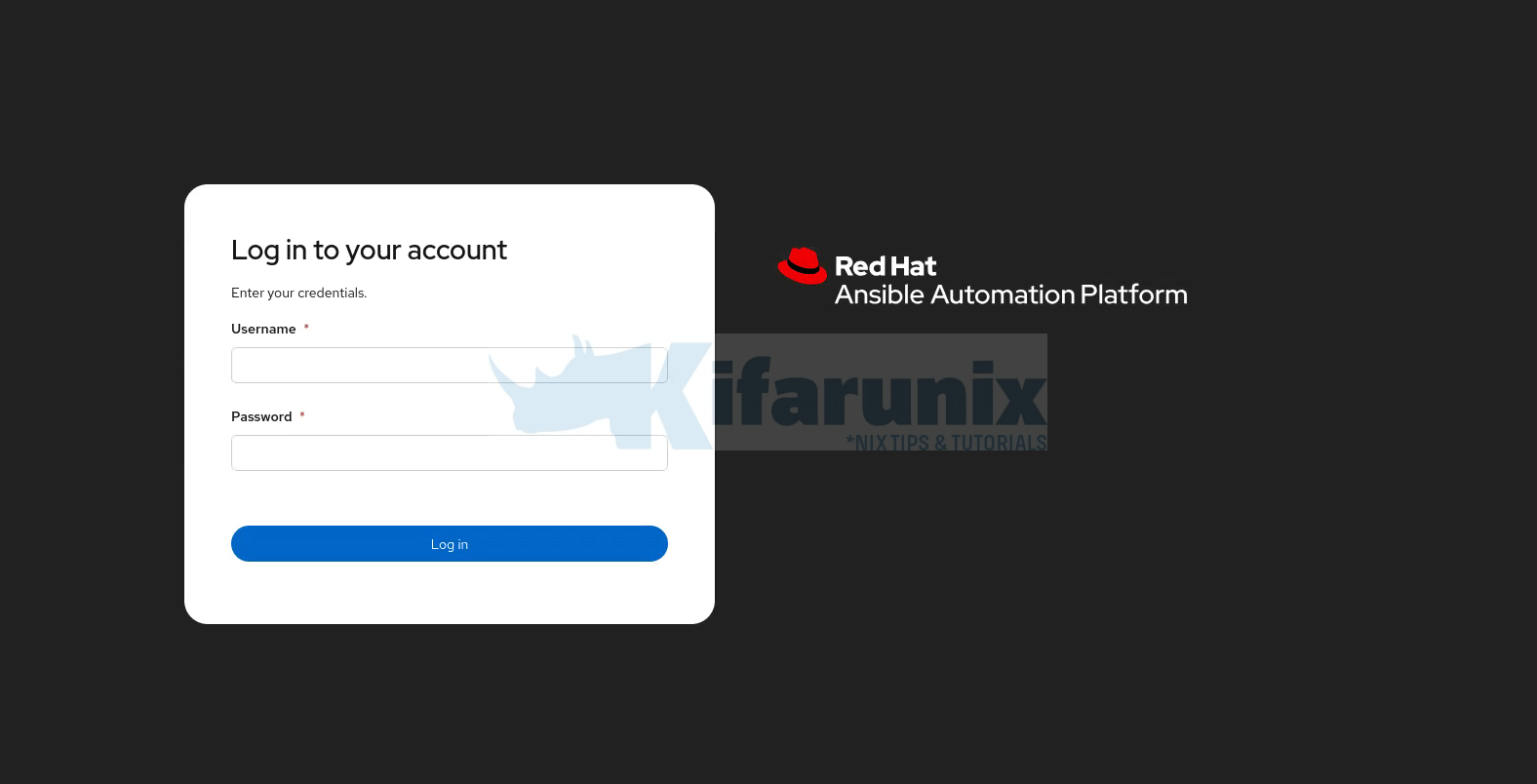
Log in credentials for AAP are:
- Username:
adminand - Password: the
gateway_admin_passwordyou set in the inventory.
Attach your subscription
Once logged in, the subscription activation wizard is the first screen you see.
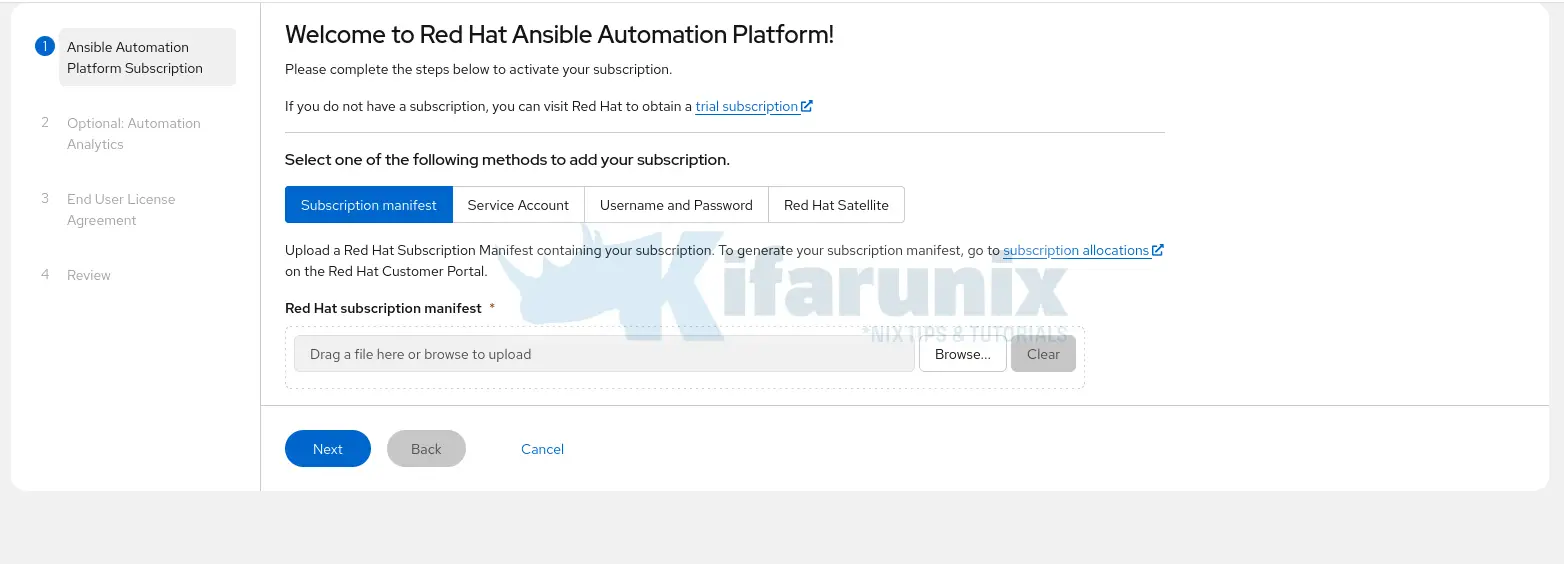
You have four options:
- Subscription manifest: upload a manifest file downloaded from access.redhat.com/management
- Service Account: use a Red Hat service account
- Username and Password: your Red Hat Customer Portal credentials
- Red Hat Satellite: if your environment is managed by Satellite
For most deployments, Username and Password is the quickest option for getting started. For production or shared environments, use a manifest or Service Account.
Other configurations:
- Automation Analytics: optional. You can skip this if you do not want to send analytics data to Red Hat.
- End User License Agreement: you must accept the EULA to proceed.
- Review: confirm your selections and click Finish to proceed to AAP web interface.
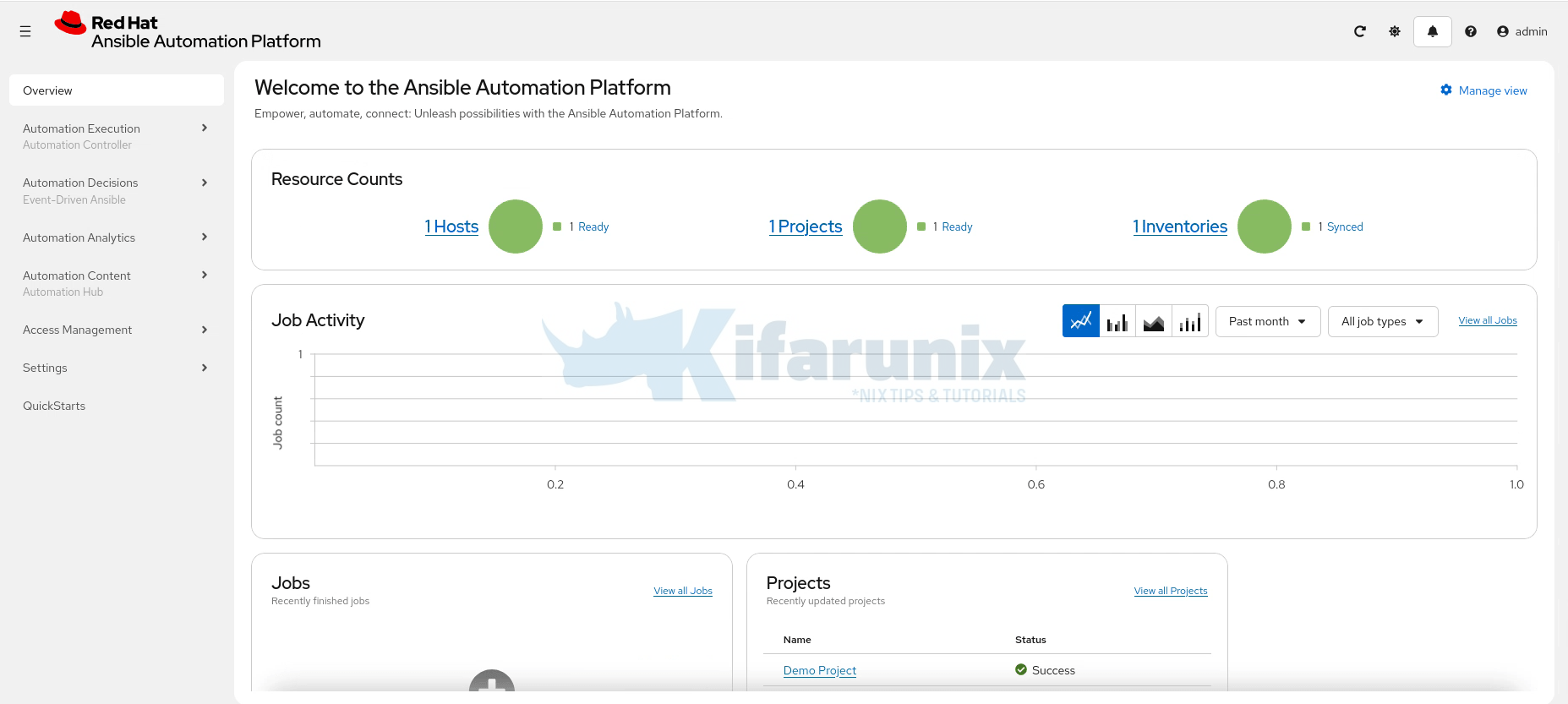
Enable auto-start after reboots
The installer registers containers as systemd user services. For them to survive reboots and logouts, enable lingering for your install user. Replace <username> with your install user:
sudo loginctl enable-linger <username>Verify services are active:
systemctl --user status automation-gatewayYou can check all other AAP services at once:
systemctl --user list-units 'automation-*'Sample output;
  UNIT                                       LOAD   ACTIVE SUB     DESCRIPTION
  automation-controller-rsyslog.service      loaded active running Podman automation-controller-rsyslog.service
  automation-controller-task.service         loaded active running Podman automation-controller-task.service
  automation-controller-web.service          loaded active running Podman automation-controller-web.service
  automation-eda-activation-worker-1.service loaded active running Podman automation-eda-activation-worker-1.service
  automation-eda-activation-worker-2.service loaded active running Podman automation-eda-activation-worker-2.service
  automation-eda-api.service                 loaded active running Podman automation-eda-api.service
  automation-eda-daphne.service              loaded active running Podman automation-eda-daphne.service
  automation-eda-scheduler.service           loaded active running Podman automation-eda-scheduler.service
  automation-eda-web.service                 loaded active running Podman automation-eda-web.service
  automation-eda-worker-1.service            loaded active running Podman automation-eda-worker-1.service
  automation-eda-worker-2.service            loaded active running Podman automation-eda-worker-2.service
  automation-gateway-proxy.service           loaded active running Podman automation-gateway-proxy.service
  automation-gateway.service                 loaded active running Podman automation-gateway.service
  automation-hub-api.service                 loaded active running Podman automation-hub-api.service
  automation-hub-content.service             loaded active running Podman automation-hub-content.service
  automation-hub-web.service                 loaded active running Podman automation-hub-web.service
  automation-hub-worker-1.service            loaded active running Podman automation-hub-worker-1.service
  automation-hub-worker-2.service            loaded active running Podman automation-hub-worker-2.service

Legend: LOAD   → Reflects whether the unit definition was properly loaded.
        ACTIVE → The high-level unit activation state, i.e. generalization of SUB.
        SUB    → The low-level unit activation state, values depend on unit type.

18 loaded units listed. Pass --all to see loaded but inactive units, too.
To show all installed unit files use 'systemctl list-unit-files'.
Verify the storage layout:
Container images and volumes:
ls -1 ~/.local/share/containers/storage/volumes/Component config and data:
ls ~/aap/Disk usage summary
podman system dfSample output;
TYPE           TOTAL       ACTIVE      SIZE        RECLAIMABLE
Images         10          10          8.055GB     276.1MB (3%)
Containers     22          22          6.122MB     0B (0%)
Local Volumes  14          40          1.02GB      0B (0%)
Offline / Disconnected Installation
The bundled installer is purpose-built for air-gapped environments. All container images are inside the bundle/ directory of the extracted tarball and no internet access is needed during installation.
Your disconnected RHEL host still needs RPM packages for system dependencies. Two ways to get them:
Option A: reposync (requires a connected intermediate host):
Run this on a connected host:
sudo reposync -p /your/local/repo/ --repo=rhel-9-for-x86_64-baseos-rpmssudo reposync -p /your/local/repo/ --repo=rhel-9-for-x86_64-appstream-rpmsTransfer to your air-gapped host and serve via HTTP or configure as a local file repo
Option B: Mount a RHEL DVD ISO
You can get a RHEL DVD ISO and mount it on the node:
sudo mount -o loop rhel-9.x-x86_64-dvd.iso /mnt/rhel-isoThen create a local repo:
sudo tee /etc/yum.repos.d/rhel-local.repo <<EOF
[rhel-local-baseos]
name=RHEL Local BaseOS
baseurl=file:///mnt/rhel-iso/BaseOS
enabled=1
gpgcheck=0

[rhel-local-appstream]
name=RHEL Local AppStream
baseurl=file:///mnt/rhel-iso/AppStream
enabled=1
gpgcheck=0
EOF
Run the installer
Set bundle_install=true in your inventory (this is the default for bundle installs) and run the installer as normal:
ansible-playbook -i inventory-growth ansible.containerized_installer.install --ask-become-passProduction Hardening Tips
Use a custom TLS certificate
By default the installer generates a self-signed CA under ~/aap/tls/, valid for 10 years. For production you have two options for replacing it.
Option 1: Let AAP generate all certificates, signed by your own CA
Provide your CA certificate and key in the inventory and the installer signs all service certificates automatically:
ca_tls_cert=/path/to/ca.crt
ca_tls_key=/path/to/ca.key
Option 2: Provide certificates per service manually
Use this if your organisation manages TLS outside of AAP. Each service has its own variable pair, for example:
gateway_tls_cert=/path/to/gateway.crt
gateway_tls_key=/path/to/gateway.key
controller_tls_cert=/path/to/controller.crt
controller_tls_key=/path/to/controller.key
hub_tls_cert=/path/to/hub.crt
hub_tls_key=/path/to/hub.key
eda_tls_cert=/path/to/eda.crt
eda_tls_key=/path/to/eda.key
On a single-node Growth deployment all components share the same FQDN, so you can use the same certificate and key for every service variable. On a distributed Enterprise deployment, each service needs a certificate whose SAN includes that service’s FQDN. If any service sits behind a load balancer doing TLS offloading, the certificate must also include the load balancer’s FQDN in the SAN.
If your manually provided certificates are signed by a custom CA, add:
custom_ca_cert=/path/to/custom-ca.crtFor the full variable reference including PostgreSQL, Redis, and Receptor certificate variables, see the Configuring custom TLS certificates section of the AAP 2.6 docs.
Keep the home directory off NFS
Podman cannot store container images on NFS for three reasons:
- Overlay filesystem: The default
overlaystorage driver requiresd_typeandxattrsupport that NFS does not reliably provide, causing overlay mounts to fail. - File locking: Podman relies on
flock-based locking for its image store. NFS has unreliableflocksemantics which can cause corruption or deadlocks. - Rootless user namespace mapping: Rootless Podman uses UID/GID remapping via user namespaces. NFS typically squashes UIDs with
root_squash, which breaks the remapped ownership that rootless containers depend on.
NFS is fine for application data, the service directories under ~/aap/ (controller, hub, eda, postgresql, redis, etc.) can reside on NFS. Only the container image store at ~/.local/share/containers/ must be on local disk.
If your home directory is on NFS, redirect Podman’s storage backend to a local path. Edit ~/.config/containers/storage.conf:
[storage]
driver = "overlay"
graphRoot = "/local-disk/containers/storage"
Use an external PostgreSQL database
For production, run PostgreSQL on a dedicated host with proper backup policies. Supported versions for AAP 2.6 are PostgreSQL 15, 16, and 17. The database host should reside in the same data centre as your AAP infrastructure. External databases must have ICU support enabled.
When using an external database, do not include the [database] group in your inventory file. That group is only for the installer-managed database.
[database]
# Leave empty to use an external database
There are two setup scenarios depending on whether you have PostgreSQL admin credentials:
With PostgreSQL admin credentials (simpler): The installer creates all databases and users for you. The admin account must have SUPERUSER privileges. Add to your inventory:
postgresql_admin_username=<set your own>
postgresql_admin_password=<set your own>
Without PostgreSQL admin credentials: You must pre-create the databases and users for each component before running the installer. For each component:
CREATE USER <username> WITH PASSWORD '<password>' CREATEDB;
CREATE DATABASE <database_name> OWNER <username>;
Then supply the credentials in your inventory:
# Platform gateway
gateway_pg_host=db.example.com
gateway_pg_database=<set your own>
gateway_pg_username=<set your own>
gateway_pg_password=<set your own>

# Automation controller
controller_pg_host=db.example.com
controller_pg_database=<set your own>
controller_pg_username=<set your own>
controller_pg_password=<set your own>

# Automation hub
hub_pg_host=db.example.com
hub_pg_database=<set your own>
hub_pg_username=<set your own>
hub_pg_password=<set your own>

# Event-Driven Ansible
eda_pg_host=db.example.com
eda_pg_database=<set your own>
eda_pg_username=<set your own>
eda_pg_password=<set your own>
Automation Hub hstore extension: If using an external database, you must manually enable the hstore extension in the Automation Hub database before installation — the installer does this automatically only for managed databases:
psql -d <hub_database> -c "CREATE EXTENSION hstore;"On RHEL, hstore requires the postgresql-contrib package:
dnf install postgresql-contribFor the full scope of what Red Hat covers for external databases, see the Red Hat Ansible Automation Platform Database Scope of Coverage.
Run regular backups
The AAP installer includes a built-in backup playbook. Run it from the installer directory:
cd ~/ansible-automation-platform-containerized-setup*/
ansible-playbook -i inventory-growth ansible.containerized_installer.backup
By default, the backup is written to a backups/ directory inside whichever directory you run the command from. To specify a custom destination:
ansible-playbook -i inventory-growth ansible.containerized_installer.backup \
  -e backup_dir=/path/to/your/backup/location
Schedule this as a cron job and ensure the backup destination has sufficient disk space. For the full restore procedure, refer to the Back up and restore your containerized deployment section of the AAP 2.6 docs.
Plan your hostname before you install
The FQDN is baked into TLS certificates and the database at install time. Changing it post-install is painful. Use a hostname you intend to keep.
Common Errors and How to Fix Them
registry.redhat.io: unauthorized:
- Cause: Wrong, missing, or expired registry credentials.
- Fix: Test your credentials manually, then correct them in the inventory and rerun:
podman login registry.redhat.io
- Cause: The installer validates that
hostname -freturns a proper FQDN and that it resolves via DNS. - Fix:
sudo hostnamectl set-hostname aap.yourdomain.com
echo "127.0.0.1 aap.yourdomain.com" | sudo tee -a /etc/hosts
hostname -f
Platform Gateway unreachable on port 443 after install
- Cause: Firewall blocking port 443, or SELinux denying Podman network access.
- Fix:
Check SELinux denials:sudo firewall-cmd --permanent --add-port=443/tcp && sudo firewall-cmd --reloadsudo ausearch -m avc -ts recent | audit2allow
Disk space errors or overlay: quota exceeded
- Cause: Insufficient disk space. All container images and volumes live under
~/.local/share/containers/and the total requirement is 60 GB. - Fix: Check current usage, then expand your disk or reconfigure the home directory:
podman system df
df -h ~
Containers not starting after reboot
- Cause: Systemd user services require lingering to survive reboots.
- Fix:
sudo loginctl enable-linger aap # Replace 'aap' with your install user
PostgreSQL connection refused from containers
- Cause: External PostgreSQL is listening on localhost only, or a firewall blocks port 5432.
- Fix: In
postgresql.conf, setlisten_addresses = '*'. Updatepg_hba.confto allow connections from the AAP container subnet. Open port 5432.
Gathering logs for any issue:
Individual container logs
podman logs <container-name>Recent Podman events:
podman events --since 1hFull installation log:
cat ./aap_install.logConclusion
The shift to containerized AAP is not just a packaging change. It is Red Hat signalling the long-term direction of the platform. If you are deploying new AAP infrastructure today, containerized on RHEL is the path that will be supported, updated, and invested in going forward.
The gotchas like NFS storage, the 60 GB disk requirement, the FQDN being baked in at install time, and lingering for systemd user services are all manageable once you know about them. That is exactly what this guide is for.