
This guide provides working steps on deploying CloudBees CI on OpenShift. My first CloudBees CI deployment on OpenShift looked successful until the Operations Center entered CrashLoopBackOff immediately after helm install. The cause wasn’t Helm, Kubernetes, or CloudBees, it was OpenShift’s Security Context Constraints. That experience highlighted a broader problem: most CloudBees installation guides assume a generic Kubernetes environment, while OpenShift introduces security and operational requirements that deserve separate attention. As such, this guide documents a complete deployment on OpenShift 4.20, covering architecture, installation, security, storage, RBAC, and production best practices, including the platform-specific issues I encountered and how to resolve them.
Table of Contents
Deploying CloudBees CI on OpenShift
What You’ll Deploy
By the end of this guide, you’ll have a working CloudBees CI deployment running on OpenShift with the following components:
- Operations Center deployed using the official Helm chart.
- Managed Controller provisioned and managed by the Operations Center.
- An OpenShift Route exposing the Operations Center over HTTPS.
- Persistent storage for Jenkins data using the cluster’s default
StorageClass. - Ephemeral Kubernetes agents that are created on demand to execute pipeline workloads.
- RBAC resources required for CloudBees CI to manage controllers and build agents.
Although the deployment itself is straightforward, OpenShift introduces several platform-specific requirements. Throughout this guide, you’ll configure Security Context Constraints (SCCs), storage, RBAC, and service accounts to ensure the platform runs reliably in production.
Why CloudBees CI on OpenShift?
Jenkins is one of the most flexible CI/CD platforms available. Its plugin ecosystem supports almost every build, test, and deployment workflow. That flexibility, however, becomes difficult to manage as organizations grow.
A single Jenkins controller can quickly become a shared failure domain:
- A plugin upgrade can affect every team.
- Credentials accumulate in one place.
- Configuration changes impact unrelated projects.
- Controller failures interrupt everyone’s pipelines.
CloudBees CI addresses these problems by separating platform management from pipeline execution.
Instead of one large Jenkins controller, CloudBees CI consists of:
- Operations Center for centralized administration.
- Managed Controllers that run team workloads independently.
- Kubernetes agents that execute builds on demand.
Each Managed Controller has its own plugins, credentials, and job configuration. Problems on one controller remain isolated instead of affecting every team, while administrators retain centralized governance through the Operations Center.
OpenShift is a strong platform for this architecture because it provides:
- Security Context Constraints (SCCs).
- Project-scoped RBAC.
- Integrated Routes for ingress.
- Built-in image management.
- Enterprise Kubernetes support.
These features improve security and operational consistency, but they also introduce deployment requirements that differ from a standard Kubernetes cluster. This guide focuses on those OpenShift-specific considerations.
CloudBees CI is best suited for organizations running multiple development teams. If you’re managing only a handful of pipelines, a standalone Jenkins instance or a Kubernetes-native solution such as Tekton is often a simpler choice.
Architecture at a Glance
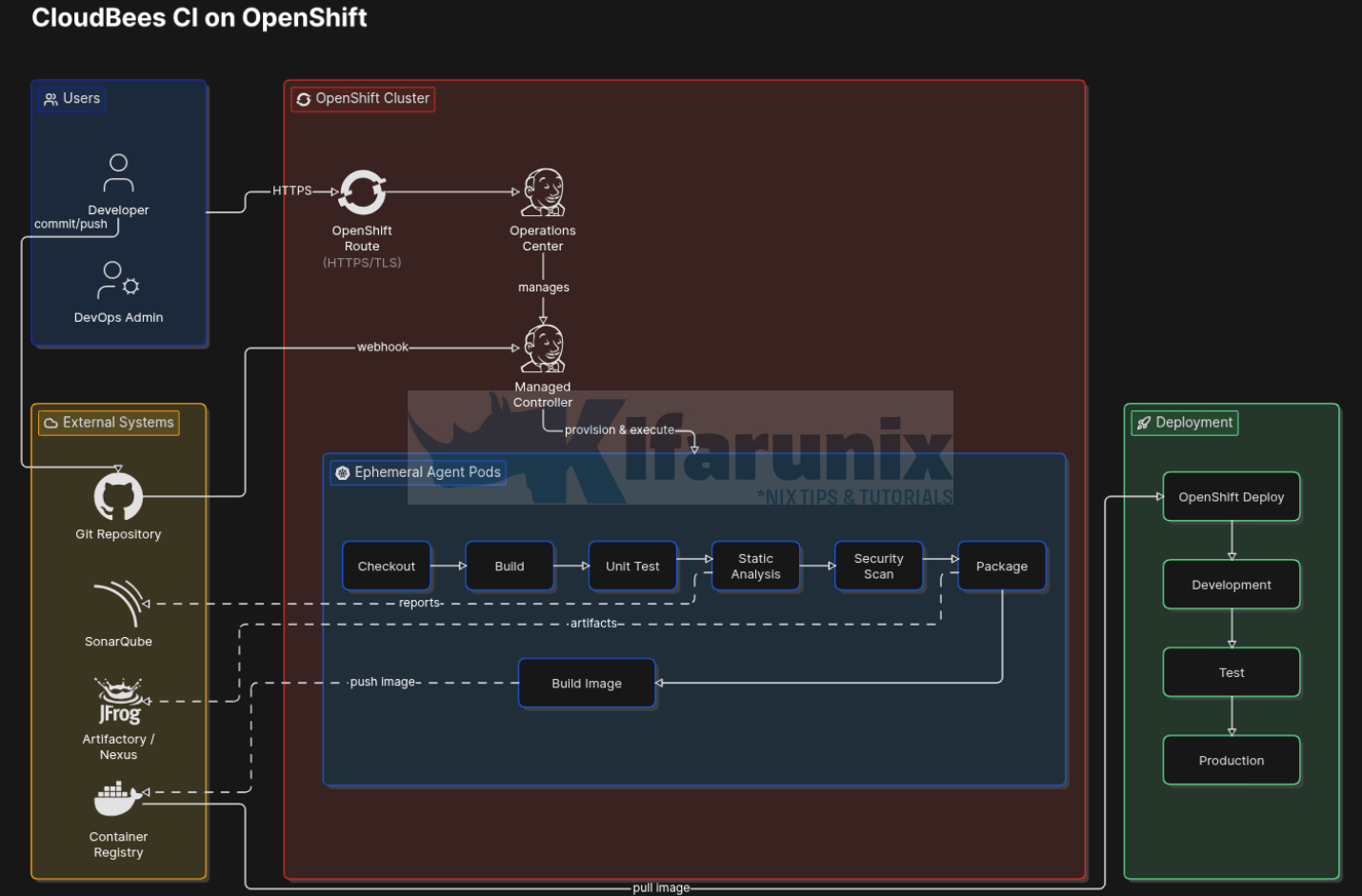
The OpenShift Route exposes the CloudBees CI UI. It forwards traffic to the Operations Center, which acts as the central management layer for the platform.
The Operations Center does not run builds. It only manages Managed Controllers, which are responsible for executing all pipelines.
When a pipeline is triggered, it runs on a specific Managed Controller. That controller then uses the Jenkins Kubernetes plugin to request an ephemeral agent pod from OpenShift.
Once created:
- OpenShift schedules the pod
- The agent executes the pipeline steps
- The pod is deleted after the build completes
Prerequisites
Before deploying CloudBees CI, verify that your OpenShift environment meets the following requirements:
- A supported version of OpenShift. CloudBees validates each release against specific OpenShift versions, so verify compatibility for the chart version you intend to install.
- The
ocCLI installed and authenticated against your cluster. - Helm 3 installed.
- An OpenShift project where your account has permission to create resources such as
Role,RoleBinding,ServiceAccount,Deployment, andPersistentVolumeClaim. - A default
StorageClassconfigured for dynamic volume provisioning. Without one, the Operations Center and Managed Controllers cannot provision persistent storage. - Network connectivity to Docker Hub or your organization’s container registry mirror so the required CloudBees images can be pulled.
- A DNS record and TLS certificate for the OpenShift Route that will expose the Operations Center.
OpenShift also has a few platform-specific requirements worth verifying before installation:
- Container images must be able to run as arbitrary non-root user IDs to comply with OpenShift Security Context Constraints (SCCs).
- Containers must not require privileged execution.
- For High Availability deployments, ensure a
ReadWriteMany-capableStorageClassis available.
Step-by-Step: Deploying CloudBees CI on OpenShift with Helm
All commands in this guide are executed from a bastion host (or administrative workstation) with access to the OpenShift cluster.
Before continuing, ensure the following tools are installed and configured:
- The
ocCLI, authenticated against your OpenShift cluster. - Helm 3.
You can verify both tools are available by running:
oc versionSample output;
Client Version: 4.20.8
Kustomize Version: v5.6.0
Server Version: 4.20.8
Kubernetes Version: v1.33.6
helm versionSample output;
version.BuildInfo{Version:"v3.20.1", GitCommit:"a2369ca71c0ef633bf6e4fccd66d634eb379b371", GitTreeState:"clean", GoVersion:"go1.25.8"}Step 1: Create an OpenShift Project
Create a dedicated OpenShift project to isolate all CloudBees CI resources.
oc new-project cloudbees-ciThe oc new-project command creates the project and automatically switches your current oc context to it. You can verify the active project with:
oc projectYou should see output similar to:
Using project "cloudbees-ci" on server https://api.cluster.example.com:6443All resources created throughout this guide will be deployed into this project.
Step 2: Validate Security Context Constraints (SCCs)
OpenShift enforces Security Context Constraints (SCCs) to control how containers run. By default, workloads are assigned the restricted-v2 SCC, which requires containers to run as a randomly assigned non-root user.
The official CloudBees Operations Center and Managed Controller images are designed to work with this security model. The most common compatibility issues arise from custom Jenkins agent images that assume a fixed user ID or require root privileges.
Before proceeding, verify the SCCs available on your cluster:
oc get sccoc describe scc restricted-v2If you plan to use custom agent images, ensure they:
- Do not require root privileges.
- Can run with an arbitrary user ID.
- Write only to directories with appropriate group permissions.
If an image cannot be modified for development or testing purposes, you can temporarily grant the anyuid SCC to the service account used by that workload:
oc adm policy add-scc-to-user anyuid -z <service-account> -n cloudbees-ciUse this only as a temporary workaround. In production, the recommended approach is to build OpenShift-compatible images rather than relaxing the cluster’s default security policies.
Step 3: Verify the Default StorageClass
CloudBees CI stores its persistent data in JENKINS_HOME. During installation, the Operations Center and every Managed Controller create their own PersistentVolumeClaim (PVC).
If your cluster doesn’t have a default StorageClass, those PVCs remain in the Pending state and the pods will never start.
Verify the available storage classes:
oc get storageclassor the shorter form:
oc get scLook for the storage class marked as (default).
For example, an OpenShift Data Foundation (ODF) cluster typically looks like this:
NAME                                    PROVISIONER                             RECLAIMPOLICY   VOLUMEBINDINGMODE      ALLOWVOLUMEEXPANSION   AGE
local-volume-drives                     kubernetes.io/no-provisioner            Delete          WaitForFirstConsumer   false                  116d
ocs-storagecluster-ceph-rbd (default)   openshift-storage.rbd.csi.ceph.com      Delete          Immediate              true                   165d
ocs-storagecluster-ceph-rgw             openshift-storage.ceph.rook.io/bucket   Delete          Immediate              false                  165d
ocs-storagecluster-cephfs               openshift-storage.cephfs.csi.ceph.com   Delete          Immediate              true                   165d
openshift-storage.noobaa.io             openshift-storage.noobaa.io/obc         Delete          Immediate              false                  115d
For a standard CloudBees CI deployment, ocs-storagecluster-ceph-rbd is the appropriate default. It provides ReadWriteOnce (RWO) block storage, which is exactly what a single Operations Center or Managed Controller requires for its JENKINS_HOME volume.
The other ODF storage classes serve different purposes:
ceph-rgwprovisions S3-compatible object storage, not persistent filesystem volumes.noobaa.ioprovisions object buckets and cannot be used for Jenkins home directories.cephfsprovidesReadWriteMany (RWX)shared storage and is primarily intended for High Availability deployments.
If you plan to deploy CloudBees CI in High Availability mode, review your storage strategy before installation. CloudBees requires an RWX-capable StorageClass, making ocs-storagecluster-cephfs the appropriate choice for HA deployments.
If your cluster does not have a default StorageClass, set one before continuing:
oc patch storageclass <storage-class-name> \
  -p '{"metadata":{"annotations":{"storageclass.kubernetes.io/is-default-class":"true"}}}'
You can also override the storage class during the Helm installation instead of relying on the cluster default. This is useful when multiple storage classes are available or when deploying High Availability configurations.
Step 4: Add the CloudBees Helm Repository
Add the official CloudBees Helm repository and refresh the local chart index.
helm repo add cloudbees https://public-charts.artifacts.cloudbees.com/repository/public/helm repo updateYou can confirm the repository has been added successfully by checking available charts:
helm search repo cloudbeesSample output;
NAME                                	CHART VERSION         	APP VERSION               	DESCRIPTION
cloudbees/cloudbees-core            	3.36986.0+528f636833ff	2.555.3.36985             	Enterprise Continuous Integration with Jenkins
cloudbees/cloudbees-flow            	2.37.0                	2026.03.0.185227          	A Helm chart for CloudBees Flow
cloudbees/cloudbees-flow-agent      	2.37.0                	2026.03.0.185227          	A Helm chart for CloudBees Flow Agent
cloudbees/cloudbees-previews        	1.2.0                 	1.2.0                     	A Helm chart for CloudBees Previews
cloudbees/cloudbees-remote-agents   	v1.0.143              	v1.0.143                  	Cloudbees CI - Remote agents controller
cloudbees/cloudbees-sda             	1.659+0a71e6d8c986    	2024.12.1.178274+2.492.3.5	CloudBees Software Delivery Automation
cloudbees/cloudbees-sidecar-injector	439+9a395d090e1f      	439.9a395d090e1f          	Helm chart for sidecar injector webhook deployment
Step 5: Install CloudBees CI
CloudBees CI can be deployed over HTTP or HTTPS. While HTTP is sufficient for a lab or proof of concept, production deployments should always use HTTPS to protect user credentials, API tokens, and other sensitive traffic.
Before you begin, note the following:
- Helm values are case-sensitive. For example,
OperationsCenter.HostNameis valid, whileoperationscenter.hostnameis not. - Give your Helm release a meaningful name. This guide uses
cloudbees-core. If you omit it, Helm generates a random name, making upgrades and troubleshooting harder later.
OpenShift Route considerations
CloudBees CI supports two approaches for exposing Managed Controllers:
- Context paths (default on standard Kubernetes)
- Subdomains (required on OpenShift)
On standard Kubernetes clusters, CloudBees CI typically exposes Managed Controllers under a single hostname using context paths:
https://ci.example.com/controller1
https://ci.example.com/controller2
OpenShift Routes work differently. A Route maps a single hostname to a single backend service, so multiple Managed Controllers cannot share the same hostname using different URL paths.
If you plan to provision multiple Managed Controllers, enable subdomain routing during installation:
--set Subdomain=trueEach Managed Controller will then receive its own hostname, for example:
https://controller1.ci.example.com
https://controller2.ci.example.com
One important detail before you choose a hostname:
- when
Subdomain=trueis set,OperationsCenter.HostNamemust be the parent domain only, not the Operations Center URL. The chart automatically prepends the Operations Center name (cjocby default) as a subdomain. - So if your domain is
cbci.example.com, setHostName='cbci.example.com'and Operations Center becomes reachable athttps://cjoc.cbci.example.com. - If you set
HostName='cjoc.cbci.example.com'instead, you end up with a doubled prefix,https://cjoc.cjoc.cbci.example.com, and a Route nothing resolves to.
Option A: Install CBCI on OpenShift over HTTP
For a quick evaluation, install CloudBees CI without TLS.
Replace <hostname> with the DNS name you will use to access the Operations Center. This can be either:
- A hostname under the OpenShift
*.apps.<cluster-domain>domain - A custom domain you manage (for example,
cbci.example.com)
helm install cloudbees-core cloudbees/cloudbees-core \
  --set OperationsCenter.HostName='<hostname>' \
  --set Agents.SeparateNamespace.Enabled=true \
  --set Agents.SeparateNamespace.Create=true \
  -n cloudbees-ci
Note the Agents.SeparateNamespace.Enabled flag. The current chart versions enforce this value at the schema level, and the install fails without it:
Error: INSTALLATION FAILED: values don't meet the specifications of the schema(s) in the following chart(s):
cloudbees-core:
- at '/Agents/SeparateNamespace/Enabled': got null, want boolean
So two values are effectively required on every install, HTTP or HTTPS: OperationsCenter.HostName and Agents.SeparateNamespace.Enabled.
OperationsCenter.HostName behaves differently depending on the Subdomain setting:
- Without
--set Subdomain=true(as in this Option A command), it is the literal public hostname, and Operations Center is served under a context path on it:http://<hostname>/cjoc/. - With
--set Subdomain=true(Option B below), it is the parent domain only, and Operations Center gets its own subdomain:https://cjoc.<hostname>/, with no context path.
In both cases, the hostname:
- Does not need to be under the OpenShift
*.apps.<cluster-domain>domain - Can be any DNS name you control (for example,
cbci.example.com) - Must resolve to the OpenShift ingress endpoint (router or load balancer)
Sample installation output:
NAME: cloudbees-core
LAST DEPLOYED: Thu Jul  2 12:39:24 2026
NAMESPACE: cloudbees-ci
STATUS: deployed
REVISION: 1
TEST SUITE: None
NOTES:
1. Once Operations Center is up and running, get your initial admin user password by running:
  oc rollout status sts cjoc --namespace cloudbees-ci
  oc exec cjoc-0 --namespace cloudbees-ci -- cat /var/jenkins_home/secrets/initialAdminPassword
2. Visit http://cjoc.cbci.example.com/cjoc/
3. Login with the password from step 1.
Note the URL in the output: /cjoc/ at the end. That context path is how Operations Center is exposed when subdomain routing is not enabled.
If you use a custom domain, you are responsible for DNS configuration. For example, if your domain is cbci.example.com, then subdomains such as cjoc.cbci.example.com and *.cbci.example.com must resolve to the OpenShift ingress IP or load balancer. If DNS is not configured correctly, the Route will be created, but the service will not be reachable externally.
Option B: Install CBCI on OpenShift over HTTPS
HTTPS requires a TLS certificate and private key before installation. If you already have them, skip ahead to creating the secret. Otherwise, choose one of the following options:
- Enterprise Certificate Authority (recommended for production)
- cert-manager (recommended for Kubernetes-native environments)
- Self-signed certificate (lab only)
If you plan to use Subdomain=true (recommended on OpenShift), your TLS certificate must cover the base domain and all controller subdomains. For example, if your CloudBees CI domain is cbci.example.com, then your certificate must include:
cbci.example.com*.cbci.example.com
Generating a self-signed certificate (for POCs/testing only):
openssl req -x509 -newkey rsa:4096 -nodes -days 365 \
  -keyout cloudbees.key \
  -out cloudbees.crt \
  -subj "/CN=<hostname>" \
  -addext "subjectAltName=DNS:<hostname>,DNS:*.<hostname>"
Self-signed certificates are acceptable for testing, but introduce operational overhead:
- Browsers show security warnings
- Webhooks (GitHub/GitLab), CLI tools, and API clients may fail unless trust is manually configured
For production, always use a trusted certificate authority.
Create a TLS secret
Once you obtain a TLS certificate for the CloudBees CI domain, create the OpenShift TLS secret containing it:
oc create secret tls cloudbees-tls \
  --cert=cloudbees.crt \
  --key=cloudbees.key \
  -n cloudbees-ci
Then deploy CloudBees CI with HTTPS enabled. Again, replace <hostname> with your chosen DNS name, and remember: with Subdomain=true, this is the parent domain, not the cjoc URL:
helm install cloudbees-core cloudbees/cloudbees-core \
  --set OperationsCenter.HostName='<hostname>' \
  --set OperationsCenter.Route.tls.Enable=true \
  --set Subdomain=true \
  --set Agents.SeparateNamespace.Enabled=true \
  --set Agents.SeparateNamespace.Create=true \
  --set CasCBundleService.enabled=true \
  -n cloudbees-ci
This deployment:
- Deploys CloudBees CI Operations Center (CJOC) into the
cloudbees-cinamespace - Exposes CJOC externally using an OpenShift Route
- Enables HTTPS (TLS termination at the OpenShift Route)
- Configures subdomain-based controller routing (e.g.,
controller1.cbci.example.com) - Creates a separate namespace for build agents (better isolation and security via SCC/RBAC)
- Enables ephemeral Kubernetes agent pods for running CI jobs
- Uses the cluster’s default StorageClass for persistent storage (
JENKINS_HOME, etc.) - Enables Configuration as Code (CasC) bundle service for controller configuration management
A few other things to note:
- The
Agents.SeparateNamespace.Enabledparameter is mandatory. If it is omitted, the installation fails. CloudBees recommends running build agents in a dedicated namespace because it improves isolation between the Operations Center and build workloads, while making SCC assignment, RBAC, resource quotas, and network policies easier to manage. - Setting
Agents.SeparateNamespace.Create=trueinstructs Helm to create the namespace automatically. If you prefer, you can create and manage the namespace yourself before installation. CasCBundleService.enabledenables Configuration as Code (CasC) for managing controller configuration declaratively. It is recommended if you plan to manage controller configuration, plugins, or shared governance policies as code. It can still be enabled later, but enabling it at install avoids an additional Helm upgrade step.
Sample installation output:
NAME: cloudbees-core
LAST DEPLOYED: Thu Jul  2 12:00:40 2026
NAMESPACE: cloudbees-ci
STATUS: deployed
REVISION: 1
TEST SUITE: None
NOTES:
1. Once Operations Center is up and running, get your initial admin user password by running:
  oc rollout status sts cjoc --namespace cloudbees-ci
  oc exec cjoc-0 --namespace cloudbees-ci -- cat /var/jenkins_home/secrets/initialAdminPassword
2. Visit https://cjoc.cbci.example.com/
3. Login with the password from step 1.
Step 6: Verify and Log In
After installation, verify that CloudBees CI is running correctly and identify how to access it.
1. Check Helm release status:
helm status cloudbees-core -n cloudbees-ciSample output;
NAME: cloudbees-core
LAST DEPLOYED: Thu Jul  2 13:04:50 2026
NAMESPACE: cloudbees-ci
STATUS: deployed
REVISION: 1
TEST SUITE: None
NOTES:
1. Once Operations Center is up and running, get your initial admin user password by running:
  oc rollout status sts cjoc --namespace cloudbees-ci
  oc exec cjoc-0 --namespace cloudbees-ci -- cat /var/jenkins_home/secrets/initialAdminPassword
2. Visit https://cjoc.cbci.example.com/


3. Login with the password from step 1.

For more information on running CloudBees Core on Kubernetes, visit:
https://go.cloudbees.com/docs/cloudbees-core/cloud-admin-guide/
Look for:
STATUS: deployed
If you see:
pending-installthen the installation is still runningfailedmeans installation issue (check logs/events)
2. Check pod health:
oc get pods -n cloudbees-ciSample output;
NAME     READY   STATUS    RESTARTS   AGE
cjoc-0   1/1     Running   0          27m
Look for the cjoc-0 pod in Running state with READY 1/1.
Common issues:
CrashLoopBackOff: usually an SCC or permissions issue, revisit Step 2Pending: usually a storage issue (PVC or StorageClass), revisit Step 3
3. Get the Route (your access URL)
oc get route -n cloudbees-ciThe HOST/PORT column shows the hostname CloudBees CI is exposed on. Example output:
NAME   HOST/PORT                   PATH   SERVICES   PORT   TERMINATION     WILDCARD
cjoc   cjoc.cbci.example.com          cjoc       http   edge/Redirect   None
That hostname is your browser URL for the Operations Center:
https://cjoc.cbci.example.com4. Get the initial admin password
oc exec cjoc-0 -n cloudbees-ci -- cat /var/jenkins_home/secrets/initialAdminPasswordThis reads the password directly from the pod, and it is the same command the Helm install output tells you to run. If you prefer pulling it from the logs instead:
oc logs cjoc-0 -n cloudbees-ci | grep -B7 "initialAdminPass"Sample output;
[LF]> *************************************************************
[LF]>
[LF]> Jenkins initial setup is required. An admin user has been created and a password generated.
[LF]> Please use the following password to proceed to installation:
[LF]>
[LF]> a771ae9c09fe4fe3a2fcae7dd9bfcdd9
[LF]>
[LF]> This may also be found at: /var/jenkins_home/secrets/initialAdminPassword
5. Access CloudBees CI
Open the Route hostname from step 3 in your browser:
https://cjoc.cbci.example.comIf you’re using a self-signed TLS certificate, your browser will display a security warning the first time you access the site. Accept the warning (or add the certificate to your local trust store) to continue.
Log in with the password from step 4
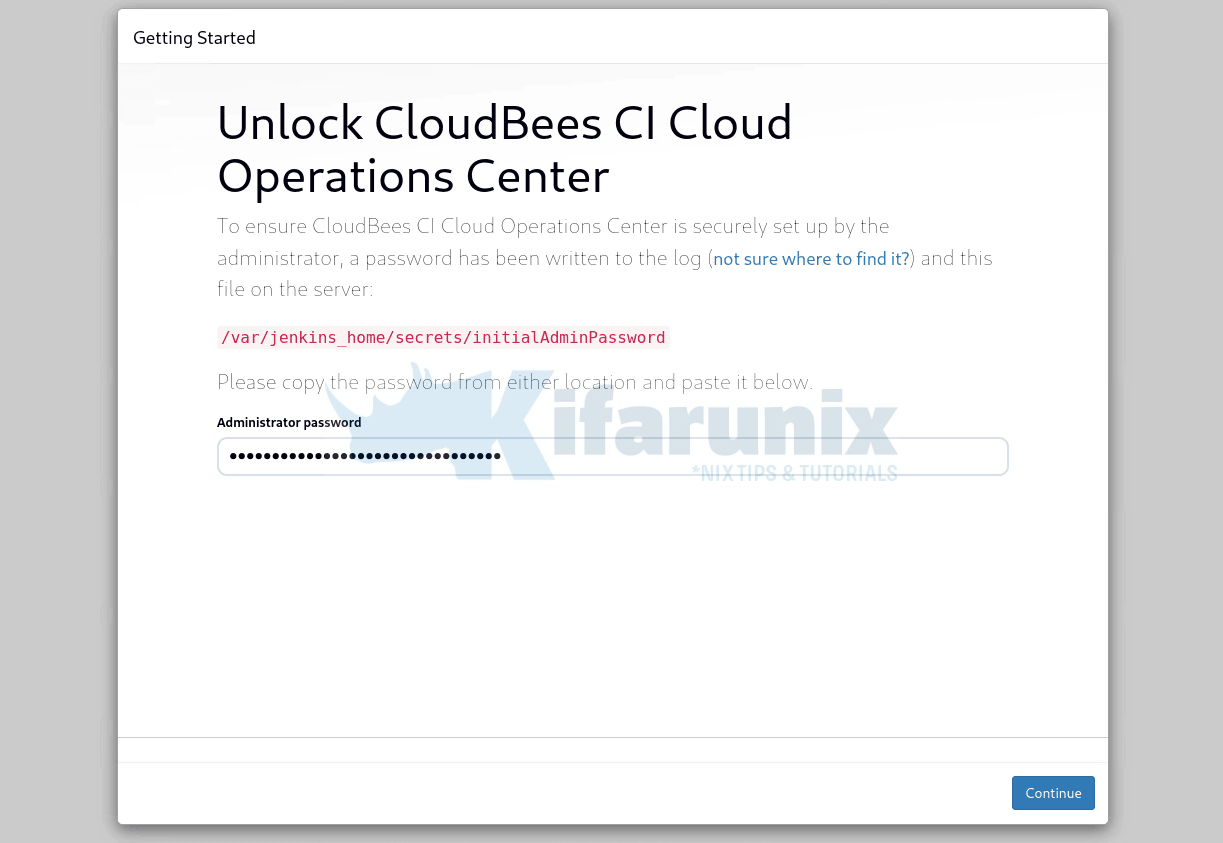
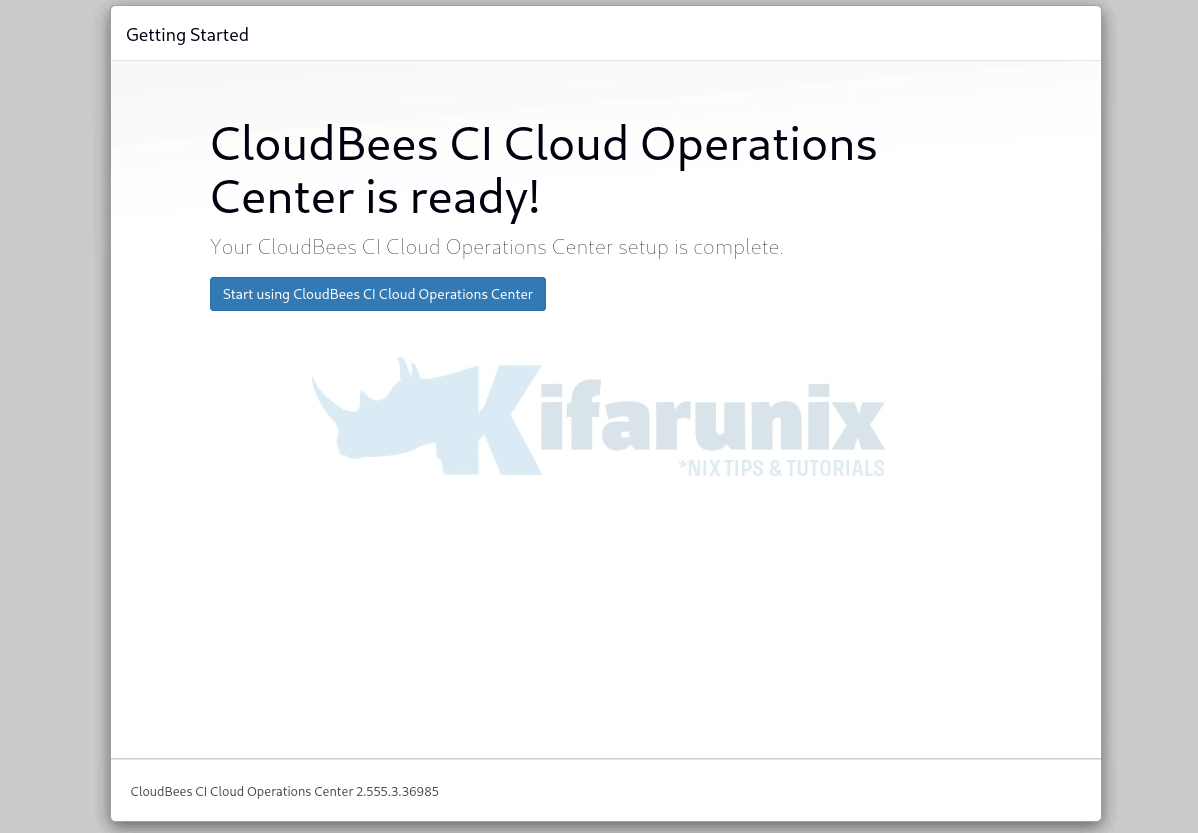
then follow the setup wizard to:
- activate your license
- install the CloudBees plugins
- optionally create first admin user
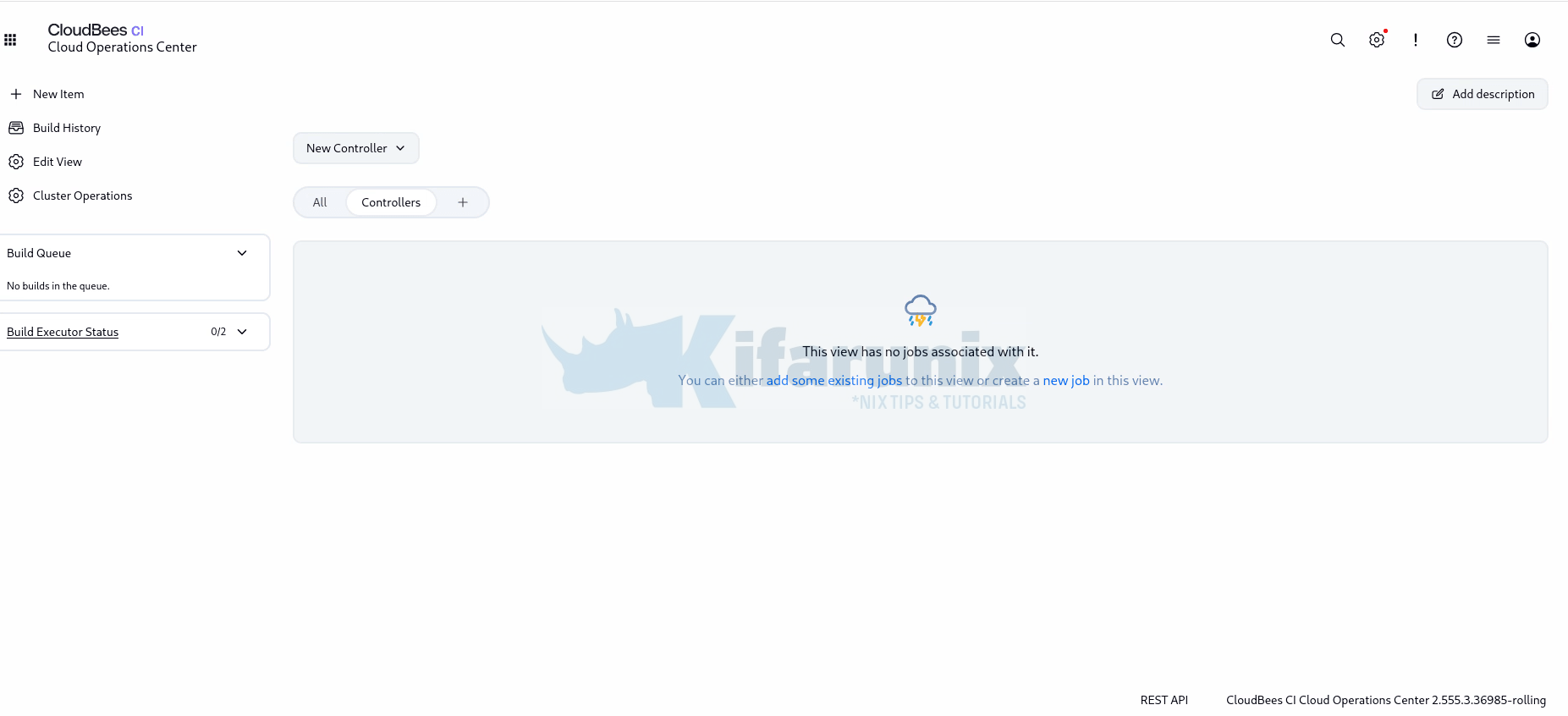
Get started with CBCI Operations Center
CBCI OC dashboard
Step 7: Create Your First Managed Controller
CloudBees CI is built around an Operations Center (CJOC) that manages one or more Managed Controllers. At this point you’ve only deployed the Operations Center. It doesn’t execute builds itself. Instead, you create one or more Managed Controllers, each of which acts as an independent Jenkins instance for a team, application, or business unit.
Before you start: one OpenShift-specific value to look up
The controller form has a Filesystem group field that defaults to 1000, and on OpenShift that default breaks provisioning: the restricted-v2 SCC only accepts fsGroup values from your project’s assigned range, so the pod gets rejected at admission and the StatefulSet sits at 0 replicas. This is a known issue, documented in CloudBees’ knowledge base as Default fsGroup 1000 breaking controller provisioning on OpenShift platform. Look up your project’s allowed range now, you’ll need it in a moment:
oc get namespace cloudbees-ci -o jsonpath='{.metadata.annotations.openshift\.io/sa\.scc\.supplemental-groups}'The output looks like 1000930000/10000.
The number before the slash is where your allowed GID range starts, the number after is how many IDs it spans, so this example allows 1000930000 through 1000939999. The number before the slash is what goes in the Filesystem group field. You can also set it once globally in Operations Center under Manage Jenkins, Configure Controller Provisioning, so every future controller gets it by default.
From the UI
From the Operations Center dashboard:
- Click New Item.
- Enter a name for the controller, e.g
controller-01or any suitable name based on the team, app, or business unit. - Select Managed Controller from the item type list.
- Optionally, check Add to current view to include the controller in the current dashboard view.
- Click OK.
- Configure the controller. The form has around two dozen fields, probes, node selectors, image pull secrets, and so on. Leave all of them at their defaults except these five, listed in the order they appear on the form:
- Domain: sets this controller’s hostname. With
Subdomain=true, the form shows you the resulting URL before you save, for examplecontroller-01.cbci.example.com. - Disk space: defaults to 50 GB, and this deserves actual thought rather than accepting the default. Every controller gets its own PVC at this size, so the number multiplies by how many controllers you’ll run. On ODF, Ceph’s 3x replication means a full 50 GB volume costs roughly 150 GB of raw capacity across your OSDs. The good news, if your default class is
ceph-rbd: it’s thin-provisioned, so space is only consumed as it’s written, and the class supports volume expansion (ALLOWVOLUMEEXPANSION truein the Step 3 output), so growing a controller’s disk later is a supported operation. Size for what the team realistically needs in the next few months, not for a worst case years out. - High Availability (the checkbox right below disk space): leave it unchecked for now. Unchecked means a single controller replica, which is how most teams run and is the right starting point, a crashed controller pod gets rescheduled by the StatefulSet anyway, so this is about eliminating the minutes of downtime during that reschedule, not about surviving crashes at all. Check it only when two things are true:
- this controller’s downtime genuinely costs the business something, and
- the RWX-capable StorageClass HA requires is already in place, since HA replicas share
JENKINS_HOMEand RBD’s ReadWriteOnce can’t do that.
It’s also not a now-or-never decision: CloudBees supports migrating an existing controller to HA later, so start single-replica and upgrade the ones that prove critical.
- Memory and CPU: single values, not a request/limit pair, size these for your actual workload.
- Filesystem group (further down the form): defaults to
1000, which OpenShift rejects, this is the value from the note above. The form won’t accept an empty value here (it validates as “Not a number”), so set it to the number before the slash from the lookup, for example1000930000from the allowed range as shown above.
The PVC provisions from your cluster’s default StorageClass. There’s no simple StorageClass picker on the form, though the Advanced configuration YAML at the bottom exposes the fullvolumeClaimTemplatesif you genuinely need to overridestorageClassNamefor one controller. For everyone else, this is exactly why getting Step 3 right matters.
- Domain: sets this controller’s hostname. With
- Leave Provision and start on save checked and click Save. If that box is unchecked, Save only stores the configuration and you’ll have to start the controller manually from the dashboard.
- CloudBees CI will then automatically creates a new StatefulSet, PersistentVolumeClaim, Service, and OpenShift Route for the controller when you save the configuration. Depending on your cluster resources, provisioning typically takes a few minutes.
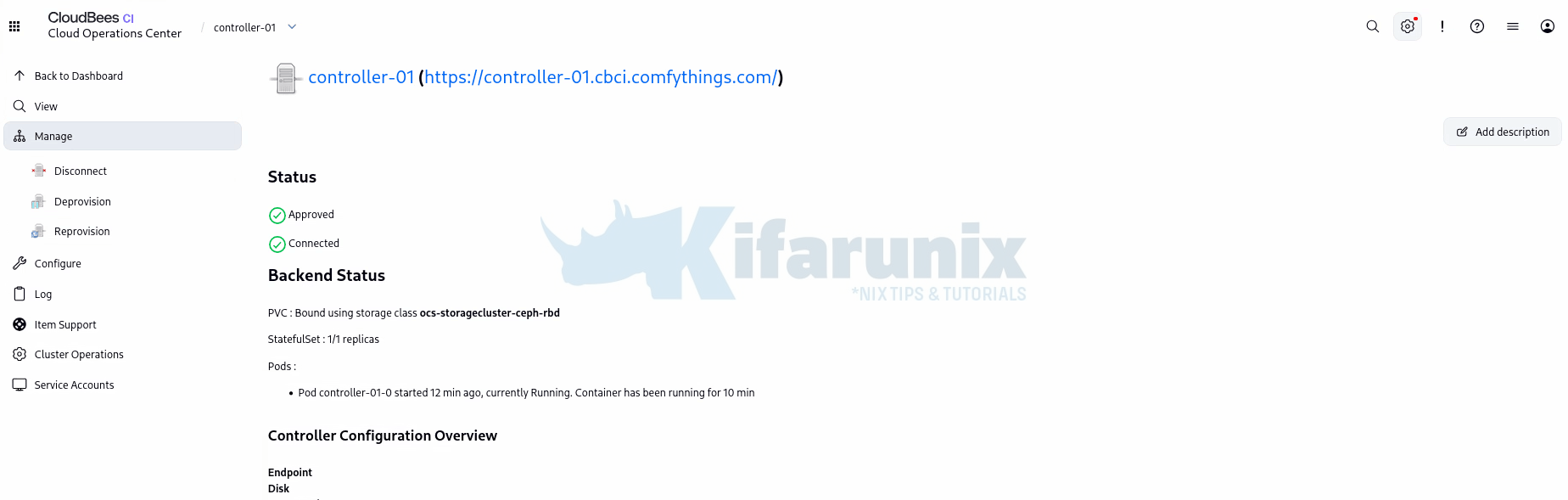
After provisioning completes, the controller status should be Started and Connected.
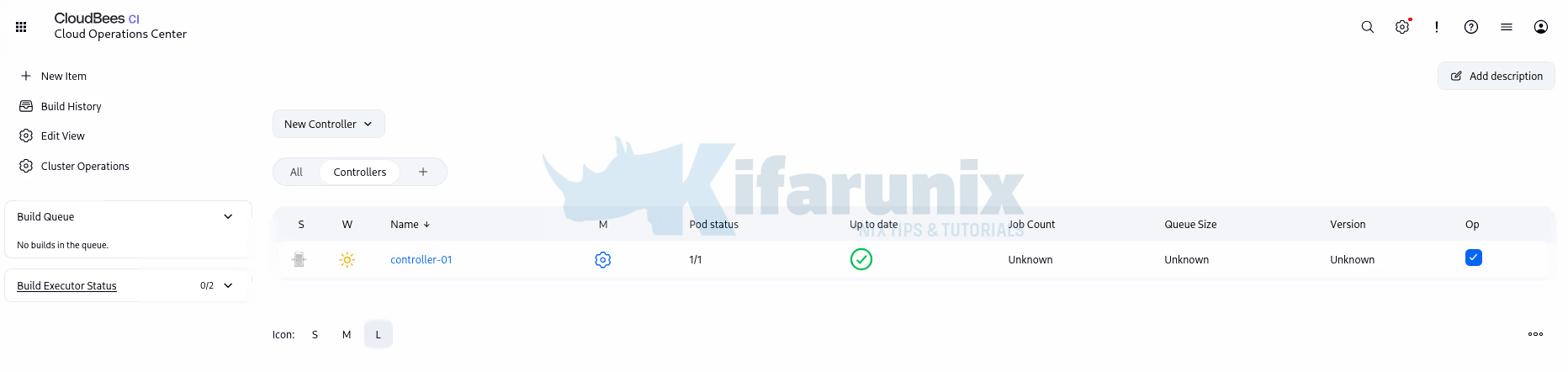
You should also be able to see from the list of controllers.
Step 8: Verify Controller Provisioning
Provisioning a controller creates six kinds of Kubernetes objects, so verification means checking all of them, not just the pod. Knowing what exists also tells you what to look at when something breaks later.
List the pods:
oc get pods -n cloudbees-ciYou should now see the Operations Center together with your newly created controller pod:
NAME              READY   STATUS    RESTARTS   AGE
cjoc-0            1/1     Running   0          24h
controller-01-0   1/1     Running   0          17m
Check the StatefulSets:
oc get sts -n cloudbees-ciNAME READY AGE
cjoc 1/1 24h
controller-01 1/1 24mThe StatefulSet must show 1/1. A StatefulSet at 0/1 with no pod at all means admission rejected the pod, check oc get events for SCC errors. A pod present but not Running points at image pull or storage.
Check the persistent volume claim
oc get pvc -n cloudbees-ciLook for jenkins-home-<controller-name>-N in Bound state, at the size you set on the form, on the storage class from Step 3. This PVC is the controller’s entire state, and it outlives deprovisioning by design.
Check the Service:
oc get svc -n cloudbees-ciTwo ports: 80 forwarding to Jenkins on 8080, and 50001 for inbound agent connections.
NAME            TYPE        CLUSTER-IP      EXTERNAL-IP   PORT(S)            AGE
cjoc            ClusterIP   172.30.6.74     <none>        80/TCP,50000/TCP   24h
controller-01   ClusterIP   172.30.89.247   <none>        80/TCP,50001/TCP   29m
Check the ServiceAccount and RoleBinding
oc get sa -n cloudbees-cioc get rolebinding -n cloudbees-ci-buildsThe controller runs as its own ServiceAccount, and the RoleBinding lives in the agents namespace, not the controller’s, it’s what authorizes this controller to create agent pods there. If builds later fail to schedule agent pods, this binding is the first thing to check.
Check the Routes:
oc get route -n cloudbees-ciExample:
NAME            HOST/PORT                            PATH   SERVICES        PORT   TERMINATION     WILDCARD
cjoc            cjoc.cbci.example.com                   cjoc            http   edge/Redirect   None
controller-01   controller-01.cbci.example.com   /      controller-01   http   edge/Redirect   None
Open the controller URL, http[s]://controller-01.cbci.example.com, in your browser. It should take you directly into that Managed Controller.
Deleting a Managed Controller Safely
Deleting a Managed Controller is more than simply removing a Kubernetes pod or StatefulSet. CloudBees CI maintains controller metadata, persistent storage, and Kubernetes resources separately, so following the correct order is essential to avoid orphaned resources or accidental data loss.
Before deleting a Managed Controller, consider the following:
- Verify that no builds or pipeline executions are currently running.
- Ensure users are aware of the planned maintenance or deletion.
- Determine whether the controller may be needed again. If so, consider hibernating or reprovisioning it instead of deleting it.
- Back up the controller if it contains important jobs, credentials, or configuration that is not stored as Configuration as Code (CasC).
- Understand that deleting the controller is different from deleting its persistent data.
Step 1: Deprovision the Controller
- From Operations Center, open the Managed Controller and select Manage > Deprovision. Deprovisioning removes the Kubernetes resources associated with the controller, including:
- StatefulSet
- Pods
- Services
- OpenShift Route (or Ingress, depending on your platform)
- Other controller runtime resources
- At this stage, the controller is no longer running, but its persistent storage is intentionally preserved.
Step 2: Delete the Controller
- Once deprovisioning has completed successfully, remove the controller definition from Operations Center by deleting it from either:
- The Managed Controller page
- The Operations Center dashboard
- This removes the controller from CloudBees CI’s inventory.
Understanding Persistent Storage
One important behavior often surprises administrators: Deprovisioning does not delete the PersistentVolumeClaim (PVC). This is intentional.
The PVC contains the controller’s JENKINS_HOME, including:
- Jobs
- Build history
- Plugins
- Credentials
- Configuration
- Workspace metadata
Keeping the PVC allows the controller to be reprovisioned later without losing its data.
Permanently Removing the Controller
If the controller is being retired permanently and you no longer require its data, delete the PVC manually after confirming it is no longer needed.
oc delete pvc jenkins-home-controller-01-0 -n cloudbees-ciWarning: Deleting the PVC permanently removes the controller’s persistent data. Unless your storage platform provides snapshots or backups, this action cannot be undone.
Reconfiguring Instead of Deleting
In many situations, deleting the controller is unnecessary.
If you’re correcting configuration issues, for example, updating an invalid Filesystem Group, changing JVM settings, or modifying controller configuration, you can simply:
- Update the configuration.
- Save the changes.
- Select Manage > Reprovision.
Reprovisioning recreates the Kubernetes resources while reusing the existing PVC, allowing the controller to start with the updated configuration without losing jobs, plugins, credentials, or build history.
Best Practices
- Never delete Kubernetes resources (Pods, StatefulSets, or Services) manually while the controller is still managed by Operations Center.
- Always deprovision through Operations Center first so CloudBees CI can clean up resources correctly.
- Delete the PVC only after verifying that the controller will never be needed again or that a backup exists.
- If the objective is to apply configuration changes, use Reprovision instead of deleting and recreating the controller.
- Consider hibernation rather than deletion for controllers that are only temporarily unused, as it preserves resources while allowing quick recovery.
Step 9: Complete Managed Controller Initial Setup
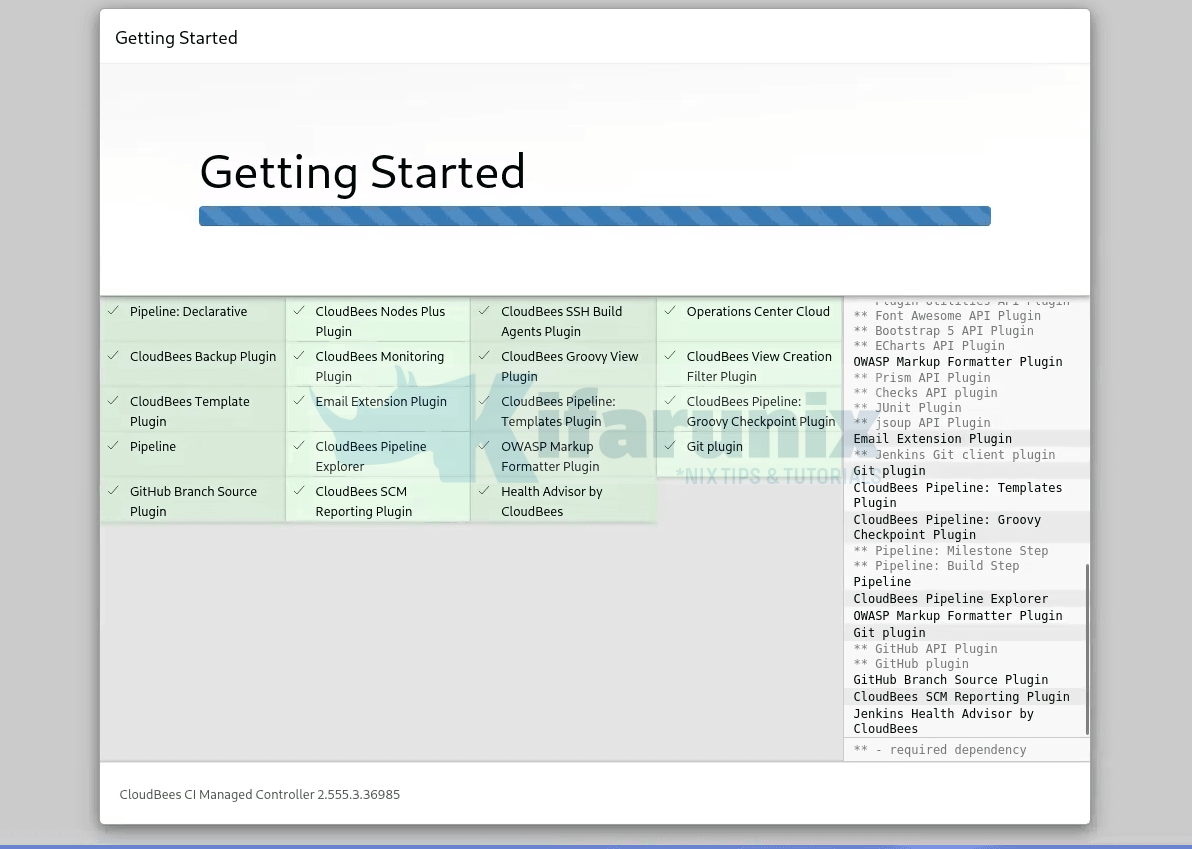
After CJOC provisions the controller and you navigate to https://controller-01.cbci.example.com/ for the first time, you are greeted with the Getting Started wizard.
Install Suggested plugins
Click Install suggested plugins. CloudBees CI will install the plugins it finds most useful for a managed controller, including the Kubernetes plugin (required for ephemeral agent provisioning), Pipeline plugins, Git integration, and Credentials management.
Plugin installation takes a few minutes. Progress is shown per-plugin on screen.
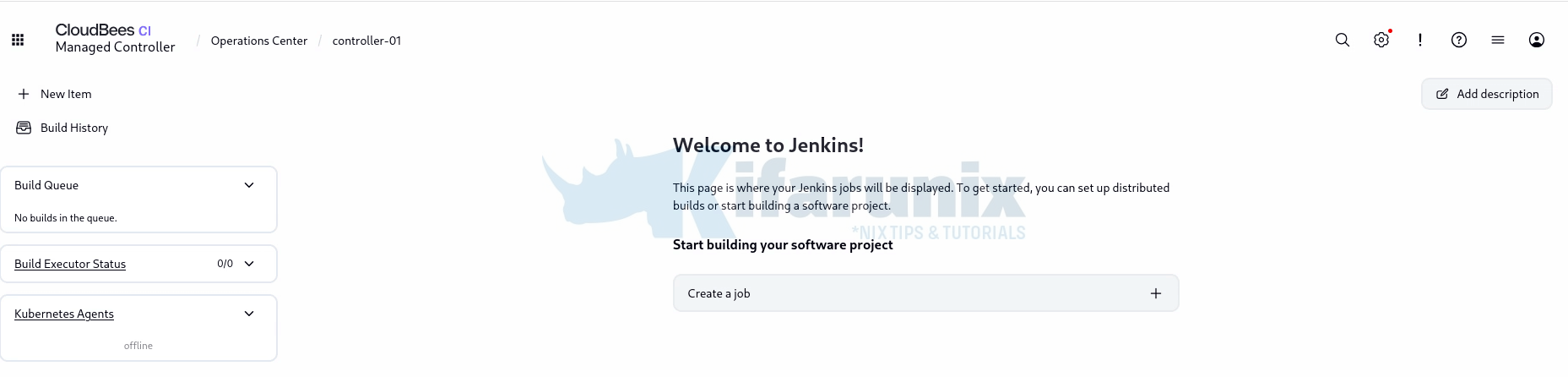
Once plugins are installed, click Start using CloudBees CI Managed Controller. You will land on the controller dashboard.
Verify the Kubernetes cloud auto-configuration
On CloudBees CI on modern cloud platforms (OpenShift), the Kubernetes cloud provider is automatically configured when a Managed Controller is provisioned by the Operations Center. Unlike external client controllers, you do not manually set up a Kubernetes cloud inside the controller.
Navigate to Manage Jenkins (Click the Settings gear beside the search icon on the top right) > Clouds. You should see a single cloud named kubernetes already present.

Opening it shows little to configure, and that is by design: the controller runs inside the cluster and uses in-cluster credentials, and Operations Center injected the agent settings at provisioning time. You can see exactly what was injected in the controller’s StatefulSet:
oc get sts controller-01 -n cloudbees-ci -o yamlSample output;
...
      containers:
      - env:
        - name: ENVIRONMENT
          value: KUBERNETES
        - name: JAVA_OPTS
          value: -Djenkins.model.Jenkins.slaveAgentPortEnforce="true" -Djenkins.model.Jenkins.slaveAgentPort="50000"
            -Dhudson.TcpSlaveAgentListener.port="50001" -DMASTER_GRANT_ID="0f159027-ed7c-4263-bb3d-38ec0039a816"
            -DMASTER_DOMAIN="controller-01" -DMASTER_INDEX="0" -DMASTER_OPERATIONSCENTER_ENDPOINT="http://cjoc.cloudbees-ci.svc.cluster.local/"
            -Dcom.cloudbees.jenkins.plugins.kube.NamespaceFilter.defaultNamespace="cloudbees-ci-builds"
            -Dhudson.lifecycle="hudson.lifecycle.ExitLifecycle" -DMASTER_NAME="controller-01"
            -DMASTER_ENDPOINT="https://controller-01.cbci.comfythings.com/" -DMASTER_WEBSOCKET="false"
            -DMASTER_RESOURCE_URL= -XshowSettings:vm -XX:+AlwaysPreTouch -XX:+DisableExplicitGC
            -XX:+ParallelRefProcEnabled -XX:+UseStringDeduplication -XX:+AlwaysActAsServerClassMachine
            -Dhudson.slaves.NodeProvisioner.initialDelay=0 -XX:-OmitStackTraceInFastThrow
            -Dorg.csanchez.jenkins.plugins.kubernetes.pipeline.PodTemplateStepExecution.defaultImage=cloudbees/cloudbees-core-agent:2.555.3.36985
            -Dcom.cloudbees.jenkins.plugins.kube.ServiceAccountFilter.defaultServiceAccount=jenkins-agents
            -Dcom.cloudbees.networking.useSubdomain=true -Dcom.cloudbees.networking.protocol="https"
            -Dcom.cloudbees.networking.hostname="cbci.comfythings.com" -Dcom.cloudbees.networking.port=443
            -Dcom.cloudbees.networking.operationsCenterName="cjoc"
Three values in there tell the story:
NamespaceFilter.defaultNamespace="cloudbees-ci-builds": agent pods are created in the separate agents namespace from the Helm install, not in the controller’s own namespace. This isAgents.SeparateNamespace.Enabled=truefrom Step 5 showing up as runtime behavior.ServiceAccountFilter.defaultServiceAccount=jenkins-agents: the identity agent pods run as.PodTemplateStepExecution.defaultImage=cloudbees/cloudbees-core-agent:<version>: the default agent image used when a pipeline doesn’t specify its own.
Customization happens through pod templates rather than the cloud entry: globally in Operations Center under Kubernetes Pod Templates, per controller, or per pipeline. For now, the defaults are all a first build needs.
The definitive connectivity check isn’t a button on this page, it’s running a build and watching an agent pod appear in cloudbees-ci-builds.
Step 10: Create and Run Your First Pipeline
This is the end-to-end proof: a pipeline that forces the controller to provision an ephemeral Kubernetes agent, run a build on it, and tear it down. If this works, every layer beneath it works.
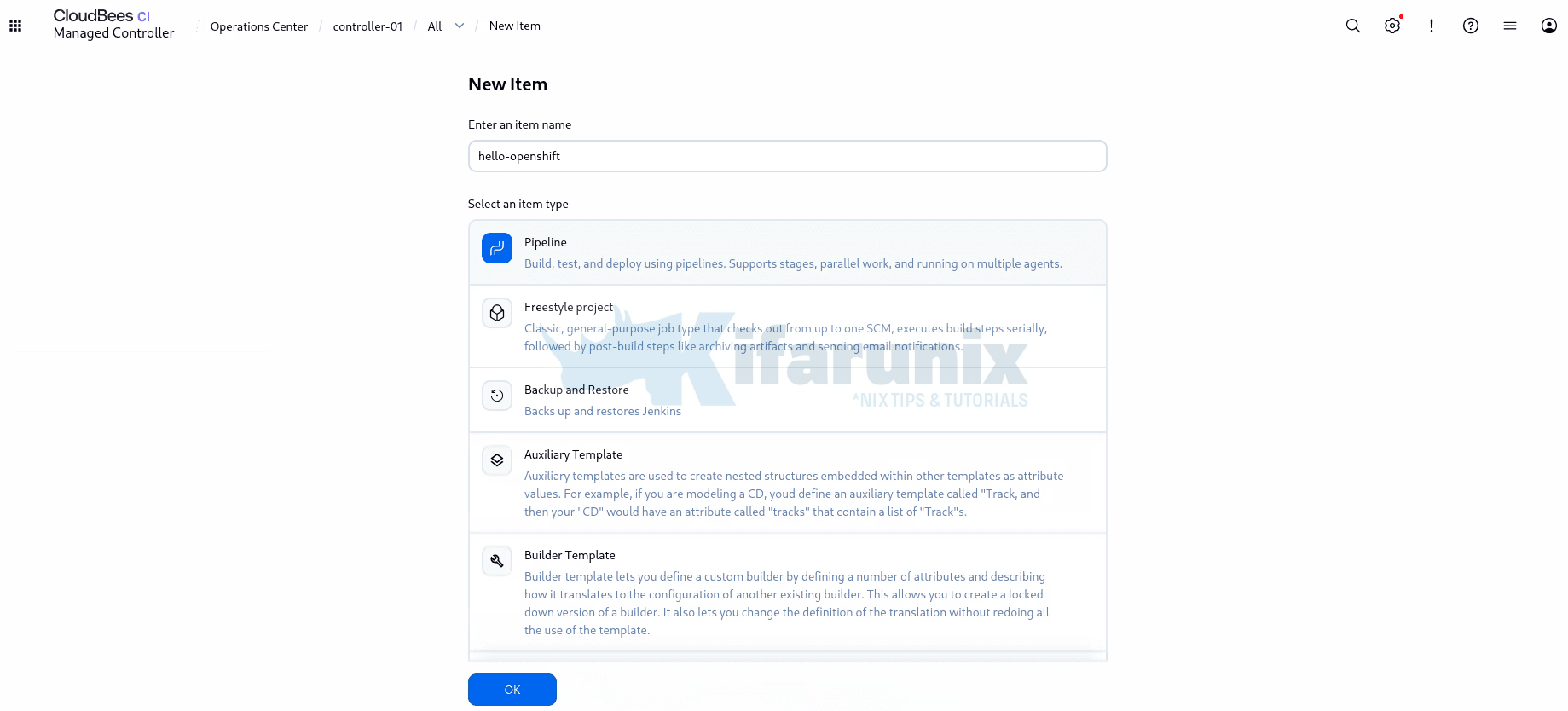
1. Create the pipeline job
From the managed controller dashboard (not Operations Center):
- Click New Item in the left menu.
- Enter a name, for example
hello-openshift - Select Pipeline and click OK.
2. Add the pipeline script
On the configuration page, scroll down to the Pipeline section, leave Definition as Pipeline script, and paste the following:
pipeline {
    agent {
        kubernetes {}
    }

    stages {
        stage('Hello') {
            steps {
                echo 'Hello from CloudBees CI on OpenShift!'
                sh 'hostname && head -2 /etc/os-release'
            }
        }
    }
}
Two deliberate choices in this script:
- The empty
kubernetes {}agent block explicitly requests an ephemeral Kubernetes agent built from the default pod template and the default agent image injected at provisioning (thePodTemplateStepExecution.defaultImagevalue from Step 9). Do not useagent anyhere: it requests any existing executor rather than asking Kubernetes for one, and since a managed controller has no built-in executors and no catch-all pod template out of the box, the build queues on “Waiting for next available executor” forever, with no pod and no error anywhere, because nothing is technically wrong. - The
shstep prints the agent pod’s hostname, proving the build ran on an ephemeral agent and not on the controller
Click Save.
3. Run it, and watch both sides
Before triggering the build, open a terminal and watch the agents namespace:
oc get pods -n cloudbees-ci-builds -wThen go back to the controller dashboard and click Build Now in the left menu.
From the UI, three places show you what’s happening:
- Build Executor Status (bottom left of the dashboard): the agent appears here while it’s provisioning and connecting. If the build sits in the queue, this panel says why, “waiting for next available executor” means the agent pod isn’t up yet.
- The build entry under Build History: click #1, then Console Output for the live log. This is where you see the pod template being provisioned, the agent connecting, and your steps executing.
- Stages view on the job page: per-stage progress and timing once the pipeline is running.
From the CLI, the watch shows the agent pod’s full lifecycle:
NAME                            READY   STATUS        RESTARTS   AGE
hello-openshift-1-xxxxx-xxxxx   0/1     Pending       0          0s
hello-openshift-1-xxxxx-xxxxx   1/1     Running       0          8s
hello-openshift-1-xxxxx-xxxxx   1/1     Terminating   0          24s
Note the namespace: cloudbees-ci-builds, the separate agents namespace from Step 5, exactly where Step 9’s injected configuration said agents would land. The first build is slower than the rest, the node has to pull the agent image once.
While the agent pod is alive, you can inspect it like any other pod:
oc logs <agent-pod-name> -n cloudbees-ci-builds        # agent connecting back to the controller
oc describe pod <agent-pod-name> -n cloudbees-ci-builds # scheduling, image pull, volume events
If the build hangs instead of running
Work the chain in order, each symptom points at a different layer:
- Build queued on “Waiting for next available executor”, no pod, no errors anywhere: the pipeline isn’t asking Kubernetes for an agent. This is what
agent anydoes on a managed controller, it waits for an executor that will never exist. Abort the build and useagent { kubernetes {} }as shown above. - Build queued and the controller log shows pod creation errors: the controller tried and failed to create the pod. Check Manage Jenkins, System Log, or
oc logs controller-01-0 -n cloudbees-ci, and look for RBAC errors against thecloudbees-ci-buildsnamespace, that’s the RoleBinding from Step 8 check 4. - Pod appears but stays
Pending: scheduling, not CloudBees.oc describe podandoc get events -n cloudbees-ci-buildsshow whether it’s resources, an SCC rejection, or an image pull problem. - Pod Running but the build doesn’t start: this one happened on the deployment behind this guide, so here’s the actual debugging trail rather than a hypothetical.
A real one: the agent that couldn’t phone home
The agent pod came up fine, 1/1 Running in the watch;
oc get pods -n cloudbees-ci-builds -wNAME READY STATUS RESTARTS AGE
hello-openshift-1-c4dkz-x9zgw-kpq8m 0/1 Pending 0 0s
hello-openshift-1-c4dkz-x9zgw-kpq8m 0/1 Pending 0 0s
hello-openshift-1-c4dkz-x9zgw-kpq8m 0/1 Pending 0 1s
hello-openshift-1-c4dkz-x9zgw-kpq8m 0/1 ContainerCreating 0 1s
hello-openshift-1-c4dkz-x9zgw-kpq8m 0/1 ContainerCreating 0 2s
hello-openshift-1-c4dkz-x9zgw-kpq8m 1/1 Running 0 4sbut the build never actually did anything. Deceptively, the build’s Status page made everything look healthy: “In progress“, “Build has been executing for 10 min“, a progress bar ticking along. The truth was in Console Output, which showed the pod being created and then repeated '<agent-pod-name>' is offline lines, executing nothing:
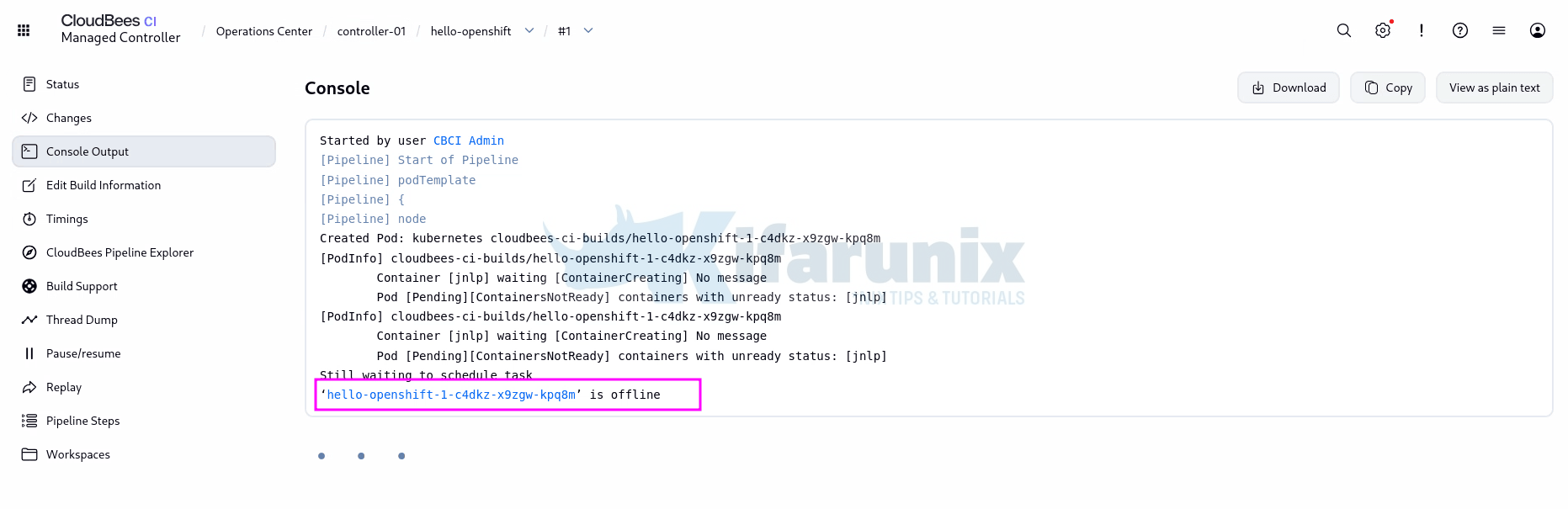
When a trivial echo pipeline claims to have been “executing” for 10 minutes, the Status page is counting time since the build started, not work done, so the next move is always the agent’s own log:
oc logs <agent-pod-name> -n cloudbees-ci-buildsAnd there it was, repeating every 10 seconds:
Jul 04, 2026 8:38:43 AM hudson.remoting.Launcher$CuiListener status
INFO: Locating server among [http://controller-01.cloudbees-ci.svc.cluster.local/]
Jul 04, 2026 8:39:13 AM hudson.remoting.Launcher$CuiListener status
INFO: Could not locate server among [http://controller-01.cloudbees-ci.svc.cluster.local/]; waiting 10 seconds before retry
java.io.IOException: Failed to connect to http://controller-01.cloudbees-ci.svc.cluster.local/tcpSlaveAgentListener/: Connect timed out
	at org.jenkinsci.remoting.engine.JnlpAgentEndpointResolver.resolve(JnlpAgentEndpointResolver.java:230)
	at hudson.remoting.Engine.innerRun(Engine.java:1001)
	at hudson.remoting.Engine.runTcp(Engine.java:621)
	at hudson.remoting.Engine.run(Engine.java:562)
Caused by: java.net.SocketTimeoutException: Connect timed out
...
Connect timed out is the important word, not refused, timed out. Refused would mean the packets arrived and nothing was listening. Timed out means the packets never arrived at all, something on the path is dropping them.
On a cluster, “silently dropping cross-namespace traffic” has one usual suspect, and this cluster had hardening policies applied to its namespaces:
oc get networkpolicy -n cloudbees-ciNAME POD-SELECTOR AGE
allow-from-kube-apiserver-operator <none> 2d11h
allow-from-openshift-ingress <none> 2d11h
allow-from-openshift-monitoring <none> 2d11h
allow-from-same-namespace <none> 2d11h
deny-all-ingress <none> 2d11hThat’s the standard default-deny pattern: block all ingress, then allow the router, monitoring, and same-namespace traffic back in. It’s good practice, and it guarantees this exact failure, because the whole point of the separate agents namespace from Step 5 is that agents are not in the same namespace. The agent in cloudbees-ci-builds tries to reach the controller in cloudbees-ci, matches none of the allow rules, and OVN drops the traffic without a trace.
The fix is one more allow policy in the controllers namespace, admitting the agents namespace on the two ports agents actually use, 8080 for HTTP and 50000 for the TCP agent listener:
apiVersion: networking.k8s.io/v1
kind: NetworkPolicy
metadata:
  name: allow-agents-to-controllers
  namespace: cloudbees-ci
spec:
  podSelector:
    matchLabels:
      type: master
  ingress:
  - from:
    - namespaceSelector:
        matchLabels:
          kubernetes.io/metadata.name: cloudbees-ci-builds
    ports:
    - protocol: TCP
      port: 8080
    - protocol: TCP
      port: 50000
The type: master pod selector matches the labels CloudBees puts on every controller pod, so one policy covers every current and future controller without opening cjoc or anything else in the namespace. No restart needed, the agent retries every 10 seconds and connects the moment the policy lands.
A few notes before copying this verbatim, because policy setups vary by cluster:
- If your namespaces have no NetworkPolicies at all (
oc get networkpolicycomes back empty), this isn’t your problem, look at DNS resolution from the agent pod next. - If your agents namespace has its own default-deny on egress, you need the mirror-image egress rule there too.
- If your policies select namespaces by custom labels rather than
kubernetes.io/metadata.name, adjust thenamespaceSelectorto match your convention. - Controllers also talk to Operations Center, and agents pull images and reach source control, so if builds fail in new ways after this, walk the same log-first process for each connection rather than opening everything.
4. Check the build output
In the controller UI, click the build number (#1) under Build History, then Console Output. You should see the pod template being provisioned, your hello message, and a hostname matching the pod name from your terminal watch.
Here’s what the run from this guide actually printed:
Running on hello-openshift-1-c4dkz-x9zgw-ljs7c in /home/jenkins/agent/workspace/hello-openshift
[Pipeline] {
[Pipeline] stage
[Pipeline] { (Hello)
[Pipeline] echo
Hello from CloudBees CI on OpenShift!
[Pipeline] sh
+ hostname
/home/jenkins/agent/workspace/hello-openshift@tmp/durable-9a131bb7/script.sh.copy: line 1: hostname: command not found
[Pipeline] }
[Pipeline] // stage
[Pipeline] }
[Pipeline] // node
[Pipeline] }
[Pipeline] // podTemplate
[Pipeline] End of Pipeline
ERROR: script returned exit code 127
Finished: FAILURE
Finished: FAILURE, and yet everything this step set out to prove, worked. Read it line by line:
Running on hello-openshift-1-c4dkz-x9zgw-ljs7cis the line that matters: the build executed on the ephemeral agent pod, the same name you saw in your terminal watch, not on the controller.- The
echoprinted. The pipeline engine, the agent connection, the workspace, all functioning. hostname: command not foundis the surprise: the CloudBees agent image is minimal and simply doesn’t ship thehostnamebinary. The script exits 127, so the build is marked FAILURE, but that’s the script’s assumption failing, not the platform.
That distinction is the real lesson of this step: a red build and a broken platform are different things, and the console tells you which one you have. It’s also a habit worth carrying into every pipeline you write after this: never assume common binaries exist in a minimal agent image, check or install what you need in the pod template.
That’s the full loop working: install, controller, agent, build, teardown, in one green checkmark. Anything a real team does from here, Git checkouts, container builds, deployments, is this same cycle with a more interesting pod template.
Post-Install Essentials
The walkthrough above gets you a working platform. Running it for real teams brings in a second wave of work, each item below is its own topic, listed here so nothing catches you by surprise:
- Single sign-on: wire up SAML, OIDC, or Entra ID before real teams onboard. Retrofitting SSO once people already have local accounts is far more disruptive than doing it first.
- RBAC and delegation: delegate administration at the folder and controller level so teams manage their own pipelines without anyone handing out full admin rights.
- Configuration as Code (CasC): define Operations Center and controller state as version-controlled YAML instead of clicking through forms. Everything in this post is the foundation CasC sits on top of, and the
CasCBundleService.enabledflag from Step 5 already prepared for it. - Shared agents and pod templates: let multiple controllers reuse the same agent pool and pod templates instead of every team duplicating their own, defined once at the Operations Center level.
- Plugin governance: use the Plugin Catalog and CloudBees’ tested plugin assurance rather than letting each controller accumulate plugins freely. Every plugin is an upgrade risk multiplied across every controller running it.
- Credentials management: decide early where secrets live. Controller credential stores work, but integrating an external secrets manager such as Vault or OpenBao keeps build secrets out of
JENKINS_HOMEentirely. - Backup and disaster recovery: every controller’s state is one PVC, so protect them. The CloudBees Backup plugin handles application-level backups, and OADP/Velero covers the cluster level, you likely want both.
- Monitoring: controllers expose health and metrics endpoints, get them into your Prometheus/Grafana stack before the first “Jenkins feels slow” ticket, not after.
- Upgrade strategy: Operations Center upgrades touch every controller beneath it. Keep a non-production controller around specifically for testing upgrades first.
- Controller hibernation: the hibernation monitor can shut down idle controllers and wake them on demand, which on a resource-constrained cluster is real capacity back for nothing.
None of these block your first teams from building today, but the first four are worth scheduling before you onboard anyone beyond a pilot team.
Common Pitfalls
The following are some of the most common issues you may encounter during installation and configuration, along with their likely causes and recommended resolutions.
PVC stuck in Pending
- Likely cause: No default
StorageClass, or the backing storage isn’t ready. - Fix: Set a default
StorageClassand confirm the storage provisioner is healthy.
Controller StatefulSet stuck at 0/1
- Symptoms: Events show
FailedCreatewithfsGroup: Invalid value ... not an allowed group. - Likely cause: The controller’s filesystem group defaults to
1000, whichrestricted-v2rejects (see the CloudBees KB). - Fix: Set the filesystem group to your project’s allowed range start (from the
openshift.io/sa.scc.supplemental-groupsnamespace annotation), reprovision the controller, and set the same value in Configure Controller Provisioning for future controllers.
Agent pod CreateContainerConfigError or immediate crash
- Likely cause: The image assumes a fixed UID or requires root, which is blocked by the SCC.
- Fix: Rebuild the image to be UID-agnostic, or grant
anyuidonly for limited lab or testing scenarios.
Route returns 503
- Likely cause: The Operations Center pod has not yet passed its readiness check.
- Fix: Verify the pod is
Readybefore troubleshooting the Route configuration.
Agent pod Running, but builds never start
- Symptoms: Agent log shows
Connect timed out to the controller service. - Likely cause: A default-deny
NetworkPolicyprevents traffic from the agents namespace to the controllers namespace. - Fix: Create a
NetworkPolicyin the controllers namespace that allows ingress from the agents namespace on TCP ports8080and50000(see Step 10: Troubleshooting).
Helm install hangs or fails during RBAC creation
- Likely cause: The service account lacks permission to create
RoleorRoleBindingresources. - Fix: Verify project-level RBAC permissions before retrying the installation.
Controller pod is healthy, but the UI is unreachable over HTTPS
- Likely cause: The Route TLS termination configuration does not match the Helm chart settings.
- Fix: Verify that
Route.tls.Enablematches the actual Route TLS configuration.
Production Best Practices
- Scope controllers by team or business unit. Avoid allowing a single controller to grow indefinitely, as this increases the blast radius of outages and administrative changes.
- Prefer ephemeral Kubernetes agents. Long-lived static agents accumulate configuration drift over time, making build failures harder to diagnose and reproduce.
- Adopt Configuration as Code (CasC) early. Once you have more than one controller, managing configuration in source control is more reliable than making manual UI changes.
- Minimize the plugin footprint. Install only the plugins you need, since every additional plugin increases maintenance overhead and upgrade compatibility risks.
- Test upgrades before production. Validate Operations Center and controller upgrades in a non-production environment to reduce the risk of impacting all managed controllers.
Wrapping Up
Installing CloudBees CI with Helm is only one part of a successful deployment. Long-term stability depends on establishing the correct Security Context Constraints (SCCs), storage configuration, and RBAC permissions before the first installation.
Equally important is understanding the role of Operations Center. Beyond centralizing management, it provides governance, shared administration, and lifecycle management across multiple controllers, the primary advantage of CloudBees CI over a standalone Jenkins deployment.