
In this guide, I’ll walk you through how to install and configure OpenShift Data Foundation on OpenShift, covering everything from prerequisites to post-deployment validation.
When I first deployed OpenShift Container Platform (OCP) (we are running OCP 4.20 in this demo), my next challenge was setting up reliable persistent storage for the image registry and application workloads. After evaluating several options, including external Ceph clusters and Rook-based deployments, I chose OpenShift Data Foundation in internal mode, and it has consistently met my needs across multiple environments.
This guide isn’t a copy-paste walkthrough from vendor documentation. It is based on real deployments I’ve implemented on a KVM virtualization platform, including the decisions, mistakes, and troubleshooting steps that matter in real-world OpenShift clusters.
By the end of this guide, you’ll be able to:
- Identify the prerequisites and hardware requirements that actually matter for ODF
- Install the Local Storage Operator correctly
- Install and configure OpenShift Data Foundation (ODF) step by step
- Configure persistent storage for the OpenShift image registry
- Troubleshoot common ODF installation and deployment issues
- Perform post-deployment validation and basic optimization
Table of Contents
How to Install and Configure OpenShift Data Foundation on OpenShift (ODF)
What is OpenShift Data Foundation?
OpenShift Data Foundation (ODF, formerly known as OpenShift Container Storage) is Red Hat’s software-defined, container-native storage platform tightly integrated with Red Hat OpenShift. It provides unified persistent storage and advanced data services for containerized workloads across on-premises, hybrid, and multi-cloud environments.
Under the hood, ODF orchestrates Ceph (the core distributed storage system), the Rook-Ceph operator (for automated deployment and management of Ceph), and the Multicloud Object Gateway (MCG, based on NooBaa technology) to deliver three primary types of persistent storage:
- Block Storage (Ceph RBD): High-performance ReadWriteOnce volumes, ideal for databases (e.g., PostgreSQL, MongoDB) and other stateful applications requiring raw block access.
- File Storage (CephFS): Shared, distributed filesystem supporting ReadWriteMany access, suited for collaborative workloads like logging, monitoring, or content management.
- Object Storage (S3-compatible via Multicloud Object Gateway / NooBaa): Scalable storage for unstructured data, backups, artifacts, image registries, and multi-cloud data federation.
From my experience, ODF really shines in production environments where you need enterprise-grade, integrated storage without the overhead of managing separate infrastructure components. It’s Red Hat’s recommended storage solution for OpenShift, and for good reason: it simplifies operations while delivering robust, cloud-native storage capabilities.
Understanding ODF Deployment Modes: Internal vs. External, and Node Placement Options
Before we dive into installation, you need to make a critical decision: where will ODF run in your cluster? There’s no one-size-fits-all answer here. You must assess your resources, performance requirements, and environment constraints to plan accordingly.
Primary Deployment Modes
ODF supports two main modes:
- Internal Mode (Most Common for New Deployments) ODF deploys entirely within the OpenShift cluster using Rook-Ceph to manage a built-in Ceph cluster. Storage is provided directly from devices (local, cloud, or SAN) attached to cluster nodes. This is the recommended starting point for most users.
- External Mode ODF connects to an existing, standalone Ceph cluster (managed separately outside OpenShift, often via cephadm). OpenShift consumes the external Ceph services (block, file, object) without deploying a new Ceph instance. Ideal when you already have a dedicated Ceph environment or need advanced features like stretched clusters.
The rest of this guide focuses on Internal mode, as it’s used in most demos and production setups.
Node Placement Options in Internal Mode
Within Internal mode, you control where ODF pods (Ceph MONs, OSDs, MGRs, etc.) run relative to application workloads. Red Hat documentation emphasizes resource isolation for production reliability.
- Hyperconverged Mode: This is where ODF components run on the same worker nodes as your application pods. Ceph OSDs consume node resources alongside containers.
Pros:- Lower infrastructure costs as there is no extra nodes required
- Simpler setup and management
- Efficient use of existing hardware
- Great for getting started quickly
Cons:- Resource contention: Storage I/O or spikes can impact applications (and vice versa)
- Less predictable performance under heavy load
- Not recommended for I/O-intensive production workloads
When to Use:- Development, testing, or proof-of-concept environments
- Small-scale production with moderate storage demands
- Compact clusters (e.g., 3-node setups)
- Budget-limited deployments with at least 3 suitably resourced nodes
- Dedicated (or Disaggregated) Storage Nodes: In this model, you label and taint dedicated worker nodes exclusively for ODF. Application workloads are scheduled elsewhere (on separate compute/worker nodes). These nodes are often referred to as storage nodes, even though they are technically worker nodes with specific labels.
Pros:- Full resource isolation for predictable, high-performance storage
- Better scalability: Independently grow compute and storage
- Easier tuning, monitoring, and capacity planning
- Red Hat’s recommended architecture for production
Cons:- Higher costs (requires at least 3 additional nodes for Ceph high availability)
- More initial configuration (node labeling, taints, tolerations)
- Increased cluster footprint
When to Use:- Production environments
- Performance-critical or I/O-heavy workloads (e.g., databases, AI/ML, analytics)
- Large-scale or enterprise deployments
- When SLAs demand consistent storage latency/throughput
Our Demo Environment: Hyperconverged on Worker Nodes
In this guide, we’re using OCP 4.20 in internal mode with hyperconverged configuration on standard worker nodes. This choice fits perfectly for a demo because:
- Minimal hardware requirements (e.g., a compact 3-worker cluster)
- Focus on learning core ODF concepts without added node management complexity
- Faster deployment to explore block, file, and object storage quickly
- Maximizes resource efficiency in a non-production setting
For real production use, strongly consider migrating to dedicated infrastructure nodes to ensure reliability and performance as your workloads grow.
How to Migrate ODF from Worker Nodes to Dedicated Storage Nodes on OpenShift 4.x
This setup gives you hands-on experience while highlighting why isolation matters in scaled environments.
Critical Requirements for Converged Deployment
Even in converged mode, OpenShift Data Foundation (ODF) has strict architectural requirements:
- Minimum of 3 worker nodes: This is non-negotiable. ODF (Ceph) requires three nodes to maintain quorum and high availability.
- Each worker node must have sufficient CPU and memory capacity.
Node sizing depends on:- ODF base servicesOpenShift system componentsApplication workloads (in converged mode)
- Dedicated raw block device per node: Each worker node must have at least one empty raw block device available for ODF, managed via the Local Storage Operator. Only SSD or NVMe devices are supported for internal mode deployments.
- Hardware consistency: Worker nodes should have similar hardware characteristics. Avoid mixing significantly different CPU, memory, or disk performance profiles.
For this demo, I am using the following example configuration (Deployed on our OCP 4 cluster):
- Worker nodes: 3
- No dedicated infrastructure or storage nodes
- Per-node resources (demo sizing):
- 10 vCPUs
- 32 GB RAM
- 100 GB SSD as a secondary (raw) disk for ODF
- Deployment model:
- ODF components run on the same worker nodes as application pods
- All three worker nodes are labeled for ODF storage
Read more details on the resource requirements section.
Before you can start, you can plan your resources by asking yourself:
- Is this deployment intended for production or for testing?
- What level of storage performance is required?
- How many worker nodes are available in the cluster?
- What budget constraints apply to this deployment?
- Is significant storage growth expected over time?
Remember, you can always start with converged mode and migrate to dedicated infra/storage nodes later as your requirements grow. It’s more work, but it’s possible.
Pre-Installation Checklist
Before starting the installation, I always verify these items. Trust me, catching these issues early saves hours of troubleshooting later.
Cluster Health Check
Verify all nodes are Ready:
oc get nodesNAME STATUS ROLES AGE VERSION
ms-01.ocp.comfythings.com Ready control-plane,master 3d3h v1.33.6
ms-02.ocp.comfythings.com Ready control-plane,master 3d4h v1.33.6
ms-03.ocp.comfythings.com Ready control-plane,master 3d4h v1.33.6
wk-01.ocp.comfythings.com Ready worker 3d3h v1.33.6
wk-02.ocp.comfythings.com Ready worker 3d3h v1.33.6
wk-03.ocp.comfythings.com Ready worker 3d3h v1.33.6Check cluster version:
oc get clusterversionNAME VERSION AVAILABLE PROGRESSING SINCE STATUS
version 4.20.8 True False 3d3h Cluster version is 4.20.8Ensure that the cluster is at the supported OpenShift version, is not upgrading, and is AVAILABLE=True.
Verify no critical alerts:
oc get clusteroperatorsEnsure that all cluster operators show:
AVAILABLE=TrueDEGRADED=FalsePROGRESSING=False
Identify Storage Nodes
OpenShift Data Foundation does not automatically use all worker nodes in the cluster for storage. Instead, it relies on explicit node labeling to determine which nodes are allowed to host storage components such as Ceph OSDs, MONs, and MGRs.
By labeling nodes with cluster.ocs.openshift.io/openshift-storage='' you are telling the ODF operators:
- These nodes are approved to run ODF storage workloads
- These nodes contain locally attached raw SSD/NMVe block devices that ODF is allowed to claim
- Ceph OSD pods may be scheduled only on these labeled nodes
This mechanism is critical because:
- It prevents ODF from accidentally consuming disks on unintended nodes
- It allows precise control over where storage lives, especially in clusters with mixed-purpose workers
- It enables future architectures where only a subset of nodes are dedicated to storage (for example, infra or storage-only nodes)
In this demo, we are using a hyperconverged configuration, so the same worker nodes run both application workloads and ODF storage services. Therefore, we label all three worker nodes as storage nodes.
If you haven’t done so already, label the worker nodes as follows:
for node in 01 02 03; do oc label nodes wk-$node.ocp.comfythings.com cluster.ocs.openshift.io/openshift-storage='';doneShow all nodes labels:
oc get nodes --show-labelsOr nodes with a specific label:
oc get nodes -l cluster.ocs.openshift.io/openshift-storageSample output;
NAME                        STATUS   ROLES    AGE     VERSION
wk-01.ocp.comfythings.com   Ready    worker   3d11h   v1.33.6
wk-02.ocp.comfythings.com   Ready    worker   3d11h   v1.33.6
wk-03.ocp.comfythings.com   Ready    worker   3d11h   v1.33.6
Verify Raw Block Devices
This is critical. Each storage node needs raw block devices with:
- No existing partitions
- No filesystem
- No data you care about (will be wiped during installation)
- No Physical Volumes (PVs), Volume Groups (VGs), or Logical Volumes (LVs) remaining on the disk.
- Again, the drives MUST be SSD or NVMe.
To check available devices on each node, debug into a node:
oc debug node/wk-01.ocp.comfythings.comInside the debug pod, run:
chroot /hostlsblkSample out;
NAME   MAJ:MIN RM   SIZE RO TYPE MOUNTPOINTS
loop0    7:0    0   5.8M  1 loop
sda      8:0    0   100G  0 disk
vda    252:0    0   120G  0 disk
|-vda1 252:1    0     1M  0 part
|-vda2 252:2    0   127M  0 part
|-vda3 252:3    0   384M  0 part /boot
`-vda4 252:4    0 119.5G  0 part /var
                                 /sysroot/ostree/deploy/rhcos/var
                                 /sysroot
                                 /etc
We have 100G raw drive, /dev/sda on all the three worker nodes.
Confirm it is non-rotational (ROTA == 0 i.e SSD/NVMe);
lsblk -o NAME,ROTA,SIZENAME ROTA SIZE
loop0 1 5.8M
sda 0 100G
vda 1 120G
|-vda1 1 1M
|-vda2 1 127M
|-vda3 1 384M
`-vda4 1 119.5G
As you can see, our SDA drive is non-rotational.
Exit the debug pod when done checking.
You can run the debug command above as a single command to check available drives:
oc debug node/wk-01.ocp.comfythings.com -- chroot /host lsblk -o NAME,ROTA,SIZEResource Availability
Verify you have enough cluster resources. Check CPU and memory across nodes:
oc adm top nodesNAME CPU(cores) CPU(%) MEMORY(bytes) MEMORY(%)
ms-01.ocp.comfythings.com 451m 12% 6916Mi 46%
ms-02.ocp.comfythings.com 695m 19% 10786Mi 72%
ms-03.ocp.comfythings.com 484m 13% 8087Mi 54%
wk-01.ocp.comfythings.com 289m 3% 5910Mi 24%
wk-02.ocp.comfythings.com 186m 1% 2800Mi 11%
wk-03.ocp.comfythings.com 361m 3% 5920Mi 24%Ensure there is sufficient resources for your use cases.
Install and Configure OpenShift Data Foundation (ODF) on OpenShift
Step 1: Install Local Storage Operator
The Local Storage Operator (LSO) is a Kubernetes operator that allows OpenShift Data Foundation (ODF) to discover, manage, and provision local block storage devices attached to your nodes. In internal ODF deployments, Ceph OSDs need access to raw, unformatted disks on worker nodes. LSO automates this process: it detects available local devices, prepares them for use, and exposes them to ODF as storage resources.
Without LSO, ODF cannot automatically find or claim local disks, which means you’d have to manually prepare and configure storage devices, a tedious and error-prone process. LSO also helps ensure that devices are in the correct state (empty, no partitions, no filesystem) before ODF claims them.
LSO can be installed via:
- OpenShift Web Console
- CLI
To install via OpenShift Web Console, login as an administrative user and:
- Navigate to Ecosystem
- Click Software Catalog
- Find Local Storage Operator
- Type
local storagein the Filter by keyword box.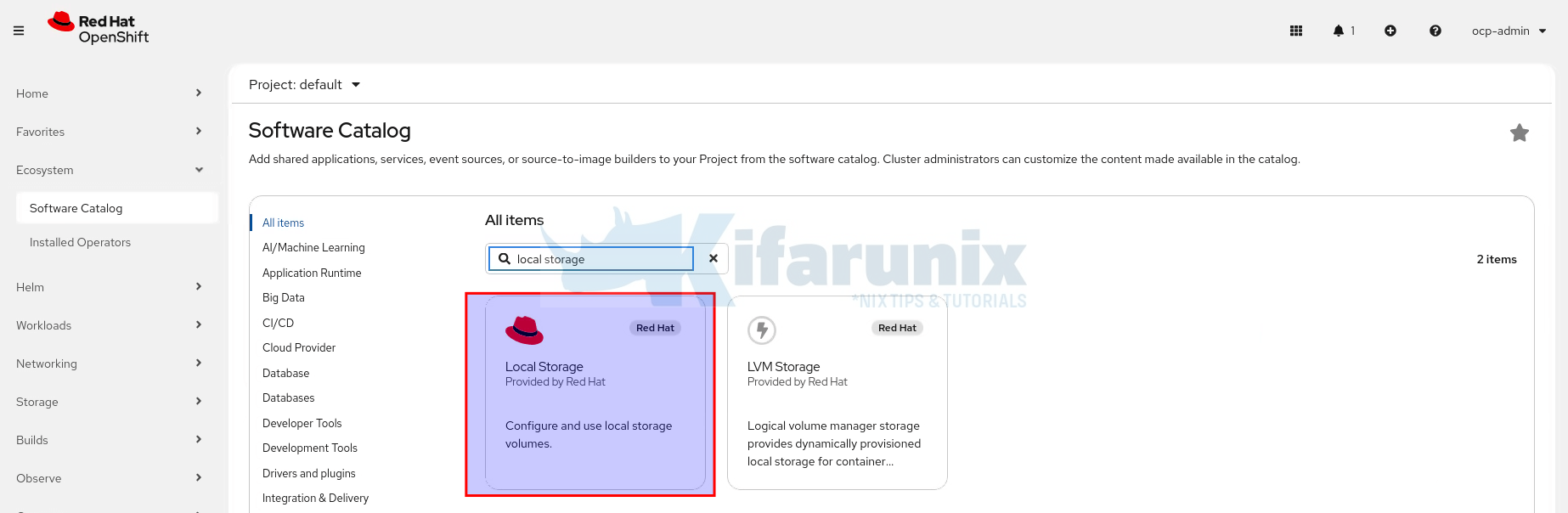
- Click on Local Storage Operator
- Type
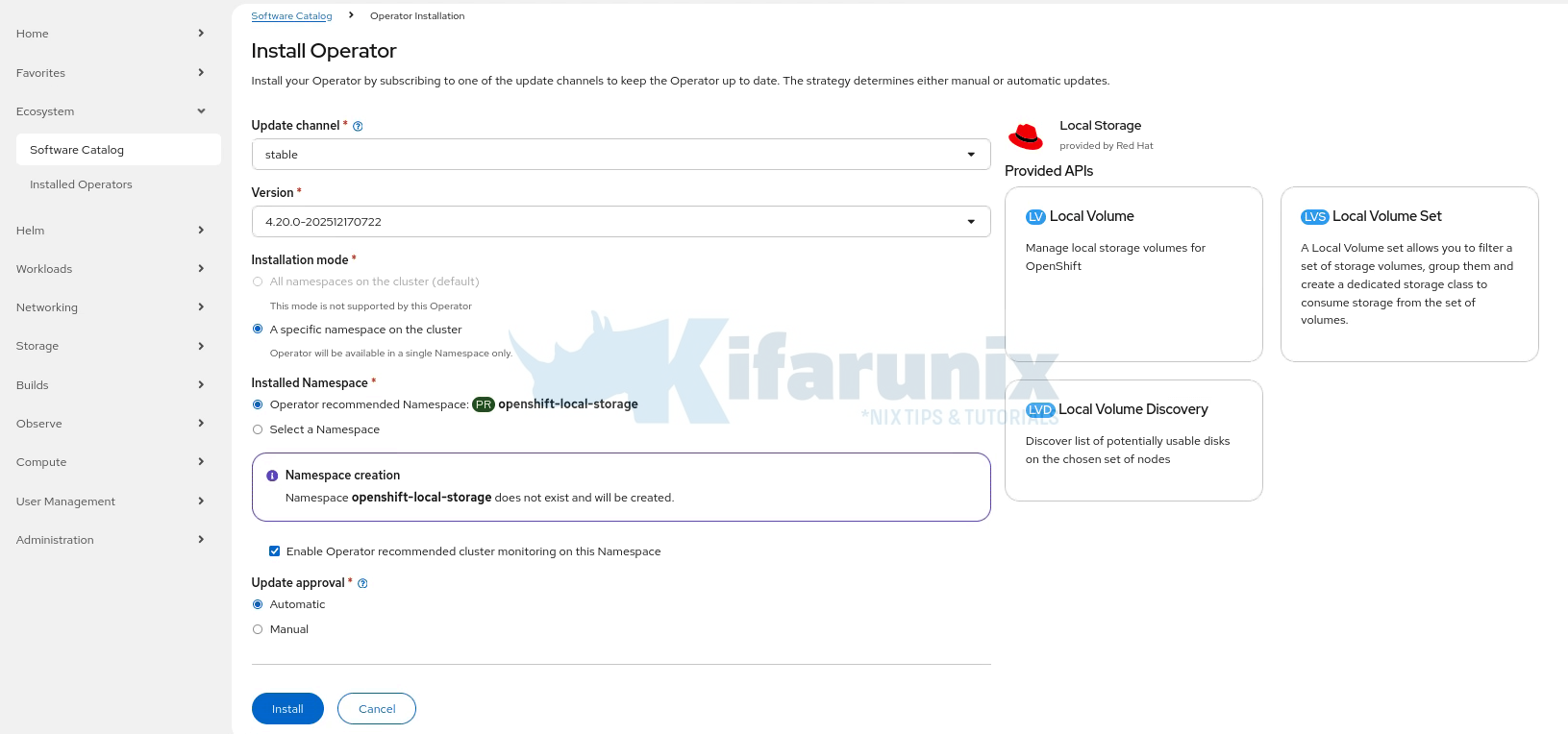
- Configure Installation
- Click
Installon the Operator page. - Update Channel and the version: You can leave the default settings.
- Installation Mode
- Options:
- All namespaces on the cluster: Not supported by this Operator
- A specific namespace on the cluster: Operator will be available in a single Namespace only
- Select:
A specific namespace on the cluster
- Options:
- Installed Namespace
- Operator-recommended namespace:
openshift-local-storage - If the namespace does not exist, it will be created automatically
- Optionally: Enable Operator-recommended cluster monitoring for this namespace
- Operator-recommended namespace:
- Update Approval
- Choose either:
- Automatic: Operator updates automatically
- Manual: Updates require manual approval
- Choose either:
- Confirm and click Install to complete the Operator installation
- Click
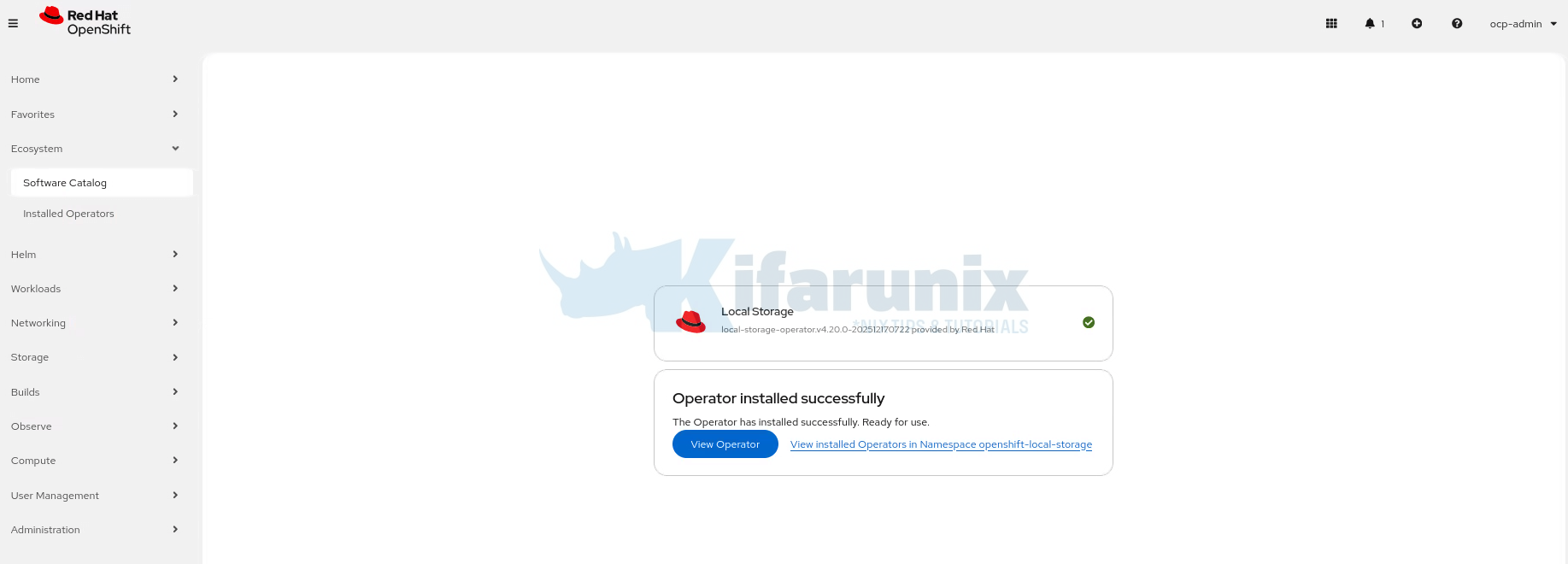
- Verify Installation
- Wait for the operator to install (takes 1-2 minutes)
- Look for a green checkmark indicating successful installation.
If you prefer to use CLI, then proceed as follows:
Create local storage namespace:
cat <<EOF | oc apply -f -
apiVersion: v1
kind: Namespace
metadata:
  name: openshift-local-storage
spec: {}
EOF
Create OperatorGroup.
An OperatorGroup is a resource used by OpenShift’s Operator Lifecycle Manager (OLM) to define where an Operator can operate and manage resources. It acts like a “scope” or “boundary” for the Operator:
- It automatically creates the necessary permissions (RBAC roles and bindings) so the Operator can do its job safely without accessing everything.
- It specifies which namespaces the Operator is allowed to watch and control (e.g., just its own namespace, multiple specific ones, or all namespaces in the cluster).
cat <<EOF | oc apply -f -
apiVersion: operators.coreos.com/v1
kind: OperatorGroup
metadata:
  name: openshift-local-storage
  namespace: openshift-local-storage
spec:
  targetNamespaces:
  - openshift-local-storage
EOF
After creating the OperatorGroup, the next step is to create a Subscription.
A Subscription is an OpenShift’s Operator Lifecycle Manager (OLM) object that defines how an Operator is delivered and updated. Think of it as a watcher for updates. It tells OLM:
- Which Operator to install
- From which catalog (e.g., redhat-operators, certified-operators)
- Which version/channel to use (e.g., stable, 4.20)
- Whether to update automatically or manually
cat <<EOF | oc apply -f -
apiVersion: operators.coreos.com/v1alpha1
kind: Subscription
metadata:
  name: local-storage-operator
  namespace: openshift-local-storage
spec:
  channel: stable
  installPlanApproval: Automatic
  name: local-storage-operator
  source: redhat-operators
  sourceNamespace: openshift-marketplace
EOF
Verify installation:
oc get csv -n openshift-local-storageEnsure the CSV (ClusterServiceVersion) appears with Phase: Succeeded.
Common issue I’ve seen: If the CSV shows Installing for more than 5 minutes, check for pod issues:
oc get pods -n openshift-local-storageCheck operator logs:
oc logs -n openshift-local-storage deployment/local-storage-operatorStep 2: Install OpenShift Data Foundation (ODF) Operator
Now that LSO is installed, let’s install the OpenShift Data Foundation operator via OpenShift Web Console
From the OCP web console;
- Open the Software Catalog
- From the left-hand navigation, click Ecosystem > Software Catalog
- Locate the ODF Operator
- In the search field, type OpenShift Data Foundation
- Select OpenShift Data Foundation from the results
- Install the Operator
- Click Install to open the installation options configuration wizard.
- Update the Channel and the operator version. You can leave the default selections.
- Installation Mode:
- Select A specific namespace on the cluster
- Installed Namespace:
- Select the Operator-recommended namespace
openshift-storage - If the namespace does not exist, it will be created automatically
- Select the Operator-recommended namespace
- Update Approval:
- Automatic: suitable for lab environments
- Manual: recommended for production to control upgrades
- Console Plugin:
- Ensure Enable is selected (required for the ODF dashboard)
- Complete Installation
- Click Install
Verification:
After the operator installation completes, the OpenShift Web Console automatically refreshes to apply the changes. During this refresh, a brief error message may be displayed. This is expected behavior and clears once the refresh finishes.
Verify in the Web Console
- Navigate to Ecosystem > Installed Operators.
- Confirm that the OpenShift Data Foundation Operator shows a green checkmark, indicating a successful installation.
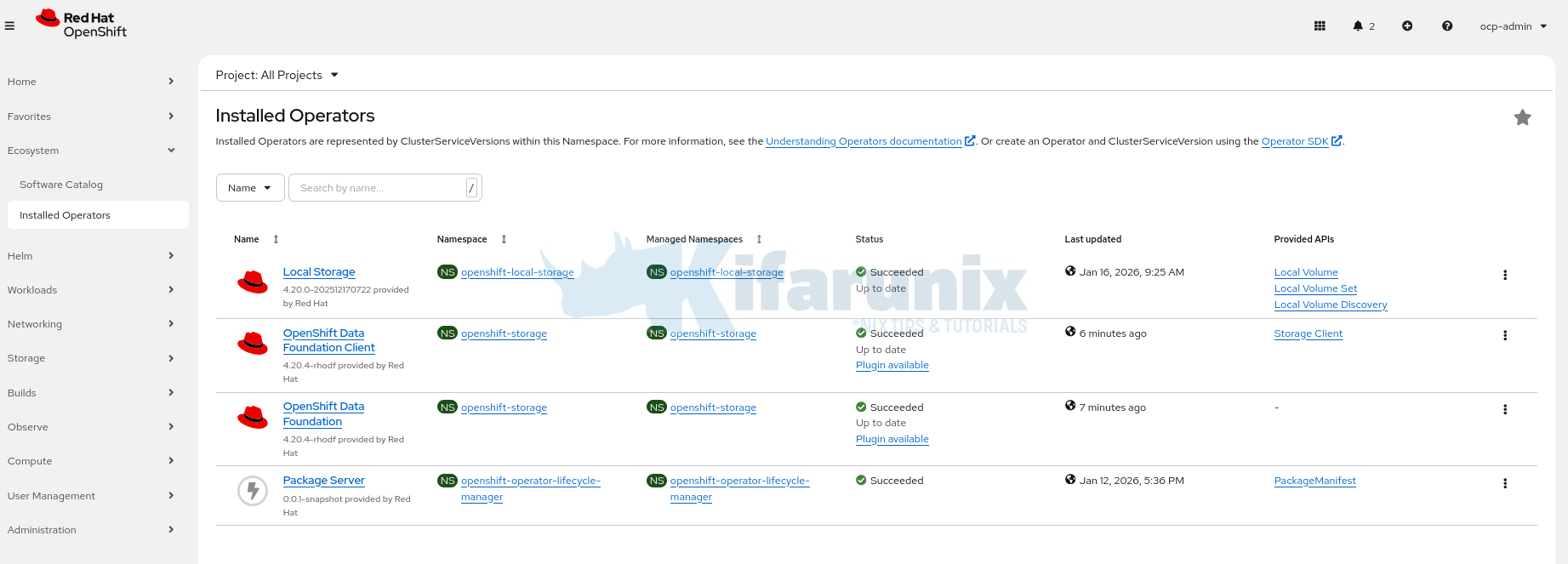
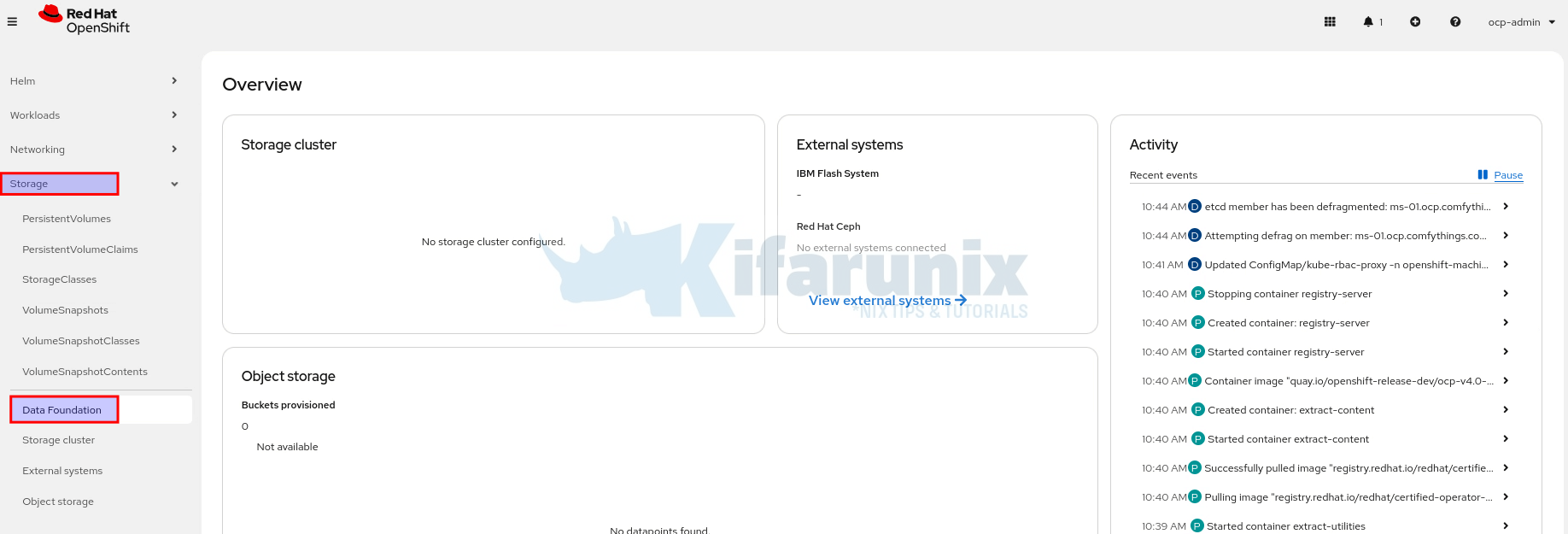
- Navigate to Storage in the left-hand menu and verify that the Data Foundation dashboard is available.
You can also verify the installation from the command line by checking the operator’s ClusterServiceVersion (CSV), which must be in a Succeeded state:
oc get csv -n openshift-storageSample output;
NAME                                              DISPLAY                            VERSION        REPLACES                                          PHASE
cephcsi-operator.v4.20.4-rhodf                    CephCSI operator                   4.20.4-rhodf   cephcsi-operator.v4.20.3-rhodf                    Succeeded
mcg-operator.v4.20.4-rhodf                        NooBaa Operator                    4.20.4-rhodf   mcg-operator.v4.20.3-rhodf                        Succeeded
ocs-client-operator.v4.20.4-rhodf                 OpenShift Data Foundation Client   4.20.4-rhodf   ocs-client-operator.v4.20.3-rhodf                 Succeeded
ocs-operator.v4.20.4-rhodf                        OpenShift Container Storage        4.20.4-rhodf   ocs-operator.v4.20.3-rhodf                        Succeeded
odf-csi-addons-operator.v4.20.4-rhodf             CSI Addons                         4.20.4-rhodf   odf-csi-addons-operator.v4.20.3-rhodf             Succeeded
odf-dependencies.v4.20.4-rhodf                    Data Foundation Dependencies       4.20.4-rhodf   odf-dependencies.v4.20.3-rhodf                    Succeeded
odf-external-snapshotter-operator.v4.20.4-rhodf   Snapshot Controller                4.20.4-rhodf   odf-external-snapshotter-operator.v4.20.3-rhodf   Succeeded
odf-operator.v4.20.4-rhodf                        OpenShift Data Foundation          4.20.4-rhodf   odf-operator.v4.20.3-rhodf                        Succeeded
odf-prometheus-operator.v4.20.4-rhodf             Prometheus Operator                4.20.4-rhodf   odf-prometheus-operator.v4.20.3-rhodf             Succeeded
recipe.v4.20.4-rhodf                              Recipe                             4.20.4-rhodf   recipe.v4.20.3-rhodf                              Succeeded
rook-ceph-operator.v4.20.4-rhodf                  Rook-Ceph                          4.20.4-rhodf   rook-ceph-operator.v4.20.3-rhodf                  Succeeded
You can also verify the installation by checking the operator and related pods directly:
oc get pods -n openshift-storageAll pods should eventually show a STATUS of Running with all containers ready (for example, READY 1/1). If a pod remains in a Creating state for an extended period, inspect it to identify the cause:
oc describe pod <pod-name> -n openshift-storagePay particular attention to the Events section at the bottom of the output, which often indicates issues such as image pull failures, missing resources, or scheduling constraints.
Step 3: Create the ODF Storage Cluster (StorageSystem)
Once the Local Storage Operator (for discovering local disks) and the OpenShift Data Foundation (ODF) Operator are installed, the next step is to create a StorageSystem.
What is a StorageSystem?
A StorageSystem is a custom resource provided by the ODF operator. It’s the main entry point for deploying a complete ODF storage cluster through the OpenShift web console. Creating it triggers the operator to:
- Discover and claim raw local disks on your nodes (using the Local Storage Operator)
- Deploy a highly available Ceph cluster (via Rook)
- Set up replication, monitoring, and other Ceph components
- Automatically create StorageClasses for block (RBD), file (CephFS), and object storage
In short, this one resource spins up your entire production-grade software-defined storage backend.
Prerequisites (quick recap)
- At least 3 worker or infrastructure nodes
- Raw, empty local disks attached to those nodes (must be SSD/NVMe, no partitions/LVM/filesystems)
- Disks must have unique /dev/disk/by-id paths
- Local Storage Operator running in openshift-local-storage namespace
- ODF Operator running in openshift-storage namespace
To create a StorageSystem:
- Log into the OpenShift web console.
- Go to Storage > Storage cluster > Configure Data Foundation.
- On the Data Foundation welcome page, click Create Storage Cluster to create the storage system.
- In the Backing storage section, perform the following:
- Select the Create a new StorageClass using the local storage devices option.
- Optional: Select Use Ceph RBD as the default StorageClass. This avoids having to manually annotate a StorageClass.
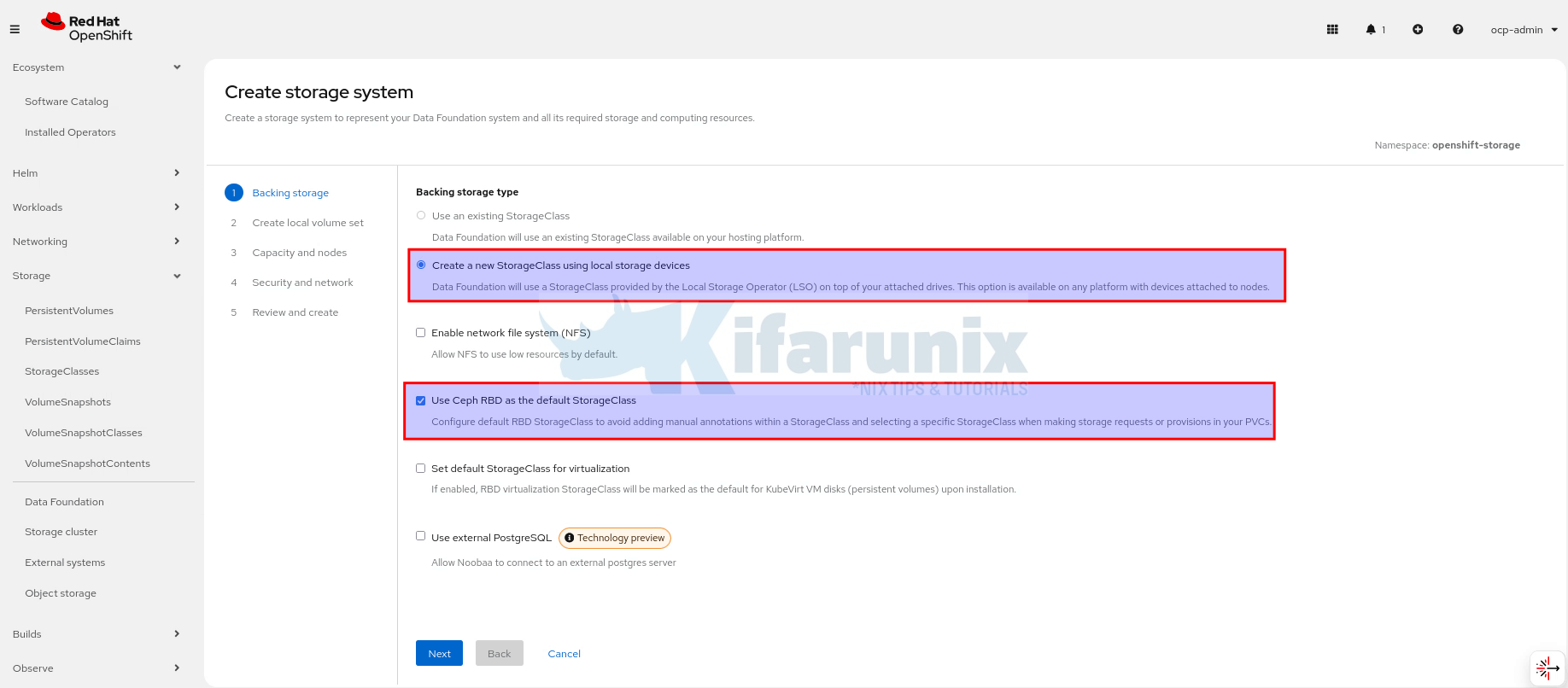
- Click Next.
- On the local volume set section:
- Enter a name for the LocalVolumeSet and StorageClass
- A LocalVolumeSet will be created to allow you to filter a set of disks, group them, and create a dedicated StorageClass to consume storage from them.
- A StorageClass defines how OpenShift should provision storage from the LocalVolumeSet. It tells pods which disks to use, how to access them, and what performance characteristics they have. When a pod requests storage via a PVC (PersistentVolumeClaim), the StorageClass ensures it receives a disk from the selected LocalVolumeSet automatically.
- Filter disks by:
- Disks on all nodes (3 node): Uses the available disks that match the selected filters on all nodes.
- Disks on selected nodes: Uses the available disks that match the selected filters only on selected nodes.
- Disk type: Disk type is auto set to SSD/NVMe. Data Foundation supports only SSD/NVMe disk type for internal mode deployment.
- Click Advanced to view more disk configuration options.
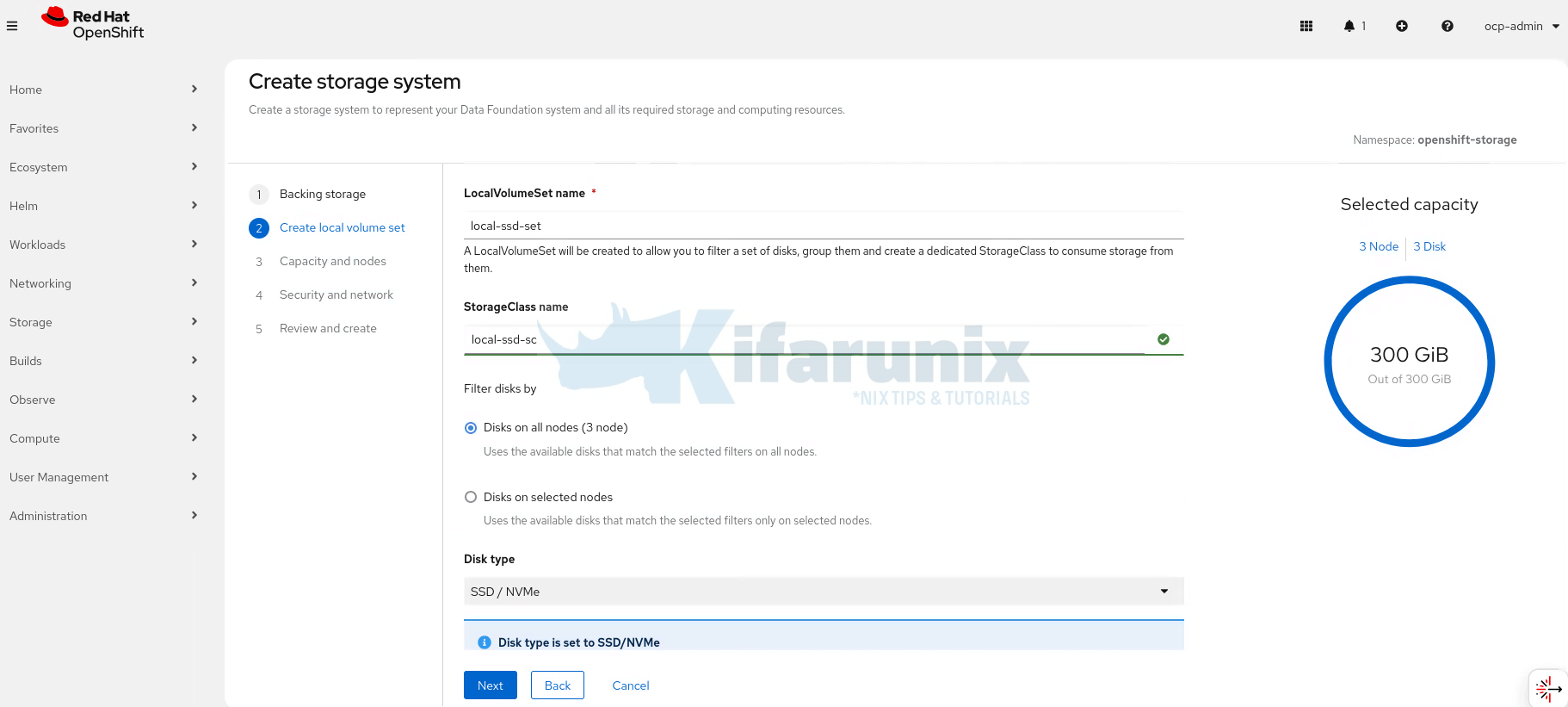
- Click Next and confirm that you want to create the localvolumeset in order to proceed.
- Enter a name for the LocalVolumeSet and StorageClass
- In the Capacity and nodes page:
- Available raw capacity is populated with the capacity value based on all the attached disks associated with the storage class. This takes some time to show up.
- The Selected nodes list shows the nodes based on the storage class.
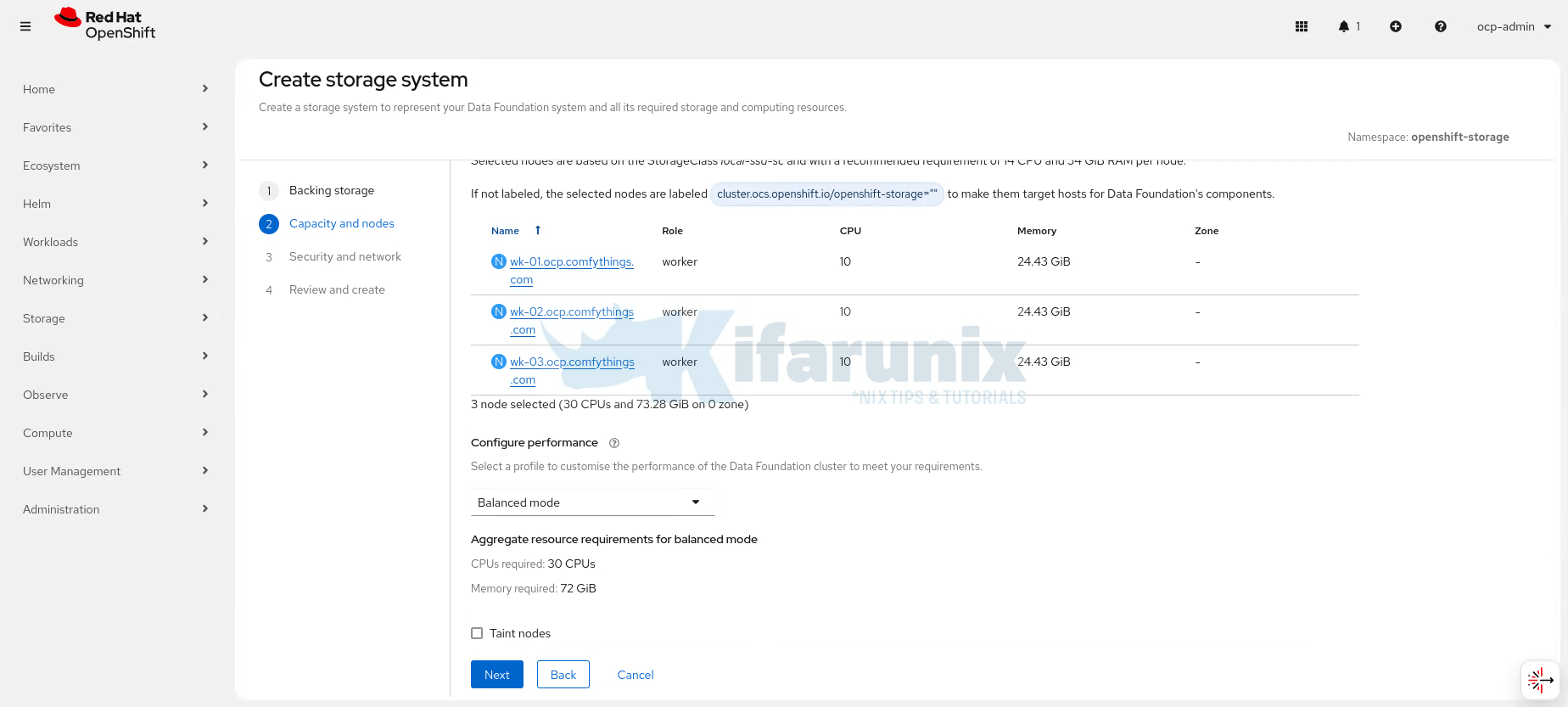
- In the Configure performance section, select one of the following performance profiles:
- Lean: For resource-constrained environments. Minimizes CPU and memory usage below recommended levels.
- Balanced (default): Uses recommended resources to balance performance and efficiency for diverse workloads.
- Performance: For clusters with ample resources. Allocates maximum CPU and memory to optimize demanding workloads.
Note: Performance profiles can be updated after deployment.
- You can check Taint nodes to dedicate the selected workers exclusively to OpenShift Data Foundation, preventing regular workloads from running on them. In this demo, the same nodes run both applications and storage, so leave the checkbox unchecked to allow scheduling flexibility.
- In the Security and network section, we will skip the configurations here and go with the default options. In a production env, consider setting up the encryption.
- In the Review and create section, review the configuration details.
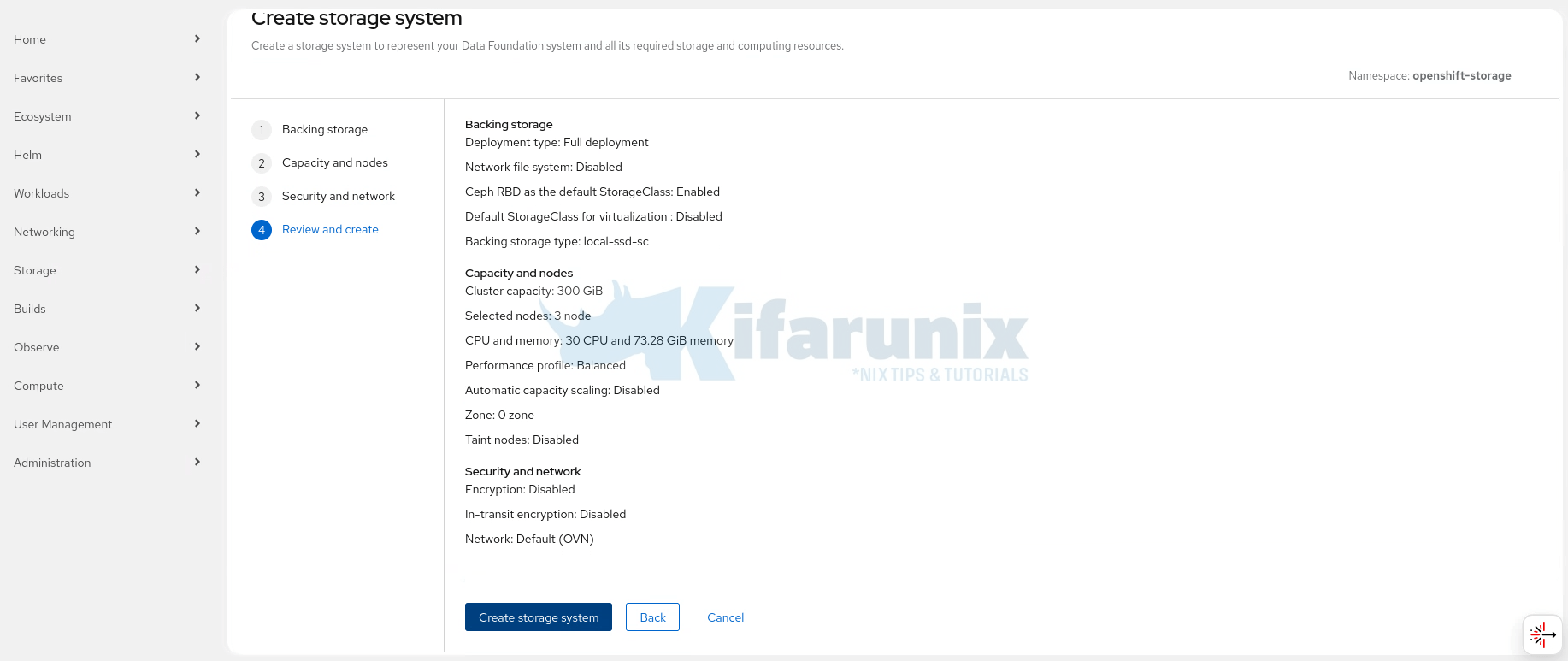
If you want to modify any configuration settings, click Back to go back to the previous configuration page. When all is good, proceed to Create StorageSystem.
You can monitor the installation progress, right from the gui by navigating between the Block and file, Object, Storage Pools and Topology tabs under the Storage Cluster page.
You can also run the command below to monitor the storage cluster pods from the openshift-storage namespace:
oc get pod -n openshift-storage -wVerifying Your OpenShift Data Foundation (ODF) Deployment
After creating the StorageSystem, it will sometime (about 15-30 mins) for the deployment to complete.
At the end of the deployment, the storage cluster health must be ready.

Then follow these steps to confirm everything is healthy.
1. Check Pod Status
- In the OpenShift web console, go to Workloads > Pods.
- Select the openshift-storage project from the dropdown.
- Filter for Running and Completed pods.
- All pods should be in Running or Completed state (no CrashLoopBackOff or errors).
Key pods to expect (numbers vary by setup):
- ODF Operator: odf-operator-controller-manager-*, odf-console-*, etc.
- Rook-Ceph: rook-ceph-operator-*, rook-ceph-mon-*, rook-ceph-mgr-*, rook-ceph-mds-*, rook-ceph-osd-* (one per device), etc.
- NooBaa (MCG): noobaa-operator-*, noobaa-core-*, noobaa-db-*, noobaa-endpoint-*, etc.
- CSI drivers: Various csi.ceph.com pods for RBD and CephFS.
CLI alternative:
oc get pods -n openshift-storageNAME READY STATUS RESTARTS AGE
ceph-csi-controller-manager-68cdb44db-srcmt 1/1 Running 0 22m
cnpg-controller-manager-645747df65-thgxm 1/1 Running 0 20m
csi-addons-controller-manager-5b97f87b46-p9j87 1/1 Running 0 22m
noobaa-core-0 2/2 Running 0 16m
noobaa-db-pg-cluster-1 1/1 Running 0 17m
noobaa-db-pg-cluster-2 1/1 Running 0 16m
noobaa-endpoint-84b9cb4b7f-prb77 1/1 Running 0 14m
noobaa-operator-75f95bd485-drgsl 1/1 Running 0 20m
ocs-client-operator-console-c4874cb8d-6559s 1/1 Running 0 22m
ocs-client-operator-controller-manager-87c6c9f65-ctcfz 1/1 Running 0 22m
ocs-metrics-exporter-6fcc5cc9dc-tn9cg 3/3 Running 0 16m
ocs-operator-58768678dd-hnqpk 1/1 Running 0 22m
ocs-provider-server-bbbcd79b8-gwsf7 1/1 Running 0 22m
odf-console-bc8f49dc4-f6kt2 1/1 Running 0 33m
odf-external-snapshotter-operator-7f584f7fd-x4ntj 1/1 Running 0 22m
odf-operator-controller-manager-5964b5b86-hfkpc 1/1 Running 0 33m
openshift-storage.cephfs.csi.ceph.com-ctrlplugin-7cd765b76th9gr 8/8 Running 0 18m
openshift-storage.cephfs.csi.ceph.com-ctrlplugin-7cd765b76zdrkq 8/8 Running 0 18m
openshift-storage.cephfs.csi.ceph.com-nodeplugin-lzc2g 3/3 Running 0 18m
openshift-storage.cephfs.csi.ceph.com-nodeplugin-v9rrx 3/3 Running 0 18m
openshift-storage.cephfs.csi.ceph.com-nodeplugin-zsrzk 3/3 Running 0 18m
openshift-storage.rbd.csi.ceph.com-ctrlplugin-74564695b5-2f9mz 8/8 Running 0 18m
openshift-storage.rbd.csi.ceph.com-ctrlplugin-74564695b5-4h9nw 8/8 Running 0 18m
openshift-storage.rbd.csi.ceph.com-nodeplugin-csi-addons-jr8mc 2/2 Running 0 18m
openshift-storage.rbd.csi.ceph.com-nodeplugin-csi-addons-qdvp6 2/2 Running 0 18m
openshift-storage.rbd.csi.ceph.com-nodeplugin-csi-addons-zqj77 2/2 Running 0 18m
openshift-storage.rbd.csi.ceph.com-nodeplugin-f7hqr 3/3 Running 0 18m
openshift-storage.rbd.csi.ceph.com-nodeplugin-gtqbw 3/3 Running 0 18m
openshift-storage.rbd.csi.ceph.com-nodeplugin-vp489 3/3 Running 0 18m
rook-ceph-crashcollector-wk-01.ocp.comfythings.com-57f8d97gspvl 1/1 Running 0 19m
rook-ceph-crashcollector-wk-02.ocp.comfythings.com-579954chzp5t 1/1 Running 0 19m
rook-ceph-crashcollector-wk-03.ocp.comfythings.com-5bb99d6rd7s9 1/1 Running 0 16m
rook-ceph-exporter-wk-01.ocp.comfythings.com-d8dbf4bdb-knm4z 1/1 Running 0 19m
rook-ceph-exporter-wk-02.ocp.comfythings.com-5f85fc7b7c-rw7tl 1/1 Running 0 19m
rook-ceph-exporter-wk-03.ocp.comfythings.com-5b87bd5f84-pkqts 1/1 Running 0 16m
rook-ceph-mds-ocs-storagecluster-cephfilesystem-a-74d47c94q6c5c 2/2 Running 0 19m
rook-ceph-mds-ocs-storagecluster-cephfilesystem-b-69d58579z699q 2/2 Running 0 19m
rook-ceph-mgr-a-54d57d8c98-xl8vp 3/3 Running 0 21m
rook-ceph-mgr-b-587dfdd4b7-hbb79 3/3 Running 0 20m
rook-ceph-mon-a-fd6dbcc48-jdzzx 2/2 Running 0 21m
rook-ceph-mon-b-7b477cb8b-62z5g 2/2 Running 0 21m
rook-ceph-mon-c-6895fcf6c5-d95t6 2/2 Running 0 21m
rook-ceph-operator-567648765b-hpvkb 1/1 Running 0 19m
rook-ceph-osd-0-6556898f97-v2845 2/2 Running 0 16m
rook-ceph-osd-1-694f6b79d8-gwxzp 2/2 Running 0 16m
rook-ceph-osd-2-56998445c4-5d7w2 2/2 Running 0 17m
rook-ceph-osd-prepare-6e8dfcd9790c8bc486686bfa40093da5-vf8kl 0/1 Completed 0 20m
rook-ceph-osd-prepare-951cd6566545ef5abaad20083ba69e26-p7cz8 0/1 Completed 0 20m
rook-ceph-osd-prepare-f4c3c223e599ebe4ec68d347beff536c-bgnsp 0/1 Completed 0 20m
rook-ceph-rgw-ocs-storagecluster-cephobjectstore-a-fb97fd98747n 2/2 Running 0 16m
storageclient-737342087af10580-status-reporter-29477312-vtjq5 0/1 Completed 0 21s
ux-backend-server-668c8d557-w5fm9 2/2 Running 0 22m2. Verify Storage Cluster Health (Block and File)
- Go to Storage > Storage Cluster.
- In the Overview tab, click Storage System in the Status card, then select your storage system link.
- Switch to the Block and File tab.
- Look for a green checkmark next to Storage Cluster in the Status card.
- Check the Details card for cluster info (nodes, capacity, etc.).
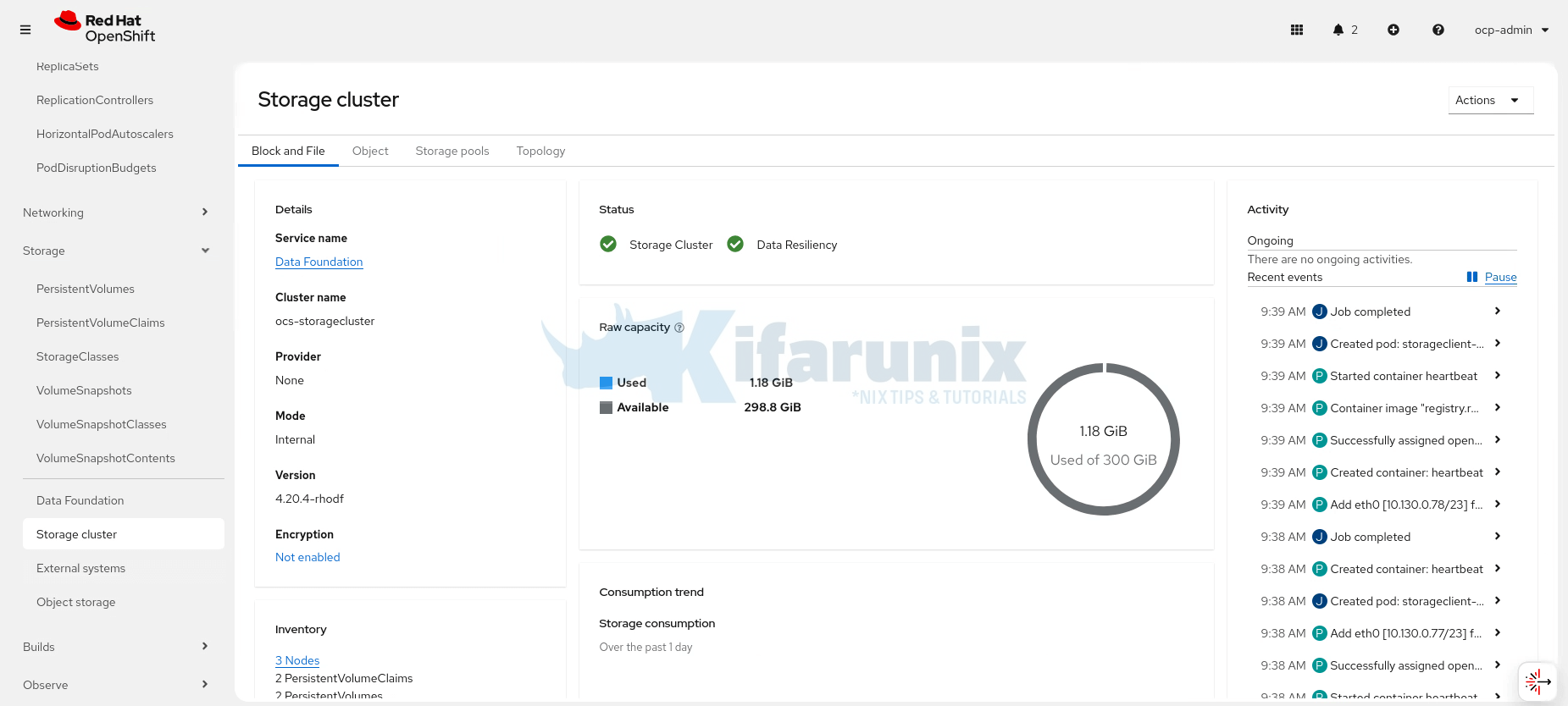
3. Verify Multicloud Object Gateway (MCG/Object Storage) Health
- In the same StorageSystem view, switch to the Object tab.
- Confirm green checkmarks for Object Service and Data Resiliency.
- Details card should show MCG info (endpoints, buckets, etc.).
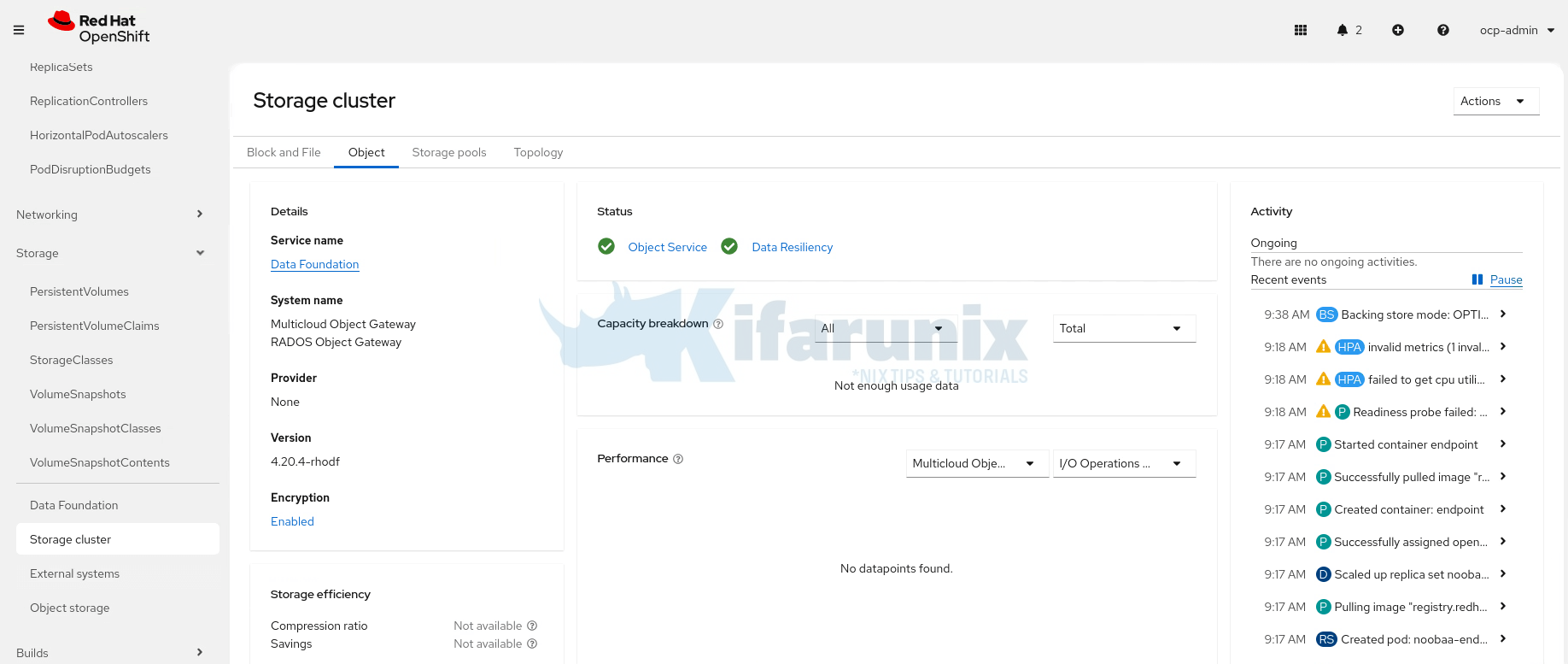
You can see more details about object storage under Storage > Object Storage.

4. Check Storage Pools and Topology:
Storage pools:

Topology;

5. Confirm StorageClasses Are Created
- Go to Storage > Storage Classes.
- Verify these exist:
- ocs-storagecluster-ceph-rbd (block)
- ocs-storagecluster-cephfs (file)
- openshift-storage.noobaa.io (object)
- ocs-storagecluster-ceph-rgw (object, if enabled)
CLI:
oc get storageclass | grep -E "ocs|noobaa"ocs-storagecluster-ceph-rbd (default) openshift-storage.rbd.csi.ceph.com Delete Immediate true 42m
ocs-storagecluster-ceph-rgw openshift-storage.ceph.rook.io/bucket Delete Immediate false 45m
ocs-storagecluster-cephfs openshift-storage.cephfs.csi.ceph.com Delete Immediate true 42m
openshift-storage.noobaa.io openshift-storage.noobaa.io/obc Delete Immediate false 36mFor ongoing monitoring, use the Data Foundation dashboards under Storage > Data Foundation.
OpenShift Data Foundation (ODF) Practical Troubleshooting Tips
OpenShift Data Foundation issues are rarely random. Almost every failure can be traced back to one of a small number of layers. Common failure layers include:
- ODF Operator
- StorageCluster CR
- Ceph cluster
- NooBaa (Object storage)
- OSD / disks
- Node resources
- etc
The key to fast and correct troubleshooting is to identify the failing layer first, then drill down. Starting with pod status alone is often misleading and wastes time.
1. StorageCluster Status / Health
Commands:
oc get storagecluster ocs-storagecluster -n openshift-storageoc get storagecluster ocs-storagecluster -n openshift-storage -o yamlYou can check on the phase status. PHASE is a high-level summary:
Ready: cluster successfully reconciledProgressing: reconciliation ongoingFailure: reconciliation blocked
For detailed health, check status.conditions:
status:
  conditions:
  - type: Available           # True if fully available
  - type: Progressing      # True if reconciliation is ongoing
  - type: Degraded         # True if there are resource failures
Even if PHASE=Ready, pods could briefly show Pending or ContainerCreating. Always check status.conditions for true indicators.
2. Pods Stuck or Not Running
Symptoms: Pending, CrashLoopBackOff, Init:0/1
Commands:
oc get pods -n openshift-storageoc describe pod <pod-name> -n openshift-storageCheck for:
- Insufficient CPU/memory
- Node taints blocking scheduling
- Selector/label mismatches
Fixes:
- Check node resources
oc adm top nodes - Verify ODF node labels
oc get nodes -l cluster.ocs.openshift.io/openshift-storage --show-labels - Remove manually added taints:
oc adm taint nodes <node-name> node.ocs.openshift.io/storage-
Check Allocated vs Allocatable resources
oc describe node <node-name> | grep -A15 "Allocated resources"oc describe node <node-name> | grep -A15 "Allocatable"If allocated is near allocatable, ODF pods may stay Pending
- Allocatable : total resources available for pods
- Allocated : resources already consumed by pods
3. Ceph Cluster / Storage Health
Instead of manually using ceph -s, use the recommended odf-cli tool:
- Download
odf-clifrom the Red Hat Customer Portal - Extract it and move it to
/usr/local/binon your bastion host:sudo mv odf /usr/local/bin/
sudo chmod +x /usr/local/bin/odf
- Verify cluster health:
odf get health
Provides clear health output for production clusters:
HEALTH_OK: All goodHEALTH_WARN: Minor issues (clock skew, small PG count)HEALTH_ERR: MONs or OSDs down, needs immediate attention
4. OSD / Disk Provisioning Failures
Symptoms: OSD pods never start, cluster stuck during disk preparation
Check:
oc get pods -n openshift-storage | grep osdoc logs <osd-pod-name> -n openshift-storageCommon Causes:
- Existing partitions or filesystems
- Hidden LVM metadata
- Non-SSD/NVMe drives in internal mode (ODF requires SSD/NVMe)
Fix: Destructive wipe on affected node(s):
oc debug node/<node-name>
chroot /host
wipefs -a /dev/<disk>
You can also run sgdisk --zap-all against the respective drives.
5. Local Storage / PV Issues
Symptoms: No PersistentVolumes created, OSDs not visible
Commands:
oc get pvoc get events -n openshift-local-storage --sort-by='.lastTimestamp'Common Causes:
- Wrong disk paths in LocalVolumeSet
- Label/selector mismatch
- Disks already formatted or claimed
6. NooBaa / Object Storage Issues
Symptoms: noobaa-core or noobaa-db pods stuck
Commands:
oc get noobaa -n openshift-storageoc get pods -n openshift-storage | grep noobaaoc describe pod <noobaa-pod> -n openshift-storageCommon Causes:
- Memory constraints (esp. in 3-node compact clusters)
- Hugepages conflicts
Workaround: Disable NooBaa if object storage is not required
oc patch storagecluster ocs-storagecluster -n openshift-storage \
  --type merge \
  --patch '{"spec":{"multiCloudGateway":{"reconcileStrategy":"ignore"}}}'
oc delete noobaa -n openshift-storage --allOtherwise, if related to resource issues, then adjust your node resources accordingly.
7. ODF Operator Issues
Symptoms: StorageCluster not progressing, pods look fine
Commands:
oc logs deployment/ocs-operator -n openshift-storage --tail=50oc get events -n openshift-storage --sort-by='.lastTimestamp'Operator logs usually indicate reconciliation errors clearly.
8. Node Resource Exhaustion
Symptoms: Pods Pending randomly, cluster never stabilizes
Check:
oc describe node <node-name> | grep -A10 "Allocated resources"oc adm top nodesRule of Thumb:
- CPU/memory > 80-85% allocated : ODF may fail to schedule pods
- Consider adding nodes or increasing resources
Effective ODF troubleshooting relies on layered diagnosis:
- Check StorageCluster status.conditions : true health indicators
- Use the
odfCLI to quickly assess the overall health of the ODF Ceph cluster. - Review ODF Operator logs : reconciliation failures
- Inspect OSDs / disks / LocalVolumeSet : ensure SSD/NVMe, wiped, correct labels
- Check NooBaa if object storage is required
- Verify node allocatable vs allocated resources : ensure pods can schedule.