
In this blog post, we will cover how to migrate ODF from worker nodes to dedicated storage nodes on OpenShift 4.x. When deploying ODF on OpenShift, you have two options from the start:
- hyperconverged deployment where ODF runs on the same worker nodes as your application workloads. Ceph daemons (MON, MGR, OSD, MDS) share CPU, RAM, and disk with everything else on those nodes. Ceph OSDs will however consume dedicated data devices (additional disks attached to the node), which are separate from the node’s OS disk.
- dedicated storage node deployment, where you label (
cluster.ocs.openshift.io/openshift-storage="") and taint (node.ocs.openshift.io/storage=true:NoSchedule
Both are valid deployment models. The dedicated storage node approach is the recommended architecture for production environments precisely because it eliminates resource contention between Ceph and application workloads, and because Ceph, particularly, OSD operations and MON heartbeats is sensitive to CPU and I/O pressure from neighbouring workloads.
This guide covers the scenario where ODF was initially deployed in hyperconverged mode on worker nodes, and you now need to migrate it to dedicated storage nodes. This is a common situation for clusters that started small and are now growing, and where the resource demands of new workloads make the hyperconverged approach no longer viable.
This is not a trivial operation. It touches on live storage, involves Ceph rebalancing data across nodes, and has real potential for data loss if steps are skipped or performed out of order.
Table of Contents
Migrate ODF from Worker Nodes to Dedicated Storage Nodes on OpenShift 4.x
Architecture: Before and After
Before: Hyperconverged Setup (Current State)
I currently run ODF in a hyperconverged deployment. My 3 worker nodes carry both my regular application workloads and all Ceph components at the same time.
When ODF was deployed, the label cluster.ocs.openshift.io/openshift-storage="" was applied to all three worker nodes as part of the installation process.
oc get node -l cluster.ocs.openshift.io/openshift-storageNAME STATUS ROLES AGE VERSION
wk-01.ocp.comfythings.com Ready worker 41d v1.33.6
wk-02.ocp.comfythings.com Ready worker 41d v1.33.6
wk-03.ocp.comfythings.com Ready worker 41d v1.33.6Each of these 3 worker nodes has one additional 100 GiB raw block device attached, unformatted, consumed by Ceph as an OSD. ODF discovered and claimed these devices automatically when the StorageCluster was created. That gives me 3 × 100 GiB = 300 GiB of raw Ceph capacity. At the default replication factor of 3, my usable storage is approximately 100 GiB.
After: Dedicated Storage Nodes (Target State)
I am migrating ODF off the current worker nodes onto 3 new dedicated storage nodes. These nodes will run Ceph exclusively, no application workloads will land on them.
These storage nodes will carry two labels:
cluster.ocs.openshift.io/openshift-storage=""which tells ODF to schedule its daemons on these nodes, andnode-role.kubernetes.io/infra=""which marks them as infrastructure nodes so they do not count against my OpenShift worker node entitlements.
Unlike my current workers, these nodes will also carry the taint:
node.ocs.openshift.io/storage="true":NoSchedulewhich blocks any pod without an explicit toleration from scheduling on them.
ODF’s daemons carry the matching toleration automatically, so only Ceph lands there.
Each of the 3 storage nodes will each have 100 GiB raw block device attached to be consumed as Ceph OSDs, the same size as the current worker node OSD disks. Red Hat explicitly states that ODF does not support heterogeneous disk sizes and types. So matching the original disk size is required for a supported configuration. So, in my new storage nodes, we will have 3 × 100 GiB = 300 GiB of raw capacity, which at replication factor of 3 means approximately 100 GiB of usable storage, which is the same capacity as before, but now on isolated infrastructure. If you need to increase OSD capacity after migration, that can be done as a separate operation.
Once the migration is complete, the ODF label will be removed from my 3 original workers and they will return to being pure compute nodes with no ODF footprint whatsoever.
Prerequisites
- Cluster Access:
- Ensure you have cluster-admin permissions.
- Network:
- All storage nodes must be reachable from all other cluster nodes
- DNS resolution must work for the new node hostnames
- Storage Nodes:
- You need exactly 3 new nodes. Ceph requires a minimum of 3 nodes for quorum and for proper data distribution across failure domains.
- The disk designated for use as a Ceph OSD must be completely raw; no partition table, no filesystem, no LVM signatures.
- Each drive on each node must be of the same size as the current ones.
- ODF CLI Tool: This guide uses the
odfCLI tool for all Ceph-level diagnostic commands. All Ceph commands in this guide are executed viaodf ceph <args>. - Backup:
- This is not an optional advisory. A failed migration without backups is a potential data loss event with no recovery path.
- Ensure ectd backup is done. Refer: Backup and Restore etcd in OpenShift 4 with Automated Scheduling & S3 Storage Integration
- Ensure application backups and PVCs are done. Refer: How to Backup and Restore Applications in OpenShift 4 with OADP (Velero) and ODF
Step 1: Initial Pre-Migration Check
Document Current Cluster State
I would recommend that you try to capture current state so you have a reference if anything goes wrong:
StorageCluster configuration:
oc get storagecluster ocs-storagecluster -n openshift-storage \
-o yaml > storagecluster-pre-migration.yaml
All PV and PVC state
oc get pv -o wide > pvs-pre-migration.txtoc get pvc -A -o wide > pvcs-pre-migration.txtNodes:
oc describe nodes >> nodes-pre-migration.txtODF pod placement:
oc get pods -n openshift-storage -o wide \
  | grep -v Completed > odf-pods-pre-migration.txt
Assessing Current ODF State
Before touching anything, we need a clear picture of where the cluster stands. There is no safe shortcut here. Running a migration against a cluster that already has underlying issues will compound those issues.
Check the StorageCluster Phase:
oc get storagecluster -n openshift-storageNAME AGE PHASE EXTERNAL CREATED AT VERSION
ocs-storagecluster 37d Ready 2026-01-17T08:09:53Z 4.20.5The PHASE column must show Ready. Any other value such as Progressing, Error, Degraded, means ODF is not healthy. Investigate and resolve before proceeding.
Check CephCluster:
oc get cephcluster -n openshift-storageNAME DATADIRHOSTPATH MONCOUNT AGE PHASE MESSAGE HEALTH EXTERNAL FSID
ocs-storagecluster-cephcluster /var/lib/rook 3 37d Ready Cluster created successfully HEALTH_OK 30ec043e-ef67-40a5-8137-357764c5fb9fThe HEALTH column must show HEALTH_OK. HEALTH_WARN requires investigation. HEALTH_ERR means stop, do not proceed.
Check for any non-running ODF Pods
oc get pods -n openshift-storage | grep -v -E "Running|Completed"This command filters out healthy pods and shows you anything in a problematic state. The output should contain only the header line. If any pod appears in Pending, CrashLoopBackOff, Error state, investigate and resolve it first.
Identify Which Nodes Currently Have the ODF Label
oc get nodes -l cluster.ocs.openshift.io/openshift-storage="" \
  -o custom-columns="NAME:.metadata.name,STATUS:.status.conditions[-1].type"
NAME STATUS
wk-01.ocp.comfythings.com Ready
wk-02.ocp.comfythings.com Ready
wk-03.ocp.comfythings.com ReadyThis shows your current ODF nodes. These are the worker nodes we will eventually remove the ODF label from. Note their names you will need them later.
At this point, if:
- StorageCluster phase is
Ready - CephCluster health is
HEALTH_OK - All ODF pods are running
- No OSDs are down
Thus far, this level of validation is sufficient to safely proceed with the migration.
If your cluster is still experiencing storage-related issues that require deeper inspection (for example stuck PGs, uneven OSD distribution, or unexplained performance degradation), you may use odf cli command for read-only diagnostic commands such as:
odf ceph statusodf ceph osd treeodf ceph dfodf ceph pg stat
However, manual modification commands (such as marking OSDs in/out, modifying CRUSH maps, or changing cluster flags) should NOT be executed unless explicitly guided by Red Hat support. Direct Ceph-level changes can destabilize the cluster and complicate recovery during migration.
For a healthy cluster, the Kubernetes-level checks shown above are sufficient.
Step 2: Provision New Storage Nodes
This phase is performed at the infrastructure layer. How you provision new nodes depends entirely on how your cluster was originally deployed. The OpenShift-side steps that follow are platform-agnostic, but the node provisioning itself is not.
Common deployment methods each have their own provisioning mechanics:
- IPI (Installer-Provisioned Infrastructure): the installer manages the underlying infrastructure directly and can scale node pools through the Machine API
- UPI (User-Provisioned Infrastructure): you provision the VMs or bare metal yourself, boot with RHCOS and the worker ignition config, then approve CSRs manually
- Assisted Installer: nodes are added through the Assisted Installer service UI or API, which generates and serves the discovery ISO
- Agent-based Installer: you generate node configurations and build a bootable ISO using
oc adm node-image create, then boot each new node from that ISO
My cluster was deployed using the agent-based installer on KVM. I will generate node configurations for the three new storage nodes.
The following nodes-config.yaml describes the 3 new storage nodes and is passed to oc adm node-image create to generate the bootable ISO.
cat storage-nodes/nodes-config.yamlhosts:
- hostname: st-01.ocp.comfythings.com
role: worker
interfaces:
- name: enp1s0
macAddress: 02:AC:10:00:00:07
rootDeviceHints:
deviceName: /dev/vda
networkConfig:
interfaces:
- name: enp1s0
type: ethernet
state: up
mac-address: 02:AC:10:00:00:07
ipv4:
enabled: true
address:
- ip: 10.185.10.216
prefix-length: 24
dhcp: false
dns-resolver:
config:
server:
- 10.184.10.51
routes:
config:
- destination: 0.0.0.0/0
next-hop-address: 10.185.10.10
next-hop-interface: enp1s0
- hostname: st-02.ocp.comfythings.com
role: worker
interfaces:
- name: enp1s0
macAddress: 02:AC:10:00:00:08
rootDeviceHints:
deviceName: /dev/vda
networkConfig:
interfaces:
- name: enp1s0
type: ethernet
state: up
mac-address: 02:AC:10:00:00:08
ipv4:
enabled: true
address:
- ip: 10.185.10.217
prefix-length: 24
dhcp: false
dns-resolver:
config:
server:
- 10.184.10.51
routes:
config:
- destination: 0.0.0.0/0
next-hop-address: 10.185.10.10
next-hop-interface: enp1s0
- hostname: st-03.ocp.comfythings.com
role: worker
interfaces:
- name: enp1s0
macAddress: 02:AC:10:00:00:09
rootDeviceHints:
deviceName: /dev/vda
networkConfig:
interfaces:
- name: enp1s0
type: ethernet
state: up
mac-address: 02:AC:10:00:00:09
ipv4:
enabled: true
address:
- ip: 10.185.10.218
prefix-length: 24
dhcp: false
dns-resolver:
config:
server:
- 10.184.10.51
routes:
config:
- destination: 0.0.0.0/0
next-hop-address: 10.185.10.10
next-hop-interface: enp1s0In short, the configuration above is simply an expansion of our cluster from the agent-configuration created when we initially deployed our Agent-based cluster: Create agent-config.yaml
Before generating the bootable ISO, ensure DNS records for the 3 new storage nodes are in place and resolving correctly in both directions, forward and reverse. Agent-based installs are strict about this and the nodes will fail to join the cluster if DNS is not right.
For example, testing DNS resolution from my bastion host:
dig +short st-01.ocp.comfythings.com10.185.10.216dig -x 10.185.10.217 +shortst-02.ocp.comfythings.com.Now that the node configuration is in place and DNS is validated, let’s generate the bootable ISO:
oc adm node-image create --dir=./storage-nodes/Sample Node ISO generation output;
2026-02-24T09:33:12Z [node-image create] installer pullspec obtained from installer-images configMap quay.io/openshift-release-dev/ocp-v4.0-art-dev@sha256:b4c1013e373922d721b12197ba244fd5e19d9dfb447c9fff2b202ec5b2002906
2026-02-24T09:33:12Z [node-image create] Launching command
2026-02-24T09:33:19Z [node-image create] Gathering additional information from the target cluster
2026-02-24T09:33:19Z [node-image create] Creating internal configuration manifests
2026-02-24T09:33:23Z [node-image create] Rendering ISO ignition
2026-02-24T09:33:23Z [node-image create] Retrieving the base ISO image
2026-02-24T09:33:23Z [node-image create]   Extracting base image from release payload
2026-02-24T09:34:28Z [node-image create]   Verifying base image version
2026-02-24T09:35:18Z [node-image create] Creating agent artifacts for the final image
2026-02-24T09:35:18Z [node-image create]   Extracting required artifacts from release payload
2026-02-24T09:35:43Z [node-image create]   Preparing artifacts
2026-02-24T09:35:43Z [node-image create] Assembling ISO image
2026-02-24T09:35:48Z [node-image create] Saving ISO image to ./storage-nodes/
2026-02-24T09:36:27Z [node-image create] Command successfully completed
We have the ISO generated;
tree storage-nodes/storage-nodes/
├── nodes-config.yaml
└── node.x86_64.iso
0 directories, 2 filesI will now proceed to create 3 storage nodes on KVM and boot them using the node.x86_64.iso generated. Each new storage node will be a KVM VM with:
- vCPU and RAM as per our sizing requirements
- One disk for the operating system (100 GiB minimum)
- One additional raw block device for the Ceph OSD (100Gi). The drive is completely blank, no partition table, no filesystem, no LVM metadata. ODF’s Local Storage Operator will claim it exclusively.
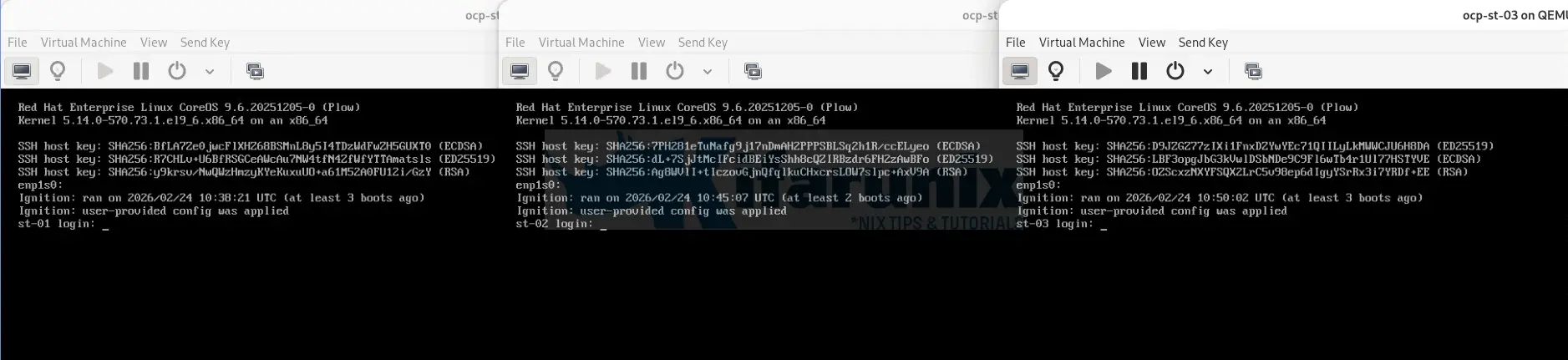
Once the nodes boot from the ISO, they will apply their configuration, join the cluster, and generate CSRs that must be approved before they become available. That approval step is covered in the next phase.
The nodes are up!
Step 3: Add Storage Nodes to the Cluster
The 3 storage nodes are now booted from the ISO. They have applied their configuration, connected to the cluster API, and are waiting to be admitted. At this point they do not appear in oc get nodes yet:
oc get nodesNAME STATUS ROLES AGE VERSION
ms-01.ocp.comfythings.com Ready control-plane,master 42d v1.33.6
ms-02.ocp.comfythings.com Ready control-plane,master 5d1h v1.33.6
ms-03.ocp.comfythings.com Ready control-plane,master 5d1h v1.33.6
wk-01.ocp.comfythings.com Ready worker 42d v1.33.6
wk-02.ocp.comfythings.com Ready worker 42d v1.33.6
wk-03.ocp.comfythings.com Ready worker 42d v1.33.6The nodes are not part of the cluster, they cannot receive workloads, and the scheduler has no knowledge of them. Before any of that happens, two rounds of Certificate Signing Requests (CSRs) must be approved.
Understanding the CSR Approval Process
When a new node boots from the OpenShift nodes ISO, the kubelet does not yet possess a trusted certificate signed by the cluster Certificate Authority. Without that certificate, it cannot establish a trusted TLS connection to the Kubernetes API server.
To solve this, the kubelet submits Certificate Signing Requests. These CSRs are requests to the cluster CA asking for signed certificates. OpenShift requires manual approval for certain CSRs to ensure that only authorized machines join the cluster.
This process occurs in multiple stages, and each stage affects what you observe when running cluster commands.
Stage 1: Bootstrap CSR Submission
Immediately after the nodes boot, the kubelet submits its first CSR using the bootstrap credential tokens embedded in the ISO.
You can check this with:
oc get csrNAME AGE SIGNERNAME REQUESTOR REQUESTEDDURATION CONDITION
csr-77vv5 5m17s kubernetes.io/kube-apiserver-client-kubelet system:serviceaccount:openshift-machine-config-operator:node-bootstrapper <none> Pending
csr-fhn6q 45s kubernetes.io/kube-apiserver-client-kubelet system:serviceaccount:openshift-machine-config-operator:node-bootstrapper <none> Pending
csr-lbgxf 3m7s kubernetes.io/kube-apiserver-client-kubelet system:serviceaccount:openshift-machine-config-operator:node-bootstrapper <none> PendingKey facts from the output above:
- The requestor is: system:serviceaccount:openshift-machine-config-operator:node-bootstrapper
- The signer is: kubernetes.io/kube-apiserver-client-kubelet
At this point:
- The node does not yet have an identity like system:node:hostname.
- The kubelet is authenticating only with the bootstrap service account using bootstrap tokens.
- The node does not appear in oc get nodes.
- The API server does not trust it as a full cluster member.
Until these CSRs are approved, the node is completely invisible.
So, you approve the bootstrap CSRs:
oc get csr -o name | xargs oc adm certificate approveStage 2: Node Registration After Bootstrap Approval
Once the bootstrap CSRs are approved, the API server issues a client certificate to the kubelet. Now the kubelet can authenticate to the Kubernetes API server using its assigned node identity.
Immediately after this approval, the node appears:
oc get nodesNAME STATUS ROLES AGE VERSION
ms-01.ocp.comfythings.com Ready control-plane,master 42d v1.33.6
ms-02.ocp.comfythings.com Ready control-plane,master 5d3h v1.33.6
ms-03.ocp.comfythings.com Ready control-plane,master 5d3h v1.33.6
st-01.ocp.comfythings.com NotReady worker 65s v1.33.6
st-02.ocp.comfythings.com NotReady worker 63s v1.33.6
st-03.ocp.comfythings.com NotReady worker 63s v1.33.6
wk-01.ocp.comfythings.com Ready worker 42d v1.33.6
wk-02.ocp.comfythings.com Ready worker 42d v1.33.6
wk-03.ocp.comfythings.com Ready worker 42d v1.33.6The nodes appear as NotReady because it has registered itself with the API server but has not yet completed full initialization and health reporting.
At the same time:
- the kubelet submits kubelet-serving CSRs using its verified node identity system:node:<hostname>. This is the CSR that is used for obtaining a serving certificate (also called a server certificate or TLS certificate for the kubelet itself). This certificate enables the kubelet to act as a server and securely expose its own HTTPS API endpoint on the node (default port 10250/tcp). The endpoint is required so that other trusted cluster components, primarily the kube-apiserver, can connect back to the kubelet over TLS.
See below:oc get csrNAME AGE SIGNERNAME REQUESTOR REQUESTED DURATION CONDITION csr-4fpq5 8s kubernetes.io/kubelet-serving system:node:st-01.ocp.comfythings.com <none> Pending csr-4wmxn 6s kubernetes.io/kubelet-serving system:node:st-02.ocp.comfythings.com <none> Pending csr-77vv5 9m42s kubernetes.io/kube-apiserver-client-kubelet system:serviceaccount:openshift-machine-config-operator:node-bootstrapper <none> Approved,Issued csr-7pdg5 6s kubernetes.io/kubelet-serving system:node:st-03.ocp.comfythings.com <none> Pending csr-fhn6q 5m10s kubernetes.io/kube-apiserver-client-kubelet system:serviceaccount:openshift-machine-config-operator:node-bootstrapper <none> Approved,Issued csr-lbgxf 7m32s kubernetes.io/kube-apiserver-client-kubelet system:serviceaccount:openshift-machine-config-operator:node-bootstrapper <none> Approved,Issued - Similarly, the kubelet also submits new client CSRs with signerName kubernetes.io/kube-apiserver-client using its verified node identity system:node:<hostname> after the initial bootstrap client certificate has been approved. These CSRs request additional renewed client certificates that allow the kubelet to continue securely authenticating itself as a client when communicating with the kube-apiserver for:
- Sending node status updates, heartbeats, and pod/container status reports
- Requesting volume mounts, secrets, and config maps
- Certificate rotation / renewal (to replace expiring client certs without disrupting the node)
- Maintaining ongoing secure client-to-server communication post-bootstrap.
See below:oc get csrNAME AGE SIGNERNAME REQUESTOR REQUESTEDDURATION CONDITION csr-4fpq5 3m45s kubernetes.io/kubelet-serving system:node:st-01.ocp.comfythings.com <none> Pending csr-4wmxn 3m43s kubernetes.io/kubelet-serving system:node:st-02.ocp.comfythings.com <none> Pending csr-77vv5 13m kubernetes.io/kube-apiserver-client-kubelet system:serviceaccount:openshift-machine-config-operator:node-bootstrapper <none> Approved,Issued csr-7pdg5 3m43s kubernetes.io/kubelet-serving system:node:st-03.ocp.comfythings.com <none> Pending csr-9hvj9 44s kubernetes.io/kube-apiserver-client system:node:st-02.ocp.comfythings.com 24h Approved,Issued csr-btnfd 45s kubernetes.io/kube-apiserver-client system:node:st-03.ocp.comfythings.com 24h Approved,Issued csr-dkqkb 46s kubernetes.io/kube-apiserver-client system:node:st-01.ocp.comfythings.com 24h Approved,Issued csr-fhn6q 8m47s kubernetes.io/kube-apiserver-client-kubelet system:serviceaccount:openshift-machine-config-operator:node-bootstrapper <none> Approved,Issued csr-j2lps 84s kubernetes.io/kube-apiserver-client system:node:st-03.ocp.comfythings.com 24h Approved,Issued csr-lbgxf 11m kubernetes.io/kube-apiserver-client-kubelet system:serviceaccount:openshift-machine-config-operator:node-bootstrapper <none> Approved,Issued csr-t94hs 56s kubernetes.io/kube-apiserver-client system:node:st-02.ocp.comfythings.com 24h Approved,Issued
- They are automatically approved by the kube-controller-manager because the node has already proven its identity via the bootstrap process, and the cluster trusts it at this point.
- With this certificate in place, the kubelet begins sending heartbeats and node status updates directly to the API server and nodes go Ready!
Sample output;oc get nodesNAME STATUS ROLES AGE VERSION ms-01.ocp.comfythings.com Ready control-plane,master 42d v1.33.6 ms-02.ocp.comfythings.com Ready control-plane,master 5d4h v1.33.6 ms-03.ocp.comfythings.com Ready control-plane,master 5d4h v1.33.6 st-01.ocp.comfythings.com Ready worker 31m v1.33.6 st-02.ocp.comfythings.com Ready worker 31m v1.33.6 st-03.ocp.comfythings.com Ready worker 31m v1.33.6 wk-01.ocp.comfythings.com Ready worker 42d v1.33.6 wk-02.ocp.comfythings.com Ready worker 42d v1.33.6 wk-03.ocp.comfythings.com Ready worker 42d v1.33.6
Approve the kubelet-serving CSRs
Even though the nodes are Ready and cluster workloads are being scheduled, the kubelet-serving CSRs must still be approved. These serve a completely different purpose; they enable the API server to establish a trusted TLS connection back to the kubelet on each node. Without them, the following will fail:
oc logs: fetching container logsoc exec/oc rsh: executing commands inside containersoc port-forward: forwarding ports to pods- Metrics scraping: Prometheus cannot reach the kubelet metrics endpoint
- …
You can see this failure immediately if you try fetching logs before approving:
oc logs node-agent-kblhp -n openshift-adpError from server: Get "https://10.185.10.216:10250/containerLogs/openshift-adp/node-agent-kblhp/node-agent": remote error: tls: internal errorIf you delay approving these, the kubelet keeps retrying and submitting new serving CSRs, causing them to pile up, multiple pending CSRs per node. This is harmless but messy. Approve them now:
oc get csr -o name | xargs oc adm certificate approveVerify nothing remains pending:
oc get csr | grep PendingStep 4: Label and Taint the Storage Nodes
With the nodes fully joined the cluster and are in Ready state, we now need to apply the ODF storage label, the infra role label, and the NoSchedule taint.
The three designations each serve a distinct purpose.
- The ODF storage label
cluster.ocs.openshift.io/openshift-storage=""tells both ODF and the Local Storage Operator to target these nodes for Ceph components and OSD disk discovery. - The infra role label
node-role.kubernetes.io/infra=""marks the nodes as infrastructure nodes in OpenShift’s entitlement model. Infra nodes do not consume OCP worker node entitlements, they require only an ODF subscription. - The storage taint
node.ocs.openshift.io/storage=true:NoScheduleprevents any pod without an explicit matching toleration from being scheduled on these nodes going forward. ODF pods carry this toleration by default.
One important note on the worker role. Do not remove the worker label after the node joins the cluster. The Machine Config Operator uses the worker role to assign the correct MachineConfigPool to these nodes, removing it breaks MCO reconciliation.
Apply the Storage and infra labels:
for node in st-01 st-02 st-03; \
    do oc label node $node.ocp.comfythings.com cluster.ocs.openshift.io/openshift-storage="" \
    node-role.kubernetes.io/infra=""; \
done
Apply a NoSchedule taint so only storage workloads can run on it
for node in st-01 st-02 st-03; \
    do oc adm taint node $node.ocp.comfythings.com \
    node.ocs.openshift.io/storage="true":NoSchedule; \
doneVerify everything is correctly applied; Confirm ODF label;
oc get nodes -l cluster.ocs.openshift.io/openshift-storage="" | grep st-st-01.ocp.comfythings.com Ready infra,worker 8h v1.33.6
st-02.ocp.comfythings.com Ready infra,worker 8h v1.33.6
st-03.ocp.comfythings.com Ready infra,worker 8h v1.33.6As you can see, the nodes show up as both worker and infra nodes.
Confirm taint on each node:
for node in st-01 st-02 st-03; do
   echo -n "$node: "
  oc get node $node.ocp.comfythings.com -o jsonpath='{.spec.taints}{"\n"}' | jq .
done
Expected output:
st-01: [
  {
    "effect": "NoSchedule",
    "key": "node.ocs.openshift.io/storage",
    "value": "true"
  }
]
st-02: [
  {
    "effect": "NoSchedule",
    "key": "node.ocs.openshift.io/storage",
    "value": "true"
  }
]
st-03: [
  {
    "effect": "NoSchedule",
    "key": "node.ocs.openshift.io/storage",
    "value": "true"
  }
]
Both infra and worker roles showing is correct. From this point forward, the applied taint blocks all new pod scheduling on these nodes except for pods that carry the matching toleration. System DaemonSet pods that were already running when the nodes joined will continue running, the taint does not evict existing pods.
Step 5: Verify LSO Node Scope and Prepare for Disk Discovery
The Local Storage Operator is already running in the cluster from when ODF was first installed. Now that the storage nodes have joined and carry the ODF label, LSO needs to discover the raw block devices on them.
When I deployed ODF on my cluster, I had only 3 worker nodes available, with additional raw storage attached for ODF. Those nodes were explicitly selected during ODF deployment, and as a result, the Local Storage Operator automatically configured two key Custom Resources: LocalVolumeDiscovery and LocalVolumeSet, with a nodeSelector that lists those worker nodes by their exact hostnames, using kubernetes.io/hostname as the key with an In operator.
LocalVolumeDiscoveryis responsible for scanning the selected nodes and detecting available raw block devices.LocalVolumeSettakes those discovered devices and provisions them as PersistentVolumes that ODF can consume as OSDs.
Because both CRs were created with a hostname-based nodeSelector scoped to the original worker nodes, disk discovery and PV provisioning are effectively limited to those nodes. The new storage nodes are invisible to LSO until we explicitly add them.
To verify this, check the current LocalVolumeDiscovery configuration:
oc get localvolumediscovery auto-discover-devices \
  -n openshift-local-storage -o yaml \
  | grep -A10 nodeSelector
Sample output;
  nodeSelector:
    nodeSelectorTerms:
    - matchExpressions:
      - key: kubernetes.io/hostname
        operator: In
        values:
        - wk-01.ocp.comfythings.com
        - wk-02.ocp.comfythings.com
        - wk-03.ocp.comfythings.com
  tolerations:
  - effect: NoSchedule
    key: node.ocs.openshift.io/storage
Note the tolerations section, the LSO discovery CR already includes the toleration for node.ocs.openshift.io/storage taint. This means LSO discovery pods will be able to schedule on the tainted storage nodes once we add them to the nodeSelector. If this toleration were missing, disk discovery would silently fail on the storage nodes.
You can also verify the same from the LocalVolumeSet;
oc get localvolumesets -n openshift-local-storage -o yaml | grep -A20 nodeSelectorStep 6: Update LocalVolumeDiscovery and LocalVolumeSet for New Storage Nodes
Verify OSD Disks Are Attached to Storage Nodes
Before proceeding, confirm that the raw block devices intended for use as Ceph OSDs are physically attached to the new storage nodes and are non-rotational (SSD/NVMe). ODF requires non-rotational devices for optimal performance and the LocalVolumeSet will filter by device type.
Check the block devices on each storage node:
for node in {1..3}; do oc debug node/st-0${node}.ocp.comfythings.com -- \
chroot /host lsblk -d -o NAME,SIZE,ROTA,TYPE | grep -v nbd; done
You will get an output similar to:
...
NAME   SIZE ROTA TYPE
loop0  5.8M    1 loop
sda    100G    0 disk
sr0   1024M    0 rom
vda    100G    1 disk
...
/dev/sda is our OSD drive.
In the output, ROTA=0 means non-rotational (SSD/NVMe), which is required by ODF. The drive should be raw and unpartitioned for the OSD. It must not be mounted and no partitions.
Ensure you have the drives available before you can proceed.
So, as confirmed above, both LocalVolumeDiscovery and LocalVolumeSet are scoped to the original worker nodes by hostname. The new storage nodes are invisible to LSO until we explicitly add them to both CRs.
Update LocalVolumeDiscovery
Edit the auto-discover-devices CR and add the new storage node hostnames to the values list under nodeSelector:
oc edit localvolumediscovery auto-discover-devices -n openshift-local-storageIt looks like this before we make modifications:
...
spec:
  nodeSelector:
    nodeSelectorTerms:
    - matchExpressions:
      - key: kubernetes.io/hostname
        operator: In
        values:
        - wk-01.ocp.comfythings.com
        - wk-02.ocp.comfythings.com
        - wk-03.ocp.comfythings.com
...
Let’s add st-01, st-02, and st-03 to the values list:
spec:
  nodeSelector:
    nodeSelectorTerms:
    - matchExpressions:
      - key: kubernetes.io/hostname
        operator: In
        values:
        - wk-01.ocp.comfythings.com
        - wk-02.ocp.comfythings.com
        - wk-03.ocp.comfythings.com
        - st-01.ocp.comfythings.com
        - st-02.ocp.comfythings.com
        - st-03.ocp.comfythings.com
Save and exit.
This triggers LSO to begin scanning the new nodes for raw block devices.
Update LocalVolumeSet
First get the name of your LocalVolumeSet:
oc get localvolumesets -n openshift-local-storageNAME AGE
local-volume-drives 39dThen edit it and add the same storage node hostnames to the values list under nodeSelector:
oc edit localvolumesets <localvolumeset-name> \
  -n openshift-local-storage
Before we make any updates:
spec:
  deviceInclusionSpec:
    deviceMechanicalProperties:
    - NonRotational
    deviceTypes:
    - disk
    - part
    minSize: 1Gi
  nodeSelector:
    nodeSelectorTerms:
    - matchExpressions:
      - key: kubernetes.io/hostname
        operator: In
        values:
        - wk-01.ocp.comfythings.com
        - wk-02.ocp.comfythings.com
        - wk-03.ocp.comfythings.com
After the update:
spec:
  deviceInclusionSpec:
    deviceMechanicalProperties:
    - NonRotational
    deviceTypes:
    - disk
    - part
    minSize: 1Gi
  nodeSelector:
    nodeSelectorTerms:
    - matchExpressions:
      - key: kubernetes.io/hostname
        operator: In
        values:
        - wk-01.ocp.comfythings.com
        - wk-02.ocp.comfythings.com
        - wk-03.ocp.comfythings.com
        - st-01.ocp.comfythings.com
        - st-02.ocp.comfythings.com
        - st-03.ocp.comfythings.com
Save and exit.
LSO will now provision PersistentVolumes from the raw disks discovered on the new storage nodes.
Verify Discovery
Wait 1-2 minutes, then verify that the new disks have been discovered. You can use the actual LocalVolumeDiscoveryResult objects:
List all discovery results:
oc get localvolumediscoveryresults -n openshift-local-storageNAME AGE
discovery-result-st-01.ocp.comfythings.com 15s
discovery-result-st-02.ocp.comfythings.com 15s
discovery-result-st-03.ocp.comfythings.com 15s
discovery-result-wk-01.ocp.comfythings.com 39d
discovery-result-wk-02.ocp.comfythings.com 39d
discovery-result-wk-03.ocp.comfythings.com 39dThat gives you clean object names per node. Then describe the one for a specific storage node to see its discovered devices clearly:
For example:
oc describe localvolumediscoveryresult discovery-result-st-01.ocp.comfythings.com -n openshift-local-storageSample output;
Name:         discovery-result-st-01.ocp.comfythings.com
Namespace:    openshift-local-storage
...
Spec:
  Node Name:  st-01.ocp.comfythings.com
Status:
  Discovered Devices:
    Device ID:  /dev/disk/by-id/scsi-0QEMU_QEMU_HARDDISK_drive-scsi0-0-0-1
    Fstype:
    Model:      QEMU HARDDISK
    Path:       /dev/sda
    Property:   NonRotational
    Serial:     drive-scsi0-0-0-1
    Size:       214748364800
    Status:
      State:    Available
    Type:       disk
    Vendor:     QEMU
    Device ID:
Then verify that new PersistentVolumes have been provisioned:
oc get pv | grep localYou should see new Available PVs from the storage node disks.
local-pv-1a2be6e6                          100Gi      RWO            Delete           Bound       openshift-storage/ocs-deviceset-local-volume-drives-0-data-2njncs                                        local-volume-drives                  <unset>                          39d
local-pv-3ea00996                          200Gi      RWO            Delete           Available                                                                                                     local-volume-drives                  <unset>                          23s
local-pv-446643b0                          200Gi      RWO            Delete           Available                                                                                                     local-volume-drives                  <unset>                          23s
local-pv-73d35dcd                          100Gi      RWO            Delete           Bound       openshift-storage/ocs-deviceset-local-volume-drives-0-data-1p949h                                        local-volume-drives                  <unset>                          39d
local-pv-cdad59f0                          100Gi      RWO            Delete           Bound       openshift-storage/ocs-deviceset-local-volume-drives-0-data-0x99d5                                        local-volume-drives                  <unset>                          39d
local-pv-f74a0987                          200Gi      RWO            Delete           Available                                                                                                     local-volume-drives                  <unset>                          20s
If the disks do not appear after a few minutes, check the LSO discovery pod logs:
oc logs -n openshift-local-storage \
  $(oc get pod -n openshift-local-storage \
    -l app=diskmaker-discovery \
    -o jsonpath='{.items[0].metadata.name}')
These 3 Available PVs above confirm that LSO has discovered and provisioned the new OSD disks. We are ready to proceed and expand ODF onto the new storage nodes.
Step 7: Expand ODF onto New Storage Nodes
With the storage nodes joined, labelled, tainted, and their OSD disks discovered as Available PVs, we can now expand ODF to include them.
We will run the expansion via the OpenShift Console. Hence, login to OpenShift Web console and:
- Navigate to Storage > Storage cluster
- Click the Action menu on the far right.
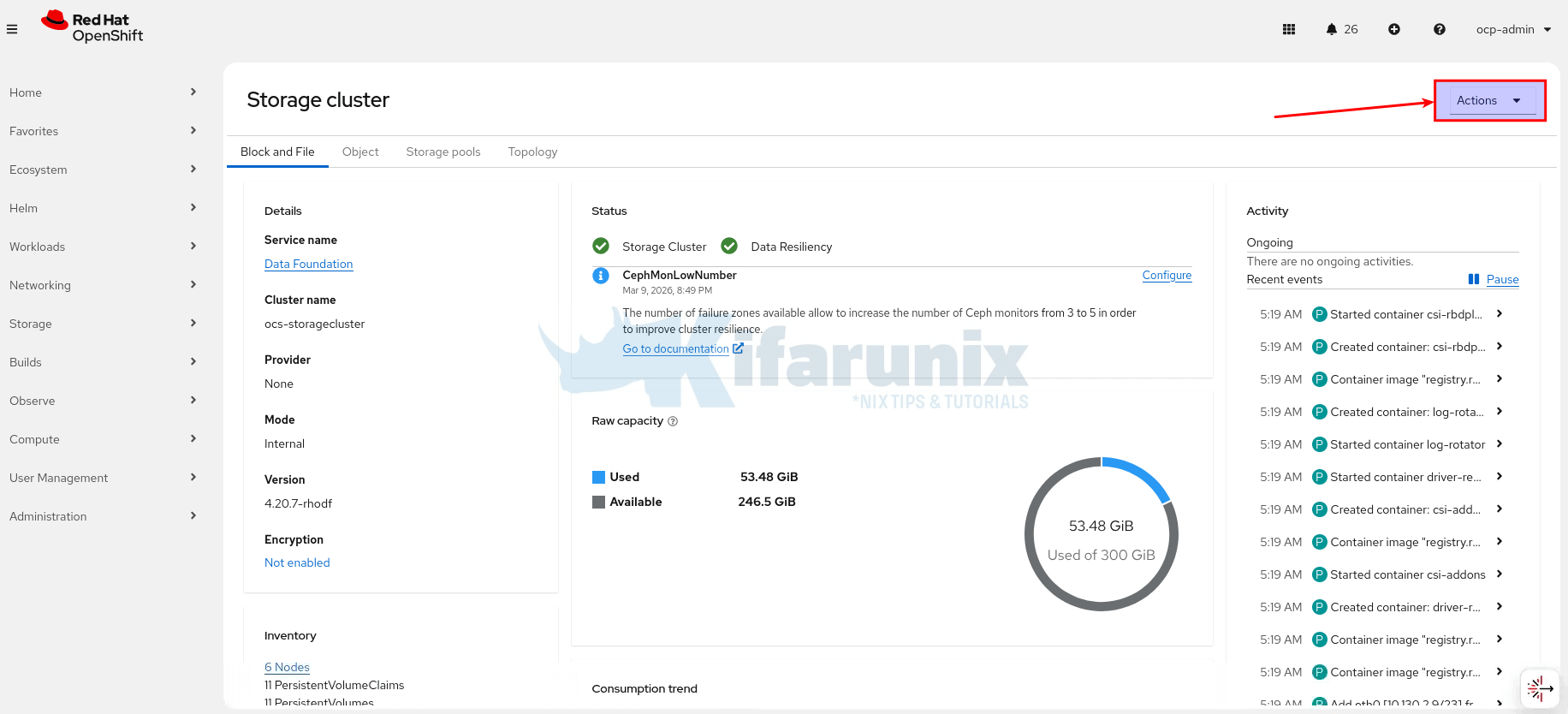
- Select Add Capacity from the options menu.
- In the Storage Class field, select your local storage class; in this cluster it is
local-volume-drives. The available capacity shown is based on the Available PVs LSO provisioned (new nodes storage). So you should see the 3 × 100 GiB disks reflected here, for example.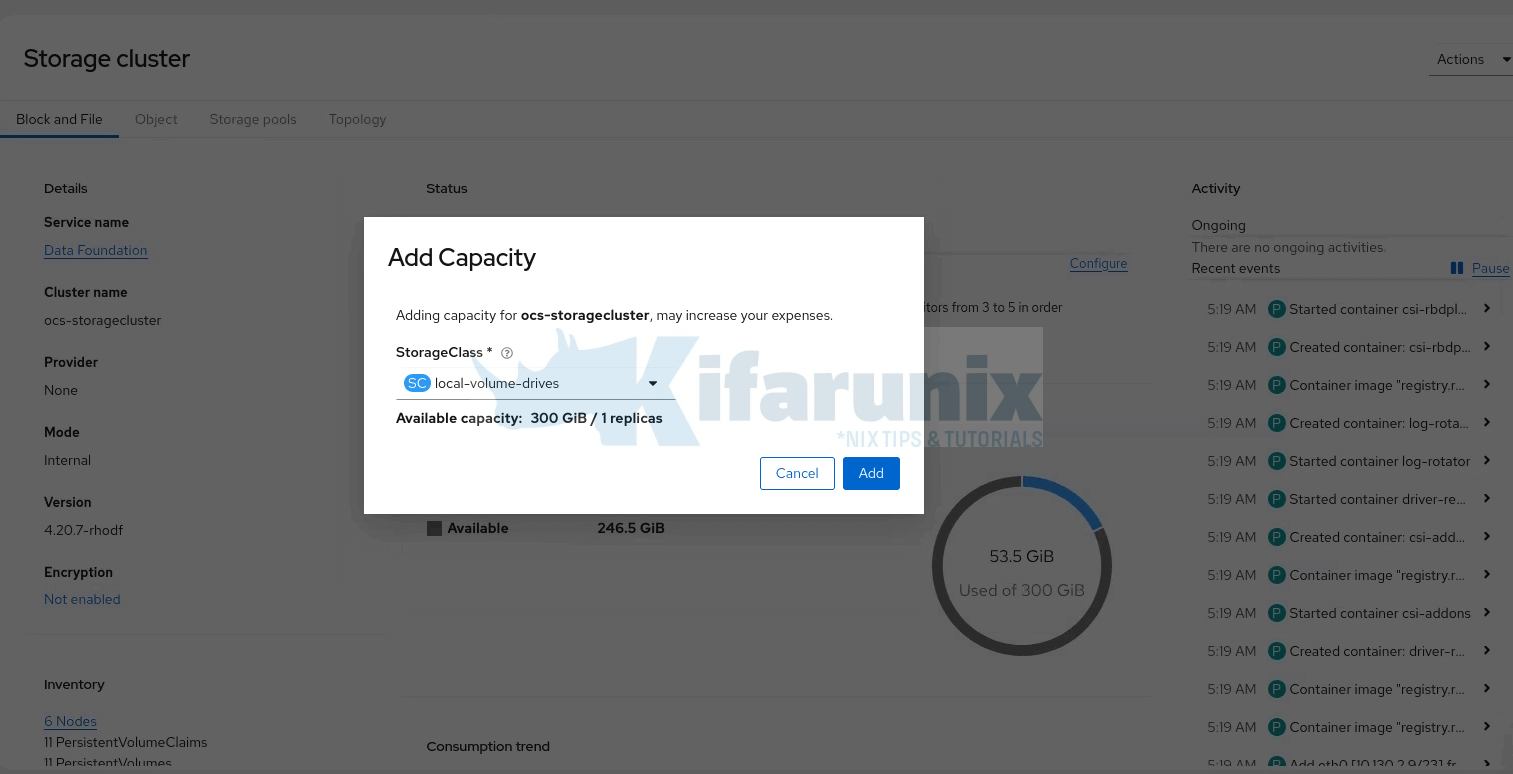
- Click Add
After clicking Add, ODF triggers OSD prepare jobs on the new storage nodes. The console will return to the Storage Systems overview. You can verify the expansion is progressing by navigating to Storage > Data Foundation and monitor the activity stream.
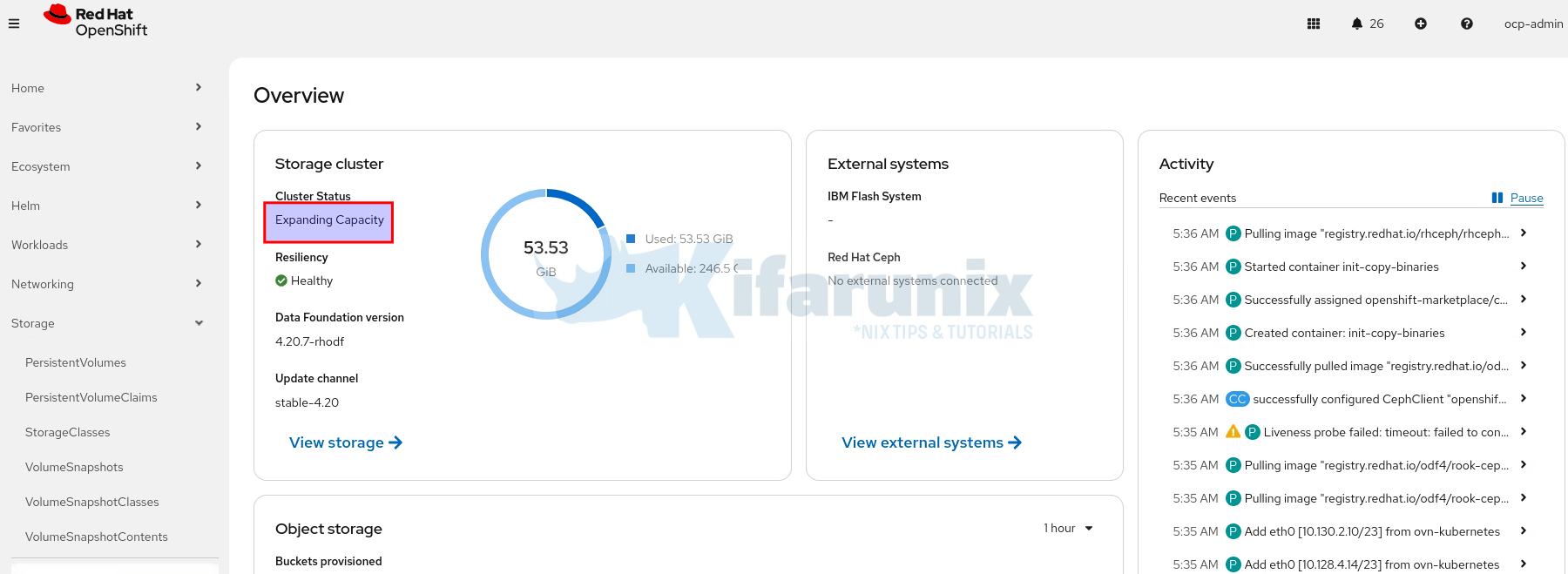
The Cluster Status card should now be showing Progressing. It should show a green tick with Ready status once complete.
Monitor New OSD Pod Creation
Watch OSD prepare jobs run on the new nodes
watch "oc get pods -n openshift-storage -o wide | grep osd-prepare"Watch the OSD pods themselves start
watch "oc get pods -n openshift-storage -o wide | grep osd | grep -v prepare"rook-ceph-osd-0-768cb77685-z75j8 2/2 Running 0 40h 10.129.2.50 wk-01.ocp.comfythings.com <none> <none>
rook-ceph-osd-1-66648bf48d-4l265 2/2 Running 14 18d 10.131.0.7 wk-02.ocp.comfythings.com <none> <none>
rook-ceph-osd-2-569f95894-8nb88 2/2 Running 0 43h 10.130.0.5 wk-03.ocp.comfythings.com <none> <none>
rook-ceph-osd-3-6bd5d79f45-tsf5t 2/2 Running 0 2m17s 10.130.4.200 st-03.ocp.comfythings.com <none> <none>
rook-ceph-osd-4-6fb499654c-2ksnm 2/2 Running 0 2m17s 10.129.4.49 st-01.ocp.comfythings.com <none> <none>
rook-ceph-osd-5-69954c5c8c-svs9k 2/2 Running 0 2m16s 10.131.4.238 st-02.ocp.comfythings.com <none> <none>You should see 3 new OSD pods starting, one per storage node.
Verify New OSDs Are Registered in Ceph
You can confirm Ceph sees the new OSDs using odf cli command:
odf ceph osd treeTo install odf cli command, check Ceph Cluster / Storage Health.
You should now see 6 OSDs; 3 on the original worker nodes and 3 new ones on the storage nodes:
ID   CLASS  WEIGHT   TYPE NAME                           STATUS  REWEIGHT  PRI-AFF
 -1         0.58612  root default
-11         0.09769      host st-01-ocp-comfythings-com
  3    ssd  0.09769          osd.3                           up   1.00000  1.00000
-13         0.09769      host st-02-ocp-comfythings-com
  4    ssd  0.09769          osd.4                           up   1.00000  1.00000
 -9         0.09769      host st-03-ocp-comfythings-com
  5    ssd  0.09769          osd.5                           up   1.00000  1.00000
 -7         0.09769      host wk-01-ocp-comfythings-com
  0    ssd  0.09769          osd.0                           up   1.00000  1.00000
 -3         0.09769      host wk-02-ocp-comfythings-com
  1    ssd  0.09769          osd.1                           up   1.00000  1.00000
 -5         0.09769      host wk-03-ocp-comfythings-com
  2    ssd  0.09769          osd.2                           up   1.00000  1.00000
Step 8: Wait for Ceph Rebalancing
The moment new OSDs are added, Ceph begins rebalancing data automatically. It recalculates the optimal data distribution across all 6 OSDs and starts moving placement groups to achieve it.
oc get cephcluster -n openshift-storageNAME DATADIRHOSTPATH MONCOUNT AGE PHASE MESSAGE HEALTH EXTERNAL FSID
ocs-storagecluster-cephcluster /var/lib/rook 3 39d Ready Cluster created successfully HEALTH_WARN 30ec043e-ef67-40a5-8137-357764c5fb9fDuring this process the cluster will enter HEALTH_WARN with messages like PG_DEGRADED or PG_UNDERSIZED. This does not mean data is at risk. It means Ceph is redistributing data and some placement groups temporarily have fewer than 3 replicas while a third copy is being written to the new OSDs.
odf ceph -s cluster:
id: bb78d03b-d126-4f3d-b17d-9f26eb15c1ab
health: HEALTH_OK
services:
mon: 3 daemons, quorum a,b,c (age 2d)
mgr: a(active, since 7m), standbys: b
mds: 1/1 daemons up, 1 hot standby
osd: 6 osds: 6 up (since 6m), 6 in (since 8m); 22 remapped pgs
rgw: 1 daemon active (1 hosts, 1 zones)
data:
volumes: 1/1 healthy
pools: 12 pools, 201 pgs
objects: 5.39k objects, 17 GiB
usage: 54 GiB used, 546 GiB / 600 GiB avail
pgs: 2293/16182 objects misplaced (14.170%)
179 active+clean
21 active+remapped+backfill_wait
1 active+remapped+backfilling
io:
client: 45 KiB/s rd, 119 KiB/s wr, 54 op/s rd, 3 op/s wr
recovery: 20 MiB/s, 5 objects/sIn summary:
- Cluster:
HEALTH_OK; cluster is healthy and running. - Services: All monitors, manager, MDS, OSDs, and RGW are up and in; 22 PGs were remapped recently.
- Data:
- 12 pools, 201 PGs, 5.39k objects
- 54 GiB used of 600 GiB total capacity
- About 14.17% of objects temporarily misplaced due to rebalancing
- PG States:
- 179 PGs healthy (active+clean)
- 21 PGs waiting to backfill (active+remapped+backfill_wait)
- 1 PG actively backfilling (active+remapped+backfilling)
- I/O / Recovery:
- Client I/O: 45 KiB/s read, 119 KiB/s write
- 54 read ops/s, 3 write ops/s
- Recovery running at ~20 MiB/s (~5 objects/s)
- Status:
- Cluster is healthy and rebalancing while misplaced objects are redistributed across OSDs.
Note that rebalancing time depends on the amount of data and disk throughput.
You can check progress of rebalancing:
odf ceph progress- Pool replication size = 3
- Default min_size = 2
- Cluster continues serving data as long as at least 2 replicas of each object are available
odf ceph osd pool ls detail | grep min_sizeWait for HEALTH_OK before proceeding to the next step. Do not continue until all PGs are active+clean.
odf ceph healthHEALTH_OKStep 9: Migrate Ceph Daemons to Storage Nodes
Before removing any OSDs from worker nodes, all Ceph daemons (MON, MGR, MDS, RGW) must be running on the new storage nodes.
Understanding Daemon Scheduling Constraints
After expanding ODF in Step 7, all MON, MGR, MDS, and RGW pods remain on the worker nodes. Only the new OSD pods (osd.3, osd.4, osd.5) landed on storage nodes because they were freshly created.
Check MON pods:
oc get pods -n openshift-storage -l app=rook-ceph-mon \
     -o custom-columns="NAME:.metadata.name,NODE:.spec.nodeName"
NAME NODE
rook-ceph-mon-a-855f7c9dcf-mlx6s wk-01.ocp.comfythings.com
rook-ceph-mon-b-6ccb6b66fd-6xbmd wk-03.ocp.comfythings.com
rook-ceph-mon-c-6db8c579b6-nkzzf wk-02.ocp.comfythings.comCheck Ceph MGR,MDS,RGW pods:
oc get pods -n openshift-storage \
     -o custom-columns=NAME:.metadata.name,NODE:.spec.nodeName | \
     grep -E 'rook-ceph-(mgr|mds|rgw)'
rook-ceph-mds-ocs-storagecluster-cephfilesystem-a-6fd9dd85z5l97 wk-03.ocp.comfythings.com
rook-ceph-mds-ocs-storagecluster-cephfilesystem-b-77bfbbb7fmds8 wk-02.ocp.comfythings.com
rook-ceph-mgr-a-8d99bbd6d-m8kb8 wk-03.ocp.comfythings.com
rook-ceph-mgr-b-6d496857fd-86ktz wk-01.ocp.comfythings.com
rook-ceph-rgw-ocs-storagecluster-cephobjectstore-a-c469f955687f wk-01.ocp.comfythings.comThis is expected. There are two reasons why the daemons do not move:
- Both node groups carry the ODF label. The worker nodes and storage nodes both have
cluster.ocs.openshift.io/openshift-storage="". Rook sees 6 eligible nodes. The existing daemons are running and healthy and Rook has no reason to reschedule them. - Each daemon type has different scheduling constraints: MONs use a hard
nodeSelectorpinning each MON to the specific hostname where its HostPath data directory (/var/lib/rook/mon-<id>/data) lives. You can verify this:
Output:oc get deployment rook-ceph-mon-a -n openshift-storage -o jsonpath='{.spec.template.spec.nodeSelector}'{"kubernetes.io/hostname":"wk-01.ocp.comfythings.com"}
This means a MON cannot simply be moved to another node as the data does not exist on that specific node. MON migration requires Rook’s failover mechanism, which creates an entirely new MON identity (e.g., mon-d) on a storage node and removes the old one from quorum.
MGR, MDS, and RGW do NOT have a hostname nodeSelector. They only have a nodeAffinity for the ODF label (requiredDuringSchedulingIgnoredDuringExecution).
oc get deployment rook-ceph-mon-a -n openshift-storage -o jsonpath='{.spec.template.spec.affinity}' | jq .{
"nodeAffinity": {
"requiredDuringSchedulingIgnoredDuringExecution": {
"nodeSelectorTerms": [
{
"matchExpressions": [
{
"key": "cluster.ocs.openshift.io/openshift-storage",
"operator": "Exists"
}
]
}
]
}
}
}This affinity is only evaluated at scheduling time and it does not evict already-running pods. However, once the pod is deleted and needs to be rescheduled, the scheduler will only place it on a node that carries the ODF label.
This means migrating daemons requires two different approaches:
- MONs:
- Remove label from the nodes
- Scale MON deployment to 0
- Wait for Rook’s 600s (~10 min) failover timer
- Rook creates a new MON with a new ID on a valid storage node
- Quorum re-forms automatically
- MGR/MDS/RGW:
- Once the MON has been relocated, Rook’s reconciliation moves MGR/MDS/RGW automatically and places them on a storage node as part of the same cycle.
Both approaches require removing the ODF label from the worker node first, so the node becomes ineligible for future scheduling. We do this one worker at a time to protect MON quorum.
Why one worker at a time? Ceph MONs maintain cluster quorum. You have 3 MONs, one on each worker node. Quorum requires a majority (2 of 3). If you disrupt more than one MON simultaneously, you lose quorum and the entire Ceph cluster goes down. This is unrecoverable without manual intervention.
After migrating the first worker’s MON, you will have MONs on 2 workers + 1 storage node. After the second, 1 worker + 2 storage nodes. After the third, all 3 on storage nodes. At every step, at least 2 of 3 MONs remain running.
Migrate Storage Daemons Off the Worker nodes
As explained above, you need to migrate the storage daemons off the worker nodes, one node at a time.
Migrate MON Daemons
We will start off worker 01.
Therefore, let’s identify Ceph daemons on wk-01 (excluding OSDs):
oc get pods -n openshift-storage \
     -o custom-columns=NAME:.metadata.name,NODE:.spec.nodeName | \
     grep -E 'rook-ceph-(mon|mgr|mds|rgw)' | grep wk-01
rook-ceph-mon-a-855f7c9dcf-mlx6s wk-01.ocp.comfythings.com
rook-ceph-mgr-b-6d496857fd-86ktz wk-01.ocp.comfythings.com
rook-ceph-rgw-ocs-storagecluster-cephobjectstore-a-c469f955687f wk-01.ocp.comfythings.comNote the pod names. In our case, wk-01 runs mon-a, mgr-b, and rgw-a.
Remove the ODF label from wk-01:
oc label node wk-01.ocp.comfythings.com cluster.ocs.openshift.io/openshift-storage-Migrate the MON deamon by scaling the MON deployment to 0 replicas:
oc scale deployment rook-ceph-mon-a -n openshift-storage --replicas=0Monitor the MON failover:
The Rook operator checks MON health every 45 seconds. When it detects mon-a is out of quorum with no pod running, it starts a 10-minute (600-second) countdown. Watch the operator logs:
oc logs -f -n openshift-storage \
  $(oc get pod -n openshift-storage -l app=rook-ceph-operator \
    -o jsonpath='{.items[0].metadata.name}') \
  | grep -i "mon"
You will see the countdown proceed:
op-mon: mon "a" not found in quorum, waiting for timeout (599 seconds left) before failover
op-mon: mon "a" not found in quorum, waiting for timeout (553 seconds left) before failover
...
After approximately 10 minutes, the failover triggers:
op-mon: failed to check if mon "a" is assigned to a node, continuing with mon failover. no pods found with label selector "app=rook-ceph-mon,ceph_daemon_id=a"
op-mon: mon "a" NOT found in quorum and timeout exceeded, mon will be failed over
op-mon: Failing over monitor "a"
op-mon: starting new mon: &{ResourceName:rook-ceph-mon-d DaemonName:d ...}
op-mon: canary monitor deployment rook-ceph-mon-d-canary scheduled to st-02.ocp.comfythings.com
Rook creates a canary deployment to test if a new MON can be scheduled on a storage node, then deploys the real MON. You will then see:
op-mon: Monitors in quorum: [b c d]
op-mon: ensuring removal of unhealthy monitor a
op-mon: removed monitor a
The entire process from label removal to new MON in quorum takes approximately 10–12 minutes.
Verify the failover completed successfully:
odf ceph mon statYou must see 3 MONs in quorum (e.g., b, c, d). The old mon-a is gone and replaced by mon-d on a storage node.
oc get pods -n openshift-storage -l app=rook-ceph-mon \
     -o custom-columns=NAME:.metadata.name,STATUS:.status.phase,NODE:.spec.nodeName
Confirm one MON is now on a storage node and the other two are still on wk-02 and wk-03.
NAME                               STATUS    NODE
rook-ceph-mon-b-6ccb6b66fd-6xbmd   Running   wk-03.ocp.comfythings.com
rook-ceph-mon-c-6db8c579b6-nkzzf   Running   wk-02.ocp.comfythings.com
rook-ceph-mon-d-5c598fb544-zz4js   Running   st-02.ocp.comfythings.com
Migrate MGR/RGW/MDS Daemons
After the MON failover is confirmed, delete any remaining MGR/MDS/RGW pods still on that worker node. Rook’s reconciliation may move some of these automatically, but not reliably all of them.
You can check if any of them still runs on the previous worker node:
oc get pods -n openshift-storage \
     -o custom-columns=NAME:.metadata.name,NODE:.spec.nodeName | \
     grep -E 'rook-ceph-(mon|mgr|mds|rgw)' | grep wk-01
If any non-MON pod still exists, delete them to trigger rescheduling.
Confirm Ceph health:
odf ceph healthMust show HEALTH_OK before proceeding to the next worker.
Once the cluster health is OK, proceed to the next worker nodes.
Repeat for Worker 2 and Worker 3:
The procedure is identical for each remaining worker. Always complete one worker fully and confirm HEALTH_OK before starting the next.
For each worker node, run through these steps in order:
- Identify the MON and other daemons on the worker. Note the MON ID (the letter after
rook-ceph-mon-). - Remove the ODF storage label.
- Scale the MON deployment to 0.
- Watch the operator logs for the ~10 minute failover.
- Wait until you see
removed monitor <id>andMonitors in quorumshowing 3 MONs. - After the MON failover completes, delete any remaining MGR/MDS/RGW pods on that worker node.
- Verify Ceph cluster health before proceeding to the next worker MON migration
At the end of migration, all the Ceph daemons should be running exclusively on the storage nodes.
Final Daemon Placement Verification
After all 3 workers have been processed, confirm the final state.
Only storage nodes carry the ODF label:
oc get nodes -l cluster.ocs.openshift.io/openshift-storage=""NAME STATUS ROLES AGE VERSION
st-01.ocp.comfythings.com Ready infra,worker 20h v1.33.6
st-02.ocp.comfythings.com Ready infra,worker 20h v1.33.6
st-03.ocp.comfythings.com Ready infra,worker 20h v1.33.6All Ceph daemons (except old worker OSDs) are on storage nodes:
bash
oc get pods -n openshift-storage -o wide \
  | grep -v Completed \
  | awk 'NR==1 || /mon|mgr|mds|osd|rgw/'
NAME READY STATUS RESTARTS AGE IP NODE NOMINATED NODE READINESS GATES
rook-ceph-mds-ocs-storagecluster-cephfilesystem-a-6fd9dd85nv9n8 2/2 Running 0 4m2s 10.131.2.27 st-01.ocp.comfythings.com <none> <none>
rook-ceph-mds-ocs-storagecluster-cephfilesystem-b-77bfbbb7q5shk 2/2 Running 0 97m 10.128.4.28 st-02.ocp.comfythings.com <none> <none>
rook-ceph-mgr-a-8d99bbd6d-6q8dk 3/3 Running 0 3m22s 10.130.2.23 st-03.ocp.comfythings.com <none> <none>
rook-ceph-mgr-b-6d496857fd-tjzck 3/3 Running 1 (67m ago) 7h30m 10.131.2.17 st-01.ocp.comfythings.com <none> <none>
rook-ceph-mon-d-5c598fb544-zz4js 2/2 Running 0 6h46m 10.128.4.20 st-02.ocp.comfythings.com <none> <none>
rook-ceph-mon-e-ddc7776f6-z2t8c 2/2 Running 0 116m 10.131.2.22 st-01.ocp.comfythings.com <none> <none>
rook-ceph-mon-f-677d67cf9f-5kgcw 2/2 Running 0 70m 10.130.2.22 st-03.ocp.comfythings.com <none> <none>
rook-ceph-osd-0-7946cf4597-n7h6k 2/2 Running 0 2d20h 10.128.0.38 wk-01.ocp.comfythings.com <none> <none>
rook-ceph-osd-1-b6d79df6-br7gd 2/2 Running 0 2d20h 10.131.0.33 wk-02.ocp.comfythings.com <none> <none>
rook-ceph-osd-2-574865cc49-sdq6w 2/2 Running 0 2d20h 10.130.0.57 wk-03.ocp.comfythings.com <none> <none>
rook-ceph-osd-3-6dd7bc5565-8j7zt 2/2 Running 0 6h43m 10.131.2.19 st-01.ocp.comfythings.com <none> <none>
rook-ceph-osd-4-7bb9b77795-8gxrp 2/2 Running 0 6h43m 10.128.4.23 st-02.ocp.comfythings.com <none> <none>
rook-ceph-osd-5-6d9cd75568-56jrg 2/2 Running 0 6h42m 10.130.2.20 st-03.ocp.comfythings.com <none> <none>
rook-ceph-rgw-ocs-storagecluster-cephobjectstore-a-c469f95dnqks 2/2 Running 0 7h30m 10.130.2.17 st-03.ocp.comfythings.com <none> <none>You should see: all MON, MGR, MDS, and RGW pods on storage nodes; the new OSD pods (osd.3, osd.4, osd.5) on storage nodes; and the old OSD pods (osd.0, osd.1, osd.2) still on worker nodes. The old OSD pods remain running because OSD scheduling is tied to the PVC binding, not the ODF node label.
Final Ceph quorum and health:
odf ceph mon state9: 3 mons at {d=[v2:172.30.27.111:3300/0,v1:172.30.27.111:6789/0],e=[v2:172.30.160.139:3300/0,v1:172.30.160.139:6789/0],f=[v2:172.30.95.7:3300/0,v1:172.30.95.7:6789/0]} removed_ranks: {0} disallowed_leaders: {}, election epoch 52, leader 0 d, quorum 0,1,2 d,e,fHence:
- Ceph cluster has 3 MONs:
d,e,f. - Leader:
d - Quorum: all 3 MONs (
d,e,f) are active. - Removed MON rank: 0 (the old MON that was scaled down).
- Cluster is healthy; failover completed successfully.
odf ceph healthHEALTH_OKStep 10: Remove Worker Node OSDs
With 6 healthy OSDs and the cluster at HEALTH_OK, the new storage nodes are carrying data and the old worker node OSDs can now be decommissioned. This step removes the 3 OSDs from the original worker nodes one at a time.
You must remove OSDs one at a time. Never remove more than one OSD simultaneously. Each removal triggers Ceph to redistribute that OSD’s data across the remaining OSDs. You must wait for HEALTH_OK and all placement groups to return to active+clean after each removal before proceeding to the next. Removing multiple OSDs at once reduces redundancy faster than Ceph can recover, which risks data loss if another OSD fails during that window.
Take a Must-Gather Before Starting
Capture a full diagnostic snapshot before making any changes. If something goes wrong, Red Hat support will require this, if you have an active subscription. Otherwise, if on self-support, you can skip this.
Note, we are running OCP v4.20.8. Hence:
oc adm must-gather --image=registry.redhat.io/odf4/odf-must-gather-rhel9:v4.20 \
  --dest-dir=./odf-must-gather-pre-osd-removal
Reduce storageDeviceSets Count
Our StorageCluster CR has a single storageDeviceSet with count: 6 and replica: 1.
oc get storagecluster ocs-storagecluster \
     -n openshift-storage \
     -o jsonpath='{.spec.storageDeviceSets}' | jq .
[
{
"config": {},
"count": 6,
"dataPVCTemplate": {
"metadata": {},
"spec": {
"accessModes": [
"ReadWriteOnce"
],
"resources": {
"requests": {
"storage": "1"
}
},
"storageClassName": "local-volume-drives",
"volumeMode": "Block"
},
"status": {}
},
"name": "ocs-deviceset-local-volume-drives",
"placement": {},
"preparePlacement": {},
"replica": 1,
"resources": {}
}
]This tells Rook to maintain exactly 6 OSDs. Because this device set provisions OSDs from PVCs, Rook reconciles against the desired count. If you remove an OSD but free local PV capacity still exists, Rook may create a new PVC and provision a replacement OSD. Reducing the count to 3 first updates the desired state and prevents any re-provisioning.
Back up the StorageCluster CR:
oc get storagecluster ocs-storagecluster \
     -n openshift-storage -o yaml \
     > storagecluster-backup-before-osd-removal.yaml
Reduce count from 6 to 3:
oc patch storagecluster ocs-storagecluster -n openshift-storage \
     --type json \
      --patch '[{"op": "replace", "path": "/spec/storageDeviceSets/0/count", "value": 3}]'
Verify:
oc get storagecluster ocs-storagecluster \
  -n openshift-storage \
  -o jsonpath='{.spec.storageDeviceSets[0].count}{"\n"}'
Expected: 3
Wait for like a minute and confirm all 6 OSD pods are still running, the patch does not remove existing OSDs:
oc get pods -n openshift-storage | grep -vE "prepare|Completed"rook-ceph-osd-0-7946cf4597-n7h6k 2/2 Running 0 2d20h
rook-ceph-osd-1-b6d79df6-br7gd 2/2 Running 0 2d20h
rook-ceph-osd-2-574865cc49-sdq6w 2/2 Running 0 2d20h
rook-ceph-osd-3-6dd7bc5565-8j7zt 2/2 Running 0 7h23m
rook-ceph-osd-4-7bb9b77795-8gxrp 2/2 Running 0 7h22m
rook-ceph-osd-5-6d9cd75568-56jrg 2/2 Running 0 7h22mVerify at the Ceph level that all 6 OSDs remain up and in:
odf ceph osd statExpected: 6 osds: 6 up (since ...), 6 in (since ...)
Identify the OSDs to Remove
First identify which OSD IDs are running on the worker nodes:
odf ceph osd treeNote the OSD IDs on the worker node hostnames. These are the OSDs we will remove.
Sample output;
ID   CLASS  WEIGHT   TYPE NAME                           STATUS  REWEIGHT  PRI-AFF
 -1         0.58612  root default
-11         0.09769      host st-01-ocp-comfythings-com
  3    ssd  0.09769          osd.3                           up   1.00000  1.00000
-13         0.09769      host st-02-ocp-comfythings-com
  4    ssd  0.09769          osd.4                           up   1.00000  1.00000
 -9         0.09769      host st-03-ocp-comfythings-com
  5    ssd  0.09769          osd.5                           up   1.00000  1.00000
 -7         0.09769      host wk-01-ocp-comfythings-com
  0    ssd  0.09769          osd.0                           up   1.00000  1.00000
 -3         0.09769      host wk-02-ocp-comfythings-com
  1    ssd  0.09769          osd.1                           up   1.00000  1.00000
 -5         0.09769      host wk-03-ocp-comfythings-com
  2    ssd  0.09769          osd.2                           up   1.00000  1.00000
From the OSD tree output above, we can see that the OSDs running on the worker nodes are:
- osd.0: wk-01-ocp-comfythings-com
- osd.1: wk-02-ocp-comfythings-com
- osd.2: wk-03-ocp-comfythings-com
Remove Each Worker OSD One at a Time
Now that we have identified the OSD IDs running on the worker nodes (osd.0, osd.1, osd.2), we can proceed with their removal.
For each worker OSD, perform the following sequence in full before moving to the next. Do not skip the health check between removals.
Removing osd.0 from worker node wk-01.
Set the OSD ID:
osd_id_to_remove=0Scale down the specific OSD deployment:
oc scale deployment rook-ceph-osd-${osd_id_to_remove} \
     --replicas=0 -n openshift-storage
Verify the OSD pod has terminated:
oc get pods -n openshift-storage | grep osd-${osd_id_to_remove}Output should be empty.
Once confirmed, run the ODF OSD removal job:
oc process -n openshift-storage ocs-osd-removal \
     -p FAILED_OSD_IDS=$osd_id_to_remove \
     -p FORCE_OSD_REMOVAL=false | \
     oc create -f - -n openshift-storage
Check the removal logs:
oc logs -f -n openshift-storage $(oc get pod -n openshift-storage \
    -l job-name=ocs-osd-removal-job \
    --sort-by=.metadata.creationTimestamp \
    -o jsonpath='{.items[-1].metadata.name}')
If you see cephosd: osd.X is NOT ok to destroy:
...
2026-03-10 16:35:45.406686 W | cephosd: osd.0 is NOT ok to destroy, retrying in 15s until success
2026-03-10 16:36:00.420965 D | exec: Running command: ceph osd safe-to-destroy 0 --connect-timeout=15 --cluster=openshift-storage --conf=/var/lib/rook/openshift-storage/openshift-storage.config --name=client.admin --keyring=/var/lib/rook/openshift-storage/client.admin.keyring --format json
2026-03-10 16:36:01.518036 W | cephosd: osd.0 is NOT ok to destroy, retrying in 15s until success
...
Do not panic. The OSD still holds data that has not been fully replicated elsewhere. Wait for Ceph rebalancing to complete. The job will retry automatically.
You can check rebalancing progress:
odf ceph -sAfter a while, all should be fine, as logs tell:
2026-03-10 16:36:17.922267 I | cephosd: osd.0 is safe to destroy, proceeding
2026-03-10 16:36:17.977595 I | cephosd: removing the OSD deployment "rook-ceph-osd-0"
2026-03-10 16:36:17.977649 D | op-k8sutil: removing rook-ceph-osd-0 deployment if it exists
2026-03-10 16:36:17.977668 I | op-k8sutil: removing deployment rook-ceph-osd-0 if it exists
2026-03-10 16:36:18.093768 I | op-k8sutil: Removed deployment rook-ceph-osd-0
2026-03-10 16:36:18.169313 I | op-k8sutil: "rook-ceph-osd-0" still found. waiting...
2026-03-10 16:36:20.199926 I | op-k8sutil: confirmed rook-ceph-osd-0 does not exist
2026-03-10 16:36:20.279770 I | cephosd: removing the osd prepare job "rook-ceph-osd-prepare-cb09af1b513731fb5b5d60039b8b9f5f"
2026-03-10 16:36:20.562882 I | cephosd: removing the OSD PVC "ocs-deviceset-local-volume-drives-0-data-2n97tv"
2026-03-10 16:36:20.656708 I | cephosd: purging osd.0

...
2026-03-10 16:36:26.802929 I | cephosd: no ceph crash to silence
2026-03-10 16:36:26.803925 I | cephosd: completed removal of OSD 0
The cluster should be back to HEALTH_OK:
odf ceph healthHEALTH_OKAnd OSDs scaled down:
odf ceph osd stat5 osds: 5 up (since 10m), 5 in (since 9m); epoch: e1089As you can see from the logs, the ocs-osd-removal job safely destroyed osd.0, purged it from Ceph, removed the osd-prepare pod, and automatically deleted the PVC (ocs-deviceset-local-volume-drives-0-data-2n97tv) without you having to touch it manually. However, the PV is still sitting in Available state. We will delete released PVs at a later stage.
Before removing the next OSD, delete the removal job so a new one can be created:
oc delete job ocs-osd-removal-job -n openshift-storageNow repeat the exact same procedure for osd.1 (wk-02) and then osd.2 (wk-03).
For each one:
- Set
osd_id_to_remove=1(then2) - Scale down the OSD deployment
- Verify the OSD pod terminated
- Run the
ocs-osd-removaljob - Wait for
completed removal of OSD Xin the logs - Confirm
HEALTH_OKwithodf ceph health - Confirm OSD count decreased with
odf ceph osd stat - Delete the removal job before proceeding to the next
FORCE_OSD_REMOVAL=false. Red Hat states that FORCE_OSD_REMOVAL must be changed to true in clusters that have only three OSDs or where there is insufficient space to restore all three replicas after an OSD removal. In our case, after removing osd.0 and osd.1, we have 4 OSDs remaining (3 on storage nodes + osd.2 on wk-03). When we remove osd.2, we go to 3 OSDs on 3 different storage nodes, this still allows 3 replicas. However, if the removal job for your last worker OSD gets stuck in a retry loop with FORCE_OSD_REMOVAL=false, and you have confirmed all PGs are active, you may need to use FORCE_OSD_REMOVAL=true for that final removal.Update LSO CRs to Remove Worker Node Hostnames
The ODF label was already removed from all 3 worker nodes in Step 9 as part of the daemon migration process. Now update the LSO CRs to match the current storage nodes.
oc patch localvolumediscovery auto-discover-devices -n openshift-local-storage --type=merge -p '{
  "spec": {
    "nodeSelector": {
      "nodeSelectorTerms": [
        {
          "matchExpressions": [
            {
              "key": "kubernetes.io/hostname",
              "operator": "In",
              "values": [
                "st-01.ocp.comfythings.com",
                "st-02.ocp.comfythings.com",
                "st-03.ocp.comfythings.com"
              ]
            }
          ]
        }
      ]
    }
  }
}'
Update the localvolume set as well:
oc get localvolumeset -n openshift-local-storageNAME AGE
local-volume-drives 2d21hoc patch localvolumeset local-volume-drives -n openshift-local-storage --type=merge -p '{
"spec": {
"nodeSelector": {
"nodeSelectorTerms": [
{
"matchExpressions": [
{
"key": "kubernetes.io/hostname",
"operator": "In",
"values": [
"st-01.ocp.comfythings.com",
"st-02.ocp.comfythings.com",
"st-03.ocp.comfythings.com"
]
}
]
}
]
}
}
}'Verify both CRs now list only storage node hostnames:
oc get localvolumediscovery auto-discover-devices \
  -n openshift-local-storage -o yaml | grep -A12 nodeSelector
oc get localvolumeset local-volume-drives \
-n openshift-local-storage -o yaml | grep -A12 nodeSelectorDelete the Released PVs
Check released PVs. Filter by both Available phase and the local-volume-drives storage class to avoid accidentally deleting PVs from other storage classes:
(Use your respective names)
oc get pv | grep Available | grep local-volume-driveslocal-pv-7ef4c9e2 100Gi RWO Delete Available local-volume-drives <unset> 28m
local-pv-e07bee9b 100Gi RWO Delete Available local-volume-drives <unset> 17m
local-pv-e38e1a7d 100Gi RWO Delete Available local-volume-drives <unset> 45mFor each released PV, we need to remove the OSD device symlink from the corresponding worker node. Get the mount path from the PV:
oc get pv <pv-name> -o yaml | grep pathFor example:
oc get pv local-pv-e07bee9b -o yaml | grep path path: /mnt/local-storage/local-volume-drives/scsi-0QEMU_QEMU_HARDDISK_drive-scsi0-0-0-0Important: In this lab, all 3 worker nodes have identical QEMU disks with the same device ID. In some environments, device IDs will differ per node. You must check the path for each PV individually and remove the correct symlink from the correct node.
Login to each worker node and remove the symlink. The path below is specific to this lab environment:
for node in {1..3}; do oc debug node/wk-0${node}.ocp.comfythings.com -- chroot /host \
rm -rf /mnt/local-storage/local-volume-drives/scsi-0QEMU_QEMU_HARDDISK_drive-scsi0-0-0-0; done
Before you delete the PVs, remove finalizers to let them terminate fully without getting stuck:
for pv in <pv-names>; do oc patch pv $pv --type=json -p '[{"op":"remove","path":"/metadata/finalizers"}]' doneE.g:
for pv in local-pv-7ef4c9e2 local-pv-e07bee9b local-pv-e38e1a7d; do
  oc patch pv $pv --type=json -p '[{"op":"remove","path":"/metadata/finalizers"}]'
done
Then delete the PVs, filtering specifically for Available PVs in the local-volume-drives storage class:
oc delete pv $(oc get pv -o json | jq -r '.items[] | select(.status.phase=="Available" and .spec.storageClassName=="local-volume-drives") | .metadata.name')Step 11: Post-Migration Validation
Do not consider the migration complete until every item in this section is confirmed.
Final Ceph Status
odf ceph statusExpected output after successful migration:
  cluster:
    id:     bb78d03b-d126-4f3d-b17d-9f26eb15c1ab
    health: HEALTH_OK

  services:
    mon: 3 daemons, quorum d,e,f (age 2h)
    mgr: b(active, since 22m), standbys: a
    mds: 1/1 daemons up, 1 hot standby
    osd: 3 osds: 3 up (since 29m), 3 in (since 28m)
    rgw: 1 daemon active (1 hosts, 1 zones)

  data:
    volumes: 1/1 healthy
    pools:   15 pools, 204 pgs
    objects: 5.49k objects, 18 GiB
    usage:   53 GiB used, 247 GiB / 300 GiB avail
    pgs:     204 active+clean

  io:
    client:   20 MiB/s rd, 131 KiB/s wr, 20 op/s rd, 3 op/s wr
The OSD count should now show 3: only the OSDs on the new storage nodes remain.
Verify OSD Topology
odf ceph osd treeOnly 3 OSDs should remain, all on storage node hostnames. No worker node names should appear.
Confirm ODF Label Is Removed from Workers
oc get nodes -l cluster.ocs.openshift.io/openshift-storage="" | grep wk-No output means the label is gone from all worker nodes.
Confirm All ODF Pods Are on Storage Nodes
oc get pods -n openshift-storage -o wide \
  | grep -v Completed \
  | awk 'NR==1 || /mon|mgr|mds|osd|rgw/'
Every pod should show a storage node hostname in the node column. No worker node names should appear.
Note that NooBaa pods (noobaa-core, noobaa-db, noobaa-endpoint) and ODF operator pods (ocs-operator, odf-operator, noobaa-operator, rook-ceph-operator) will still be running on worker nodes at this point. These pods do not carry the storage node taint toleration by default and require additional configuration to move them to the dedicated storage nodes. This involves editing the ODF Subscriptions to add a nodeSelector and patching the StorageCluster CR with placement entries for each NooBaa component. If you want a fully clean separation where no ODF components remain on worker nodes, refer to Red Hat Knowledgebase solution Placing all ODF components on dedicated infra nodes (6992305) for the complete procedure.
Confirm All PVCs Remain Bound
oc get pvc -A | grep -v BoundOnly the header line should appear. Every PVC in the cluster should be in Bound state.
Verify Storage Provisioning Works
Create a test PVC to confirm the full provisioning pipeline is functional on the new storage nodes:
cat <<EOF | oc apply -f -
apiVersion: v1
kind: PersistentVolumeClaim
metadata:
  name: post-migration-test
  namespace: default
spec:
  accessModes:
  - ReadWriteOnce
  resources:
    requests:
      storage: 1Gi
  storageClassName: ocs-storagecluster-ceph-rbd
EOF
Then check the status:
oc get pvc post-migration-test -n default -wA Bound status confirms LSO, the CSI driver, and Ceph RBD are all functioning correctly on the new storage nodes.
NAME                  STATUS   VOLUME                                     CAPACITY   ACCESS MODES   STORAGECLASS                  VOLUMEATTRIBUTESCLASS   AGE
post-migration-test   Bound    pvc-51e2d41b-4951-42cf-b66f-9c82bb8a05a4   1Gi        RWO            ocs-storagecluster-ceph-rbd   <unset>                 17s
Clean up:
oc delete pvc post-migration-test -n defaultVerify the StorageCluster Phase
oc get storagecluster -n openshift-storagePHASE must show Ready.
NAME                 AGE   PHASE   EXTERNAL   CREATED AT             VERSION
ocs-storagecluster   3d    Ready              2026-03-07T19:28:51Z   4.20.7
Troubleshooting
- HEALTH_WARN During Rebalancing: Expected during OSD addition/removal. PGs temporarily have fewer than 3 replicas. Monitor with
odf ceph statusand wait forHEALTH_OK. Do not intervene. - OSD Prepare Pod Fails: Check logs:
oc logs -n openshift-storage $(oc get pod -n openshift-storage -l app=rook-ceph-osd-prepare -o jsonpath='{.items[-1].metadata.name}'). Common causes: disk not clean, disk too small, or insufficient resources on the storage node. - OSD Pod Stuck in Pending: Check events:
oc describe pod <pod> -n openshift-storage | grep -A10 Events. Usually a taint mismatch, verify the taint is exactlynode.ocs.openshift.io/storage=true:NoSchedule. - DaemonSet Pods Pending on Storage Nodes: System DaemonSets (openshift-dns, node-exporter) may lack the storage taint toleration.
- PVC Stuck in Pending After Migration: Verify CSI plugin DaemonSets are running on all nodes:
oc get pods -n openshift-storage -l app=csi-rbdplugin -o wide. A missing CSI plugin pod on a node means PVCs cannot mount there. - MON Failover Not Triggering After Scale-Down: Verify deployment is at 0 replicas and no pods exist (a Pending pod resets the timer indefinitely). If timer still resets, restart the Rook operator:
oc delete pod -n openshift-storage $(oc get pod -n openshift-storage -l app=rook-ceph-operator -o jsonpath='{.items[0].metadata.name}'). If the canary pod for the new MON is Pending, check storage node resources. Never touch the next worker until quorum is restored. - PV Stuck in Terminating After OSD Removal: The LSO finalizer
storage.openshift.com/lso-symlink-deleterprevents deletion. If LSO agents are no longer running on the worker nodes (because the LocalVolumeSet was already updated), the finalizer has no agent to process the cleanup. Remove it manually:oc patch pv <pv-name> --type=json -p '[{"op":"remove","path":"/metadata/finalizers"}]'
Conclusion
The migration is complete. ODF now runs exclusively on 3 dedicated storage nodes, cleanly separated from your application worker nodes.
The outcomes of this migration are: worker nodes are fully free from Ceph resource consumption; ODF has 300 GiB raw capacity (100 GiB usable) on dedicated infrastructure, the same capacity as before but now cleanly isolated; the architecture matches the Red Hat recommended model for production ODF clusters; and Ceph daemons are protected from interference from application workloads by the NoSchedule taint. If you need to increase OSD capacity, this can be done as a separate post-migration operation.