
In this guide, you will learn how to deploy an OpenShift cluster using Agent-based installer. Last month, I spent three days debugging a failed OpenShift deployment because I followed the official Red Hat documentation verbatim. The problem? The docs assume you already know what a rendezvous host is, why your DNS must be flawless before you start, and that a single typo in a YAML file can quietly waste hours of your time.
If you’re trying to deploy OpenShift on-premise using the Agent-based Installer and finding the official docs frustratingly incomplete, this guide is for you.
The Agent-based Installer is OpenShift’s answer to air-gapped and disconnected deployments. Unlike the Assisted Installer, which relies on constant connectivity to Red Hat’s cloud services, this method generates a single bootable ISO locally that contains everything needed to deploy your entire cluster. Boot your nodes with this ISO, let the installer handle discovery and provisioning, and walk away with a production-ready cluster; no external dependencies and no surprises.
In this guide, I’ll walk through the full deployment process, step by step, explain the undocumented assumptions, and help you avoid the mistakes that costed me days to figure out.
Table of Contents
How to Deploy an OpenShift Cluster Using Agent-Based Installer
Understanding What Runs Inside the Agent-Based Installer
Before we dive in, it helps to understand how OpenShift’s installation methods actually work behind the scenes.
The traditional Assisted Installer relies on Red Hat’s hosted service at console.redhat.com to coordinate the installation. Because of that, it requires continuous internet connectivity throughout the deployment. That’s perfectly fine for connected environments, but it quickly becomes a blocker in air-gapped or tightly restricted networks.
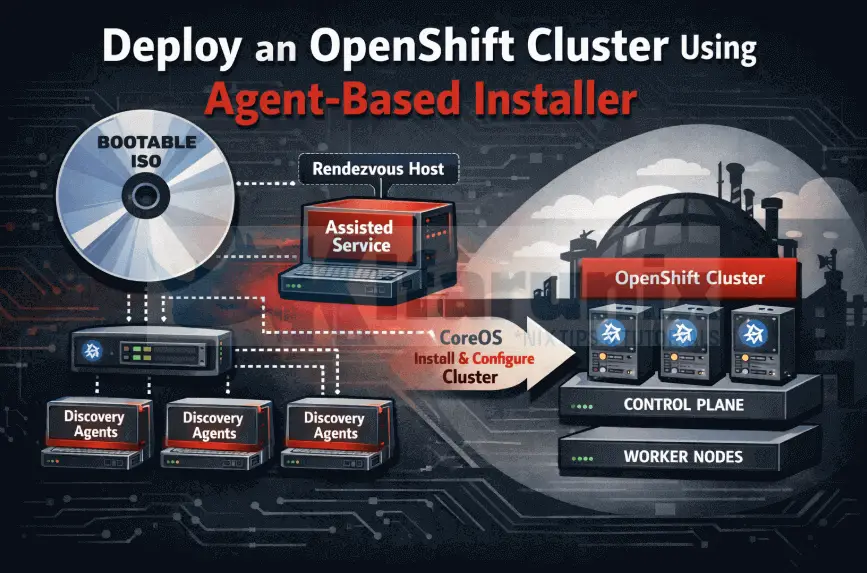
The Agent-Based Installer removes that external dependency entirely. Instead of relying on Red Hat’s cloud, it runs the same Assisted Installer logic locally inside your own environment. Everything required for node discovery, validation, orchestration, and installation is packaged into a single bootable ISO.
The real win? You create two simple YAML files (install-config.yaml and agent-config.yaml), run one command, and get a bootable ISO that deploys your entire cluster. No juggling multiple tools, no complex PXE setup, and no separate bootstrap node to manage.
During the bootable ISO generation process, the Agent-Based Installer embeds two critical components into the image: the assisted discovery agent and the assisted service.
When a node boots from this ISO, the discovery agent starts running directly on that node. Its role is simple but essential. It gathers information about the system and makes the node visible to the installer. Specifically, it:
- Collects hardware inventory (CPU, memory, disks, NICs)
- Reports networking details (interfaces, MAC addresses, IP configuration)
- Registers the node and waits for installation instructions
This discovery agent runs on every node you boot with the ISO including both the control plane nodes and worker nodes.
The first control plane node that successfully boots and starts the assisted-service automatically becomes the rendezvous host. On that node, the assisted service runs as a local service. You can think of it as a self-hosted version of Red Hat’s Assisted Installer backend. Its responsibilities include:
- Receiving inventory data from all discovery agents
- Validating the cluster configuration
- Generating Ignition configs and assigning node roles
- Orchestrating the overall installation process
In simple terms:
- Discovery agent runs on each node, gathers system data, waits for instructions.
- Assisted service runs only on the rendezvous control plane node, makes decisions and drives the install
Once all nodes have been discovered and validated, the assisted service instructs them to install Red Hat CoreOS, apply their assigned roles (control plane or worker), and join the cluster. From that point on, the installation proceeds just like any other OpenShift deployment.
This architecture works equally well for highly available clusters (three control plane nodes with multiple workers), compact clusters, and even single-node OpenShift (SNO). The key difference is that everything from discovery, validation to orchestration happens locally, with no dependency on Red Hat’s hosted services.
Prerequisites: What You Actually Need
Below are the details about our Environment setup.
- KVM Host: 128GB RAM, 2TB storage, 32 CPU cores.
- Network: Isolated network segment (we’ll use 10.185.10.0/24)
- Already Configured:
- DNS server with forward/reverse zones
- DHCP server (or static IPs in agent-config.yaml)
- HAProxy load balancer
- Gateway/router VM for NAT
Critical DNS Requirements:
Before starting an agent-based OpenShift installation, your DNS must include the following types of records:
- Kubernetes API server (
[api,api-int].<cluster>.<baseDomain>) used by all cluster components to communicate with the control plane. - OpenShift application wildcard (
*.apps.<cluster>.<baseDomain>) used for routing all application traffic. - Control plane and compute node hostnames each master and worker node must have an A record.
These records must have forward (A) and reverse (PTR) resolution so nodes can resolve their own IPs and hostnames. Missing PTR records are a common cause of installation failures. Without PTR, nodes may fail to set hostnames and certificate signing can fail.
For this guide, our cluster is named ocp and uses the domain comfythings.com. The DNS records are:
api.ocp.comfythings.com              → 10.185.10.120 (HAProxy LB)
api-int.ocp.comfythings.com          → 10.185.10.120 (HAProxy LB)
*.apps.ocp.comfythings.com           → 10.185.10.120 (Wildcard)

ms-01.ocp.comfythings.com            → 10.185.10.210
ms-02.ocp.comfythings.com            → 10.185.10.211
ms-03.ocp.comfythings.com            → 10.185.10.212
wk-01.ocp.comfythings.com            → 10.185.10.213
wk-02.ocp.comfythings.com            → 10.185.10.214
wk-03.ocp.comfythings.com            → 10.185.10.215
Test your DNS now.
For example, let’s check a random app DNS resolution. The below command should give us the IP of the LB:
dig xxx.apps.ocp.comfythings.com +shortSample result:
10.185.10.120Let’s do the reverse resolution:
dig -x 10.185.10.120 +shortSample output;
lb.ocp.comfythings.com.
api.ocp.comfythings.com.
api-int.ocp.comfythings.com.
If these don’t resolve correctly for you, stop and fix it. I’ve seen people waste entire days because of missing PTR records.
Node Addressing & MAC Assignment Strategy
In an agent-based OpenShift installation, each host (control plane or worker) is identified by the MAC address of its network interface. The installer uses this MAC to match a VM to its configuration in agent-config.yaml.
Because of this, the MAC addresses must be defined before generating the agent ISO. There are different approaches one can use to define the nodes MAC addresses depending on the virtualization platform.
For example, you can use a general approach where you:
- Create a basic VM on your platform with the desired CPU, RAM, and disk.
- The VM does not need an OS installed yet.
- Extract the MAC address assigned by the hypervisor (manually or via GUI).
- Use this MAC in
agent-config.yamlto define the host’s role, hostname, and IP. - Generate the agent ISO with these MACs embedded.
- Attach the ISO to the VM and boot.
In this example setup, I am using KVM and as such, the approach I will use is as follows:
- Predefine unique MAC addresses for each of our OCP hosts.
- Use these MACs in
agent-config.yamlto define the nodes. - Generate the agent ISO with the MACs already embedded.
- Create the VMs on KVM via
virt-installorvirt-managerand assign the same MAC addresses to the respective VM NICs. - Boot the VMs from the ISO.
Here are the MAC addresses I will be using in this demo:
| Hostname | IP address | MAC address |
|---|---|---|
| ms-01 | 10.185.10.210 | 02:AC:10:00:00:01 |
| ms-02 | 10.185.10.211 | 02:AC:10:00:00:02 |
| ms-03 | 10.185.10.212 | 02:AC:10:00:00:03 |
| wk-01 | 10.185.10.213 | 02:AC:10:00:00:04 |
| wk-02 | 10.185.10.214 | 02:AC:10:00:00:05 |
| wk-03 | 10.185.10.215 | 02:AC:10:00:00:06 |
Our Cluster Topology:
We’re deploying:
- 3 Control Plane nodes (16GB RAM, 4 vCPUs, 120GB disk each)
- 3 Worker nodes (16GB RAM, 4 vCPUs, 120GB disk each)
- No separate bootstrap node (it runs on ms-01 temporarily)
Required Items:
- Red Hat pull secret (from console.redhat.com)
- SSH public key (for debugging access)
- And of course, patience (deployments take 30-45 minutes)
Part 1: Installing OpenShift CLI Tools
Login into the bastion host and install the required OpenShift CLI tools used for agent-based installation and cluster administration. The tools installed in this step are:
- openshift-install: The
openshift-installtool is used to deploy OpenShift clusters. It is used to create the agent-based installation ISO among other use cases. - oc: This is the primary administration tool for OpenShift. It extends
kubectlwith OpenShift-specific functionality.ocincludes allkubectlfunctionality, so installingkubectlseparately is not required.
First, let’s create a dedicated directory to store installation files and artifacts:
mkdir -p ~/ocp-agent-installNavigate into the directory just created above in the bastion host:
cd ~/ocp-agent-installNext, download the current stable release version of OpenShift client tools. At the time of writing, the current stable OpenShift Container Platform (OCP) release is 4.20.8.
wget https://mirror.openshift.com/pub/openshift-v4/x86_64/clients/ocp/stable/openshift-client-linux.tar.gzThis archive contains:
ockubectl(included but optional)
Extract the oc tool:
sudo tar xzf openshift-client-linux.tar.gz -C /usr/local/bin/ ocVerify installation:
oc versionSample output;
Client Version: 4.20.8
Kustomize Version: v5.6.0
Next, download the OpenShift installer:
wget https://mirror.openshift.com/pub/openshift-v4/x86_64/clients/ocp/stable/openshift-install-linux.tar.gzThis archive contains the openshift-install tool only. Hence extract and install:
sudo tar xzf openshift-install-linux.tar.gz -C /usr/local/bin/ openshift-installVerify:
openshift-install versionSample output;
openshift-install 4.20.8
built from commit cc82f30cd640577297f66b5df80f0e08c55fd3fa
release image quay.io/openshift-release-dev/ocp-release@sha256:91606a5f04331ed3293f71034d4f480e38645560534805fe5a821e6b64a3f203
release architecture amd64
Similarly, you need to install the nmstatectl package on your bastion host (or any system where you run the openshift-install command). This tool is used by the OpenShift installer to validate the network configuration defined in agent-config.yaml in NMState format during agent-based installations.
When you run:
openshift-install agent create imagethe installer automatically uses nmstatectl to verify that each host’s network YAML is correct. It checks interface names, types (Ethernet, bond, VLAN), IP addresses (static or DHCP), DNS resolvers, routes, bond configurations, and MTU settings.
Without nmstatectl on the bastion host, ISO generation fails with errors like:
failed to validate network yaml for host 0
failed to execute 'nmstatectl gc'
exec: "nmstatectl": executable file not found in $PATH
On RHEL / CentOS / Rocky / Alma, you can install nmstatectl by running the command:
sudo dnf install nmstate -yFor other OSes, consult the documentation on how to install the package.
Part 2: Preparing Deployment Configuration Files
The agent-based installation process relies on two mandatory YAML configuration files, (install-config.yaml and agent-config.yaml). These files define cluster-wide settings and host-level configuration and must be accurate and complete.
Download OpenShift Deployment Pull Secret
Before creating these files, you need to obtain your Pull Secret from Red Hat, which authenticates your cluster to Red Hat’s container image registries.
To download the pull secret.
- Log in to the Red Hat Customer Portal at https://cloud.redhat.com/openshift/install/pull-secret.
- If you don’t have an account, create one or use your existing Red Hat account credentials.
- After logging in, you will see the option to download your Pull Secret as a JSON file or copy to the clipboard.
- Save this file securely on your bastion host on the same working directory we created above (or workstation where you are preparing your installation).
We will reference this Pull Secret in our agent configuration YAML files to allow the installer and cluster nodes to pull necessary OpenShift images during installation and operation.
Configure SSH Keys for Agent-Based Installation
The OpenShift Agent Installer needs SSH access to each host (agent node). It uses this access to:
- Gather hardware information from the host (CPU, memory, storage, network).
- Install all OpenShift software components on that host so it becomes part of the cluster.
- Configure the host to communicate with the cluster control plane.
SSH keys enable secure, passwordless login, which is required for the installer to perform these tasks automatically.
Hence, if you do not already have an SSH key pair for the installation, create one on your bastion host:
ssh-keygen -t rsa -b 4096 -C "openshift-agent-install"- When prompted for a file location, you can accept the default (
~/.ssh/id_rsa) or specify a custom path, e.g.,~/ocp-agent-install/id_rsa. - You may optionally set a passphrase, but for automated installations, leaving it empty is common.
This command ideally generates two files:
- Public key:
id_rsa.pub. We will add this to our agent configuration to grant access. - Private key:
id_rsa. Keep this secure; the installer will use it to connect to hosts.
Prepare the Install Configuration (install-config.yaml)
The installer uses this file to understand your environment and cluster requirements, including:
- Cluster metadata such as cluster name, base domain, etc.
- Pull secret location
- SSH key path: so the installer can access agent nodes.
- Networking settings: cluster network, machine network, etc.
- Control plane and worker nodes: hostnames, roles, and other agent details.
The install-config.yaml file defines your cluster’s global configuration. Pay attention to the networking sections as those configs must match your environment.
Below is my sample configuration file:
cat > install-config.yaml << 'EOF'
apiVersion: v1
baseDomain: comfythings.com
metadata:
  name: ocp
compute:
- architecture: amd64
  hyperthreading: Enabled
  name: worker
  replicas: 3
controlPlane:
  architecture: amd64
  hyperthreading: Enabled
  name: master
  replicas: 3
networking:
  networkType: OVNKubernetes
  clusterNetwork:
  - cidr: 10.128.0.0/14
    hostPrefix: 23
  serviceNetwork:
  - 172.30.0.0/16
  machineNetwork:
  - cidr: 10.185.10.0/24
platform:
  none: {}
pullSecret: 'REPLACE_WITH_YOUR_PULL_SECRET'
sshKey: 'REPLACE_WITH_YOUR_SSH_PUBLIC_KEY'
EOF
Before using the install-config.yaml file above, you must update the following fields to match your environment.
baseDomain: Replacecomfythings.comwith a domain you control. This domain is used to form the cluster’s fully qualified domain name (FQDN), for example:api.ocp.<your-domain>andapps.ocp.<your-domain>.metadata.name: Replaceocpwith your desired cluster name. For example: api.ocp.<your-domain>.- The values under controlPlane.replicas and compute.replicas define the number of nodes in your cluster. Ensure that the number of replicas matches the actual number of available hosts.
networking.machineNetwork: Ensure the CIDR specified undermachineNetworkmatches the actual network where your OpenShift nodes are deployed. This network must:- Be reachable by all nodes
- Not overlap with the
clusterNetworkorserviceNetwork - Not conflict with any existing networks in your environment
- If you want, you can also update the clusterNetwork (pods IP address range) or serviceNetwork (internal services IP range).
pullSecret: ReplaceREPLACE_WITH_YOUR_PULL_SECRETwith the full contents of the Pull Secret you downloaded earlier from the Red Hat Customer Portal. The value must be pasted exactly as provided, including all braces and quotation marks.sshKey: ReplaceREPLACE_WITH_YOUR_SSH_PUBLIC_KEYwith the public SSH key you generated earlier (for example, the contents ofid_rsa.pub).
Note that the configuration option, platform: none: {}, tells OpenShift we’re on bare metal/VMs
This is how my config looks like after all the updates:
apiVersion: v1
baseDomain: comfythings.com
metadata:
  name: ocp
compute:
- architecture: amd64
  hyperthreading: Enabled
  name: worker
  replicas: 3
controlPlane:
  architecture: amd64
  hyperthreading: Enabled
  name: master
  replicas: 3
networking:
  networkType: OVNKubernetes
  clusterNetwork:
  - cidr: 10.128.0.0/14
    hostPrefix: 23
  serviceNetwork:
  - 172.30.0.0/16
  machineNetwork:
  - cidr: 10.185.10.0/24
platform:
  none: {}
pullSecret: '{"auths":{"cloud.openshift.com":{"auth":"b3BlbnNoaWZ0LXJlbGVhc2UtZGV2K29jbV9hY2Nlc3NfZGYH2g5VYIMVUMc1mN5cE2WkMWRiYzY4Y2E4NmJmMmM6NEFHNTRKRUY1UTkyRkQ2TzhXRUlYMFpETzRVR0szV1JRSFZERkUxSkUxRVpDNE9BWlhDVTlMRzhDUzZQOFMzSA==","email":"[email protected]"},"quay.io":{"auth":"b3BlbnNoaWZ0LXJlbGVhc2UtZGV2K29jbV9hY2Nlc3NfZGY2NTAzZWM5YmUxNDA5MTlkMWRiYzY4Y2E4NmJmMmM6NEFHNTRKRUY1UTkyRkQ2TzhXRUlYMFpETzRVR0szV1JRSFZERkUxSkUxRVpDNE9BWlhDVTlMRzhDUzZQOFMzSA==","email":"[email protected]"},"registry.connect.redhat.com":{"auth":"fHVoYy1wb29sLWNjYzk2MjUxLWMyMGUtNDc0Yy1hYmZiLTg3NDZlNWIxNGI4NTpleUpoYkdjaU9pSlNVelV4TWlKOS5leUp6ZFdJaU9pSmxZelV5WkRCak1qWTVOV0UwTWpKbU9XTmpaV1E1WlRsbE1qSmhORFkxWmlKOS5uc2N2V1RMa3VHZGw1cGZFYzlYOU5YcDdFRDBjSmH2g5VYIMVUMc1mN5cE-2WwTW5BaGJqVVZCMG1tQUgxRTNsVkhPbkhlR1pTTkt5aTd3azA5VFRWQWV1SE5RTl9lSC1lWU9saHhILUk4ZFlnVGU2S2ZENXR1ZnEtQ01LdDJEbmh5Z19NTHpKbDZIS0ozQmVQLVNWV3pVWk8tdUxVekowZGo3bk1kYmJQX25lOTExSDR5Q3Q1YnJpbmZWa2k2R0hiVFE4bm5vRThtdGZINk9ZUzdSNVhBamVZeU5pelJiYzlzWmVHNS1vWXZCdWhzMtNHhockQ2VmNTOV8wQ25haW9VWDFOT2lxZGY4NGlPdTJoZkN6S3BWR1ltZ0RNcmYyNnVpRTZHWGl1WkdBMzNybFF3VWRrUFl1Q25VaG1UeVZVYWVOLThRYzNkLWstYURtS0s5bTdxQU9QTVE2a052THV1eXZjbDhTRDFfUUYzZVJnN2F0N0JqZ3BTcFhU3BwMUdlakd5NEZIYnJfOFo2T1BnUWM4MlQ2a1ZvVFQ4S1RQU0aS3N4WkdnaUVVcmc4NS1Ybng4clZLUjN1MnJlZUJOcFhZUHpLdUUxN2lNZW1IeDdUTTdBZllKTWEwUzhWWjNXVnpYTWN6Q3dBRU13bTRnbjZTc1hoRVR2bjJJMTNZb3VoUWowN1kwTkZodV9KT21MVWpEQWQ5b3cyendsTGQwbnRtV0xQVGpveFYxYmtUcHNyYVZVSXc2di1EUnpETmF3Y2pTajd4MVZJdzJKemlJckVnX2hxMW9TemxaTmdyR3FDckowNE5wYk43NjZMeDFmb0hKODFvc3EweEFmMVk3eEVwaHpZUVJjTnlqMTBHaWVBTEZkdlExSlgtcWt3V2NBN1VzMnd6Rk41aw==","email":"[email protected]"},"registry.redhat.io":{"auth":"fHVoYy1wb29sLWNjYzk2MjUxLWMyMGUtNDc0Yy1hYmZiLTg3NDZlNWIxNGI4NTpleUpoYkdjaU9pSlNVelV4TWlKOS5leUp6ZFdJaU9pSmxZelV5WkRCak1qWTVOV0UwTWpKbU9XTmpaV1E1WlRsbE1qSmhORFkxWmlKOS5uc2N2V1RMa3VHZGw1cGZFYzlYOU5YcDdFRDBjSmH2g5VYIMVUMc1mN5cE-2WwTW5BaGJqVVZCMG1tQUgxRTNsVkhPbkhlR1pTTkt5aTd3azA5VFRWQWV1SE5RTl9lSC1lWU9saHhILUk4ZFlnVGU2S2ZENXR1ZnEtQ01LdDJEbmh5Z19NTHpKbDZIS0ozQmVQLVNWV3pVWk8tdUxVekowZGo3bk1kYmJQX25lOTExSDR5Q3Q1YnJpbmZWa2k2R0hiVFE4bm5vRThtdGZINk9ZUzdSNVhBamVZeU5pelJiYzlzWZvVFQ4S1RQU0MtNHhockQ2VmNTOV8wQ25haW9VWDFOT2lxZGY4NGlPdTJoZkN6S3BWR1ltZ0RNcmYymVHNS1vWXZCdWhzU3BwMUdlakd5NEZIYnJfOFo2T1BnUWM4MlQ2a1NnVpRTZHWGl1WkdBMzNybFF3VWRrUFl1Q25VaG1UeVZVYWVOLThRYzNkLWstYURtS0s5bTdxQU9QTVE2a052THV1eXZjbDhTRDFfUUYzZVJnN2F0N0JqZ3BTcFhaS3N4WkdnaUVVcmc4NS1Ybng4clZLUjN1MnJlZUJOcFhZUHpLdUUxN2lNZW1IeDdUTTdBZllKTWEwUzhWWjNXVnpYTWN6Q3dBRU13bTRnbjZTc1hoRVR2bjJJMTNZb3VoUWowN1kwTkZodV9KT21MVWpEQWQ5b3cyendsTGQwbnRtV0xQVGpveFYxYmtUcHNyYVZVSXc2di1EUnpETmF3Y2pTajd4MVZJdzJKemlJckVnX2hxMW9TemxaTmdyR3FDckowNE5wYk43NjZMeDFmb0hKODFvc3EweEFmMVk3eEVwaHpZUVJjTnlqMTBHaWVBTEZkdlExSlgtcWt3V2NBN1VzMnd6Rk41aw==","email":"[email protected]"}}}'
sshKey: 'ssh-rsa AAAAB3NzaC1yc2EAAAADAQABAAACAQDAbDKBDFAdpCrwtzKr56IjWFLI1HnnNLpLq2lglTM2ZLWCzvhz1fTesdo1fh8LU7oeoA+c08tIQYuiJFyDrPJ0yn0Qzf8d7EHCtN8Z30ao2jpCpDxiW0u5FH6XAe0C2Hk+M9edaxuqYzPMMCZ8yvXKLc5IclY4xP58kbrJJfABt/sqDVRAgAFBOhZiEwEp5EVC48+aNIiNKoypBjUVVamOCI/jWV1wPD8UDdMMAqpIGNNew8pe8qmBWI9wg5qzLGiNyXnHDwE4VuUQAmuh6jZbZmFYOm0YgS017MuuOryTXc3RUE0kI0V1qN/+Jd8J7BuV0X7JUMhqlvqnp+v+InRVCJEJBpmLF6RiomwAo4cZPGDxhoSg0drGQN5HR9hFK06IHfm6rf7vZ0rYysUBtrPdgsx7JmM05VpGFeGZ63WVz/CytkGJxSHJQ9MmafCMBQL8HgaAkffLCr5NrNj9/TPYHRdVlNFLJ8A7hBde/NJOBTAPlLYAvhienNGRwL8idWS+LQKpxnxqDjvDFuZzfg9YxRHn08wuY4rID2ekK4UrdvH85wEKaSP3oxOS/Yx606cKjCMzxD7o3P+gLhuc1WBJl51uTWJ4aJdA3agGQS8C6HhCKn3OX/r9v1b+Tj305jgdx5y5GYm+INOfFEx+smV4baeHPdTnYWEGLMqnurtBnw== openshift-agent-install'
Create agent-config.yaml
The agent-config.yaml file defines each node’s specific configuration. This is where networking gets critical.
Here is my sample configuration:
cat agent-config.yamlapiVersion: v1alpha1
kind: AgentConfig
metadata:
name: ocp
rendezvousIP: 10.185.10.210
hosts:
- hostname: ms-01.ocp.comfythings.com
role: master
interfaces:
- name: enp1s0
macAddress: 02:AC:10:00:00:01
rootDeviceHints:
deviceName: /dev/vda
networkConfig:
interfaces:
- name: enp1s0
type: ethernet
state: up
mac-address: 02:AC:10:00:00:01
ipv4:
enabled: true
address:
- ip: 10.185.10.210
prefix-length: 24
dhcp: false
dns-resolver:
config:
server:
- 10.184.10.51
routes:
config:
- destination: 0.0.0.0/0
next-hop-address: 10.185.10.10
next-hop-interface: enp1s0
- hostname: ms-02.ocp.comfythings.com
role: master
interfaces:
- name: enp1s0
macAddress: 02:AC:10:00:00:02
rootDeviceHints:
deviceName: /dev/vda
networkConfig:
interfaces:
- name: enp1s0
type: ethernet
state: up
mac-address: 02:AC:10:00:00:02
ipv4:
enabled: true
address:
- ip: 10.185.10.211
prefix-length: 24
dhcp: false
dns-resolver:
config:
server:
- 10.184.10.51
routes:
config:
- destination: 0.0.0.0/0
next-hop-address: 10.185.10.10
next-hop-interface: enp1s0
- hostname: ms-03.ocp.comfythings.com
role: master
interfaces:
- name: enp1s0
macAddress: 02:AC:10:00:00:03
rootDeviceHints:
deviceName: /dev/vda
networkConfig:
interfaces:
- name: enp1s0
type: ethernet
state: up
mac-address: 02:AC:10:00:00:03
ipv4:
enabled: true
address:
- ip: 10.185.10.212
prefix-length: 24
dhcp: false
dns-resolver:
config:
server:
- 10.184.10.51
routes:
config:
- destination: 0.0.0.0/0
next-hop-address: 10.185.10.10
next-hop-interface: enp1s0
- hostname: wk-01.ocp.comfythings.com
role: worker
interfaces:
- name: enp1s0
macAddress: 02:AC:10:00:00:04
rootDeviceHints:
deviceName: /dev/vda
networkConfig:
interfaces:
- name: enp1s0
type: ethernet
state: up
mac-address: 02:AC:10:00:00:04
ipv4:
enabled: true
address:
- ip: 10.185.10.213
prefix-length: 24
dhcp: false
dns-resolver:
config:
server:
- 10.184.10.51
routes:
config:
- destination: 0.0.0.0/0
next-hop-address: 10.185.10.10
next-hop-interface: enp1s0
- hostname: wk-02.ocp.comfythings.com
role: worker
interfaces:
- name: enp1s0
macAddress: 02:AC:10:00:00:05
rootDeviceHints:
deviceName: /dev/vda
networkConfig:
interfaces:
- name: enp1s0
type: ethernet
state: up
mac-address: 02:AC:10:00:00:05
ipv4:
enabled: true
address:
- ip: 10.185.10.214
prefix-length: 24
dhcp: false
dns-resolver:
config:
server:
- 10.184.10.51
routes:
config:
- destination: 0.0.0.0/0
next-hop-address: 10.185.10.10
next-hop-interface: enp1s0
- hostname: wk-03.ocp.comfythings.com
role: worker
interfaces:
- name: enp1s0
macAddress: 02:AC:10:00:00:06
rootDeviceHints:
deviceName: /dev/vda
networkConfig:
interfaces:
- name: enp1s0
type: ethernet
state: up
mac-address: 02:AC:10:00:00:06
ipv4:
enabled: true
address:
- ip: 10.185.10.215
prefix-length: 24
dhcp: false
dns-resolver:
config:
server:
- 10.184.10.51
routes:
config:
- destination: 0.0.0.0/0
next-hop-address: 10.185.10.10
next-hop-interface: enp1s0Critical agent-config.yaml Settings:
rendezvousIP: 10.185.10.210– The most important line. This tells the installer which node runs the Assisted Service first. This node becomes the temporary bootstrap. Always use your first control plane node’s IP.macAddress– Must match the MAC address you’ll assign to each VM. We’re using custom local MACs starting with02:AC:10:00:00:01.deviceName: /dev/vda– For VMs, this is usually/dev/vda(virtio disk) or/dev/sda(SCSI/SATA). For bare metal, check withlsblk.ipv4: dhcp: false– We’re using static IPs. If you have DHCP with reservations, you can set this totrueand remove theaddresssection.
The interface name (enp1s0 in our example) depends on your VM configuration:
enp1s0– Typical for KVM with default networkingens192– Common in VMware environmentseth0– Older naming convention
To find your interface name, boot a test VM with a live CD and run ip addr show.
Part 3: Generate the Agent ISO
Now comes the moment of truth. This step reads your configuration files and produces a single bootable ISO that will be used to install OpenShift on all nodes.
Start by creating a clean working directory for the installation artifacts:
mkdir -p ~/ocp-agent-install/clusterCopy the configuration files into the installation directory:
cp ~/ocp-agent-install/{install-config.yaml,agent-config.yaml} ~/ocp-agent-install/cluster/Next, run the following command to generate the agent-based installation ISO:
openshift-install agent create image \
  --dir ~/ocp-agent-install/cluster \
  --log-level=info
This step typically takes 3–5 minutes.
Watch the output carefully. Most failures at this stage are caused by YAML syntax errors or incorrect configuration values.
Sample bootable ISO generation output;
INFO Configuration has 3 master replicas, 0 arbiter replicas, and 3 worker replicas
INFO The rendezvous host IP (node0 IP) is 10.185.10.210
INFO Extracting base ISO from release payload
INFO Base ISO obtained from release and cached at [/home/kifarunix/.cache/agent/image_cache/coreos-x86_64.iso]
INFO Consuming Install Config from target directory
INFO Consuming Agent Config from target directory
INFO Generated ISO at /home/kifarunix/ocp-agent-install/cluster/agent.x86_64.iso.
The command generates a bootable ISO file alongside other important files in your installation directory.
tree ..
├── agent.x86_64.iso
├── auth
│ ├── kubeadmin-password
│ └── kubeconfig
└── rendezvousIP
1 directory, 4 filesagent.x86_64.iso: the bootable ISO you attach to each VM to deploy OpenShift.auth/folder: contains credentials for accessing the cluster:kubeadmin-password: OpenShift web console passwordkubeconfig: CLI access to the cluster
rendezvousIP: temporary bootstrap node configuration used by the installer
These files together represent everything needed to start your agent-based OpenShift installation.
Since the ISO was generated on your bastion host, it needs to be copied over to the KVM host where the VMs will be created. You can do this with scp (or any file transfer method you prefer):
scp ~/ocp-agent-install/cluster/agent.x86_64.iso user@kvm-host:~/Downloads/Part 4: Creating the Cluster VMs
Time to create the virtual machines that will form our OpenShift cluster. Remember that I am using KVM platform in my environment.
Confirm the Machine Network is created and running
Libvirtd and Virt-manager are already running.
We have also defined the network for our cluster machines. The network is called demo-02.
Let’s get more details about this network from the KVM host machine:
sudo virsh net-info demo-02Name: demo-02
UUID: 21995a51-88af-4a9c-8f42-d264bea76f99
Active: yes
Persistent: yes
Autostart: yes
Bridge: virbr10Create OpenShift Cluster Nodes Disks
You can create a custom directory to store your OpenShift cluster VMs. This step is optional if you don’t specify a path, the default storage location will be used.
In this example, I’m using /mnt/vol01/ocp-cluster because it has enough free space for all VMs. Adjust the path based on your environment and available storage:
sudo mkdir -p /mnt/vol01/ocp-clusterIn this example, we are creating 3 control plane nodes (ms-01 to ms-03) and 3 worker nodes (wk-01 to wk-03), each with a 120 GB disk:
for node in ms-01 ms-02 ms-03 wk-01 wk-02 wk-03; do
  sudo qemu-img create -f qcow2 /mnt/vol01/ocp-cluster/$node.qcow2 120G
done
Create and Start both Master and Worker Nodes
Before you proceed, confirm that you have the agent ISO file already on the KVM host.
For us, we have copied this ISO file into the downloads folder on the KVM host;
ls -alh ~/Downloads/agent.x86_64.iso-rw-r--r-- 1 kifarunix kifarunix 1.3G Jan 12 14:16 /home/kifarunix/Downloads/agent.x86_64.isoIf all good, proceed to create and boot the nodes:
Boot Master 1 (Rendezvous Host)
Master 1 is special as it acts as the rendezvous host for the agent-based installation. It must boot first.
sudo virt-install \
--name ocp-ms-01 \
--memory 16384 \
--vcpus 4 \
--disk path=/mnt/vol01/ocp-cluster/ms-01.qcow2,device=disk,bus=virtio \
--cdrom ~/Downloads/agent.x86_64.iso \
--os-variant rhel9.0 \
--network network=demo-02,model=virtio,mac=02:AC:10:00:00:01 \
--boot hd,cdrom,menu=on \
--graphics vnc,listen=0.0.0.0 \
--noautoconsole
Monitor the VM:
- Use
virsh list --allto see its status:
Sample output:sudo virsh list --all | grep ms-0134 ocp-ms-01 running - Connect to the console to watch the boot process (You can even check from Virt-manager):
sudo virsh console ocp-ms-01
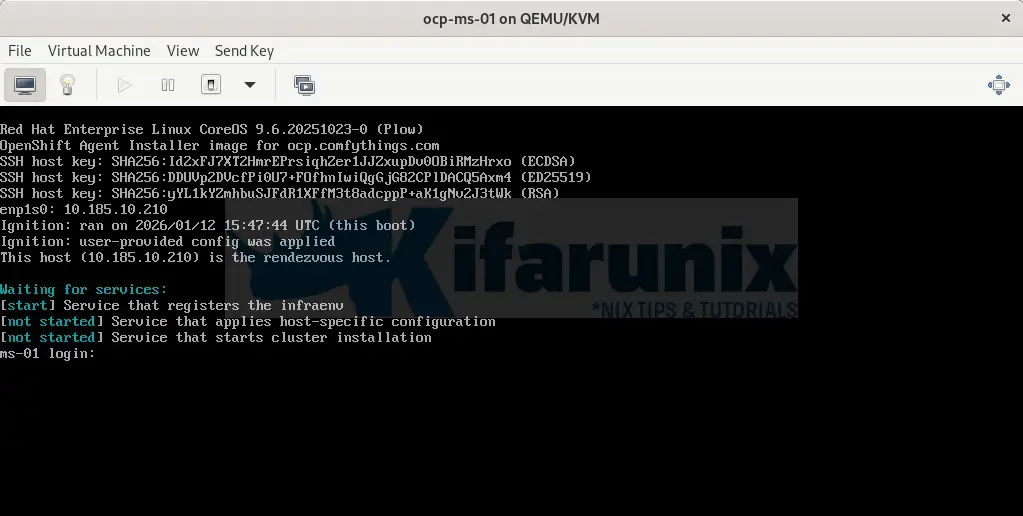
What’s Happening on master-1:
- VM boots from the agent ISO
- Loads RHCOS into memory
- Agent checks network connectivity
- Agent starts the Assisted Service locally
- Agent performs pre-flight checks
- Waits for other nodes to join
Wait 2-3 minutes for master-1 to fully boot, then continue.
Boot Master 2
sudo virt-install \
--name ocp-ms-02 \
--memory 16384 \
--vcpus 4 \
--disk path=/mnt/vol01/ocp-cluster/ms-02.qcow2,device=disk,bus=virtio \
--cdrom ~/Downloads/agent.x86_64.iso \
--os-variant rhel9.0 \
--network network=demo-02,model=virtio,mac=02:AC:10:00:00:02 \
--boot hd,cdrom,menu=on \
--graphics vnc,listen=0.0.0.0 \
--noautoconsole
Boot Master 3
sudo virt-install \
--name ocp-ms-03 \
--memory 16384 \
--vcpus 4 \
--disk path=/mnt/vol01/ocp-cluster/ms-03.qcow2,device=disk,bus=virtio \
--cdrom ~/Downloads/agent.x86_64.iso \
--os-variant rhel9.0 \
--network network=demo-02,model=virtio,mac=02:AC:10:00:00:03 \
--boot hd,cdrom,menu=on \
--graphics vnc,listen=0.0.0.0 \
--noautoconsole
Worker 1
sudo virt-install \
--name ocp-wk-01 \
--memory 16384 \
--vcpus 4 \
--disk path=/mnt/vol01/ocp-cluster/wk-01.qcow2,device=disk,bus=virtio \
--cdrom ~/Downloads/agent.x86_64.iso \
--os-variant rhel9.0 \
--network network=demo-02,model=virtio,mac=02:AC:10:00:00:04 \
--boot hd,cdrom,menu=on \
--graphics vnc,listen=0.0.0.0 \
--noautoconsole
Worker 2
sudo virt-install \
--name ocp-wk-02 \
--memory 16384 \
--vcpus 4 \
--disk path=/mnt/vol01/ocp-cluster/wk-02.qcow2,device=disk,bus=virtio \
--cdrom ~/Downloads/agent.x86_64.iso \
--os-variant rhel9.0 \
--network network=demo-02,model=virtio,mac=02:AC:10:00:00:05 \
--boot hd,cdrom,menu=on \
--graphics vnc,listen=0.0.0.0 \
--noautoconsole
Worker 3
sudo virt-install \
--name ocp-wk-03 \
--memory 16384 \
--vcpus 4 \
--disk path=/mnt/vol01/ocp-cluster/wk-03.qcow2,device=disk,bus=virtio \
--cdrom ~/Downloads/agent.x86_64.iso \
--os-variant rhel9.0 \
--network network=demo-02,model=virtio,mac=02:AC:10:00:00:06 \
--boot hd,cdrom,menu=on \
--graphics vnc,listen=0.0.0.0 \
--noautoconsole
Verify VMs Are created and running:
sudo virsh list | grep -E "ms|wk" 34 ocp-ms-01 running
35 ocp-ms-02 running
36 ocp-ms-03 running
37 ocp-wk-01 running
38 ocp-wk-02 running
39 ocp-wk-03 runningPart 6: Monitor the Installation
The agent-based OpenShift installation runs automatically once all nodes are booted. You can monitor its progress directly from your bastion host, where you ran the openshift-install commands.
Monitor Bootstrap Completion
Bootstrap is the first phase where Master 1 sets up the initial control plane and etcd.
From the bastion host:
cd ~/ocp-agent-install/clusteropenshift-install agent wait-for bootstrap-complete \
--dir . \
--log-level=infoThis process usually takes 15–20 minutes.
You may see some warning messages. But these messages do not necessarily indicate a fatal problem. They occur because the installer checks all pre-install requirements, including:
- Host connectivity (can each host reach the others?)
- NTP synchronization (time must be in sync across hosts)
- DNS resolution (API, internal API, and apps domains must resolve)
Until all these checks pass, the installer marks the cluster as “not ready”.
Sample output at the beginning;
INFO Cluster is ready for install
INFO Host wk-01.ocp.comfythings.com: updated status from insufficient to known (Host is ready to be installed)
INFO Host 00ddf590-1aff-45df-a1d8-2d5937843bf9: Successfully registered
INFO Cluster is not ready for install. Check validations
WARNING Cluster validation: The cluster has hosts that are not ready to install.
WARNING Host wk-03.ocp.comfythings.com validation: No connectivity to the majority of hosts in the cluster
WARNING Host wk-03.ocp.comfythings.com validation: Host couldn't synchronize with any NTP server
WARNING Host wk-03.ocp.comfythings.com validation: Error while evaluating DNS resolution on this host
WARNING Host wk-03.ocp.comfythings.com validation: Error while evaluating DNS resolution on this host
WARNING Host wk-03.ocp.comfythings.com validation: Error while evaluating DNS resolution on this host
WARNING Host wk-02.ocp.comfythings.com validation: No connectivity to the majority of hosts in the cluster
WARNING Host wk-02.ocp.comfythings.com validation: Host couldn't synchronize with any NTP server
WARNING Host wk-02.ocp.comfythings.com validation: Error while evaluating DNS resolution on this host
WARNING Host wk-02.ocp.comfythings.com validation: Error while evaluating DNS resolution on this host
WARNING Host wk-02.ocp.comfythings.com validation: Error while evaluating DNS resolution on this host
WARNING Host ms-02.ocp.comfythings.com validation: No connectivity to the majority of hosts in the cluster
WARNING Host ms-01.ocp.comfythings.com validation: No connectivity to the majority of hosts in the cluster
WARNING Host ms-03.ocp.comfythings.com validation: No connectivity to the majority of hosts in the cluster
WARNING Host wk-01.ocp.comfythings.com validation: No connectivity to the majority of hosts in the cluster
INFO Host wk-01.ocp.comfythings.com: calculated role is worker
INFO Host wk-02.ocp.comfythings.com validation: Host NTP is synced
INFO Host wk-02.ocp.comfythings.com validation: Domain name resolution for the api.ocp.comfythings.com domain was successful or not required
INFO Host wk-02.ocp.comfythings.com validation: Domain name resolution for the api-int.ocp.comfythings.com domain was successful or not required
INFO Host wk-02.ocp.comfythings.com validation: Domain name resolution for the *.apps.ocp.comfythings.com domain was successful or not required
INFO Host wk-02.ocp.comfythings.com: validation 'ntp-synced' is now fixed
INFO Host wk-03.ocp.comfythings.com validation: Host has connectivity to the majority of hosts in the cluster
INFO Host wk-03.ocp.comfythings.com validation: Host NTP is synced
INFO Host wk-03.ocp.comfythings.com validation: Domain name resolution for the api.ocp.comfythings.com domain was successful or not required
INFO Host wk-03.ocp.comfythings.com validation: Domain name resolution for the api-int.ocp.comfythings.com domain was successful or not required
INFO Host wk-03.ocp.comfythings.com validation: Domain name resolution for the *.apps.ocp.comfythings.com domain was successful or not required
INFO Host wk-03.ocp.comfythings.com: updated status from insufficient to known (Host is ready to be installed)
INFO Cluster is ready for install
INFO Cluster validation: All hosts in the cluster are ready to install.
INFO Host ms-02.ocp.comfythings.com validation: Host has connectivity to the majority of hosts in the cluster
INFO Host ms-01.ocp.comfythings.com validation: Host has connectivity to the majority of hosts in the cluster
INFO Host wk-01.ocp.comfythings.com validation: Host has connectivity to the majority of hosts in the cluster
INFO Host ms-03.ocp.comfythings.com validation: Host has connectivity to the majority of hosts in the cluster
INFO Host wk-02.ocp.comfythings.com validation: Host has connectivity to the majority of hosts in the cluster
INFO Host wk-02.ocp.comfythings.com: updated status from insufficient to known (Host is ready to be installed)
INFO Preparing cluster for installation
INFO Host wk-02.ocp.comfythings.com: updated status from known to preparing-for-installation (Host finished successfully to prepare for installation)
INFO Host ms-01.ocp.comfythings.com: New image status quay.io/openshift-release-dev/ocp-v4.0-art-dev@sha256:26ca960b44d7f1219d3325456a73c0ccb212e96a0e38f9b077820d6004e7621c. result: success. time: 2.24 seconds; size: 450.20 Megabytes; download rate: 210.47 MBps
INFO Host wk-03.ocp.comfythings.com: New image status quay.io/openshift-release-dev/ocp-v4.0-art-dev@sha256:26ca960b44d7f1219d3325456a73c0ccb212e96a0e38f9b077820d6004e7621c. result: success. time: 3.31 seconds; size: 450.20 Megabytes; download rate: 142.46 MBps
INFO Host wk-02.ocp.comfythings.com: updated status from preparing-for-installation to preparing-successful (Host finished successfully to prepare for installation)
INFO Host wk-03.ocp.comfythings.com: updated status from preparing-for-installation to preparing-successful (Host finished successfully to prepare for installation)
INFO Host wk-01.ocp.comfythings.com: New image status quay.io/openshift-release-dev/ocp-v4.0-art-dev@sha256:26ca960b44d7f1219d3325456a73c0ccb212e96a0e38f9b077820d6004e7621c. result: success. time: 2.20 seconds; size: 450.20 Megabytes; download rate: 214.66 MBps
INFO Host ms-02.ocp.comfythings.com: updated status from preparing-for-installation to preparing-successful (Host finished successfully to prepare for installation)
INFO Host wk-01.ocp.comfythings.com: updated status from preparing-for-installation to preparing-successful (Host finished successfully to prepare for installation)
INFO Cluster installation in progress
INFO Host: wk-01.ocp.comfythings.com, reached installation stage Writing image to disk: 16%
INFO Host: wk-02.ocp.comfythings.com, reached installation stage Writing image to disk: 6%
INFO Host: wk-03.ocp.comfythings.com, reached installation stage Writing image to disk: 23%
INFO Host: wk-03.ocp.comfythings.com, reached installation stage Writing image to disk: 68%
INFO Host: ms-03.ocp.comfythings.com, reached installation stage Starting installation: master
INFO Host: ms-02.ocp.comfythings.com, reached installation stage Writing image to disk: 94%
INFO Host: ms-01.ocp.comfythings.com, reached installation stage Writing image to disk: 55%
INFO Host: ms-01.ocp.comfythings.com, reached installation stage Writing image to disk: 100%
INFO Bootstrap Kube API Initialized
INFO Host: ms-01.ocp.comfythings.com, reached installation stage Waiting for control plane: Waiting for masters to join bootstrap control plane
INFO Host: ms-03.ocp.comfythings.com, reached installation stage Rebooting
INFO Host: ms-02.ocp.comfythings.com, reached installation stage Rebooting
...
When the bootstrap is complete, the monitoring command should show something like this;
...
INFO Host: ms-03.ocp.comfythings.com, reached installation stage Joined
INFO Host: ms-01.ocp.comfythings.com, reached installation stage Waiting for bootkube
INFO Host: ms-03.ocp.comfythings.com, reached installation stage Done
INFO Node ms-03.ocp.comfythings.com has been rebooted 1 times before completing installation
INFO Node ms-02.ocp.comfythings.com has been rebooted 1 times before completing installation
INFO Host: wk-02.ocp.comfythings.com, reached installation stage Rebooting
INFO Bootstrap configMap status is complete
INFO Bootstrap is complete
INFO cluster bootstrap is complete
What happens during bootstrap:
- Master-1 (rendezvous host) starts the etcd database
- Masters 2 and 3 join the etcd cluster
- The control plane forms
- Machine Config Operator applies configuration to masters
- All master nodes reboot with production configuration
Monitor Full Cluster Installation
After bootstrap, the installer provisions all worker nodes, applies cluster operators, and finalizes the setup. From the bastion host, run:
openshift-install agent wait-for install-complete \
  --dir ~/ocp-agent-install/cluster \
  --log-level=info
This phase takes roughly 30–45 minutes, depending on your environment.
Similarly, keep checking the nodes as they may reboot and fail to power on. If so, just power them on to proceed with installation.
When the installation completes, you should see output like:
INFO Bootstrap Kube API Initialized
INFO Bootstrap configMap status is complete
INFO Bootstrap is complete
INFO cluster bootstrap is complete
INFO Waiting up to 40m0s (until 6:16PM CET) for the cluster at https://api.ocp.comfythings.com:6443 to initialize...
INFO Waiting up to 30m0s (until 6:46PM CET) to ensure each cluster operator has finished progressing...
INFO All cluster operators have completed progressing
INFO Checking to see if there is a route at openshift-console/console...
INFO Install complete!
INFO To access the cluster as the system:admin user when using 'oc', run
INFO     export KUBECONFIG=/home/kifarunix/ocp-agent-install/cluster/auth/kubeconfig
INFO Access the OpenShift web-console here: https://console-openshift-console.apps.ocp.comfythings.com
INFO Login to the console with user: "kubeadmin", and password: "Iba7E-btTyG-z7GWz-soGYp"
Part 7: Post-Installation Verification
Once installation completes, verify everything is healthy.
Accessing the Cluster on CLI
Set kubeconfig permanently (Replace the path accordingly):
echo "export KUBECONFIG=~/ocp-agent-install/cluster/auth/kubeconfig" >> ~/.bashrcsource ~/.bashrcVerify cluster access:
oc whoamiOutput:
system:adminCheck cluster version:
oc get clusterversionOutput;
NAME      VERSION   AVAILABLE   PROGRESSING   SINCE   STATUS
version   4.20.8    True        False         19m     Cluster version is 4.20.8
Verify cluster operators (all must be Available):
oc get coNAME VERSION AVAILABLE PROGRESSING DEGRADED SINCE MESSAGE
authentication 4.20.8 True False False 20m
baremetal 4.20.8 True False False 68m
cloud-controller-manager 4.20.8 True False False 72m
cloud-credential 4.20.8 True False False 91m
cluster-autoscaler 4.20.8 True False False 68m
config-operator 4.20.8 True False False 70m
console 4.20.8 True False False 25m
control-plane-machine-set 4.20.8 True False False 68m
csi-snapshot-controller 4.20.8 True False False 68m
dns 4.20.8 True False False 68m
etcd 4.20.8 True False False 67m
image-registry 4.20.8 True False False 58m
ingress 4.20.8 True False False 26m
insights 4.20.8 True False False 69m
kube-apiserver 4.20.8 True False False 64m
kube-controller-manager 4.20.8 True False False 64m
kube-scheduler 4.20.8 True False False 66m
kube-storage-version-migrator 4.20.8 True False False 70m
machine-api 4.20.8 True False False 68m
machine-approver 4.20.8 True False False 68m
machine-config 4.20.8 True False False 67m
marketplace 4.20.8 True False False 68m
monitoring 4.20.8 True False False 20m
network 4.20.8 True False False 70m
node-tuning 4.20.8 True False False 28m
olm 4.20.8 True False False 69m
openshift-apiserver 4.20.8 True False False 61m
openshift-controller-manager 4.20.8 True False False 61m
openshift-samples 4.20.8 True False False 58m
operator-lifecycle-manager 4.20.8 True False False 68m
operator-lifecycle-manager-catalog 4.20.8 True False False 68m
operator-lifecycle-manager-packageserver 4.20.8 True False False 59m
service-ca 4.20.8 True False False 70m
storage 4.20.8 True False False 68mLook for any with AVAILABLE=False or DEGRADED=True. Common operators: authentication, console, dns, ingress, monitoring, network, storage. If any operator is degraded:
oc describe co <operator-name>Verify all nodes (all should be Ready):
oc get nodesCheck node details:
NAME                        STATUS   ROLES                  AGE   VERSION
ms-01.ocp.comfythings.com   Ready    control-plane,master   31m   v1.33.6
ms-02.ocp.comfythings.com   Ready    control-plane,master   77m   v1.33.6
ms-03.ocp.comfythings.com   Ready    control-plane,master   77m   v1.33.6
wk-01.ocp.comfythings.com   Ready    worker                 31m   v1.33.6
wk-02.ocp.comfythings.com   Ready    worker                 31m   v1.33.6
wk-03.ocp.comfythings.com   Ready    worker                 31m   v1.33.6
Access the Web Console
Get the console URL:
oc whoami --show-consolehttps://console-openshift-console.apps.ocp.comfythings.comGet kubeadmin password:
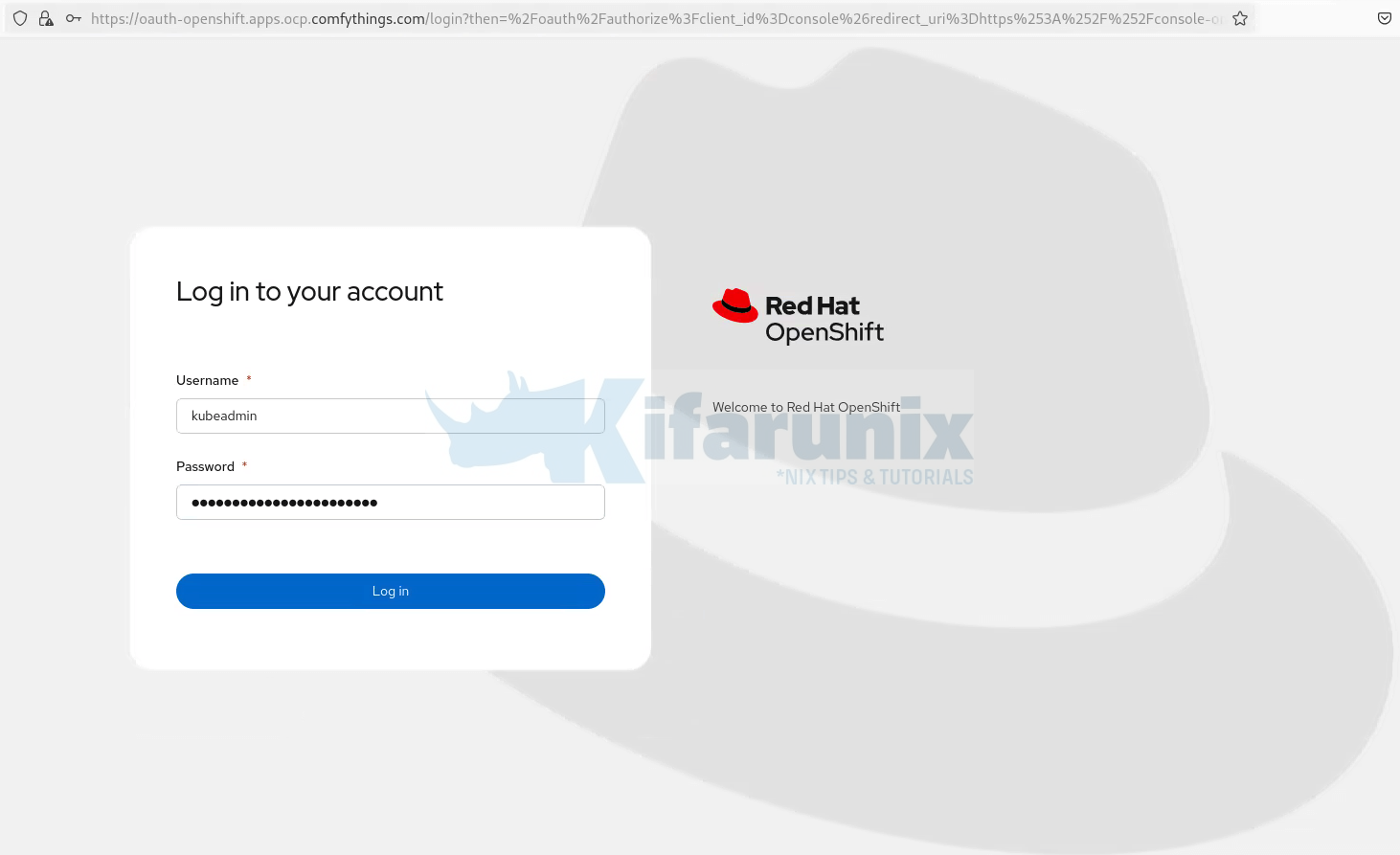
cat ~/ocp-agent-install/cluster/auth/kubeadmin-passwordOpen your browser, navigate to https://console-openshift-console.apps.ocp.comfythings.com, accept the self-signed certificate warning, and log in with:
- Username:
kubeadmin - Password: (from file above)
Ensure that the node you are accessing the OCP console has DNS set.
If you are using the hosts file for DNS, here is a sample entry:
cat /etc/hosts10.185.10.120 api.ocp.comfythings.com console-openshift-console.apps.ocp.comfythings.com oauth-openshift.apps.ocp.comfythings.com downloads-openshift-console.apps.ocp.comfythings.com alertmanager-main-openshift-monitoring.apps.ocp.comfythings.com grafana-openshift-monitoring.apps.ocp.comfythings.com prometheus-k8s-openshift-monitoring.apps.ocp.comfythings.com thanos-querier-openshift-monitoring.apps.ocp.comfythings.com api-int.ocp.comfythings.com thanos-querier-openshift-monitoring.apps.ocp.comfythings.comOCP web login interface:
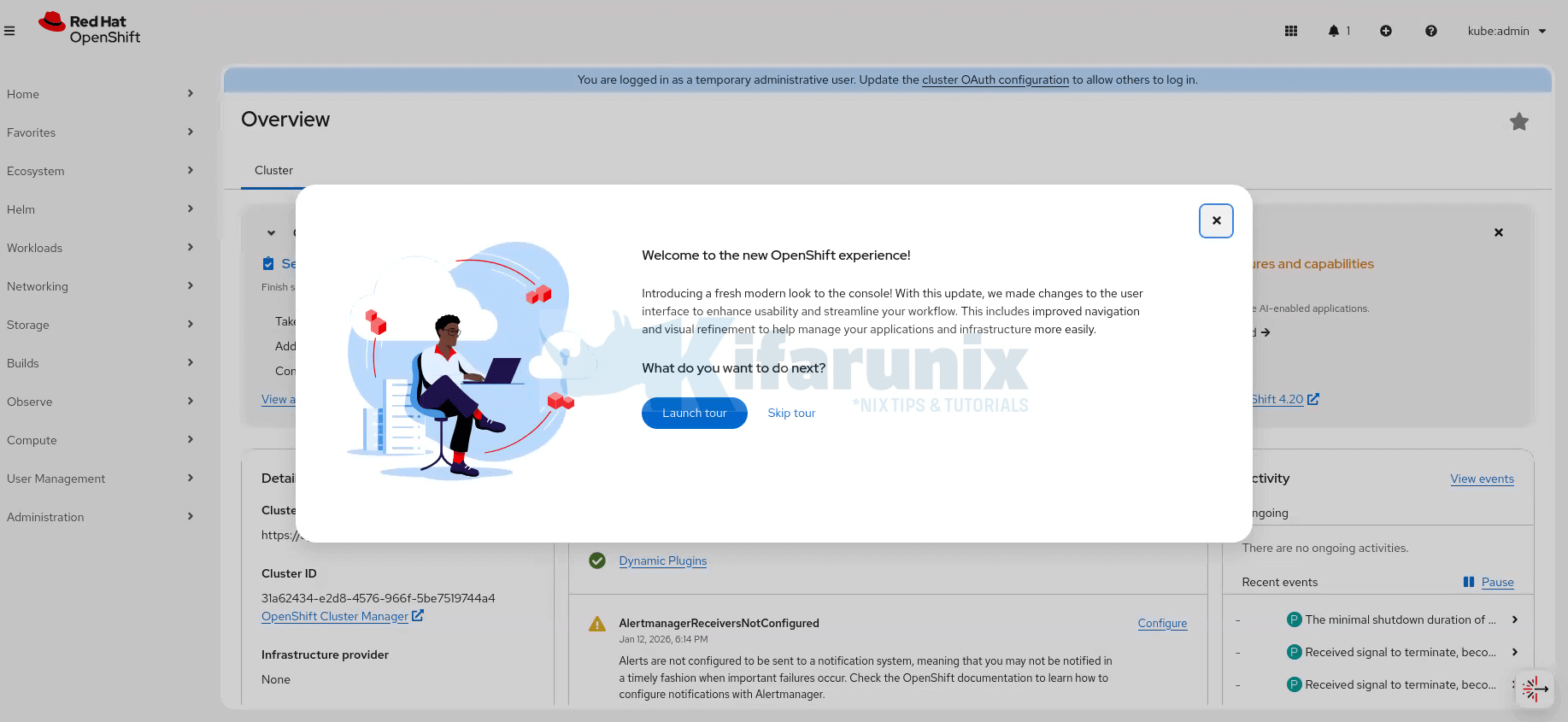
The dashboard after you just login:
Test Application Deployment
To confirm that the OpenShift cluster is fully operational, we’ll deploy a simple test application and verify that it is reachable through the OpenShift router. This validates that core components such as scheduling, networking, services, and ingress are all working as expected.
The following steps create a test project, deploy an NGINX application, expose it externally, and confirm access via an HTTP request.
Let’s do this from the CLI (bastion host, of course you can do it from the OCP web interface):
Create a new project for testing:
oc new-project test-appDeploy a simple NGINX application:
oc new-app --name=nginx --image=nginxinc/nginx-unprivileged:latestSample output from the command:
warning: Cannot find git. Ensure that it is installed and in your path. Git is required to work with git repositories.
--> Found container image 291d14a (32 hours old) from Docker Hub for "nginxinc/nginx-unprivileged:latest"

    * An image stream tag will be created as "nginx:latest" that will track this image

--> Creating resources ...
    imagestream.image.openshift.io "nginx" created
    deployment.apps "nginx" created
    service "nginx" created
--> Success
    WARNING: No container image registry has been configured with the server. Automatic builds and deployments may not function.
    Application is not exposed. You can expose services to the outside world by executing one or more of the commands below:
     'oc expose service/nginx'
    Run 'oc status' to view your app.
Check all the resources in the test-app namespace:
oc get allSample output;
Warning: apps.openshift.io/v1 DeploymentConfig is deprecated in v4.14+, unavailable in v4.10000+
NAME                         READY   STATUS    RESTARTS   AGE
pod/nginx-6b54667779-pkf6l   1/1     Running   0          75s

NAME            TYPE        CLUSTER-IP       EXTERNAL-IP   PORT(S)    AGE
service/nginx   ClusterIP   172.30.105.161   <none>        8080/TCP   76s

NAME                    READY   UP-TO-DATE   AVAILABLE   AGE
deployment.apps/nginx   1/1     1            1           76s

NAME                               DESIRED   CURRENT   READY   AGE
replicaset.apps/nginx-6b54667779   1         1         1       75s
replicaset.apps/nginx-7c6bfb46bd   0         0         0       76s

NAME                                   IMAGE REPOSITORY   TAGS     UPDATED
imagestream.image.openshift.io/nginx                      latest   About a minute ago
Expose the application service externally:
oc expose svc/nginxConfirm the routes created;
oc get routeSample output;
NAME    HOST/PORT                                 PATH   SERVICES   PORT       TERMINATION   WILDCARD
nginx   nginx-test-app.apps.ocp.comfythings.com          nginx      8080-tcp                 None
Similarly, you can use the command below;
oc get route nginxTest access to the application using curl:
NGINX_URL=$(oc get route nginx -o jsonpath='{.spec.host}')curl -I http://${NGINX_URL}The expected response should be:
HTTP/1.1 200 OK
server: nginx/1.29.3
date: Tue, 12 Jan 2026 18:11:55 GMT
content-type: text/html
content-length: 615
last-modified: Tue, 28 Oct 2025 12:05:10 GMT
etag: "6900b176-267"
accept-ranges: bytes
set-cookie: e427774ce8a552db9636f66bf7dd6a0a=af0085caedc09c315542050c97af632a; path=/; HttpOnly
cache-control: private
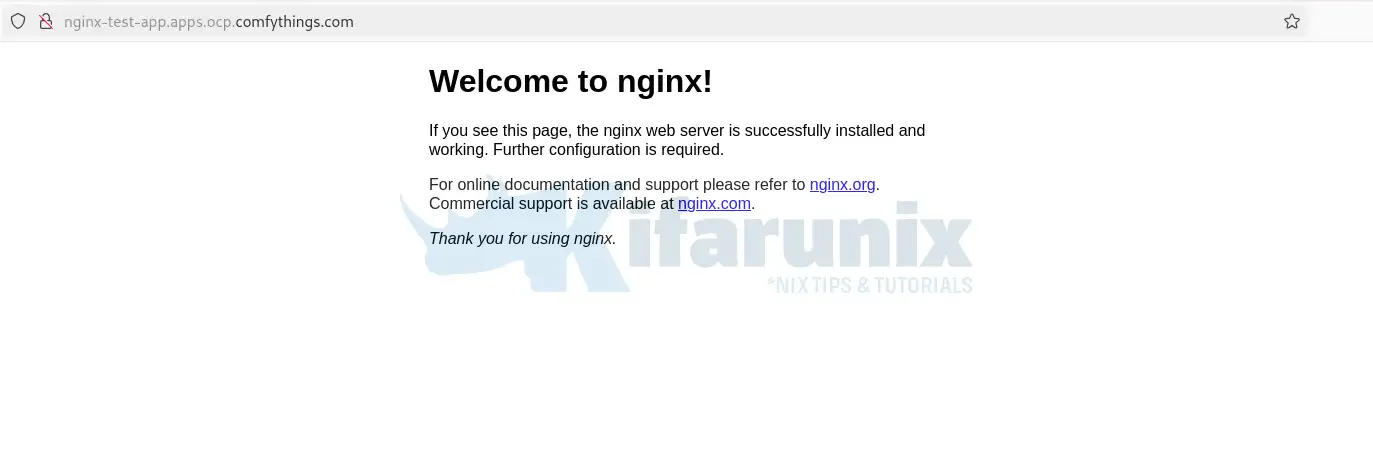
You can also try to access outside the bastion host. Ensure the application route host is mapped to the LB external IP:
Part 8: Troubleshooting Common Issues in Agent-Based OpenShift Installations
Agent-based OpenShift installations are generally straightforward, but in virtualized or lab environments (e.g., KVM/libvirt or vSphere), a few recurring issues often crop up. Based on community reports, Red Hat guidance, and hands-on experience, here are the most common problems and practical ways to address them.
1. Installation Stuck at Bootstrap or Control Plane
The command openshift-install agent wait-for bootstrap-complete hangs, or logs show nodes stuck at:
Waiting for masters to join bootstrap control planeCommon causes:
- DNS resolution failures (e.g.,
api.<cluster>.<domain>or*.apps.<cluster>.<domain>not resolving correctly) - Clock skew / NTP out of sync (nodes differ by more than 2 seconds)
- Network connectivity issues (nodes cannot reach the rendezvous host, firewalls blocking required ports)
- In disconnected environments: missing or misconfigured image mirroring
Suggested checks:
- Test DNS on each node:
nslookup api.<cluster>.<domain> - Verify time sync:
timedatectlor NTP configuration - Test connectivity: ping rendezvous host and check firewall rules (ports 6443, 22623, 80/443 for ingress)
- Review logs with debug level for details:
openshift-install agent wait-for bootstrap-complete --log-level=debug
2. Nodes Stuck in NotReady Post-Install
oc get nodes shows nodes as NotReady, often with NetworkPluginNotReady or kubelet errors
Common causes:
- CNI plugin (OVN-Kubernetes) failed to initialize due to network misconfiguration
- Kubelet cannot reach the API server (DNS, MTU, firewall issues)
- Resource constraints (low CPU, memory, or disk space)
Suggested checks:
- Inspect node events:
oc describe node <node> - Check network pods:
oc get pods -n openshift-multus - Restart network operators if necessary
- Ensure MTU and network configurations are consistent across all nodes
3. Cluster Operators Showing Degraded
oc get co reports Degraded=True for operators such as ingress, console, or machine-config
Common causes:
- Missing or expired certificates (router certs, OAuth)
- DNS or route issues preventing operator health checks
- Resource constraints or pod evictions
- During upgrades: MachineConfigPools stuck
Suggested checks:
- Describe the operator for details:
oc describe co <operator> - Inspect related pods/routes:
oc get pods -n openshift-ingress - Verify custom router certs exist
- Approve pending CSRs if necessary:
oc get csr | grep Pending | awk '{print $1}' | xargs oc adm certificate approve
4. Web Console Inaccessible
Browsing to console-openshift-console.apps.<cluster>.<domain> fails, times out, or shows a blank page
Common causes:
- Wildcard DNS (
*.apps.<cluster>.<domain>) not resolving to the ingress IP or load balancer - Ingress controller pods are unhealthy or routes misconfigured
- HAProxy or external load balancer not forwarding ports 80/443 correctly
Suggested checks:
- Inspect console route:
oc get route console -n openshift-console -o jsonpath='{.spec.host}' - Test access from a node:
curl -k https://<console-route> - Inspect ingress operator pods and logs
- Verify external DNS or load balancer points to the correct worker/infra nodes
5. Pods Stuck in ImagePullBackOff
Pods, especially operators or applications, fail to start with ImagePullBackOff or ErrImagePull
Common causes:
- Disconnected or air-gapped environments: images not mirrored correctly
- Internal registry unreachable (
image-registry.openshift-image-registry.svc) - Authentication issues (expired pull secrets)
Suggested checks:
- Describe the pod to see exact errors:
oc describe pod <pod> - Test image pull from a node:
podman pull <image> - Verify image mirroring (
ImageContentSourcePolicy,ImageDigestMirrorSet) - Expose the internal registry temporarily if needed:
oc patch configs.imageregistry.operator.openshift.io/cluster --patch '{"spec":{"defaultRoute":true}}' --type=merge
Other Tutorials
Integrate OpenShift with Windows AD for Authentication
If you want to control OpenShift authentication with a centralized identity provider, check our guide on how to integrate with Windows Active Directory:
Integrate OpenShift with Active Directory for Authentication
Replace OpenShift Self-Signed SSL/TLS Certificates
You can replace OpenShift’s default self-signed ingress and API certificates with trusted Let’s Encrypt certificates for secure, publicly recognized HTTPS access.
Replace OpenShift Self-Signed Ingress and API SSL/TLS Certificates with Lets Encrypt
Install OpenShift Data Foundation on OCP 4.20 Cluster
Check the link below on how install ODF;
How to Install and Configure OpenShift Data Foundation (ODF) on OpenShift: Step-by-Step Guide [2026]
Conclusion
You now have a fully functional OpenShift cluster deployed using the Agent-based Installer.
That closes our guide on how to deploy an OpenShift cluster using agent-based installer.