
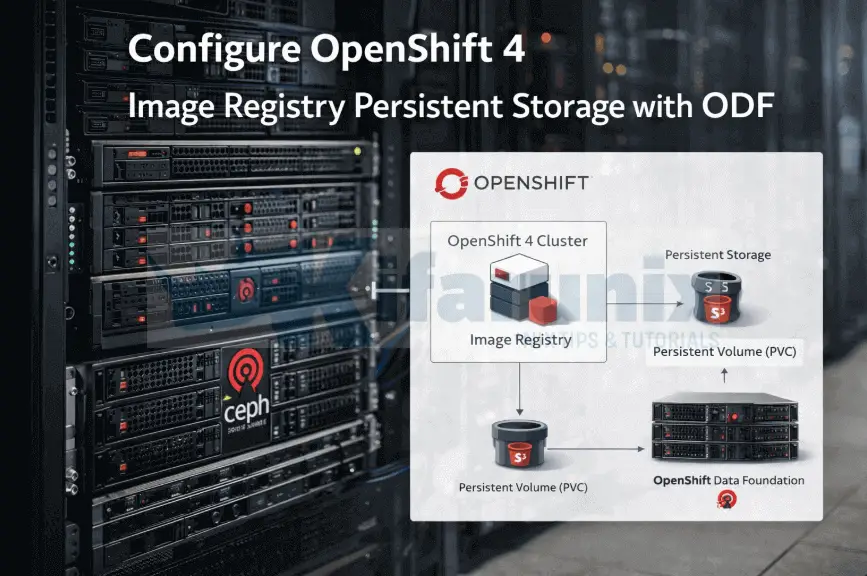
This guide walks you through how to configure OpenShift 4 image registry persistent storage with ODF. After deploying OpenShift 4 on bare metal or KVM-based virtual machines, one of the earliest post-installation decisions with direct impact on cluster reliability is how the internal image registry is configured.
By design, OpenShift does not automatically deploy the internal image registry in such environments. This is not an oversight but a safeguard. The installer deliberately avoids enabling the registry until suitable persistent, shareable storage is available.
The internal image registry is a core platform service. It underpins builds, ImageStreams, CI/CD pipelines, operator workflows, and, especially in disconnected environments, local image distribution. Running it without durable, highly available storage introduces subtle but serious failure modes that typically surface during upgrades, node reboots, evictions, or recovery operations.
When OpenShift Data Foundation (ODF) is already present, it provides the storage primitives required to run the registry the way it is intended to operate. Configuring the registry to use ODF-backed persistent storage is therefore not an optimization, but a correctness requirement for production clusters.
This guide explains not only how to configure the OpenShift image registry with ODF-backed storage, but why specific storage interfaces are appropriate and others are not. Each recommendation is grounded in Red Hat-supported architecture and observed operational behavior, rather than theoretical best practices.
Table of Contents
Configure OpenShift 4 Image Registry Persistent Storage with ODF
Why OpenShift Leaves the Registry Disabled After Installation
On cloud platforms, OpenShift can automatically provision object storage and enable the internal image registry during installation. In user-provisioned infrastructure (UPI) environments such as bare metal, KVM, or vSphere, no such assumption can be made.
In these environments:
- There is no default object storage service
- Persistent, shareable storage may not exist at install time
- Enabling the registry with ephemeral storage would introduce data loss and upgrade risk
For this reason, the Image Registry Operator is installed but does not deploy the registry workload by default. Instead, the operator reports a Removed management state until suitable storage is explicitly configured.
This behavior is intentional. It forces administrators to make an explicit, informed storage decision rather than silently running a critical platform service in an unsafe configuration.
To understand why only certain storage backends are appropriate for enabling the registry, it is necessary to examine what the OpenShift image registry fundamentally requires from its storage layer.
What the OpenShift Image Registry Fundamentally Requires
Before selecting a storage backend, it is important to understand what the OpenShift image registry actually is and what it is not.
The registry is:
- Not a database
- Not a shared filesystem workload
- Not a traditional stateful application
The OpenShift image registry is a stateless API service that manages immutable, content-addressable objects: container image layers and manifests. Its storage backend is responsible solely for persisting these objects safely and making them available concurrently.
From an architectural standpoint, the registry expects the following characteristics from its storage backend.
- Concurrent read and write access: In a production cluster, multiple actors interact with the registry at the same time:
- Build pods pushing image layers
- Worker nodes pulling images for deployments
- CI/CD pipelines uploading artifacts in parallel
The storage backend must support concurrent access without filesystem-level locking or serialization that would degrade performance or correctness.
- Horizontal scalability: For production use, the registry must be able to run with multiple replicas:
- To avoid a single point of failure
- To tolerate node drains and rolling upgrades
- To distribute load during build and deployment spikes
Any storage backend that forces the registry to run as a single replica fundamentally violates this requirement and undermines availability.
- Zero-downtime upgrades and recovery: OpenShift upgrades are frequent and automated. During normal cluster lifecycle operations:
- Pods are restarted
- Nodes are drained
- Operators continuously reconcile desired state
The registry must tolerate these events without requiring exclusive storage access, manual intervention, or service downtime.
- Object-level consistency, not filesystem semantics: Container images consist of immutable blobs identified by cryptographic digests. The registry therefore expects:
- Atomic object writes
- Strong consistency guarantees
- No exposure of partial or corrupted objects during failures
These requirements align naturally with object storage semantics rather than traditional POSIX filesystem behavior.
Evaluating ODF Storage Interfaces Against Registry Requirements
When OpenShift Data Foundation (ODF) is installed, it exposes multiple storage interfaces. Although all are supported by ODF, not all are appropriate for backing the OpenShift image registry.
The registry’s architectural requirements such as concurrent access, horizontal scalability, and disruption tolerance, significantly narrow the set of viable options.
Ceph RADOS Block Device (RBD, Block Storage)
Ceph RBD exposes storage as a raw block device and is typically consumed by the image registry through a PersistentVolumeClaim with ReadWriteOnce access.
Because ReadWriteOnce volumes can be mounted read-write by only a single pod at a time, the image registry Deployment must use a Recreate rollout strategy. This ensures that the existing pod is fully terminated and the volume detached before a replacement pod is started.
While this configuration allows the registry to function, it imposes strict architectural constraints:
- The registry is permanently limited to a single replica
- High availability is not possible
- Every upgrade, node drain, or restart introduces unavoidable downtime
In this model, downtime is not an operational anomaly but an inherent consequence of the storage access mode.
Ceph RBD is an excellent choice for single-writer workloads such as databases. However, due to its ReadWriteOnce access semantics, it is fundamentally incompatible with the OpenShift image registry’s requirement for stateless, horizontally scalable operation.
CephFS (Shared Filesystem)
CephFS provides a POSIX-compliant shared filesystem that can be mounted concurrently by multiple pods.
While this technically allows multiple registry replicas to run, it introduces a different set of concerns:
- Filesystem-level locking and metadata contention
- Increased latency under concurrent read/write workloads
- Performance and stability that depend heavily on CephFS tuning and cluster load
The OpenShift image registry does not benefit from POSIX filesystem semantics. It stores image layers as immutable blobs: once a layer is successfully written, it is never changed or rewritten. Access to layers is determined entirely by their content digest, not by filenames or directory state.
As a result, filesystem features such as file locking, directory metadata management, and inode updates are unnecessary. These mechanisms exist to coordinate access to mutable files, and when applied to immutable registry content they only introduce additional latency and contention.
CephFS can function, and is supported in certain configurations, but it does not align cleanly with the registry’s object-centric design and is not the preferred architecture for production-scale registry deployments.
Object Storage (Ceph RGW or NooBaa)
Object storage is the native storage model for container registries.
With object storage:
- Multiple registry pods can read and write concurrently
- No shared filesystem state exists
- Registry pods remain stateless and easily replaceable
- Rolling upgrades and node drains occur without service interruption
ODF provides S3-compatible object storage through:
- Ceph RADOS Gateway (RGW)
- NooBaa/MCG (which may use RGW or external object storage backends)
This storage model directly matches the registry’s expectations and is explicitly supported by Red Hat for production use.
Architecture Overview
In a production-ready configuration:
- The OpenShift image registry runs as multiple stateless pods
- Image layers and manifests are stored as objects via an S3-compatible API
- ODF manages replication, durability, and failure recovery
There are no PersistentVolumeClaims attached to registry pods, no exclusive mounts, and no single-writer bottlenecks. The registry behaves as a resilient, horizontally scalable platform service rather than a stateful workload.
Choosing a Storage Backend: RGW, NooBaa (MCG), or PVC
The OpenShift internal registry is designed to run on resilient, object-based storage. Although it can technically use block devices (RBD), shared filesystems (CephFS), or PVCs, only one storage backend can be configured at a time. The registry does not support multiple S3 endpoints or mixed backends, you must choose a single backend for all registry data.
The storage is defined in the Image Registry Operator manifest under spec.storage:
spec:
  storage:
    s3:  # ONE S3 endpoint only
      bucket: "my-bucket"
      regionEndpoint: "https://endpoint"
You have three supported choices:
- Ceph RADOS Gateway (RGW): best for bare-metal clusters or single-cloud deployments
- NooBaa / MCG: recommended if you need multi-cloud support or want abstraction from the physical storage layer
- Persistent Volume Claim (PVC): fallback option; generally not recommended for production due to single-writer limitations and lack of high availability
Configuring OpenShift 4 Image Registry Persistent Storage with ODF
Step 0: Deploy OpenShift ODF
If you haven’t deployed ODF, check the guide below;
How to Install and Configure OpenShift Data Foundation (ODF) on OpenShift 4.20
Step 1: Prerequisites Checklist
Ensure the ODF StorageCluster is Healthy
oc get storagecluster -n openshift-storageExpected output:
NAME                 AGE     PHASE   EXTERNAL   CREATED AT             VERSION
ocs-storagecluster   4d13h   Ready              2026-01-17T08:09:53Z   4.20.4
The PHASE must be Ready before proceeding.
Verify Ceph RGW Pods are Running
oc get pods -n openshift-storage | grep rgwExample output:
rook-ceph-rgw-ocs-storagecluster-cephobjectstore-a-fb97fd9hwv7h 2/2 Running 6 2d8hAll RGW pods should be in Running state.
Check Available ODF StorageClasses
oc get sc | grep ocsTypical output:
ocs-storagecluster-ceph-rbd (default)   openshift-storage.rbd.csi.ceph.com      Delete          Immediate              true                   4d13h
ocs-storagecluster-ceph-rgw             openshift-storage.ceph.rook.io/bucket   Delete          Immediate              false                  4d13h
ocs-storagecluster-cephfs openshift-storage.cephfs.csi.ceph.com Delete Immediate true 4d13h- ocs-storagecluster-ceph-rgw: For object storage
- ocs-storagecluster-cephfs: For file storage
- ocs-storagecluster-ceph-rbd: For block storage
Use the appropriate storage class depending on the backend you plan to configure.
Confirm the Image Registry is Disabled (ManagementState: Removed)
oc get configs.imageregistry.operator.openshift.io/cluster -o yaml | grep -A2 -i specExpected output:
spec:
  logLevel: Normal
  managementState: Removed
This confirms the internal registry is currently disabled and ready to be configured with persistent storage.
Step 2: Provision Object Storage for the Registry
The OpenShift image registry requires S3-compatible object storage for persistent, highly available storage. To provide this storage on ODF, we create an ObjectBucketClaim (OBC) in openshift-image-registry namespace.
What is an ObjectBucketClaim?
- An OBC is a Kubernetes custom resource provided by the objectbucket.io operator.
- It requests a bucket from an object storage backend (such as Ceph RGW or NooBaa/MCG).
- When you create an OBC:
- A bucket is provisioned in the object store.
- Kubernetes secrets are generated containing access credentials (access key, secret key).
- The bucket is exposed via a S3-compatible endpoint, which the registry can use.
To create an OBC in the openshift-image-registry namespace, apply the manifest below;
oc apply -f - <<EOF
apiVersion: objectbucket.io/v1alpha1
kind: ObjectBucketClaim
metadata:
  name: rgw-bucket
  namespace: openshift-image-registry
spec:
  storageClassName: ocs-storagecluster-ceph-rgw
  generateBucketName: rgw-bucket
EOF
This action:
- Triggers the creation of a bucket in your Ceph RGW object storage backend. The bucket is named using the
generateBucketNamefield, resulting in a unique bucket name starting withrgw-bucket. - Creates a secret in the
openshift-image-registrynamespace containing the S3 access key and secret key required by the registry to interact with the bucket. - will expose an internal S3-compatible endpoint for the registry to use.
- This endpoint can be retrieved from the associated ConfigMap in the
openshift-image-registrynamespace.
- This endpoint can be retrieved from the associated ConfigMap in the
Verify the OBC binds:
oc get obc rgw-bucket -n openshift-image-registryNAME STORAGE-CLASS PHASE AGE
rgw-bucket ocs-storagecluster-ceph-rgw Bound 18sThe PHASE Must show Bound.
You can check the details of the OBC;
oc get obc rgw-bucket -n openshift-image-registry -o yamlSample output;
apiVersion: objectbucket.io/v1alpha1
kind: ObjectBucketClaim
metadata:
  annotations:
    kubectl.kubernetes.io/last-applied-configuration: |
      {"apiVersion":"objectbucket.io/v1alpha1","kind":"ObjectBucketClaim","metadata":{"annotations":{},"name":"rgw-bucket","namespace":"openshift-image-registry"},"spec":{"generateBucketName":"rgw-bucket","storageClassName":"ocs-storagecluster-ceph-rgw"}}
  creationTimestamp: "2026-01-21T23:02:25Z"
  finalizers:
  - objectbucket.io/finalizer
  generation: 4
  labels:
    bucket-provisioner: openshift-storage.ceph.rook.io-bucket
  name: rgw-bucket
  namespace: openshift-image-registry
  resourceVersion: "5075058"
  uid: 4dfd81d0-7d81-41e6-acac-d54f27a8fe16
spec:
  bucketName: rgw-bucket-de772d04-0d04-491d-a75a-f054160a2b84
  generateBucketName: rgw-bucket
  objectBucketName: obc-openshift-image-registry-rgw-bucket
  storageClassName: ocs-storagecluster-ceph-rgw
status:
  phase: Bound
Step 3: Extract Bucket Connection Details
Once the ObjectBucketClaim (OBC) is created, the Secrets and ConfigMaps generated contain the credentials and configuration necessary for the OpenShift image registry to interact with the Ceph RGW bucket.
Get Bucket Name
The bucket name is dynamically generated by the OBC. You can extract it using the following command:
Replace the name of the OBC accordingly.
BUCKET=$(oc get obc rgw-bucket -n openshift-image-registry -o jsonpath='{.spec.bucketName}')Print the bucket name
echo $BUCKETSample output:
rgw-bucket-de772d04-0d04-491d-a75a-f054160a2b84Get Access Key and Secret Key
The AWS Access Key ID and AWS Secret Access Key are stored in a Secret generated by the OBC. These credentials are required for authentication between the OpenShift image registry and the bucket.
Check the secrets created. They should be of the same name as the OBC;
oc get secrets -n openshift-image-registrySample output;
NAME                          TYPE                      DATA   AGE
image-registry-operator-tls   kubernetes.io/tls         2      9d
node-ca-dockercfg-wjxxv       kubernetes.io/dockercfg   1      9d
rgw-bucket                    Opaque                    2      8m2s
To get the secret keys and values (in based64 encoded);
oc get secrets rgw-bucket -n openshift-image-registry -o json | jq -r '.data'Sample output;
{
  "AWS_ACCESS_KEY_ID": "NzAxMjM0NUU3SVVMSTJGSDhWVlE=",
  "AWS_SECRET_ACCESS_KEY": "amxvSUNrc1N4VFBzOWJsZlBqaFJCQ0FTUUJBb0RnZGZWMGpCU0dXNg=="
}
To retrieve the access key and secret key, use the sample commands below.
AWS_ACCESS_KEY_ID=$(oc get secret -n openshift-image-registry rgw-bucket -o jsonpath='{.data.AWS_ACCESS_KEY_ID}' | base64 -d)AWS_SECRET_ACCESS_KEY=$(oc get secret -n openshift-image-registry rgw-bucket -o jsonpath='{.data.AWS_SECRET_ACCESS_KEY}' | base64 -d)Get the Ceph RGW S3 Backend Endpoint
The OBC creates a ConfigMap containing an internal Ceph RGW endpoint (e.g., BUCKET_HOST, such as rook-ceph-rgw-ocs-storagecluster-cephobjectstore.openshift-storage.svc) which the image registry will connect to.
Get the ConfigMap for the OBC:
oc get cm rgw-bucket -n openshift-image-registry -o yamlExpected Output (example):
apiVersion: v1
data:
  BUCKET_HOST: rook-ceph-rgw-ocs-storagecluster-cephobjectstore.openshift-storage.svc
  BUCKET_NAME: rgw-bucket-de772d04-0d04-491d-a75a-f054160a2b84
  BUCKET_PORT: "443"
  BUCKET_REGION: ""
  BUCKET_SUBREGION: ""
kind: ConfigMap
metadata:
  creationTimestamp: "2026-01-21T23:02:26Z"
  finalizers:
  - objectbucket.io/finalizer
  labels:
    bucket-provisioner: openshift-storage.ceph.rook.io-bucket
  name: rgw-bucket
  namespace: openshift-image-registry
  ownerReferences:
  - apiVersion: objectbucket.io/v1alpha1
    blockOwnerDeletion: true
    controller: true
    kind: ObjectBucketClaim
    name: rgw-bucket
    uid: 4dfd81d0-7d81-41e6-acac-d54f27a8fe16
  resourceVersion: "5075052"
  uid: 2d406878-902e-4291-9624-b4fef819b79f
Similarly, Ceph RGW external routes are also created (e.g ocs-storagecluster-cephobjectstore-openshift-storage.apps.ocp.comfythings.com).
oc get route ocs-storagecluster-cephobjectstore -n openshift-storage -o custom-columns=NAME:.metadata.name,HOST/PORT:.spec.hostNAME HOST/PORT
ocs-storagecluster-cephobjectstore ocs-storagecluster-cephobjectstore-openshift-storage.apps.ocp.comfythings.comWhile the internal .svc name (e.g., rook-ceph-rgw-ocs-storagecluster-cephobjectstore.openshift-storage.svc) is valid for pod-to-pod communication, I noticed an issue when trying to pull images from the registry when this endpoint is used as the registry Ceph RGW bucket endpoint. While the build images were successfully pushed to the registry, the worker nodes were unable to schedule workloads or pods that required those images.
The reason for this is that worker nodes do not use the internal cluster DNS, so they couldn’t resolve the .svc endpoint.
Here’s the error I encountered when a pod failed to pull the image:
...
11m         Warning   Failed              pod/nodejs-test-65b4ffdcb4-9xrz4    Failed to pull image "image-registry.openshift-image-registry.svc:5000/registry-test/nodejs-test@sha256:bd27b3d8e2d445c1f7669fd07e982e479aeb216a053f7d1a2627044d95c21591": unable to pull image or OCI artifact: pull image err: parsing image configuration: Get "http://rook-ceph-rgw-ocs-storagecluster-cephobjectstore.openshift-storage.svc/rgw-bucket-de772d04-0d04-491d-a75a-f054160a2b84/docker/registry/v2/blobs/sha256/84/84eccc6afb5749bc66a0c66b08ef30177053656799090aa6a14fb1a668b5c994/data?X-Amz-Algorithm=AWS4-HMAC-SHA256&X-Amz-Credential=ZOUV7RKJKYI505GP27OY%2F20260123%2Fus-east-1%2Fs3%2Faws4_request&X-Amz-Date=20260123T174454Z&X-Amz-Expires=1200&X-Amz-SignedHeaders=host&X-Amz-Signature=faf867365073ad9a6a80856dcff3a7234ba0ce300942d0fed3120e02819c5a50": dial tcp: lookup rook-ceph-rgw-ocs-storagecluster-cephobjectstore.openshift-storage.svc on 10.184.10.51:53: no such host; artifact err: provided artifact is a container image
Warning Failed 25s (x18 over 5m43s) kubelet Error: ImagePullBackOff
...
As shown in the error above, the worker node couldn’t resolve the internal .svc endpoint (rook-ceph-rgw-ocs-storagecluster-cephobjectstore.openshift-storage.svc) and failed to pull the image.
To resolve this issue, you can use the external Ceph RGW Route (e.g., ocs-storagecluster-cephobjectstore-openshift-storage.apps.ocp.comfythings.com) as the endpoint for the registry. This external route is resolvable by both pods and worker nodes using standard DNS, ensuring that image pulls work successfully across the entire cluster.
You notice that there are two routes for this service, and HTTP and an HTTPS endpoint. We will use the HTTP endpoint and you can set the value to a variable like BUCKET_HOST;
BUCKET_HOST=$(oc get route ocs-storagecluster-cephobjectstore -n openshift-storage --template='{{ .spec.host }}')echo $BUCKET_HOSTocs-storagecluster-cephobjectstore-openshift-storage.apps.ocp.comfythings.comStep 4: Create Registry Credentials Secret
Before the OpenShift registry can access the object storage, we need to provide it with the necessary credentials. To do this, we create a Secret in the openshift-image-registry namespace. This secret contains the access key and secret key (extracted above) that the registry will use to authenticate with the object storage.
Run the following command to create the secret:
AWS_ACCESS_KEY_ID=$(oc get secret -n openshift-image-registry rgw-bucket -o jsonpath='{.data.AWS_ACCESS_KEY_ID}' | base64 -d)AWS_SECRET_ACCESS_KEY=$(oc get secret -n openshift-image-registry rgw-bucket -o jsonpath='{.data.AWS_SECRET_ACCESS_KEY}' | base64 -d)oc create secret generic image-registry-private-configuration-user \
--from-literal=REGISTRY_STORAGE_S3_ACCESSKEY=$AWS_ACCESS_KEY_ID \
--from-literal=REGISTRY_STORAGE_S3_SECRETKEY=$AWS_SECRET_ACCESS_KEY \
-n openshift-image-registryExplanation:
image-registry-private-configuration-user: This is the name of the secret, and it must be exactly this because the OpenShift registry operator specifically looks for a secret with this name.REGISTRY_STORAGE_S3_ACCESSKEYandREGISTRY_STORAGE_S3_SECRETKEY: These are the access credentials that the OpenShift registry will use to authenticate with the object storage backend (Ceph RGW in this case), as extracted above.
Once created, you can verify the secret exists using:
oc get secret image-registry-private-configuration-user -n openshift-image-registryNAME TYPE DATA AGE
image-registry-private-configuration-user Opaque 2 3m28sStep 5: Configure the Registry to Use ODF Object Storage
Now that we have the credentials secret, we need to activate and configure the OpenShift image registry to point to the ODF Ceph RGW object storage.
You can verify the current state of OpenShift image registry configuration.
oc get configs.imageregistry.operator.openshift.io/cluster -o yamlSample output;
apiVersion: imageregistry.operator.openshift.io/v1
kind: Config
metadata:
  creationTimestamp: "2026-01-12T16:35:56Z"
  finalizers:
  - imageregistry.operator.openshift.io/finalizer
  generation: 2
  name: cluster
  resourceVersion: "5476681"
  uid: 35d2d077-d6cc-4409-a954-c37589b5454a
spec:
  logLevel: Normal
  managementState: Removed
  observedConfig: null
  operatorLogLevel: Normal
  proxy: {}
  replicas: 1
  requests:
    read:
      maxWaitInQueue: 0s
    write:
      maxWaitInQueue: 0s
  rolloutStrategy: RollingUpdate
  storage:
    emptyDir: {}
  unsupportedConfigOverrides: null
status:
  conditions:
  - lastTransitionTime
...
In this example, the registry is in the Removed state (as indicated by managementState: Removed), and the storage field is empty (emptyDir: {}). This means the registry has not yet been configured to use object storage.
To configure the registry to use Ceph RGW, we need to make the following updates:
- Change the
managementStatefromRemovedtoManagedto activate the registry. - Configure the
storagesection to point to the S3-compatible Ceph RGW backend, using the bucket details created earlier and its associated credentials. - Remove the
emptyDirstorage configuration, as only one storage type should be configured at a time (eitheremptyDiror S3-based storage, not both).
Here’s what the changes will look like:
spec:
  managementState: Managed
  storage:
    s3:
      bucket: $BUCKET_NAME
      region: us-east-1
      regionEndpoint: http://$BUCKET_HOST
      virtualHostedStyle: false
encrypt: falsebucket: This is the name of the bucket where your image registry will store container images. Replace$BUCKET_NAMEwith the value of theBUCKET_NAMEin the ConfigMap.region: While Ceph RGW does not strictly use the region, the S3 API expects it. You can set it to any valid region name likeus-east-1.regionEndpoint: This is the external endpoint for the Ceph RGW service, which allows the registry to communicate with the object storage service inside the cluster. Replace $BUCKET_HOST with the value ofBUCKET_HOSTin the ConfigMap.virtualHostedStyle: Set tofalsebecause Ceph RGW uses path-style URLs instead of virtual-hosted style URLs (which is typically used by AWS S3). It is optional and defaults to false.encrypt: Set tofalseif you don’t need encryption for the storage layer. You can set it totrueif Ceph encryption is enabled for data at rest. It is optional and defaults to false.
Read more on:
oc explain configs.imageregistry.operator.openshift.io/cluster.specoc explain configs.imageregistry.operator.openshift.io/cluster.spec.storageSo for simplicity sake, let’s set the variables for the required values;
BUCKET_NAME=$(oc get obc rgw-bucket -n openshift-image-registry -o jsonpath='{.spec.bucketName}')Or:
BUCKET_NAME=$(oc get cm rgw-bucket -n openshift-image-registry -o jsonpath='{.data.BUCKET_NAME}';echo)BUCKET_HOST=$(oc get route ocs-storagecluster-cephobjectstore -n openshift-storage --template='{{ .spec.host }}')You can then run the following oc patch command to apply the changes and configure the registry to use Ceph RGW for storage:
oc patch configs.imageregistry.operator.openshift.io/cluster --type=merge --patch "
spec:
  managementState: Managed
  storage:
    emptyDir: null
    s3:
      bucket: $BUCKET_NAME
      region: us-east-1
      regionEndpoint: http://$BUCKET_HOST
      virtualHostedStyle: false
      encrypt: false
"
You can also edit the configuration using the command below and make appropriate changes;
oc edit configs.imageregistry.operator.openshift.io/clusterStep 6: Verify Deployment
Once the configuration changes have been applied, it’s time to verify that the OpenShift Image Registry is up and running with the new Ceph RGW storage configuration.
1. Check the Status of the Image Registry Pod
To monitor the Image Registry pod’s status, run the following command:
oc get pods -n openshift-image-registry -wThis command will continuously watch the status of the registry pod. You should see output similar to this:
NAME                                              READY   STATUS        RESTARTS   AGE
cluster-image-registry-operator-dd4bd46d7-6vqqj   1/1     Running       6          9d
image-pruner-29481120-ss96d                       0/1     Completed     0          2d13h
image-pruner-29482560-w765m                       0/1     Completed     0          37h
image-pruner-29484000-9t8tc                       0/1     Completed     0          13h
image-registry-75d8cd566b-zch26                   1/1     Running       0          43s
image-registry-84cc59c789-twqnw                   1/1     Terminating   0          44s
node-ca-29m5l                                     1/1     Running       10         9d
node-ca-2tvlw                                     1/1     Running       6          9d
node-ca-9qrvz                                     1/1     Running       6          9d
node-ca-fd4bx                                     1/1     Running       6          9d
node-ca-v6gzn                                     1/1     Running       10         9d
node-ca-zmcwd                                     1/1     Running       10         9d
image-registry-84cc59c789-twqnw                   0/1     Completed     0          51s
image-registry-84cc59c789-twqnw                   0/1     Completed     0          52s
image-registry-84cc59c789-twqnw 0/1 Completed 0 52s- Initially, you might see the pod in the
ContainerCreatingstate. - After a short time, it should transition to
Running, which means it’s fully operational.
Once the pod is Running, press Ctrl+C to stop the watch.
If not pod seems to be created, proceed to the next check.
2. Check the Operator’s Status
To ensure that the Image Registry operator is functioning correctly, you need to check the operator’s status:
oc get co image-registryThe output should look like this:
NAME             VERSION   AVAILABLE   PROGRESSING   DEGRADED   SINCE   MESSAGE
image-registry   4.20.8    True        False         False      9m12s
For the deployment to be considered successful, all three conditions must be correct:
- AVAILABLE:
True(The registry is running and available for use) - PROGRESSING:
False(No ongoing changes or updates) - DEGRADED:
False(The registry is not experiencing any issues)
If the above states show otherwise:
- AVAILABLE:
False - PROGRESSING:
True - DEGRADED:
True
Then you can describe the operator to see more details and find out the cause of the issue:
oc describe co image-registrySee sample events below on a situation where emptyDir: {} storage option was not removed and caused the Image registry operator to fail:
Name:         image-registry
Namespace:
Labels:       <none>
Annotations:  capability.openshift.io/name: ImageRegistry
              include.release.openshift.io/hypershift: true
              include.release.openshift.io/ibm-cloud-managed: true
              include.release.openshift.io/self-managed-high-availability: true
              include.release.openshift.io/single-node-developer: true
API Version:  config.openshift.io/v1
Kind:         ClusterOperator
Metadata:
  Creation Timestamp:  2026-01-12T16:03:18Z
  Generation:          1
  Owner References:
    API Version:     config.openshift.io/v1
    Controller:      true
    Kind:            ClusterVersion
    Name:            version
    UID:             7e8c1feb-8701-4754-815a-192e81b160ea
  Resource Version:  5531244
  UID:               de435fae-cc97-4e7e-a8f5-3e0e53cf4c6d
Spec:
Status:
  Conditions:
    Last Transition Time:  2026-01-22T13:17:32Z
    Message:               Available: The deployment does not exist
NodeCADaemonAvailable: The daemon set node-ca has available replicas
ImagePrunerAvailable: Pruner CronJob has been created
    Reason:                DeploymentNotFound
    Status:                False
    Type:                  Available
    Last Transition Time:  2026-01-22T13:17:32Z
    Message:               Progressing: Unable to apply resources: unable to sync storage configuration: exactly one storage type should be configured at the same time, got 2: [EmptyDir S3]
NodeCADaemonProgressing: The daemon set node-ca is deployed
    Reason:                Error
    Status:                True
    Type:                  Progressing
    Last Transition Time:  2026-01-22T13:18:35Z
    Message:               Degraded: The deployment does not exist
    Reason:                Unavailable
    Status:                True
    Type:                  Degraded
  Extension:               <nil>
  Related Objects:
Based on the message, you should be able to identify and resolve the issue.
If all goes well, then, check the image registry configuration has been updated;
oc get configs.imageregistry.operator.openshift.io/cluster -o yamlapiVersion: imageregistry.operator.openshift.io/v1
kind: Config
metadata:
creationTimestamp: "2026-01-12T16:35:56Z"
finalizers:
- imageregistry.operator.openshift.io/finalizer
generation: 6
name: cluster
resourceVersion: "5538193"
uid: 35d2d077-d6cc-4409-a954-c37589b5454a
spec:
httpSecret: fe7fb2cbae94b8127a752ae875f3e698f2383d8701168656427cec1895e94ecd6f2870f4df32a12896a80b9ee1e74b590881ecfefc05fcdede36e86d74a0701b
logLevel: Normal
managementState: Managed
observedConfig: null
operatorLogLevel: Normal
proxy: {}
replicas: 1
requests:
read:
maxWaitInQueue: 0s
write:
maxWaitInQueue: 0s
rolloutStrategy: RollingUpdate
storage:
managementState: Unmanaged
s3:
bucket: rgw-bucket-de772d04-0d04-491d-a75a-f054160a2b84
region: us-east-1
regionEndpoint: http://rook-ceph-rgw-ocs-storagecluster-cephobjectstore.openshift-storage.svc
trustedCA:
name: ""
virtualHostedStyle: false
unsupportedConfigOverrides: null
...You may notice that the storage section now shows managementState: Unmanaged, which is the correct and recommended setting for custom S3 backends like Ceph RGW. The operator uses your bucket without attempting to manage it automatically.
Production-Ready Configuration and Best Practices
Once the Image Registry is configured with persistent storage (Ceph RGW recommended), apply the following settings for production use.
1. Enable High Availability with Multiple Replicas
To achieve fault tolerance and zero-downtime rolling updates, you can run 2 or more replicas. This is only supported with object storage backends like Ceph RGW or NooBaa (S3-compatible). Block storage (RBD) limits you to 1 replica and is not recommended for production.
oc patch configs.imageregistry.operator.openshift.io cluster --type merge -p '{"spec":{"replicas":2}}'Verify:
oc get pods -n openshift-image-registry -l docker-registry=defaultExpected output shows multiple Running pods sharing the same backend bucket.
NAME                                              READY   STATUS      RESTARTS   AGE
...
...
image-registry-7876b5c487-nwmck                   1/1     Running     0          109s
image-registry-7876b5c487-p5mxg                   1/1     Running     0          109s
2. Configure Automated Image Pruning
Image pruning helps prevent unbounded storage growth by automatically cleaning up old and unused images in the registry. OpenShift provides a built-in ImagePruner resource to manage this. You can configure the pruning behavior according to your needs.
You may have already noticed an existing image-pruner running in your environment. These pruners are responsible for cleaning up old images, but they need to be explicitly configured to fit your retention requirements.
You can view the current pruner configuration with:
oc get imagepruner cluster -o yamlThe current ImagePruner object might look something like this:
apiVersion: imageregistry.operator.openshift.io/v1
kind: ImagePruner
metadata:
  creationTimestamp: "2026-01-12T16:27:13Z"
  name: cluster
spec:
  failedJobsHistoryLimit: 3
  ignoreInvalidImageReferences: true
  keepTagRevisions: 3
  logLevel: Normal
  schedule: ""
  successfulJobsHistoryLimit: 3
  suspend: false
status:
  conditions:
  - type: Available
    status: "True"
  - type: Failed
    status: "False"
  - type: Scheduled
    status: "True"
...
Where:
- failedJobsHistoryLimit: This defines how many failed pruning jobs are kept in history.
- ignoreInvalidImageReferences: Set to
true, which means that invalid image references are ignored during pruning. - keepTagRevisions: Defines the number of image tag revisions to keep. In this case, 3 recent revisions are kept.
- schedule: Currently empty (
""), meaning no pruning schedule is set. This needs to be configured if you want pruning to occur on a regular basis (e.g., daily, weekly). - suspend: Set to
false, meaning pruning is active.
To enable scheduled pruning, configure the schedule field and apply the changes. For example, if you want to prune images daily at midnight, you can use the following configuration:
cat <<EOF | oc apply -f -
apiVersion: imageregistry.operator.openshift.io/v1
kind: ImagePruner
metadata:
  name: cluster
spec:
  schedule: "0 0 * * *"
  suspend: false
  keepTagRevisions: 5
  keepYoungerThanDuration: "720h"
EOF
After Configuration:
- Once the schedule is set, the ImagePruner will automatically clean up unused images based on your configuration.
- You can verify the pruning job status with
oc get imagepruner cluster -o yaml. If you seescheduleis set, it confirms that the pruning will occur at your defined intervals.
3. Expose the Registry Externally (Optional)
To allow pushing and pulling of images from outside the OpenShift cluster (for example, from CI/CD pipelines or local development environments), you can enable an external route for the OpenShift Image Registry. This route allows secure access to the registry over HTTPS.
By default, the Image Registry does not expose an external route. You can enable it with the following command:
oc patch configs.imageregistry.operator.openshift.io/cluster --type merge -p '{"spec":{"defaultRoute":true}}'This command will enable an external route, which allows clients to securely interact with the registry.
After applying the patch, verify that the route has been created and is functioning correctly:
oc get route -n openshift-image-registryYou should see an output like this:
NAME            HOST/PORT                                                         PATH   SERVICES         PORT    TERMINATION   WILDCARD
default-route   default-route-openshift-image-registry.apps.ocp.comfythings.com          image-registry      reencrypt     None
This is the public-facing URL through which you can access the registry.
By default, the route uses re-encrypt TLS termination, meaning the connection is encrypted between the client and the OpenShift router, and then re-encrypted before it reaches the Image Registry. This ensures that all traffic to and from the registry is securely encrypted.
To push or pull images, you need to authenticate with the registry.
You can log in using your OpenShift user credentials.
If you’re currently logged into the cluster using the installer kubeconfig (the one generated during installation, export KUBECONFIG=~/path/to/auth/kubeconfig), no token is associated with your session by default. In that case, before logging into the registry with podman, you’ll need to first log into the cluster with the kubeadmin credentials to obtain a valid token.
Get the API address:
oc whoami --show-serverThen login:
oc login -u kubeadmin API_URLNote: Logging in with oc login will invalidate the installer kubeconfig, and you won’t be able to use it afterward. After this login, you’ll be able to interact with the cluster using your credentials (via oc login -u kubeadmin).
Once you are are logged into the cluster, here’s how you can login into the registry with podman:
REGISTRY_HOST=$(oc get route default-route -n openshift-image-registry -o jsonpath='{.spec.host}')podman login -u kubeadmin -p $(oc whoami -t) $REGISTRY_HOST --tls-verify=falseThis command retrieves the route’s host URL and logs you into the Image Registry using your OpenShift credentials.
Sample output;
Login Succeeded!You can log out;
podman logout $REGISTRY_HOST4. Set Resource Requests and Limits
It’s important to configure resource requests and limits for the OpenShift image registry to ensure that it has sufficient CPU and memory to handle the workload efficiently, and to prevent the registry from using excessive resources that could affect other workloads in the cluster.
Why Resource Requests and Limits Matter:
- Resource Requests: These define the minimum amount of resources that the image registry pod should get. Setting appropriate requests ensures that the pod will always have enough CPU and memory allocated, even when the cluster is under heavy load.
- Resource Limits: These set an upper bound on how much CPU and memory the image registry pod can use. By specifying limits, you prevent the registry from consuming too many resources and affecting other workloads in the cluster.
Without these settings, the registry might either starve for resources (causing slow performance or even crashes) or overconsume resources (leading to inefficiency and resource contention with other applications).
End-to-End Registry Verification
Confirm the registry is fully operational:
- Create a test project:
oc new-project registry-test - Trigger a build (uses the internal registry):
oc new-app httpd~https://github.com/sclorg/httpd-ex.githttpd~: This part tells OpenShift that you want to use thehttpdbuilder image (the official image for the Apache HTTP server). The tilde (~) is a syntax used in OpenShift to specify that you are building an application from a source repository (rather than using an image directly).https://github.com/sclorg/httpd-ex.git: This is the URL to the source code repository. In this case, it’s a simple GitHub repository containing a sample HTTPD (Apache HTTP server) application.- The command will create a BuildConfig, ImageStream, IS tag and Deployment from the provided source repository
- Follow the build logs:
You should see a message confirming the image built being pushed into the registry;oc logs -f bc/httpd-exSuccessfully pushed image-registry.openshift-image-registry.svc:5000/registry-test/httpd-ex@sha256:25122f171b156c05c5312a3aeb842344b77040ff945815531776c8b9402f0be3 Push successful - Verify ImageStream and deployment:
Look for the httpd-ex pod and check its status. The pod should be inoc get is,istagNAME IMAGE REPOSITORY TAGS UPDATED imagestream.image.openshift.io/httpd default-route-openshift-image-registry.apps.ocp.comfythings.com/registry-test/httpd 2.4-el8 2 minutes ago imagestream.image.openshift.io/httpd-ex default-route-openshift-image-registry.apps.ocp.comfythings.com/registry-test/httpd-ex latest About a minute ago NAME IMAGE REFERENCE UPDATED imagestreamtag.image.openshift.io/httpd:2.4-el8 default-route-openshift-image-registry.apps.ocp.comfythings.com/openshift/httpd@sha256:3361e11fa95f0a201ec20079bb63a27b31bf1034fc28217d34a415456b88b98c 2 minutes ago imagestreamtag.image.openshift.io/httpd-ex:latest image-registry.openshift-image-registry.svc:5000/registry-test/httpd-ex@sha256:25122f171b156c05c5312a3aeb842344b77040ff945815531776c8b9402f0be3 About a minute agooc get podsRunningstate, confirming the image was pulled from the registry and the application is successfully deployed.NAME READY STATUS RESTARTS AGE httpd-ex-1-build 0/1 Completed 0 36s httpd-ex-5754d86c5b-9kl4k 1/1 Running 0 20s
Success confirms storage is fully functionality.
You can describe the pod;
oc describe pod httpd-ex-5754d86c5b-9kl4kSample output;
...
Node-Selectors:              <none>
Tolerations:                 node.kubernetes.io/not-ready:NoExecute op=Exists for 300s
                             node.kubernetes.io/unreachable:NoExecute op=Exists for 300s
Events:
  Type    Reason          Age    From               Message
  ----    ------          ----   ----               -------
  Normal  Scheduled       6m32s  default-scheduler  Successfully assigned registry-test/httpd-ex-5754d86c5b-9kl4k to wk-03.ocp.comfythings.com
  Normal  AddedInterface  6m31s  multus             Add eth0 [10.130.1.109/23] from ovn-kubernetes
  Normal  Pulling         6m31s  kubelet            Pulling image "image-registry.openshift-image-registry.svc:5000/registry-test/httpd-ex@sha256:200aa9dd71b62474b0af81f6761a2afab2d132841b4fe0d2560b6e8ef3d0e628"
  Normal  Pulled          6m30s  kubelet            Successfully pulled image "image-registry.openshift-image-registry.svc:5000/registry-test/httpd-ex@sha256:200aa9dd71b62474b0af81f6761a2afab2d132841b4fe0d2560b6e8ef3d0e628" in 1.17s (1.17s including waiting). Image size: 314006888 bytes.
  Normal  Created         6m30s  kubelet            Created container: httpd-ex
  Normal  Started         6m29s  kubelet            Started container httpd-ex
As per the logs, the image was successfully pulled from the OpenShift image registry (image-registry.openshift-image-registry.svc:5000/registry-test/httpd-ex). The pull process completed without issues, indicating the registry is working fine.
You can also check the image availability in the cluster;
oc get images | grep httpd-exGet more info;
oc get image sha256:..... -o yamlQuery Registry API Directly:
REGISTRY_HOST=$(oc get route default-route -n openshift-image-registry -o jsonpath='{.spec.host}')curl -sk -H "Authorization: Bearer $(oc whoami -t)" https://$REGISTRY_HOST/v2/_catalog | jq . | grep httpd-exSample output;
"registry-test/httpd-ex",Also, Ceph RGW exposes an S3-compatible RESTful API, allowing the use of standard S3 tools. Therefore you can use any s3 compatible client outside the OpenShift cluster to manage objects.
In my bastion host (I am running a RHEL node, if using a different OS, consult their documentation on how to install AWS S3 cli), let’s install AWS CLI command;
sudo dnf install awsclipip3 install awscliConfigure the CLI now with the Ceph RGW bucket access details obtained above:
- AWS_ACCESS_KEY_ID
oc get secret rgw-bucket -n openshift-image-registry -o jsonpath='{.data.AWS_ACCESS_KEY_ID}' | base64 -d;echo - AWS_SECRET_ACCESS_KEY
oc get secret rgw-bucket -n openshift-image-registry -o jsonpath='{.data.AWS_SECRET_ACCESS_KEY}' | base64 -d;echo - AWS_DEFAULT_REGION (doesn’t really matter here, but we set it nevertheless, to us-east-1)
- BUCKET_HOST:
BUCKET_HOST=$(oc get route ocs-storagecluster-cephobjectstore -n openshift-storage --template='{{ .spec.host }}')
Hence, run:
aws configureThat will set the credentials for accessing the Ceph RGW bucket.
Now, define the Ceph RGW bucket host;
tee -a ~/.aws/config << EOL
endpoint_url = http://$BUCKET_HOST
EOL
You should now be able to interact with the object store directly from the CLI;
List buckets;
aws s3 ls2026-01-22 00:02:26 rgw-bucket-de772d04-0d04-491d-a75a-f054160a2b84Get the content of the bucket;
aws s3 ls s3://rgw-bucket-de772d04-0d04-491d-a75a-f054160a2b84/ PRE docker/See image layers:
aws s3 ls s3://rgw-bucket-de772d04-0d04-491d-a75a-f054160a2b84/docker/registry/v2/blobs/sha256/ --recursiveGet summary
aws s3 ls s3://rgw-bucket-de772d04-0d04-491d-a75a-f054160a2b84/ --recursive --summarizeCommon Troubleshooting
- OBC Stuck in Pending
Common cause: RGW not healthy or not enabled in StorageCluster. Check RGW pods/events.oc get obc -n <namespace>
Check events:oc get pods -n openshift-storage | grep rgwoc describe obc <obc-name> -n <namespace> - Registry Pod in CrashLoopBackOff
oc get pods -n openshift-image-registryoc logs pod-name-n openshift-image-registry oc describe pod-name-n openshift-image-registry - Can’t Push Images
Login to the registry first:podman push default-route-.../myproject/myimage:latestError: authentication requiredpodman login -u username -p $(oc whoami -t)
Read more on OpenShift tutorials:
How to Deploy an OpenShift Cluster Using Agent-Based Installer
Replace OpenShift Self-Signed Ingress and API SSL/TLS Certificates with Lets Encrypt
Step-by-Step Guide: How to Configure HTPasswd Identity Provider in OpenShift 4.x
Integrate OpenShift with Active Directory for Authentication
Conclusion
Configuring the OpenShift 4 image registry with ODF-backed persistent storage is crucial for ensuring cluster reliability and stability, especially during upgrades or disaster recovery. By leveraging Ceph RGW, you avoid the limitations of block or file-based alternatives and ensure the registry remains resilient and scalable. This setup provides persistent storage that supports builds, ImageStreams, and CI/CD pipelines without introducing single points of failure. With this configuration in place, your OpenShift cluster is ready for production workloads, backed by a robust and operationally sound registry.