

In this guide, you will learn how to scale OpenShift Data Foundation storage on bare metal by adding new disks and recovering from a fully utilized ODF cluster. Whether you are proactively expanding capacity before hitting a limit, or you are already staring at HEALTH_ERR and blocked writes, this guide covers both scenarios end to end, from understanding why the cluster filled up, to temporarily unblocking writes, to permanently adding capacity, and finally to making sure it never happens again.
This guide builds directly on our previous posts:
- How to Install and Configure OpenShift Data Foundation on OpenShift 4.X
- How to Migrate ODF from Worker Nodes to Dedicated Storage Nodes on OpenShift 4.x
We are running the same OpenShift 4.20 cluster on KVM with 3 dedicated storage/infra nodes, each running ODF with local disks managed by the Local Storage Operator and LocalVolumeSet.
Table of Contents
Scale OpenShift Data Foundation Storage on Bare Metal
Understanding ODF Storage Capacity
Before touching anything, you need to understand why the cluster filled up. Most ODF capacity surprises come down to one misunderstood number: the difference between raw capacity and usable capacity.
Raw vs Usable Capacity
ODF uses Ceph under the hood, and by default, Ceph replicates every piece of data three times across three different OSDs (Object Storage Daemons). This is the replica count of 3 that ensures data survives the loss of any single node or disk.
The formula is simple:
Usable capacity = Raw capacity ÷ Replication factor (3)In our lab cluster:
- 3 storage nodes × 1 disk per node × 100 GiB per disk = 300 GiB raw
- 300 GiB ÷ 3 = ~100 GiB usable
So when you have 85 GiB of actual data, Ceph consumes 85 × 3 = 255 GiB of raw space. On a 300 GiB raw cluster, that leaves only 45 GiB raw (~15 GiB usable). You are essentially out of room.
This is the single most important thing to internalize when planning or operating ODF: your usable capacity is one third of the raw capacity shown on the disks.
The Three Ceph Full Thresholds
Ceph does not wait until 100% full before it starts complaining and neither does ODF. There are three thresholds, and ODF’s defaults are more conservative than upstream Ceph:
- nearfull:
- 75% of raw capacity
- At this threshold, a warning alert is triggered indicating the cluster is approaching full capacity.
- There is no immediate impact on writes, but administrators should plan to expand storage soon.
- backfillfull:
- 80% of raw capacity
- Ceph stops backfilling and rebalancing data between OSDs to avoid overfilling disks.
- Recovery operations such as data rebalancing after OSD failures or additions are blocked until capacity is freed or expanded.
- full:
- 85% of raw capacity
- Ceph marks the cluster as FULL and blocks all write operations cluster-wide to prevent data corruption.
- The cluster reports HEALTH_ERR, and only read operations continue until capacity is increased or space is freed.
Note that all these thresholds apply to raw OSD capacity, not usable capacity. When your raw utilization hits 85%, writes stop even though the usable capacity number may look less alarming.
You can check what thresholds are currently active on your cluster at any time with:
odf ceph osd dump | grep -E "full_ratio|backfillfull_ratio|nearfull_ratio"Sample output on a healthy cluster running ODF defaults:
full_ratio 0.85
backfillfull_ratio 0.8
nearfull_ratio 0.75
Run this command before any capacity operation so you know your baseline. If the values differ from the defaults above, a previous admin may have already modified them.
What I would recommend as an operating rule for production ODF clusters is to keep storage usage below 70% of raw capacity. This provides sufficient headroom for recovery and rebalancing operations and ensures the cluster does not approach the nearfull threshold (75%), where Ceph begins issuing capacity warnings.
Safe operating limit = Raw cluster capacity × 0.70At 70% raw utilization you have:
- 5% buffer before the nearfull alert fires at 75% raw
- 10% buffer before rebalancing stops at 80% raw (backfillfull)
- 15% buffer before writes are blocked at 85% raw (full)
For our lab cluster with 300 GiB raw capacity:
- Safe operating limit: 300 GiB × 0.70 = 210 GiB raw used
- In terms of actual data: 210 GiB ÷ 3 (replication factor) = 70 GiB of real data
When your raw usage approaches 70%, start planning expansion, do not wait for the alert.
Our Lab Cluster Setup
We are running an OpenShift 4.20 cluster on KVM with the following storage topology:
- 3 storage/infra nodes: st-01, st-02, st-03
- Each node originally had 1 × 100 GiB disk used as an OSD
- ODF deployed using the Local Storage Operator with LocalVolumeSet
- Total raw capacity: 300 GiB, Total usable capacity: ~100 GiB
The cluster reached HEALTH_ERR after cumulative PVC usage across logging, monitoring, and workloads consumed the available usable space. Running odf ceph -s at this point showed:
odf ceph -s cluster:
id: bb78d03b-d126-4f3d-b17d-9f26eb15c1ab
health: HEALTH_ERR
3 OSD(s)
2 backfillfull osd(s)
1 full osd(s)
15 pool(s) full
services:
mon: 3 daemons, quorum d,e,f (age 25h)
mgr: a(active, since 25h), standbys: b
mds: 1/1 daemons up, 1 hot standby
osd: 3 osds: 3 up (since 25h), 3 in (since 3d)
rgw: 1 daemon active (1 hosts, 1 zones)
data:
volumes: 1/1 healthy
pools: 15 pools, 204 pgs
objects: 96.68k objects, 84 GiB
usage: 254 GiB used, 46 GiB / 300 GiB avail
pgs: 204 active+clean
io:
client: 57 KiB/s rd, 68 op/s rd, 0 op/s wr254 GiB used out of 300 GiB raw. The full and backfillfull thresholds have been crossed. Writes are blocked, notice 0 op/s wr in the io section.
There are three conditions worth understanding here:
2 backfillfull osd(s)and1 full osd(s): Not all OSDs hit the thresholds at exactly the same time because data distribution across OSDs is rarely perfectly even. In our case, 1 OSD has crossed the full threshold (85% raw) blocking all writes, and 2 crossed the backfillfull threshold (80% raw) blocking rebalancing. The result is the same: the cluster is deadlocked.15 pool(s) full: All 15 Ceph pools map to the same underlying OSDs. When those OSDs are full, every pool that uses them is marked full simultaneously, which is why you see 15 pools affected from just 3 OSDs.0 op/s wr: Confirms writes are completely blocked at this moment.
In some situations, you may also see recovery_toofull in the health output. This means Ceph has degraded placement groups that need recovery but cannot complete it because the destination OSDs are also backfillfull or full. There is nowhere to move the data, so both new writes and recovery operations are blocked simultaneously.
Our Cluster Expansion plan:
- We will attach 1 × 100 GiB new disks to each storage node. This adds 3 new OSDs of the same size as the existing ones, meeting the Red Hat requirement for homogeneous disk sizes.
- After expansion:
- Total raw capacity: 600 GiB (300 existing + 300 new)
- Total usable capacity: ~200 GiB
- A 2× increase in usable storage
Cluster Health Check
Always start with a complete picture of the cluster state before making any changes. The odf CLI gives you direct access to Ceph commands without needing a toolbox pod.
Run a full health check:
- Overall cluster status
odf ceph -s - Detailed health breakdown; expands on any HEALTH_WARN or HEALTH_ERR conditions
odf ceph health detail - Per-pool usage
odf ceph df detail - Per-OSD usage and weight. Spot which OSDs are carrying the most data
odf ceph osd df tree - Current full ratio thresholds active in Ceph
odf ceph osd dump | grep -E "full_ratio|backfillfull_ratio|nearfull_ratio"
Emergency Recovery: When Writes Are Already Blocked
If your cluster is in HEALTH_ERR with blocked writes, you have two things to do before you can add capacity:
- Identify and free up any space that can be recovered immediately
- Temporarily raise the full ratio to unblock writes and allow Ceph to rebalance once new disks are added
If your cluster is healthy and you are doing proactive expansion, skip to Step 3.
Step 1: Identify What Is Consuming Space
Before raising any thresholds or ordering new disks, do the work that is free and immediate: audit what is actually consuming your storage and whether all of it needs to be there.
This step is divided into two parts.
- First, audit what your logging stack is collecting and storing because noise in the log pipeline directly translates to OSD consumption.
- Second, check for storage waste at the PVC/PV level.
Part A: Audit What Is Being Collected and Stored
This is the most overlooked step in any ODF capacity investigation. Before you spend effort adding disks, the first question must be: are we storing logs we actually need?
If Vector is collecting every debug-level log from every pod in every namespace and shipping it all to LokiStack, your ODF cluster will fill up faster than any disk expansion can keep pace with. Disk expansion is the right answer when you genuinely need the data. But if a significant portion of what is stored is noise, chatty debug logs from namespaces nobody ever queries, the correct first action is filtering, not hardware.
Check what the ClusterLogForwarder is currently collecting:
oc get clf instance -n openshift-logging \
-o jsonpath='{.spec.pipelines[*].inputRefs}' | jq .
Review the inputRefs in your pipelines. Ask:
- Are you collecting
application,infrastructure, andauditor only what your team actually queries? - Is
auditenabled? Audit logs are high volume. If your team does not actively query audit logs, reconsider whether they need to be in LokiStack at all versus forwarded to a dedicated SIEM. - Are there namespaces generating enormous log volumes that are pure noise? Load test namespaces, debug tooling pods, or overly verbose third-party operators are common offenders.
Sample output from the command above in our cluster:
[
  "application",
  "infrastructure"
]
Check the LokiStack retention period:
oc get lokistack logging-loki -n openshift-logging \
  -o jsonpath='{.spec.limits.global.retention}' | jq
If days is set to 30 (the maximum), every byte of log data is held for a full month. For most teams, 7 to 14 days covers 99% of active troubleshooting. Reducing retention from 30 days to 14 days roughly halves your LokiStack storage footprint without touching a single disk.
Sample output;
{
  "days": 3
}
Check LokiStack PVC usage:
LokiStack creates two PVCs per Ingester pod:
- a
wal-*PVC for the Write-Ahead Log and - a
storage-*PVC for index data.
Both are backed by Ceph RBD block storage, a WAL volume at /tmp/wal and a storage volume at /tmp/loki. Check their sizes and status directly on each Ingester pod:
for pod in $(oc get pods -n openshift-logging -l app.kubernetes.io/component=ingester -o name | sed 's|pod/||'); do
  echo "=== $pod ==="
  oc exec -n openshift-logging $pod -- df -h /tmp/wal /tmp/loki
done
Sample output from our cluster:
=== logging-loki-ingester-0 ===
Filesystem      Size  Used Avail Use% Mounted on
/dev/rbd1       9.8G  1.1G  8.7G  12% /tmp/wal
/dev/rbd2       9.8G  300K  9.8G   1% /tmp/loki
The number of Ingester pods and the size of their PVCs depends on the LokiStack size tier you are running. A 1x.demo deployment runs a single Ingester with 10 GiB PVCs as shown above. Larger tiers such as 1x.extra-small or 1x.small run multiple Ingester replicas with significantly larger WAL PVCs, for example, a 1x.pico deployment runs 2 Ingesters with 150 GiB WAL PVCs each. At that scale, the WAL PVCs alone can consume hundreds of GiB of Ceph RBD capacity, making LokiStack one of the largest consumers of ODF storage on the cluster.
The WAL PVC (/tmp/wal) is typically the larger of the two and the primary contributor to Ceph RBD consumption. If WAL usage is growing toward capacity, it is a strong signal that either the retention period is too long or ingestion volume is higher than the LokiStack size tier was provisioned for.
List all LokiStack PVCs, look for wal- and storage- prefixed ones
oc get pvc -n openshift-loggingCheck the PVC capacity requests specifically:
oc get pvc -n openshift-logging \
  -o custom-columns=NAME:.metadata.name,STATUS:.status.phase,CAPACITY:.status.capacity.storage,STORAGECLASS:.spec.storageClassName
Each WAL PVC is provisioned at a fixed size set by the Loki Operator, depending on the size tier chosen.
Identify which log source types are generating the most volume:
Vector exposes a Prometheus metrics endpoint on each collector pod over HTTPS on port 24231. Use this to see byte volumes per log source type, application container logs, infrastructure container logs, and journal logs:
oc exec -n openshift-logging \
  $(oc get pods -n openshift-logging -l app.kubernetes.io/component=collector -o name | head -1) \
  -- sh -c 'curl -sk https://localhost:24231/metrics | grep "vector_component_received_bytes_total" | grep "source"'
Sample output from our cluster:
vector_component_received_bytes_total{component_id="input_infrastructure_container",component_kind="source",component_type="kubernetes_logs",host="instance-4plsx",hostname="st-03.ocp.comfythings.com",protocol="http"} 1713093337 1773771597673
vector_component_received_bytes_total{component_id="input_application_container",component_kind="source",component_type="kubernetes_logs",host="instance-4plsx",hostname="st-03.ocp.comfythings.com",protocol="http"} 0 1773771597673
vector_component_received_bytes_total{component_id="internal_metrics",component_kind="source",component_type="internal_metrics",host="instance-4plsx",hostname="st-03.ocp.comfythings.com",protocol="internal"} 43791997363 1773771597673
vector_component_received_bytes_total{component_id="input_infrastructure_journal",component_kind="source",component_type="journald",host="instance-4plsx",hostname="st-03.ocp.comfythings.com",protocol="journald"} 94164198 1773771597673
This tells you whether infrastructure, application, or journal logs are dominating volume, which directly informs whether to reduce journal verbosity, filter application logs, or reconsider audit log collection.
Run this command across multiple collector pods to get a full cluster picture:
for pod in $(oc get pods -n openshift-logging -l app.kubernetes.io/component=collector -o name | sed 's|pod/||'); do
  echo "=== $pod ==="
  oc exec -n openshift-logging $pod \
    -- sh -c 'curl -sk https://localhost:24231/metrics | grep "vector_component_received_bytes_total" | grep "source"'
done
Important limitation of this is that these metrics show volume per source type, not per individual namespace. Vector aggregates at the pipeline component level. There is no per-namespace byte breakdown available from Vector metrics alone.
To identify the noisiest namespaces specifically, query LokiStack directly using LogQL from the OpenShift console under Observe > Logs:
sum by (kubernetes_namespace_name) (rate({log_type="application"}[1h]))This returns per-namespace log ingestion rates over the last hour, letting you pinpoint exactly which namespaces are the biggest contributors and whether any should be excluded from collection.
HEALTH_ERR with blocked writes, LokiStack queries may also fail. Loki requires temporary scratch space on its RBD-backed volumes to process queries, such as building TSDB index caches, so even read operations depend on the underlying storage being writable. In this situation, rely on the Vector metrics commands above to assess log volume, as those run locally on the collector pods and do not depend on Ceph storage.Filter noise at the source:
Once you identify noisy namespaces, exclude them in the ClusterLogForwarder without losing logs from namespaces that matter.
Consider the CLF manifest we used in our previous guide (Configure Centralized Logging in OpenShift with LokiStack and ODF):
apiVersion: observability.openshift.io/v1
kind: ClusterLogForwarder
metadata:
  name: instance
  namespace: openshift-logging
spec:
  serviceAccount:
    name: logging-collector
  collector:
    tolerations:
      - key: node.ocs.openshift.io/storage
        value: "true"
        effect: NoSchedule
        operator: Equal
  outputs:
    - name: lokistack-out
      type: lokiStack
      lokiStack:
        target:
          name: logging-loki
          namespace: openshift-logging
        authentication:
          token:
            from: serviceAccount
      tls:
        ca:
          key: service-ca.crt
          configMapName: openshift-service-ca.crt
  pipelines:
    - name: infra-app-logs
      inputRefs:
        - application
        - infrastructure
      outputRefs:
        - lokistack-out
To exclude noisy namespaces from application log collection, add an inputs section that defines a filtered application input with the namespaces to exclude, and update the pipeline’s inputRefs to reference the filtered input instead of the built-in application:
  inputs:
    - name: app-logs-filtered
      type: application
      application:
        excludes:
          - namespace: demo-app
          - namespace: staging-app
And change the pipeline from:
      inputRefs:
        - application
        - infrastructure
To:
      inputRefs:
        - app-logs-filtered
        - infrastructure
The complete updated manifest:
apiVersion: observability.openshift.io/v1
kind: ClusterLogForwarder
metadata:
  name: instance
  namespace: openshift-logging
spec:
  serviceAccount:
    name: logging-collector
  collector:
    tolerations:
      - key: node.ocs.openshift.io/storage
        value: "true"
        effect: NoSchedule
        operator: Equal
  inputs:
    - name: app-logs-filtered
      type: application
      application:
        excludes:
          - namespace: demo-app
          - namespace: staging-app
  outputs:
    - name: lokistack-out
      type: lokiStack
      lokiStack:
        target:
          name: logging-loki
          namespace: openshift-logging
        authentication:
          token:
            from: serviceAccount
      tls:
        ca:
          key: service-ca.crt
          configMapName: openshift-service-ca.crt
  pipelines:
    - name: infra-app-logs
      inputRefs:
        - app-logs-filtered
        - infrastructure
      outputRefs:
        - lokistack-out
Vector picks up the change immediately, no restart required. The excluded namespaces stop generating new log data in LokiStack from that point forward, but existing stored data remains until the retention period expires.
The key principle: reducing what is collected and adjusting the retention period are free, immediate, and permanent fixes. Disk expansion is necessary when storage genuinely needs to grow, not as a substitute for collecting only what you need.
Part B: Check for Storage Waste at the PVC/PV Level
After auditing the logging stack, check for storage waste elsewhere in the cluster:
Check all PVCs across the cluster:
oc get pvc -A -o custom-columns=NAMESPACE:.metadata.namespace,NAME:.metadata.name,SIZE:.status.capacity.storage,STATUS:.status.phase,STORAGECLASS:.spec.storageClassNameCheck for PVCs in Released or Failed state (orphaned, not actively used):
oc get pv | grep -v BoundCheck per-OSD disk usage, spot which OSDs are fullest:
odf ceph osd dfCheck per-pool usage breakdown, identify which pools are consuming the most:
odf ceph df detailLook for orphaned PVs, PVCs from completed or deleted workloads, and any namespace accumulating storage that is no longer needed. Delete anything that is definitively unused.
If the combination of filtering log noise, adjusting retention, and deleting unused PVCs brings raw utilization below 85%, the cluster will recover on its own without raising thresholds or adding disks. If storage genuinely needs to grow, proceed to Step 2.
Step 2: Temporarily Raise the Full Ratio
This step buys you enough headroom for Ceph to accept the new OSDs and begin rebalancing. It does not fix the root cause. Do this only if writes are actively blocked.
First, check your current thresholds before changing anything.
Never assume the defaults are in place, a previous admin, an ODF upgrade, or an earlier emergency patch may have already modified them. Always read the current values first:
Get current thresholds from the StorageCluster CR (what ODF manages):
oc get storagecluster ocs-storagecluster -n openshift-storage \
  -o jsonpath='{.spec.managedResources.cephCluster}' | jq
If those fields are not set in the CR, ODF is using the built-in defaults. Confirm what Ceph is actually enforcing at the OSD level:
odf ceph osd dump | grep -E "full_ratio|backfillfull_ratio|nearfull_ratio"Sample output showing default ODF thresholds:
full_ratio 0.85
backfillfull_ratio 0.8
nearfull_ratio 0.75
Note these values down. You will need them to restore defaults later.
Now raise the thresholds to unblock writes. There are two methods to do this:
- Using the
odfCLI tool - Patching the StorageCluster CR
Update the thresholds using ODF CLI tool
This sets the thresholds directly in Ceph. The change takes effect immediately but can be overridden if the OCS operator reconciles the StorageCluster CR:
odf ceph osd set-full-ratio 0.90odf ceph osd set-backfillfull-ratio 0.85odf ceph osd set-nearfull-ratio 0.80Patching the StorageCluster CR
This sets the thresholds through the OCS operator, which then applies them to Ceph. The change persists across operator reconciliation:
oc patch storagecluster ocs-storagecluster -n openshift-storage \
  --type json \
  --patch '[{ "op": "replace", "path": "/spec/managedResources/cephCluster/fullRatio", "value": 0.90 }]'
oc patch storagecluster ocs-storagecluster -n openshift-storage \
--type json \
--patch '[{ "op": "replace", "path": "/spec/managedResources/cephCluster/backfillFullRatio", "value": 0.85 }]'oc patch storagecluster ocs-storagecluster -n openshift-storage \
--type json \
--patch '[{ "op": "replace", "path": "/spec/managedResources/cephCluster/nearFullRatio", "value": 0.80 }]'Method 1 is faster in an emergency, one command per threshold, instant effect. Method 2 is the more durable approach because the operator manages the values and they survive reconciliation. In practice, use Method 1 when you need writes unblocked immediately, then follow up with Method 2 to ensure the operator does not revert your changes before you have finished adding capacity.
Verify the new thresholds are active in Ceph:
odf ceph osd dump | grep -E "full_ratio|backfillfull_ratio|nearfull_ratio"Expected output after the patch:
full_ratio 0.9
backfillfull_ratio 0.85
nearfull_ratio 0.8
Critical warnings about raising thresholds:
- Always maintain the order:
nearfull < backfillfull < full. Violating this causes undefined Ceph behavior. - Never set
fullRatioabove 0.97. Red Hat explicitly documents that beyond this point the cluster can become unrecoverable if the OSDs are completely full with no room to grow. - This is a temporary emergency measure only. Have your new disks ready to attach before raising the thresholds. Raising the ratios without additional capacity waiting means you are simply allowing the cluster to fill further, which risks crossing the new threshold with no recovery path. Attach the new disks and trigger the Add Capacity operation as soon as writes are unblocked. Restore the defaults after rebalancing is complete
After applying the new thresholds, verify that the cluster starts recovering:
odf ceph -s cluster:
id: bb78d03b-d126-4f3d-b17d-9f26eb15c1ab
health: HEALTH_WARN
2 OSD(s)
3 nearfull osd(s)
Low space hindering backfill (add storage if this doesn't resolve itself): 1 pg backfill_toofull
Degraded data redundancy: 220/290118 objects degraded (0.076%), 1 pg degraded, 1 pg undersized
15 pool(s) nearfull
services:
mon: 3 daemons, quorum d,f,g (age 36m)
mgr: a(active, since 31m), standbys: b
mds: 1/1 daemons up, 1 hot standby
osd: 3 osds: 3 up (since 36m), 3 in (since 36m); 1 remapped pgs
rgw: 1 daemon active (1 hosts, 1 zones)
data:
volumes: 1/1 healthy
pools: 15 pools, 204 pgs
objects: 96.71k objects, 84 GiB
usage: 253 GiB used, 47 GiB / 300 GiB avail
pgs: 220/290118 objects degraded (0.076%)
203 active+clean
1 active+undersized+degraded+remapped+backfill_toofull
io:
client: 20 MiB/s rd, 145 KiB/s wr, 320 op/s rd, 24 op/s wrThe full and backfillfull conditions have cleared. The cluster has moved from HEALTH_ERR to HEALTH_WARN. Writes have resumed (notice 145 KiB/s wr and 24 op/s wr). However, the cluster is still in a degraded state: 3 OSDs are nearfull, 1 PG is stuck in backfill_toofull because there is not enough free space on any OSD for Ceph to complete rebalancing. The message Low space hindering backfill (add storage if this doesn't resolve itself) is Ceph telling you exactly what to do next, add storage. This condition resolves once the new disks are added and Ceph has room to redistribute data. Proceed to the next step.
Scale OpenShift Data Foundation Storage on Bare Metal: Adding New Disks
With the cluster either healthy (proactive expansion) or temporarily unblocked (emergency recovery), proceed with the permanent fix: adding new disks to scale OpenShift Data Foundation storage on bare metal.
Step 3: Attach New Disks to Storage Nodes
We have attach additional 1 × 100 GiB raw block devices to each storage node at the hypervisor level. In our KVM environment, this is done through the libvirt/virt-manager interface or via the virsh command line.
For each storage node (st-01, st-02, st-03), we have attached one new virtual disks. The disks must be:
- The same size as existing OSD disks, 100 GiB in our case.
- Raw unformatted block devices; do not partition or format them. The Local Storage Operator and ODF handle this.
- Persistent; ensure the disk attachments survive a node reboot.
After attaching the disks, you should have the following per node:
| Node | Existing disks | New disks | Total disks |
|---|---|---|---|
| st-01 | 1 × 100 GiB | 1 × 100 GiB | 2 × 100 GiB |
| st-02 | 1 × 100 GiB | 1 × 100 GiB | 2 × 100 GiB |
| st-03 | 1 × 100 GiB | 1 × 100 GiB | 2 × 100 GiB |
After the expansion, our cluster will have 6 OSDs total, giving us 600 GiB raw and ~200 GiB usable.
Step 4: Verify Disk Visibility on the Nodes
Before proceeding, confirm that the new disks are visible to the operating system on each node. Use the OpenShift debug node command to inspect the block devices:
for node in {01..03}; do echo =======st-$node=======;oc debug node/st-$node.ocp.comfythings.com 2>/dev/null -- chroot /host lsblk -o NAME,ROTA,SIZE | grep sd; done=======st-01=======
sda 0 100G
sdb 0 100G
=======st-02=======
sda 0 100G
sdb 0 100G
=======st-03=======
sda 0 100G
sdb 0 100GIf the new disks are not visible, the hypervisor-level attachment did not complete successfully. Resolve that before continuing.
Note, the nodes show two disks; sda is the existing OSD disk already claimed by ODF, and sdb is the newly attached disk. The new disk appears as a raw unpartitioned block device with no mountpoint, confirming it is clean and ready for the Local Storage Operator to claim.
Step 5: Verify LocalVolumeDiscovery Detects the New Disks
The Local Storage Operator runs a discovery DaemonSet that scans nodes for available block devices and reports them via LocalVolumeDiscoveryResult resources. Check whether the new disks have been discovered:
oc get localvolumediscoveryresult -n openshift-local-storage \
  -o jsonpath='{range .items[*]}{.metadata.name}{"\n"}{range .status.discoveredDevices[*]}  {.path} {.size.quantity} {.status.state}{"\n"}{end}{end}'
You can grep your specific drives. In my setup;
  /dev/sda  NotAvailable
  /dev/sdb  Available
  /dev/sda  NotAvailable
  /dev/sdb  Available
  /dev/sda  NotAvailable
  /dev/sdb  Available
The new disks should appear as Available devices. If discovery has not picked them up yet, restart the discovery DaemonSet pods to force a rescan:
oc delete pods -n openshift-local-storage \
  -l app=diskmaker-discovery
Wait for the pods to restart and recheck the discovery results.
Step 6: Verify New PVs Are Provisioned
The LocalVolumeSet automatically claims newly discovered disks that match its filter criteria (device type, size range, etc.) and creates PersistentVolumes for them.
Check that new PVs have been created:
oc get pv | grep local | grep 100GBefore expansion you had 3 PVs (one per OSD). After the new disks are claimed you should see 6 PVs; 3 existing plus 3 new ones, all in Available state:
local-pv-6d7e8ae0                          100Gi      RWO            Delete           Bound       openshift-storage/ocs-deviceset-local-volume-drives-0-data-4g2qhx                                 local-volume-drives           <unset>                          8d
local-pv-7b21d7cd                          100Gi      RWO            Delete           Bound       openshift-storage/ocs-deviceset-local-volume-drives-0-data-5lncdk                                 local-volume-drives           <unset>                          7d17h
local-pv-84867b0e                          100Gi      RWO            Delete           Available                                                                                                     local-volume-drives           <unset>                          24m
local-pv-8b09abb0                          100Gi      RWO            Delete           Available                                                                                                     local-volume-drives           <unset>                          22m
local-pv-c884c317                          100Gi      RWO            Delete           Bound       openshift-storage/ocs-deviceset-local-volume-drives-0-data-3dns8p                                 local-volume-drives           <unset>                          8d
local-pv-de914e9                           100Gi      RWO            Delete           Available                                                                                                     local-volume-drives           <unset>                          23m
If new PVs are not appearing, check the LocalVolumeSet status and events:
oc describe localvolumeset local-volume-drives -n openshift-local-storageLook for events indicating new devices were symlinked and claimed.
Step 7: Trigger Add Capacity via the OpenShift Console
With the new PVs available, trigger the Add Capacity operation. This tells ODF to create new OSDs from the available PVs.
Navigate to the OpenShift web console:
- Go to Storage > Storage Cluster
- Click the Action Menu (⋮) and select Add Capacity:
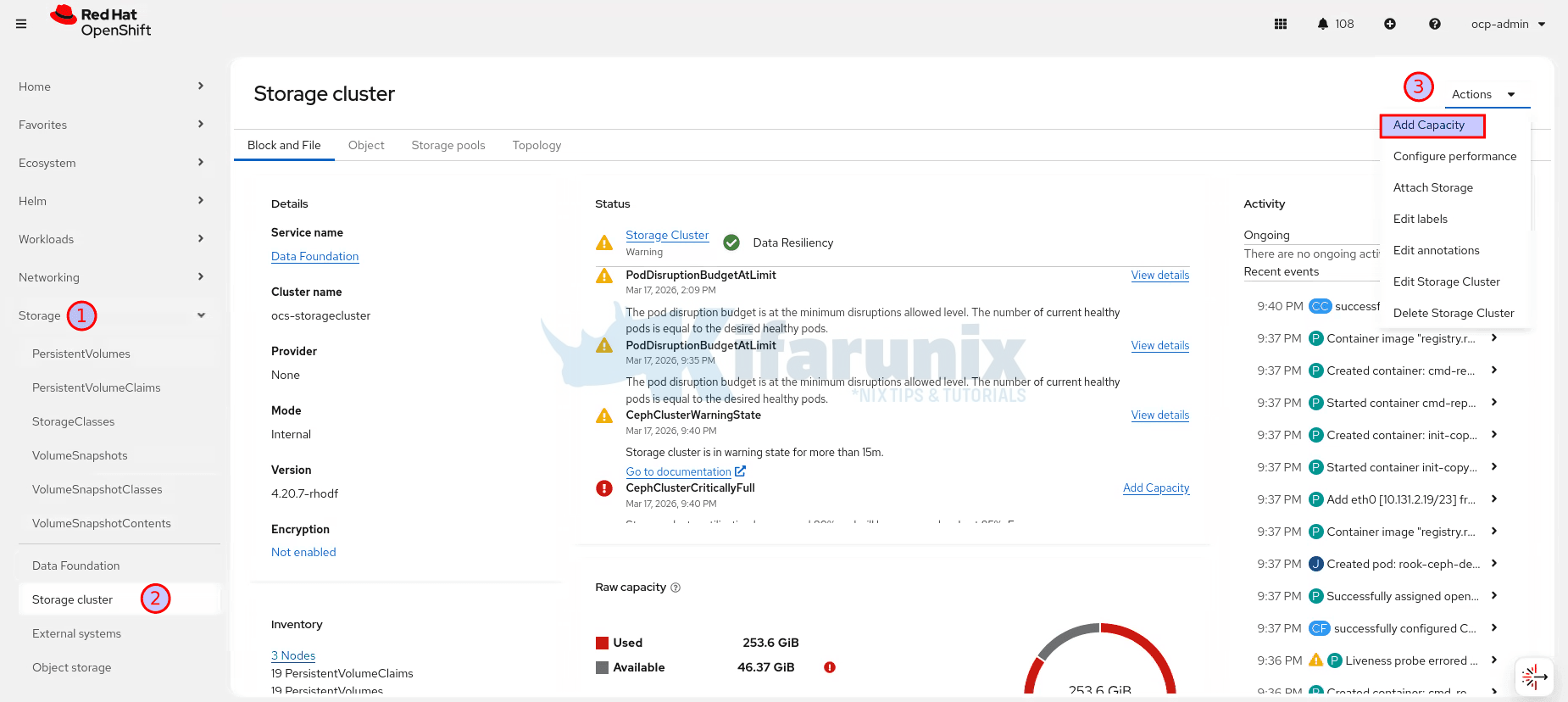
- In the Storage Class dropdown, select the storage class backed by your LocalVolumeSet
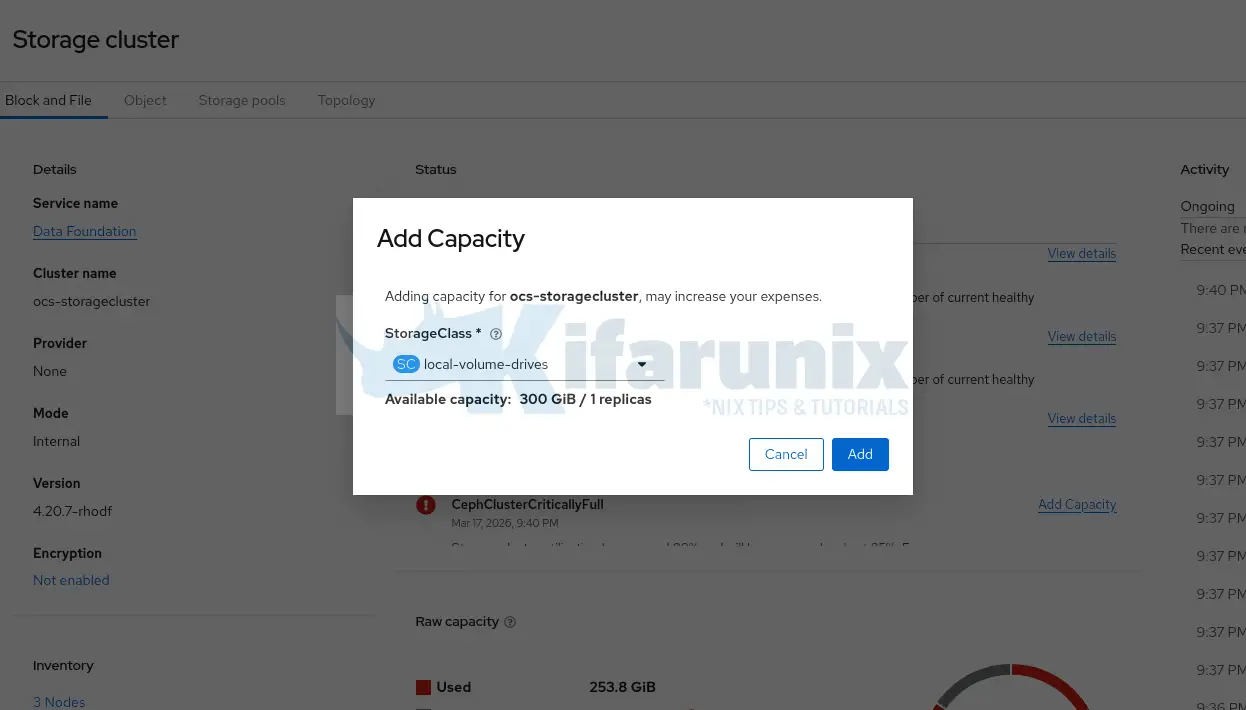
- The Available Capacity field will show the capacity from the newly provisioned PVs
- Click Add
The ODF operator will now create new OSD pods, one for each new PV.
We are adding 3 new disks (1 per node × 3 nodes) which is a multiple of 3, satisfying the ODF requirement for balanced 3-failure-domain deployments. If you add a number of disks that is not a multiple of 3, ODF will only consume disks up to the nearest multiple of 3 and the remaining disks will stay as unused PVs.
Step 8: Watch New OSD Pods Come Up
Monitor the new OSD pods being created:
oc get pods -n openshift-storage -l app=rook-ceph-osd -wBefore expansion you had 3 OSD pods. After expansion you expect 6:
NAME                               READY   STATUS    RESTARTS     AGE
rook-ceph-osd-0-66588b588d-96zgv   2/2     Running   0            118s
rook-ceph-osd-1-5bf4b87ff-mxlbk    2/2     Running   0            117s
rook-ceph-osd-2-545556b68c-5whqr   2/2     Running   0            114s
rook-ceph-osd-3-6dd7bc5565-k8984   2/2     Running   0            8h
rook-ceph-osd-4-7bb9b77795-8gxrp   2/2     Running   5 (8h ago)   7d12h
rook-ceph-osd-5-6d9cd75568-gjm4x   2/2     Running   0            4d7h
All OSD pods must reach 2/2 Running before proceeding. If any pod is stuck in Pending or CrashLoopBackOff, check its events:
oc describe pod <osd-pod-name> -n openshift-storageAlso verify the OSD tree to confirm new OSDs are distributed across all three nodes:
odf ceph osd treeYou should see 3 OSDs per host (st-01, st-02, st-03), all with up and in status.
ID   CLASS  WEIGHT   TYPE NAME                           STATUS  REWEIGHT  PRI-AFF
 -1         0.58612  root default
-11         0.19537      host st-01-ocp-comfythings-com
  0    ssd  0.09769          osd.0                           up   1.00000  1.00000
  3    ssd  0.09769          osd.3                           up   1.00000  1.00000
-13         0.19537      host st-02-ocp-comfythings-com
  1    ssd  0.09769          osd.1                           up   1.00000  1.00000
  4    ssd  0.09769          osd.4                           up   1.00000  1.00000
 -9         0.19537      host st-03-ocp-comfythings-com
  2    ssd  0.09769          osd.2                           up   1.00000  1.00000
  5    ssd  0.09769          osd.5                           up   1.00000  1.00000
Step 9: Monitor Ceph Rebalancing
Once the new OSDs are up, Ceph automatically begins rebalancing: redistributing existing data across all 6 OSDs to achieve an even distribution. This process takes time, proportional to how much data the cluster holds.
Watch the rebalancing progress:
watch -n 5 "odf ceph -s"During rebalancing you will see output like:
Info: running 'ceph' command with args: [-s]
  cluster:
    id:     bb78d03b-d126-4f3d-b17d-9f26eb15c1ab
    health: HEALTH_WARN
            3 OSD(s)
            3 backfillfull osd(s)
            Low space hindering backfill (add storage if this doesn't resolve itself): 1 pg backfill_toofull
            Degraded data redundancy: 220/290118 objects degraded (0.076%), 1 pg degraded, 1 pg undersized
            15 pool(s) backfillfull

  services:
    mon: 3 daemons, quorum d,f,g (age 83m)
    mgr: b(active, since 3m), standbys: a
    mds: 1/1 daemons up, 1 hot standby
    osd: 6 osds: 6 up (since 3m), 6 in (since 4m); 97 remapped pgs
    rgw: 1 daemon active (1 hosts, 1 zones)

  data:
    volumes: 1/1 healthy
    pools:   15 pools, 204 pgs
    objects: 96.71k objects, 84 GiB
    usage:   255 GiB used, 345 GiB / 600 GiB avail
    pgs:     220/290118 objects degraded (0.076%)
             133336/290118 objects misplaced (45.959%)
             107 active+clean
             94  active+remapped+backfill_wait
             2   active+remapped+backfilling
             1   active+undersized+degraded+remapped+backfill_toofull

  io:
    client:   40 MiB/s rd, 79 KiB/s wr, 42 op/s rd, 19 op/s wr
    recovery: 2.7 MiB/s, 33 objects/s
The cluster has expanded from 300 GiB to 600 GiB raw. Ceph is actively moving data to the new OSDs. The misplaced percentage (45.9%) will decrease steadily as objects are redistributed. The recovery line in the io section confirms data movement is in progress. The backfill_toofull PG will resolve once enough data has migrated off the original OSDs to bring them below the backfillfull threshold.
Rebalancing is complete when:
misplacedanddegradedcounts drop to 0- All PGs show
active+clean - Cluster health returns to
HEALTH_OK
Do not proceed to the next step until rebalancing is complete.
  cluster:
    id:     bb78d03b-d126-4f3d-b17d-9f26eb15c1ab
    health: HEALTH_OK

  services:
    mon: 3 daemons, quorum d,f,g (age 9h)
    mgr: b(active, since 8h), standbys: a
    mds: 1/1 daemons up, 1 hot standby
    osd: 6 osds: 6 up (since 8h), 6 in (since 8h)
    rgw: 1 daemon active (1 hosts, 1 zones)

  data:
    volumes: 1/1 healthy
    pools:   15 pools, 204 pgs
    objects: 96.72k objects, 84 GiB
    usage:   256 GiB used, 344 GiB / 600 GiB avail
    pgs:     204 active+clean

  io:
    client:   937 B/s rd, 71 KiB/s wr, 1 op/s rd, 17 op/s wr
Finally, HEALTH_OK, 6 OSDs, 600 GiB raw, 204 PGs all active+clean. Rebalancing is done.
Step 10: Restore Full Ratio Thresholds to Defaults
If you raised the full ratio thresholds in the steps above, restore them now. Only do this after rebalancing is complete and the cluster is stable.
If you, however, raised the thresholds using the odf ceph osd set-*-ratio commands, the ODF operator may have already restored the defaults during reconciliation. Check the current values first before patching:
odf ceph osd dump | grep -E "full_ratio|backfillfull_ratio|nearfull_ratio"If you had made the changes by patching the storagecluster, then you can restore as follows.
Restore full ratio to default 0.85:
oc patch storagecluster ocs-storagecluster -n openshift-storage \
  --type json \
  --patch '[{ "op": "replace", "path": "/spec/managedResources/cephCluster/fullRatio", "value": 0.85 }]'
Restore backfillfull ratio to default 0.80:
oc patch storagecluster ocs-storagecluster -n openshift-storage \
  --type json \
  --patch '[{ "op": "replace", "path": "/spec/managedResources/cephCluster/backfillFullRatio", "value": 0.80 }]'
Restore nearfull ratio to default 0.75:
oc patch storagecluster ocs-storagecluster -n openshift-storage \
  --type json \
  --patch '[{ "op": "replace", "path": "/spec/managedResources/cephCluster/nearFullRatio", "value": 0.75 }]'
Verify the defaults are restored:
odf ceph osd dump | grep -E "full_ratio|backfillfull_ratio|nearfull_ratio"Expected:
full_ratio 0.85
backfillfull_ratio 0.8
nearfull_ratio 0.75
Step 11: Final Verification
Run a complete verification to confirm the expansion succeeded and the cluster is fully healthy.
Check overall cluster health:
odf ceph -sExpected:
health: HEALTH_OKCheck the StorageCluster and CephCluster status:
oc get storagecluster -n openshift-storageoc get cephcluster -n openshift-storageBoth should show Phase: Ready and HEALTH: HEALTH_OK.
After recovering from a full cluster, some ODF components may remain in a degraded state even after Ceph returns to HEALTH_OK. If the StorageCluster shows Phase: Progressing instead of Ready, check which component is stuck:
oc get storagecluster ocs-storagecluster -n openshift-storage -o jsonpath='{range .status.conditions[*]}{.type}{"\t"}{.status}{"\t"}{.message}{"\n"}{end}'VersionMismatch False Version check successful
ReconcileComplete True Reconcile completed successfully
Available True Reconcile completed successfully
Progressing True Waiting on Nooba instance to finish initialization
Degraded False Reconcile completed successfully
Upgradeable False CephCluster is creating: Processing OSD 1 on PVC "ocs-deviceset-local-volume-drives-0-data-7sdb2m"In our case, NooBaa’s database pod was crash-looping because its WAL directory had gone read-only when Ceph blocked writes during the HEALTH_ERR period. The pod could not recover on its own after writes resumed. Check its status:
oc get pods -n openshift-storage -l app=noobaaNAME READY STATUS RESTARTS AGE
cnpg-controller-manager-6c7bd4cf95-v7nxk 1/1 Running 0 18h
noobaa-core-0 2/2 Running 0 46h
noobaa-db-pg-cluster-2 1/1 Running 0 10h
noobaa-db-pg-cluster-3 0/1 Running 40 (46m ago) 2d20h
noobaa-endpoint-85bc7f68c4-b9m5d 1/1 Running 0 46h
noobaa-operator-5974478898-xwbxb 1/1 Running 0 18hoc logs -n openshift-storage noobaa-db-pg-cluster-3 --previous | tail -20Look for errors like read-only file system in the logs.
{"level":"error","ts":"2026-03-18T06:23:59.662389493Z","msg":"Error while checking if there is enough disk space for WALs, skipping","logger":"instance-manager","logging_pod":"noobaa-db-pg-cluster-3","error":"while opening size probe file: open /var/lib/postgresql/data/pgdata/pg_wal/_cnpg_probe_pwip: read-only file system","stacktrace":"github.com/cloudnative-pg/machinery/pkg/log.(*logger).Error\n\t/cachi2/output/deps/gomod/pkg/mod/github.com/cloudnative-pg/[email protected]/pkg/log/log.go:125\ngithub.com/cloudnative-pg/cloudnative-pg/internal/cmd/manager/instance/run.runSubCommand\n\t/src/remote_source/app/internal/cmd/manager/instance/run/cmd.go:383\ngithub.com/cloudnative-pg/cloudnative-pg/internal/cmd/manager/instance/run.NewCmd.func2.1\n\t/src/remote_source/app/internal/cmd/manager/instance/run/cmd.go:116\nk8s.io/client-go/util/retry.OnError.func1\n\t/cachi2/output/deps/gomod/pkg/mod/k8s.io/[email protected]/util/retry/util.go:51\nk8s.io/apimachinery/pkg/util/wait.runConditionWithCrashProtection\n\t/cachi2/output/deps/gomod/pkg/mod/k8s.io/[email protected]/pkg/util/wait/wait.go:150\nk8s.io/apimachinery/pkg/util/wait.ExponentialBackoff\n\t/cachi2/output/deps/gomod/pkg/mod/k8s.io/[email protected]/pkg/util/wait/backoff.go:477\nk8s.io/client-go/util/retry.OnError\n\t/cachi2/output/deps/gomod/pkg/mod/k8s.io/[email protected]/util/retry/util.go:50\ngithub.com/cloudnative-pg/cloudnative-pg/internal/cmd/manager/instance/run.NewCmd.func2\n\t/src/remote_source/app/internal/cmd/manager/instance/run/cmd.go:115\ngithub.com/spf13/cobra.(*Command).execute\n\t/cachi2/output/deps/gomod/pkg/mod/github.com/spf13/[email protected]/command.go:1015\ngithub.com/spf13/cobra.(*Command).ExecuteC\n\t/cachi2/output/deps/gomod/pkg/mod/github.com/spf13/[email protected]/command.go:1148\ngithub.com/spf13/cobra.(*Command).Execute\n\t/cachi2/output/deps/gomod/pkg/mod/github.com/spf13/[email protected]/command.go:1071\nmain.main\n\t/src/remote_source/app/cmd/manager/main.go:71\nruntime.main\n\t/usr/lib/golang/src/runtime/proc.go:283"}If confirmed, delete the pod to allow the StatefulSet to recreate it with a clean startup against the now-healthy storage:
oc delete pod noobaa-db-pg-cluster-3 -n openshift-storage --forceAfter the pod restarted successfully, the StorageCluster moved to Phase: Ready. If it remains on Progressing phase, check the NooBaa core pod logs for authentication errors:
oc logs -n openshift-storage noobaa-core-0 -c core --tail=30In our case, the NooBaa core pod was failing to authenticate to the Ceph Object Store with SignatureDoesNotMatch errors. Its credentials had gone stale during the storage exhaustion. Restarting the core pod forced it to re-establish its connection:
oc delete pod noobaa-core-0 -n openshift-storageAfter both pods restarted, NooBaa completed initialization and the StorageCluster moved to Phase: Ready.
When all is good, verify raw capacity has increased:
odf ceph df--- RAW STORAGE ---
CLASS SIZE AVAIL USED RAW USED %RAW USED
ssd 600 GiB 331 GiB 269 GiB 269 GiB 44.77
TOTAL 600 GiB 331 GiB 269 GiB 269 GiB 44.77
--- POOLS ---
POOL ID PGS STORED OBJECTS USED %USED MAX AVAIL
.rgw.root 1 8 7.9 KiB 22 252 KiB 0 71 GiB
.mgr 2 1 961 KiB 2 2.8 MiB 0 71 GiB
ocs-storagecluster-cephobjectstore.rgw.control 3 8 0 B 8 0 B 0 71 GiB
ocs-storagecluster-cephfilesystem-metadata 4 16 246 KiB 22 820 KiB 0 71 GiB
ocs-storagecluster-cephblockpool 5 64 81 GiB 21.99k 243 GiB 53.43 71 GiB
ocs-storagecluster-cephobjectstore.rgw.meta 6 8 4.2 KiB 19 168 KiB 0 71 GiB
ocs-storagecluster-cephfilesystem-data0 7 32 0 B 0 0 B 0 71 GiB
ocs-storagecluster-cephobjectstore.rgw.log 8 8 58 KiB 374 2.4 MiB 0 71 GiB
ocs-storagecluster-cephobjectstore.rgw.buckets.index 9 8 11 MiB 22 33 MiB 0.02 71 GiB
ocs-storagecluster-cephobjectstore.rgw.buckets.non-ec 10 8 0 B 0 0 B 0 71 GiB
ocs-storagecluster-cephobjectstore.rgw.otp 11 8 0 B 0 0 B 0 71 GiB
ocs-storagecluster-cephobjectstore.rgw.buckets.data 12 32 6.6 GiB 75.24k 20 GiB 8.69 71 GiB
default.rgw.log 13 1 11 KiB 66 1.0 MiB 0 71 GiB
default.rgw.control 14 1 0 B 8 0 B 0 71 GiB
default.rgw.meta 15 1 0 B 0 0 B 0 71 GiBYou should now see approximately 600 GiB raw total.
Verify in the OpenShift console under Storage > Data Foundation. The StorageCluster status should show a green tick.
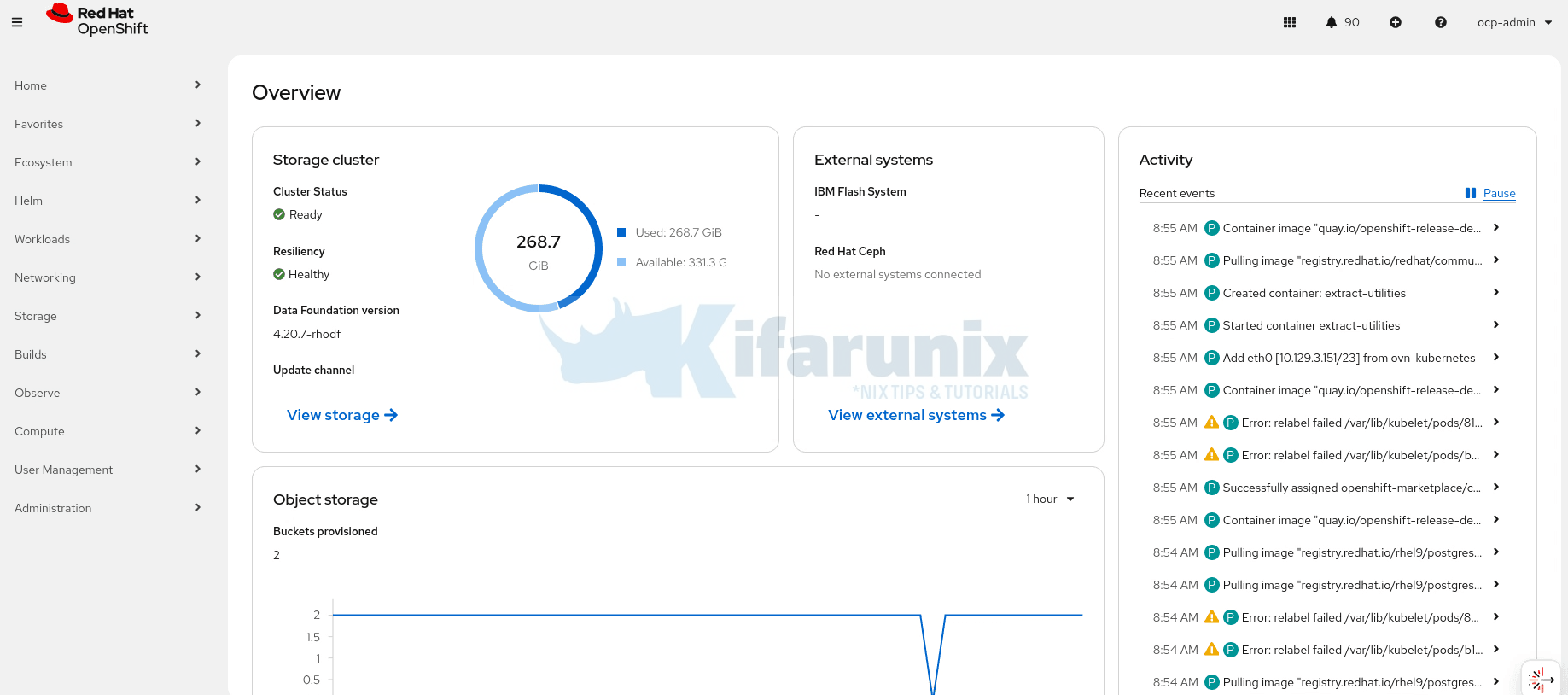
Verify OSD distribution:
odf ceph osd treeYou should see 6 OSDs distributed evenly, 2 per storage node, all with status up and in.
Conclusion
You have successfully scaled OpenShift Data Foundation storage on bare metal by adding new disks and recovering from a fully exhausted cluster. The cluster went from 300 GiB raw with HEALTH_ERR and blocked writes to 600 GiB raw at HEALTH_OK with all 6 OSDs healthy and balanced.
To keep it that way, remember these scaling constraints:
- Always add disks in multiples of 3 when using 3 failure domains. ODF distributes OSDs across failure domains and requires an equal number from each. Adding 3 disks (1 per node) as we did here is correct. Adding 4 would result in only 3 being consumed, with 1 left as an unused PV.
- Maximum 12 OSDs per node. Red Hat documents this as the upper limit per storage node. Beyond this, recovery time after node failure becomes excessive. When you reach the per-node limit, the only expansion path is adding new storage nodes.
- Match disk sizes. As noted above, always add disks of the same size as the existing OSDs. Plan your initial ODF deployment with future expansion in mind, choose a disk size that you can reliably source again when the time comes.
- Monitor proactively. ODF ships with Prometheus alerting rules that fire at each threshold —
CephClusterNearFullat 75% raw andCephClusterCriticallyFullat 85% raw. Make sure these alerts are routed to your team’s notification channel, whether that is PagerDuty, Slack, email, or your SIEM. Do not dismissCephClusterNearFull, the time between that alert firing and writes being blocked is shorter than most teams expect. When it fires, start planning expansion immediately.