
In this blog post, you will learn how to enable user workload monitoring in OpenShift 4.20 and empower developers to monitor their own applications. User workload monitoring extends OpenShift’s built-in monitoring stack, Prometheus, Alertmanager, and Thanos, into user-defined projects, allowing non-admin users to observe metrics, create alerts, and troubleshoot application issues without relying on additional tools or custom monitoring setups.
This capability runs as a separate, platform-managed monitoring stack scoped to user workloads, ensuring a clear separation from core cluster monitoring while integrating seamlessly with the OpenShift Console’s Observe view. By enabling user workload monitoring, platform teams can provide centralized, production-ready observability while giving developers the autonomy they need to understand application performance, define custom alerts, and resolve issues faster, without introducing monitoring sprawl or conflicting Prometheus installations.
Table of Contents
How to Enable User Workload Monitoring in OpenShift 4.20
What is User Workload Monitoring?
User Workload Monitoring is an extension of OpenShift’s default core monitoring stack that allows you to monitor applications and services running in user-defined projects (namespaces). By default, OpenShift 4.20 includes a comprehensive monitoring solution for the core platform components, but this monitoring is limited to openshift-* and kube-* namespaces as well as node and core cluster-level metrics
When you enable user workload monitoring, OpenShift deploys a separate Prometheus instance in the openshift-user-workload-monitoring namespace. This instance is specifically designed to scrape metrics from user-defined projects while keeping them isolated from platform monitoring.
Key Components Deployed in User Workload Monitoring
When user workload monitoring is enabled in OpenShift, the monitoring stack is extended to collect metrics and evaluate alerts for user-defined applications. This is done by deploying a dedicated set of components for user workloads, while continuing to rely on shared platform services for querying and alert delivery.
The following components are automatically deployed in the openshift-user-workload-monitoring namespace:
- Prometheus
- Deployed with two replicas for high availability:
prometheus-user-workload-0prometheus-user-workload-1
- Scrapes metrics from user-defined applications based on targets selected by the following custom resources:
ServiceMonitorPodMonitor
- Each Prometheus instance includes a Thanos sidecar, which exposes its data to the shared Thanos query layer.
- Deployed with two replicas for high availability:
- Prometheus Operator
- Manages user workload monitoring resources, including:
ServiceMonitorPodMonitorPrometheusRule
- Automatically reconciles scrape targets and rule configuration for user-defined projects.
- Manages user workload monitoring resources, including:
- Thanos Ruler
- Deployed with two replicas for high availability:
thanos-ruler-user-workload-0thanos-ruler-user-workload-1
- Evaluates alerting and recording rules defined for user workloads.
- Forwards firing alerts to an Alertmanager instance (by default, the platform Alertmanager).
- Deployed with two replicas for high availability:
Some monitoring components are not deployed as part of the user workload namespace, but are instead shared with the platform monitoring stack:
- Thanos Querier:
- Runs in the
openshift-monitoringnamespace. - Acts as a central query layer for both:
- Platform metrics
- User workload metrics
- Queries Prometheus instances through their Thanos sidecars.
- Used by the OpenShift Console and by PromQL queries to provide a unified view of metrics across the cluster.
- Runs in the
- Alertmanager
- A dedicated Alertmanager is not deployed by default when user workload monitoring is enabled.
- By default, alerts generated by user workload rules are routed to the platform Alertmanager running in the
openshift-monitoringnamespace. - This allows centralized alert routing, silencing, and notification management.
Cluster administrators can optionally configure a separate Alertmanager instance for user workloads using the user-workload-monitoring-config ConfigMap.
A dedicated Alertmanager can be useful to:
- Isolate user-defined alerts from platform alerts
- Apply different routing or notification policies
- Reduce load on the platform Alertmanager in large clusters
This configuration is optional and should be considered based on cluster size, alert volume, and operational requirements.
Why Enable User Workload Monitoring?
Enabling user workload monitoring provides significant benefits for both development teams and platform administrators.
For Developers:
- Self-Service Monitoring: Developers can create ServiceMonitor and PodMonitor resources to scrape metrics from their applications without cluster administrator involvement
- Custom Alerting: Create PrometheusRule resources to define application-specific alerts based on business logic
- Integrated Metrics Dashboard: Access metrics through the OpenShift web console’s Developer perspective without external tools
- Performance Troubleshooting: Quickly identify bottlenecks, resource constraints, and application issues using real-time metrics
For Platform Administrators
- Centralized Monitoring: No need to deploy and maintain separate monitoring solutions like standalone Prometheus or Grafana instances
- Resource Control: Configure resource limits, retention policies, and scrape intervals to manage monitoring overhead
- Multi-Tenancy Support: Developers only see metrics from their authorized projects, maintaining security boundaries
- Cost Efficiency: Leverage existing OpenShift infrastructure instead of deploying additional monitoring services
Prerequisites
Before enabling User Workload Monitoring on OpenShift 4.20.8, ensure you have the following:
- Cluster Administrator Access: You need the
cluster-adminrole to modify thecluster-monitoring-configConfigMap - Sufficient Cluster Resources: User workload monitoring adds overhead. You can control the CPU
and memory usage of the components by specifying resource requests and limits in theuser-workload-monitoring-configConfigMap. - Persistent Storage (Recommended): While not required, configuring persistent storage prevents metrics data loss during pod restarts
- Network Access: Prometheus must be able to reach application pods on their metrics endpoints (typically HTTP).
- No custom Prometheus instances: User workload monitoring requires that only the cluster-managed Prometheus stack is present; Prometheus Operators or Prometheus CRs installed via OLM are not supported.
Step-by-Step: Enabling User Workload Monitoring on OpenShift
Enabling user workload monitoring involves modifying a single ConfigMap, cluster-monitoring-config, in the openshift-monitoring namespace.
Check if Cluster Monitoring ConfigMap Exists
In a fresh OpenShift cluster, the cluster-monitoring-config ConfigMap may not exist by default. In our previous guide, we already configured core monitoring and created cluster-monitoring-config, so it should already be present in our cluster.
You can verify if the configMap exists or not on your cluster by running:
oc get cm -n openshift-monitoring | grep cluster-monitoring-configIf the ConfigMap exists, you’ll see output with its name and age.
Sample output;
cluster-monitoring-config 1 10hIf it doesn’t exist, you’ll need to create it by running the command below;
oc apply -f - <<EOF
apiVersion: v1
kind: ConfigMap
metadata:
  name: cluster-monitoring-config
  namespace: openshift-monitoring
data:
  config.yaml: |
EOF
Note that creating the configMap alone doesn’t enable user workload monitoring. You have do it explicitly.
All the monitoring components configurations will be placed under the data.config.yaml.
Also, be aware that every time you save configuration changes to the ConfigMap object, the pods in the respective project are redeployed.
Enable User Workload Monitoring
Next, you need to explicitly enable user workload monitoring by setting enableUserWorkload: true in the cluster-monitoring-config ConfigMap.
You can check using the command;
oc get cm cluster-monitoring-config -n openshift-monitoring \
  -o jsonpath='{.data.config\.yaml}' | grep -i enableUserWorkload
If enabled, that setting, enableUserWorkload: true, should be printed to stdout. If not, then the user workload monitoring is not enabled yet.
If user workload monitoring is not enabled, update the cluster monitoring configuration:
oc get cm cluster-monitoring-config -n openshift-monitoring -o jsonpath='{.data.config\.yaml}' > cluster-monitoring-config.yamlThen append the setting into the extracted configs:
echo "enableUserWorkload: true" >> cluster-monitoring-config.yamlThen apply the changes by creating updated cluster-monitoring configmap:
oc create configmap cluster-monitoring-config \
     --from-file=config.yaml=cluster-monitoring-config.yaml \
     -n openshift-monitoring \
     --dry-run=client -o yaml | oc apply -f -
The Cluster Monitoring Operator (CMO) will detect the update and enable the user workload monitoring components automatically.
Verifying the Enablement of User Workload Monitoring
After applying the changes to configMap above, you can verify that monitoring for user-defined projects has been enabled successfully.
When you enable monitoring for user-defined projects, the user-workload-monitoring-config ConfigMap is created automatically by the Cluster Monitoring Operator in the openshift-user-workload-monitoring namespace.
oc get cm -n openshift-user-workload-monitoringSample output;
NAME                                         DATA   AGE
kube-root-ca.crt                             1      18d
metrics-client-ca                            1      3m
openshift-service-ca.crt                     1      18d
prometheus-user-workload-rulefiles-0         0      3m
prometheus-user-workload-trusted-ca-bundle   1      3m
serving-certs-ca-bundle                      1      3m
thanos-ruler-user-workload-rulefiles-0       1      3m
user-workload-monitoring-config              0      3m
While this ConfigMap, user-workload-monitoring-config, is created automatically you can customize later for advanced configurations like persistent storage, resource limits, or retention policies.
Also check that the Prometheus Operator, Prometheus, and Thanos Ruler pods are running in the openshift-user-workload-monitoring project. It may take a few minutes for all pods to start.
oc get pods -n openshift-user-workload-monitoringExample output
NAME                                   READY   STATUS    RESTARTS   AGE
prometheus-operator-86bc45dcfb-dnxgc   2/2     Running   0          10m
prometheus-user-workload-0             6/6     Running   0          10m
prometheus-user-workload-1             6/6     Running   0          10m
thanos-ruler-user-workload-0           4/4     Running   0          10m
thanos-ruler-user-workload-1           4/4     Running   0          10m
If all pods are in the Running state, user workload monitoring is successfully enabled.
Advanced Configuration for User Workload Monitoring
Once user workload monitoring is enabled and all components are running, the next step is to harden the stack for production use.
While the basic enablement is straightforward, OpenShift provides extensive configuration options for user workload monitoring. These configurations are managed through the user-workload-monitoring-config ConfigMap in the openshift-user-workload-monitoring namespace.
This ConfigMap controls:
- Prometheus and Prometheus Operator
- Alertmanager
- Thanos Ruler (recording and alerting rules)
- Storage, retention, resource limits, topology spread, and scrape protection.
Configuring Persistent Storage
By default, user workload monitoring components use ephemeral emptyDir volumes. This is not suitable for multi-node or production clusters.
Without persistent storage:
- Prometheus loses metrics on Pod restart/reschedule
- Alertmanager loses silences and notification state
- Thanos Ruler loses rule evaluation state
- HA guarantees are broken during pod rescheduling
As a result, you need a persistent storage to ensure data persistence and high availability.
In our setup, we only have ODF deployed for our storage needs and so, we will use the Ceph RBD storage class to provide persistence storage for user workload monitoring components.
For Prometheus and Thanos querier, this is how we will define the use of storage class for persistence.
    prometheus:
      volumeClaimTemplate:
        spec:
          storageClassName: ocs-storagecluster-ceph-rbd
          resources:
            requests:
              storage: 30Gi

    thanosRuler:
      volumeClaimTemplate:
        spec:
          storageClassName: ocs-storagecluster-ceph-rbd
          resources:
            requests:
              storage: 10Gi
Where:
- Storage class (SC): Uses the
ocs-storagecluster-ceph-rbdstorage class to dynamically provision persistent volumes for Prometheus and Thanos Ruler using OpenShift Data Foundation (Ceph RBD). - Storage size: Allocates 30 GiB of persistent storage for Prometheus user workload data and 10 GiB for Thanos Ruler rule evaluation and state data.
Setting Resource Limits
Control CPU and memory usage of monitoring components:
    prometheus:
      resources:
        limits:
          cpu: 500m
          memory: 3Gi
        requests:
          cpu: 500m
          memory: 500Mi

    thanosRuler:
      resources:
        limits:
          cpu: 500m
          memory: 1Gi
        requests:
          cpu: 200m
          memory: 500Mi
Always set limits higher than requests. Prometheus resource usage scales with the number of targets and cardinality of metrics.
Configure Data Retention Policies
By default, user workload monitoring in OpenShift retains metrics data for 24 hours. While this is sufficient for short-term troubleshooting, many environments require longer retention for trend analysis, capacity planning, or post-incident investigations.
OpenShift allows cluster administrators to control how long metrics are retained and how much disk space they are allowed to consume by configuring the user-workload-monitoring-config ConfigMap.
Prometheus data retention
The user workload Prometheus instances store metrics data on persistent volumes. Two retention controls are available:
- Retention time (
retention): defines how long metrics are kept before being deleted. - Retention size (
retentionSize): defines the maximum disk space that metrics data may consume.
By default:
- Retention time: 24 hours
- Retention size: unbounded (limited only by the size of the persistent volume)
Both settings are optional and can be used independently or together.
Example: configure Prometheus to retain metrics for 24 hours with a 10 GB retention size limit:
apiVersion: v1
kind: ConfigMap
metadata:
  name: user-workload-monitoring-config
  namespace: openshift-user-workload-monitoring
data:
  config.yaml: |
    prometheus:
      retention: 24h
      retentionSize: 10GB
Supported formats:
- Time:
ms,s,m,h,d,w,y(for example:1h30m,7d) - Size:
B,KB,MB,GB,TB,PB,EB
Therefore:
      retention: 24h
      retentionSize: 10GB
means:
- Data older than 24 hours is always deleted.
- If 10GB is exceeded before data reaches 24 hours, Prometheus will start removing the oldest samples to stay under the 10GB limit.
retentionSize limit during its periodic compaction process, which runs every two hours. Because of this, the amount of metrics data stored on a persistent volume can temporarily exceed the configured retentionSize before compaction occurs.
If the persistent volume does not have sufficient free space, this temporary growth can trigger the following alert: KubePersistentVolumeFillingUp
To avoid disk exhaustion and unnecessary alerts, persistent volumes should be sized with adequate headroom above the configured retentionSize, rather than matching it exactly.Thanos Ruler data retention
Thanos Ruler stores metrics data locally to evaluate alerting and recording rules. For user-defined projects, the default retention period is 24 hours.
This retention period can be modified independently of Prometheus retention.
Example: retain Thanos Ruler data for 10 days:
apiVersion: v1
kind: ConfigMap
metadata:
  name: user-workload-monitoring-config
  namespace: openshift-user-workload-monitoring
data:
  config.yaml: |
    thanosRuler:
      retention: 10d
Saving the ConfigMap automatically redeploys the Thanos Ruler pods and applies the new retention policy.
When configuring retention policies, consider:
- Persistent volume capacity and growth headroom
- Metric cardinality (high-cardinality metrics consume storage rapidly)
- Operational needs (short-term debugging vs. historical analysis)
- Query performance, which can degrade with excessive local retention
Cardinality & Performance Controls (Enforced Limits)
When collecting metrics from many user workloads, it’s easy for Prometheus to be overwhelmed if too much data is ingested too quickly or if individual targets emit very high‑cardinality metrics (many unique label combinations). OpenShift exposes a set of enforced limits and performance controls so cluster administrators can bound resource usage and protect both the monitoring stack and the cluster as a whole.
These controls are configured through the user‑workload‑monitoring‑config ConfigMap in the openshift‑user‑workload‑monitoring namespace and let you limit things like:
- Sample ingestion limits: Prometheus receives many time series samples during scrapes. To prevent runaway ingestion that could exhaust memory or CPU, you can set:
- enforcedSampleLimit which defines the max number of samples allowed per scrape from each target. When this limit is reached, Prometheus stops ingesting further samples from that target for that scrape cycle.
- Example:
prometheus: enforcedSampleLimit: 50000 - This prevents a single target from overwhelming Prometheus with thousands of metric samples.
- Label limits: High‑cardinality metrics are primarily caused by labels with unbounded or large sets of values (e.g., user IDs, request IDs). To protect against explosion in the number of time series, you can enforce limits on:
- enforcedLabelLimit: maximum number of labels per metric scrape
- enforcedLabelNameLengthLimit: maximum length (characters) of label names
- enforcedLabelValueLengthLimit: maximum length (characters) of label values
- If a metric exceeds these limits during ingestion, additional labels or excessively long values are dropped before data is stored.
- Example:
prometheus: enforcedLabelLimit: 500 enforcedLabelNameLengthLimit: 50 enforcedLabelValueLengthLimit: 600 - These prevent metrics with too many or overly complex labels from consuming excessive memory or disk space.
- Scrape and evaluation interval controls: You can also adjust the frequency of metric collection and rule evaluation for user workloads:
- scrapeInterval: defines the time between consecutive scrapes of each target
- evaluationInterval: defines the time between consecutive evaluations of recording and alerting rules.
- Defaults are typically 30s for both unless overridden. OpenShift allows you to stretch these out (up to 5 minutes) to reduce load on Prometheus when necessary.
- Example:
prometheus: scrapeInterval: 1m30s evaluationInterval: 1m15s - Increasing these intervals reduces cluster load by scraping and evaluating less often.
Without enforced limits, a misbehaving or overly chatty application could:
- Generate too many time series (high cardinality)
- Cause Prometheus to run out of memory
- Slow down queries
- Trigger frequent restarts due to resource exhaustion
By bounding samples, labels, and intervals, administrators ensure that user workload monitoring remains reliable, performant, and predictable even in the face of unexpected workloads.
Note that OpenShift can also generate alerts when certain limits are approached or hit, for example, an alert when a target is failing to scrape due to exceeding a sample limit. This allows proactive tuning of limits and metrics instrumentation.
Node Placement & Topology Spread
After configuring storage, resource limits, and retention policies, the next step is deciding where your user workload monitoring components run and how they are distributed across your cluster. OpenShift gives you full control over node placement and topology spread, which is critical for reliability and high availability.
By default, Kubernetes schedules pods wherever resources are available. For monitoring components, this can sometimes lead to:
- Resource contention with application workloads
- Uneven distribution of replicas, risking downtime if a node fails
- Scheduling on nodes that aren’t optimized for heavy workloads
OpenShift allows you to control placement using:
- Node selectors which pin pods to nodes with specific labels
- Tolerations which allow pods to schedule on tainted nodes
- Topology spread constraints which ensure replicas are evenly spread across nodes or zones
Options for Node Placement
- Node Selectors: You can restrict monitoring pods to specific nodes. For example:
This would schedule Prometheus only on nodes labeledprometheus:
nodeSelector:
role: monitoringrole=monitoring. - Tolerations: If your nodes are tainted to prevent general workloads, pods need matching tolerations:
This tells Kubernetes that it’s okay to schedule the Thanos Ruler pod on nodes tainted withthanosRuler:
tolerations:
- key: "monitoring"
operator: "Equal"
value: "true"
effect: "NoSchedule"monitoring=true:NoSchedule. - Topology Spread Constraints: Even with selectors, you might end up with multiple replicas on the same node. Topology spread constraints ensure pods are evenly distributed:
This spreads pods across failure domains, like zones, so no single node or zone hosts all replicas. In our cluster, since we don’t have dedicated monitoring nodes, the pods run on worker nodes. UsingthanosRuler:
topologySpreadConstraints:
- maxSkew: 1
topologyKey: topology.kubernetes.io/zone
whenUnsatisfiable: DoNotSchedule
labelSelector:
matchLabels:
app.kubernetes.io/name: thanos-rulerDoNotScheduleensures that both replicas never land on the same worker, giving stronger fault tolerance.
In our environment, we don’t have dedicated nodes for monitoring. All monitoring pods; Prometheus, Thanos Ruler, and optional Alertmanager, run on regular worker nodes.
This means:
- We cannot use node selectors for dedicated nodes
- We rely on topology spread constraints to prevent both replicas from landing on the same worker node if possible
- Taints are not in use for monitoring nodes, so tolerations aren’t needed
Effectively, our setup is simple and works with the available worker nodes, but in larger clusters or production setups, you might choose to dedicate nodes for monitoring for extra isolation and reliability.
Alerting and Alert Routing
As we already mentioned, once user workload monitoring is enabled, you have the option to either utilize the main platform Alertmanager or deploy a dedicated Alertmanager for user workloads. Both approaches allow developers to define, manage, and receive alerts for their own applications, but the choice depends on how isolated you want user alerts to be from cluster-wide platform alerts.
Use the Platform Alertmanager
By default, user workload alerts can be routed to the existing cluster Alertmanager. This allows users to create alerting rules in their projects without needing a separate Alertmanager instance. To enable this, set the following in the cluster-monitoring-config ConfigMap:
alertmanagerMain:
...
  enableUserAlertmanagerConfig: true
...
Hence, extract the current cluster monitoring configmap settings:
oc get cm cluster-monitoring-config -n openshift-monitoring -o jsonpath='{.data.config\.yaml}' > cluster-monitoring-config.yamlAdd enableUserAlertmanagerConfig: true under the alertmanagerMain section:
sed -i '/^alertmanagerMain:/a\ enableUserAlertmanagerConfig: true' cluster-monitoring-config.yamlAlertmanager section now looks like;
...
alertmanagerMain:
  enableUserAlertmanagerConfig: true
  volumeClaimTemplate:
    spec:
      storageClassName: ocs-storagecluster-ceph-rbd
      resources:
        requests:
          storage: 10Gi
...
You can create the updated ConfigMap using the following command:
oc create configmap cluster-monitoring-config \
     --from-file=config.yaml=cluster-monitoring-config.yaml \
     -n openshift-monitoring \
     --dry-run=client -o yaml | oc apply -f -
Enable a Dedicated User Workload Alertmanager
For larger clusters or environments where user alerts need isolation from platform alerts, you can deploy a dedicated Alertmanager instance for user workloads:
alertmanager:
  enabled: true
  enableAlertmanagerConfig: true
In our cluster, we currently use the platform Alertmanager, as we don’t have high alert volume and don’t require full isolation. However, the dedicated Alertmanager option is available if our monitoring needs grow or if we decide to provide completely separate alerting for users.
Unified Configuration for User Workload Monitoring
Based on the setup we’ve discussed, here’s the complete configuration for user workload monitoring in my cluster:
    prometheus:
      volumeClaimTemplate:
        spec:
          storageClassName: ocs-storagecluster-ceph-rbd
          resources:
            requests:
              storage: 30Gi

      resources:
        limits:
          cpu: 500m
          memory: 3Gi
        requests:
          cpu: 500m
          memory: 500Mi

      retention: 24h
      retentionSize: 10GB

      enforcedSampleLimit: 50000
      enforcedLabelLimit: 500
      enforcedLabelNameLengthLimit: 50
      enforcedLabelValueLengthLimit: 600
      scrapeInterval: 1m30s
      evaluationInterval: 1m15s

      topologySpreadConstraints:
      - maxSkew: 1
        topologyKey: kubernetes.io/hostname
        whenUnsatisfiable: DoNotSchedule
        labelSelector:
          matchLabels:
            app.kubernetes.io/name: prometheus

    thanosRuler:
      volumeClaimTemplate:
        spec:
          storageClassName: ocs-storagecluster-ceph-rbd
          resources:
            requests:
              storage: 10Gi

      resources:
        limits:
          cpu: 500m
          memory: 1Gi
        requests:
          cpu: 200m
          memory: 500Mi

      retention: 10d

      topologySpreadConstraints:
      - maxSkew: 1
        topologyKey: kubernetes.io/hostname
        whenUnsatisfiable: DoNotSchedule
        labelSelector:
          matchLabels:
            app.kubernetes.io/name: thanos-ruler
All of the configurations above should be placed under the config.yaml: | section of the user-workload-monitoring-config ConfigMap created in the openshift-user-workload-monitoring namespace above.
Applying the Unified Configuration
Once you have finalized your unified configuration for user workload monitoring, the next step is to update the user-workload-monitoring-config ConfigMap in the openshift-user-workload-monitoring namespace in your cluster.
Note that this ConfigMap is created by default when you enable user workload monitoring, but it does not include the config.yaml key yet. Hence, to define your configurations, you will need to add the key data/config.yaml and paste the unified configurations under that.
To make this easy, let’s create a custom file with user workload monitoring configmap settings we have defined above;
vim user-workload-monitoring-config.yamlPaste the content below, accordingly (ensure it your are pasting configs that match your environment setup);
prometheus:
  volumeClaimTemplate:
    spec:
      storageClassName: ocs-storagecluster-ceph-rbd
      resources:
        requests:
          storage: 30Gi

  resources:
    limits:
      cpu: 500m
      memory: 3Gi
    requests:
      cpu: 500m
      memory: 500Mi

  retention: 24h
  retentionSize: 10GB

  enforcedSampleLimit: 50000
  enforcedLabelLimit: 500
  enforcedLabelNameLengthLimit: 50
  enforcedLabelValueLengthLimit: 600
  scrapeInterval: 1m30s
  evaluationInterval: 1m15s

  topologySpreadConstraints:
    - maxSkew: 1
      topologyKey: kubernetes.io/hostname
      whenUnsatisfiable: DoNotSchedule
      labelSelector:
        matchLabels:
          app.kubernetes.io/name: prometheus

thanosRuler:
  volumeClaimTemplate:
    spec:
      storageClassName: ocs-storagecluster-ceph-rbd
      resources:
        requests:
          storage: 10Gi

  resources:
    limits:
      cpu: 500m
      memory: 1Gi
    requests:
      cpu: 200m
      memory: 500Mi

  retention: 10d

  topologySpreadConstraints:
    - maxSkew: 1
      topologyKey: kubernetes.io/hostname
      whenUnsatisfiable: DoNotSchedule
      labelSelector:
        matchLabels:
          app.kubernetes.io/name: thanos-ruler
Save and exit the file.
Now, create a new configmap based on the above settings:
oc create cm user-workload-monitoring-config \
     --from-file=config.yaml=user-workload-monitoring-config.yaml \
     -n openshift-user-workload-monitoring \
     --dry-run=client -o yaml | oc apply -f -
Immediately you apply the configuration changes to the ConfigMap object, the pods in the openshift-user-workload-monitoring project are redeployed.
A few mins after they are re-deployed:
oc get pods -n openshift-user-workload-monitoringNAME READY STATUS RESTARTS AGE
prometheus-operator-86bc45dcfb-26qfd 2/2 Running 2 8h
prometheus-user-workload-0 6/6 Running 0 72s
prometheus-user-workload-1 6/6 Running 0 72s
thanos-ruler-user-workload-0 4/4 Running 0 71s
thanos-ruler-user-workload-1 4/4 Running 0 71sYou can confirm the changes made to the configMap by viewing its configuration:
oc get cm user-workload-monitoring-config -n openshift-user-workload-monitoring -o yamlMonitoring Your Application Metrics with User Workload Monitoring
At this point, user workload monitoring is enabled and configured at the cluster level. As a cluster administrator, the next logical step is to validate the setup end-to-end by monitoring a real application running in a user namespace.
Prerequisites for User Application Monitoring
For Prometheus to scrape metrics from a user workload application:
- The application must expose Prometheus metrics:
- Metrics must be available in Prometheus format
- Typically exposed via an HTTP
/metricsendpoint
- Prometheus must be configured to scrape the metrics. This is done using either a ServiceMonitor or a PodMonitor.
- ServiceMonitor
- Used when metrics are exposed via an internal (ClusterIP) Kubernetes Service
- The Service must target the application pods and expose the metrics port
- A Service is required for Prometheus discovery
- PodMonitor
- Used when scraping metrics directly from pods
- Pods are selected using labels
- A Kubernetes Service is not required
- ServiceMonitor
Exposing Application Metrics for User Workload Monitoring
In order to demonstrate how to monitor user applications metrics, we have already built and deployed a small demo application called mobilepay-api in our monitoring-demo namespace. This is a simple payment processing API that:
- Accepts payment requests
- Simulates processing (with random success, timeout, or failure outcomes)
- Records important business events as Prometheus metrics
The application exposes a /metrics endpoint with custom business metrics specific to this payment service
Examples of custom metrics we can see:
- mobilepay_transactions_total{status=”success|timeout|failed”}: number of transactions by outcome
- mobilepay_transaction_duration_seconds: histogram of how long each payment took
- mobilepay_amount_processed_total: total monetary amount processed (sum)
- mobilepay_api_errors_total{error_code=”…”}: errors broken down by type
- mobilepay_callbacks_received_total: number of callbacks received from the provider
What we have already done:
- Deployed the application in the namespace monitoring-demo:
Sample output:oc get pods -n monitoring-demoNAME READY STATUS RESTARTS AGE mobilepay-api-6b898c6dd5-kcbsg 1/1 Running 0 124m mobilepay-api-6b898c6dd5-kcsrs 1/1 Running 0 124m - Created a Service that exposes port 8000:
Sample output:oc get svc -n monitoring-demoNAME TYPE CLUSTER-IP EXTERNAL-IP PORT(S) AGE mobilepay-api ClusterIP 172.30.192.19 <none> 8000/TCP 3h33m - The application is exposing metrics:
Sample output;oc exec -n monitoring-demo deploy/mobilepay-api -- curl -s http://localhost:8000/metrics | grep mobile | head# HELP mobilepay_transactions_total Total payment transactions
# TYPE mobilepay_transactions_total counter
# HELP mobilepay_transaction_duration_seconds Payment processing duration
# TYPE mobilepay_transaction_duration_seconds histogram
mobilepay_transaction_duration_seconds_bucket{le="0.005"} 0.0
mobilepay_transaction_duration_seconds_bucket{le="0.01"} 0.0
mobilepay_transaction_duration_seconds_bucket{le="0.025"} 0.0
mobilepay_transaction_duration_seconds_bucket{le="0.05"} 0.0
mobilepay_transaction_duration_seconds_bucket{le="0.075"} 0.0
mobilepay_transaction_duration_seconds_bucket{le="0.1"} 0.0
Create a ServiceMonitor for the Application
At this stage, the application is running, exposing Prometheus-formatted metrics on /metrics, and reachable via a Kubernetes Service. However, Prometheus is not yet scraping these metrics.
In OpenShift, user workload Prometheus does not automatically scrape all services. Scraping must be explicitly configured using a ServiceMonitor or PodMonitor resource.
A ServiceMonitor is used when:
- Metrics are exposed through a Kubernetes Service
- The application runs behind a stable ClusterIP
- Multiple replicas exist and should be discovered dynamically
In our case:
- The
mobilepay-apiapplication exposes metrics on port8000 - A ClusterIP Service already exists
- The application is replicated
Therefore, ServiceMonitor is the correct choice here.
As a result, the ServiceMonitor must:
- Exist in the same namespace as the application
- Select the Service using labels
- Reference the Service port name
- Define the
/metricsendpoint
Create the ServiceMonitor as follows:
oc apply -f - <<'EOF'
apiVersion: monitoring.coreos.com/v1
kind: ServiceMonitor
metadata:
  name: mobilepay-api
  namespace: monitoring-demo
  labels:
    app: mobilepay-api
spec:
  selector:
    matchLabels:
      app: mobilepay-api
  endpoints:
  - port: http
    path: /metrics
    interval: 30s
EOF
Important details:
port: httpmust match the Service port name/metricsmatches the endpoint exposed by the applicationinterval: 30scontrols scrape frequency
Check the ServiceMonitor;
oc get smonNAME AGE
mobilepay-api 7sSimulating Application Activity (Demo-Only Step)
At this point, Prometheus automatically discovers the Service and begins scraping metrics.
However, metrics will only appear if the application is actively generating data.
In real production environments, applications continuously handle live traffic; user requests, API calls, background jobs, and callbacks, so metrics naturally change over time without any manual interaction.
Because we are running just a dummy mobilepay-api application, we must manually simulate transactions in order to generate meaningful metrics for demonstration purposes.
As such, we must expose the application externally so that we can access it and simulate payment requests, which in turn generate application metrics.
The mobilepay-api service is currently exposed internally within the cluster. To allow browser access, we create an OpenShift Route.
Create the Route:
oc expose svc mobilepay-api -n monitoring-demoVerify that the Route was created:
oc get route mobilepay-api -n monitoring-demoExample output:
NAME            HOST/PORT                                                PATH   SERVICES        PORT   TERMINATION     WILDCARD
mobilepay-api   mobilepay-api-monitoring-demo.apps.ocp.comfythings.com          mobilepay-api   http   edge/Redirect   None
We will then access the application via the address, https://mobilepay-api-monitoring-demo.apps.ocp.comfythings.com and simulate the traffic.
Confirming Traffic Generation
Once traffic has been generated, we can confirm that application metrics are being scraped and updated in real time using the OpenShift web console.
- Log in to the OpenShift web console.
- Navigate to Observe > Metrics.
This interface allows us to run PromQL queries directly against the user workload Prometheus instance.
1. Basic Health Check: Is the Application Up?
up{namespace="monitoring-demo"}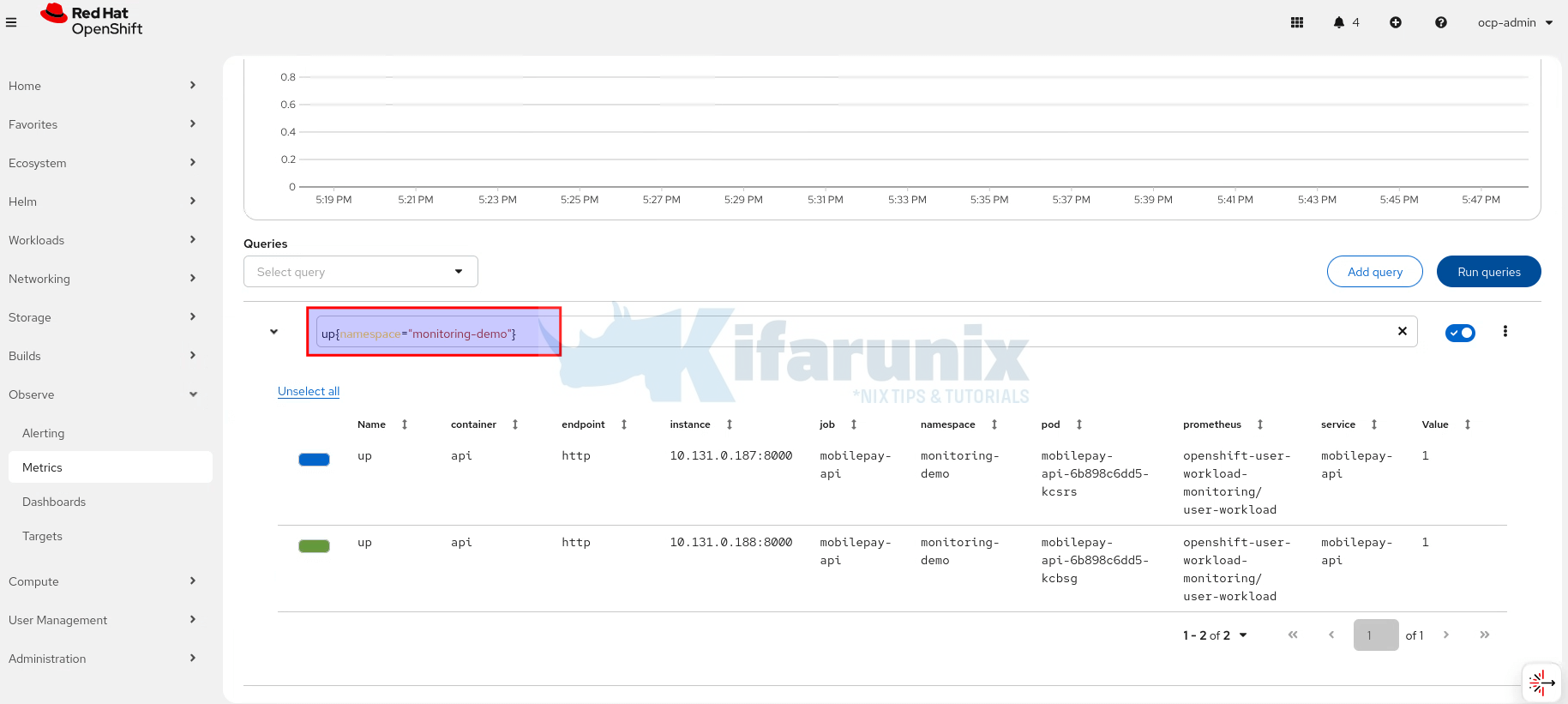
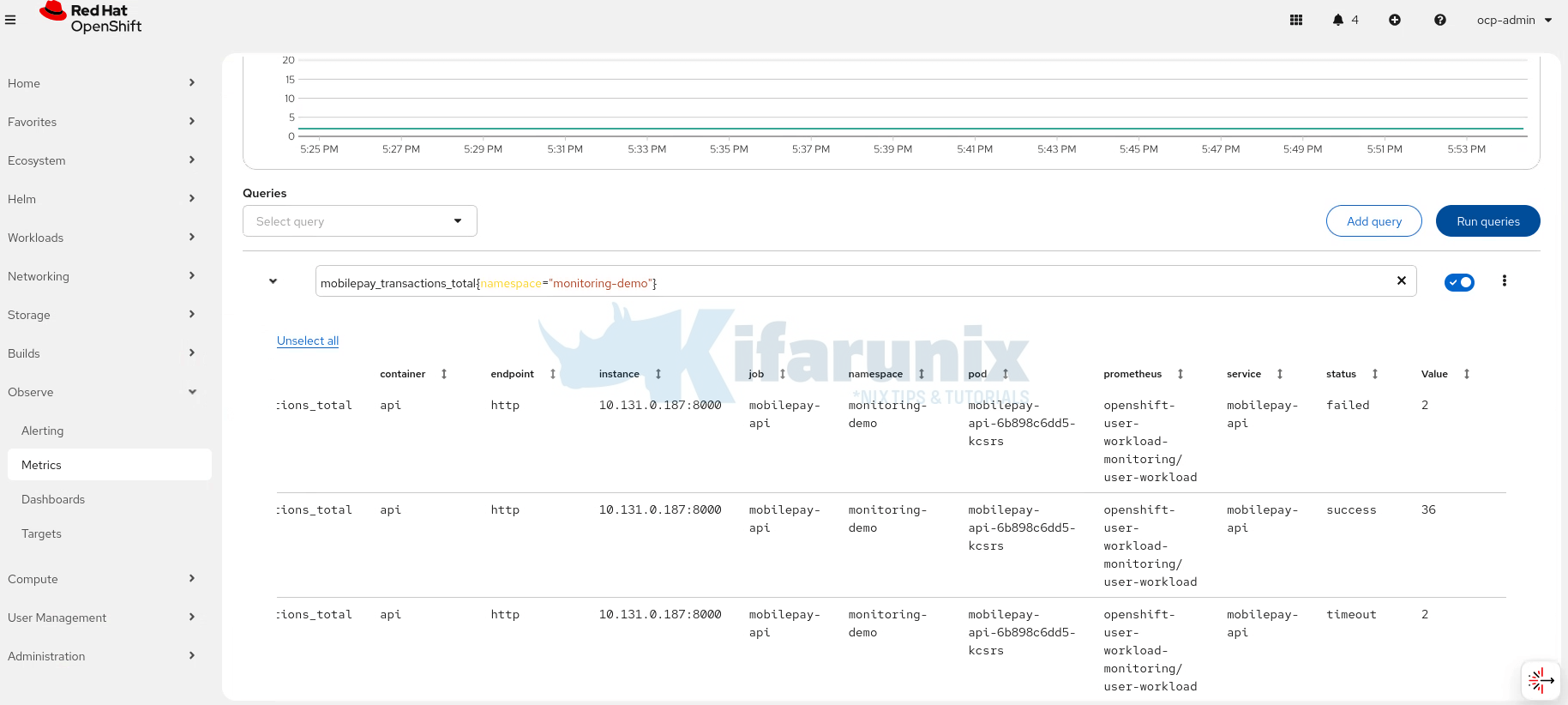
2. Total Number of Transactions
mobilepay_transactions_total{namespace="monitoring-demo"}This shows cumulative transaction counts, broken down by outcome (success, timeout, failed).
3. Transaction Rate (Requests per Second)
rate(mobilepay_transactions_total{namespace="monitoring-demo"}[5m])This metric is useful for understanding traffic volume trends and detecting sudden spikes or drops.
4. Total Amount Processed
mobilepay_amount_processed_total{namespace="monitoring-demo"}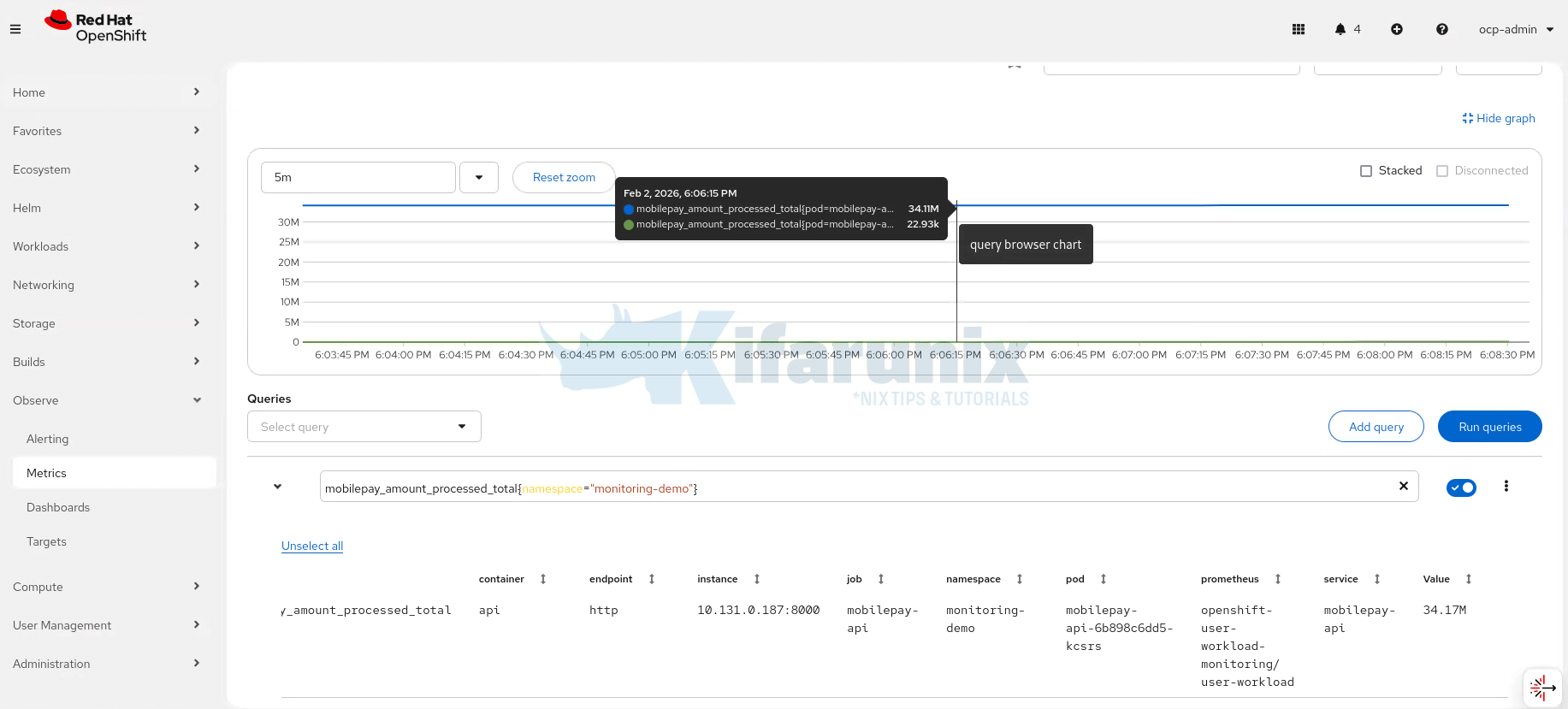
This represents a business-level metric, demonstrating how Prometheus can be used not only for technical monitoring, but also for operational insights.
At this stage, we have successfully validated that:
- The application exposes Prometheus-formatted metrics
- User workload Prometheus is scraping the application
- Metrics update dynamically as traffic is generated
- Both technical (latency, rate) and business (transactions, amounts) metrics are observable
This confirms that user workload monitoring is functioning end-to-end for applications running in user namespaces.
Granting Users Permission to Configure User Workload Monitoring
When User Workload Monitoring is enabled, Prometheus automatically scrapes metrics from user-defined projects. However, only cluster administrators can create and manage monitoring resources (ServiceMonitor, PodMonitor, PrometheusRule) by default. OpenShift provides namespace-scoped monitoring roles that delegate monitoring capabilities to application teams without granting cluster-admin access.
OpenShift’s monitoring stack has two distinct permission boundaries:
- Platform monitoring configuration (openshift-monitoring namespace) which is restricted to cluster administrators only.
- User workload monitoring configuration (openshift-user-workload-monitoring namespace) which can be delegated to specific users.
- Application monitoring resources (user-defined namespaces) which can be delegated to developers via namespace-scoped roles
OpenShift provides several pre-defined monitoring roles for user-defined projects:
- monitoring-rules-view: Read-only access to PrometheusRule custom resources
- monitoring-rules-edit: Create, modify, and delete PrometheusRule resources
- monitoring-edit: Create, modify, and delete ServiceMonitor, PodMonitor, and PrometheusRule resources
- alert-routing-edit: Create, modify, and delete AlertmanagerConfig resources for alert routing
- user-workload-monitoring-config-edit: Edit the user-workload-monitoring-config ConfigMap in the openshift-user-workload-monitoring namespace.
For most application teams, monitoring-edit is the recommended role as it provides complete control over monitoring their applications.
You can grant monitoring permissions as shown below (Update usernames, groups and namespaces accordingly):
- Grant monitoring-edit to a user in a specific namespace:
oc adm policy add-role-to-user monitoring-edit <username> -n <namespace>
- Grant monitoring-edit to a group:
oc adm policy add-role-to-group monitoring-edit developers -n payment-api
- Grant monitoring-rules-edit (alerting only):
oc adm policy add-role-to-user monitoring-rules-edit bob -n payment-api
- Grant alert-routing-edit:
oc adm policy add-role-to-user alert-routing-edit alice -n payment-api
- Grant user-workload-monitoring-config-edit (for monitoring platform team):
oc adm policy add-role-to-user user-workload-monitoring-config-edit monitoring-admin -n openshift-user-workload-monitoring
Verify role binding:
oc get rolebinding -n payment-api | grep monitoringYou can also manage permissions from the OpenShift web console.
Conclusion
User Workload Monitoring in OpenShift 4.20 enables teams to monitor their applications using a dedicated, isolated Prometheus stack. By enabling enableUserWorkload: true, platform administrators provide self-service observability for developers while retaining control over resource usage and configuration. With proper RBAC, storage, and monitoring resources in place, organizations gain scalable, production-ready metrics collection aligned with Red Hat best practices. For advanced configuration options, refer to the official Red Hat documentation.