
In this blog post, we will cover how to configure centralized logging in OpenShift with LokiStack and ODF. If you manage an OpenShift cluster at any scale, you already know the challenge: logs are scattered across dozens of nodes, pods are constantly created and destroyed, and when something breaks at 2 AM you need answers fast. Centralized logging is not optional in production, it is essential for maintaining visibility, troubleshooting issues efficiently, meeting compliance requirements, and ensuring operational stability.
In this guide, you will set up a centralized logging stack in OpenShift using LokiStack as the log store and OpenShift Data Foundation (ODF) as the backing object storage. This deployment uses the 1x.demo LokiStack size, which is suited for lab and demonstration environments only. It is not intended for production use. For production deployments, refer to the sizing section and select an appropriate size based on your cluster capacity.
Table of Contents
Configure Centralized Logging in OpenShift with LokiStack and ODF
Architecture Overview
The Legacy Stack vs. the Current Stack
In OpenShift Logging 5.x, the logging stack was built around the EFK architecture:
- Collector: Fluentd ran as a DaemonSet on every node to gather logs.
- Log Store: Elasticsearch stored logs in StatefulSets backed by block PVCs.
- Visualization: Kibana provided the UI for searching and exploring logs.
- Storage Backend: Logs were persisted on block PersistentVolumeClaims.
- Configuration: The ClusterLogging CR plus ClusterLogForwarder (
logging.openshift.io/v1) defined the full stack.
With OpenShift Logging 6.x, the architecture was modernized and modularized:
- Collector: Vector now runs as a DaemonSet to collect logs efficiently.
- Log Store: LokiStack replaced Elasticsearch, storing logs in S3-compatible object storage.
- Visualization: The OpenShift Console, enhanced with the COO Logging UI Plugin, replaced Kibana.
- Storage Backend: Object storage via ODF, NooBaa, or Ceph RGW is now used for log persistence.
- Configuration: ClusterLogging still exists but is optional; the ClusterLogForwarder (
observability.openshift.io/v1) now primarily defines log pipelines.
OpenShift Logging 6.x separates components, uses more efficient storage, and integrates fully with the OpenShift Console, making the stack lighter, more scalable, and easier to operate compared to the legacy EFK approach.
Architecture Diagram
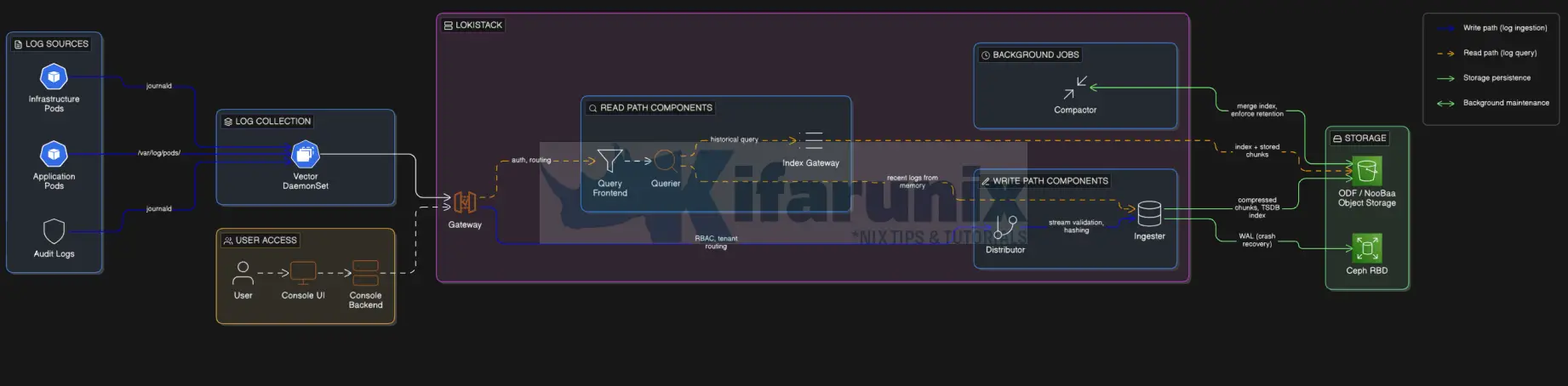
The OpenShift Logging architecture is organized into three main layers:
- Log collection: gathering logs from cluster nodes and applications
- Log storage: storing and indexing logs in LokiStack / object storage
- Log visualization and access: viewing and analyzing logs in the OpenShift console
Each layer is deployed and managed by dedicated OpenShift operators. The diagram below illustrates how these layers and their respective operators interact in a typical OpenShift Logging 6.x deployment with LokiStack and ODF.
Component Roles:
Operators:
- Red Hat OpenShift Logging Operator (
openshift-logging):- Deploys and manages the Vector collector as a DaemonSet on each node
- Reconciles the ClusterLogForwarder and ClusterLogging CRs
- Controls what logs are collected and where they are sent (LokiStack or external receivers)
- Red Hat Loki Operator (
openshift-operators-redhat):- Deploys and manages the LokiStack
- Reconciles the LokiStack CR
- Creates, updates, and scales all Loki component pods (distributor, ingester, querier, gateway, compactor, query frontend, ruler)
- Cluster Observability Operator / COO (
openshift-operators):- Manages the UIPlugin CR
- Installs the Logs UI component in the OpenShift console
- Enables Observe > Logs for searching and analyzing logs.
Log Sources (what Vector collects):
- Application logs are the stdout and stderr streams of every user workload pod running on the cluster. Vector reads them from
/var/log/pods/on each node. - Infrastructure logs are the stdout and stderr of OpenShift system component pods like
etcd,kube-apiserver,openshift-controller-manager, and pods in namespaces prefixed withopenshift-orkube-. These logs are critical for debugging cluster issues. - Audit logs are structured JSON records written by the Kubernetes API server, the OpenShift API server, and the node’s
auditddaemon. They record every API call made to the cluster. Audit logs are not collected by default, you must explicitly includeauditin yourClusterLogForwarderpipelineinputRefs.
Collection Layer:
- Vector DaemonSet runs one pod on every node in the cluster. It is the replacement for Fluentd (deprecated in Logging 5.4, removed in 6.0). Vector tails log files from the node filesystem, applies the parsing and filtering rules defined in your
ClusterLogForwarderpipelines, and pushes log streams to LokiStack’s Gateway over HTTPS using the Loki push API.
LokiStack Components:
- Gateway (
logging-loki-gateway-*, Deployment)- It is the single entry point for all traffic into and out of LokiStack, both write (from Vector) and read (from the console).
- It is an NGINX-based reverse proxy that is specific to the OpenShift LokiStack distribution and does not exist in vanilla upstream Loki.
- Its primary job is to enforce OpenShift RBAC and multi-tenancy: it maps incoming requests to one of the three built-in tenants (
application,infrastructure,audit) and ensures users can only query log types their RBAC permissions allow.
- Distributor (
logging-loki-distributor-*, Deployment):- It sits on the write path only. It is stateless.
- When a log stream arrives from the Gateway, the Distributor validates it (checking label format, enforcing rate limits and size limits) and then fans the stream out to the correct set of Ingesters using consistent hashing on the stream’s label fingerprint.
- This ensures that all chunks for a given log stream always land on the same Ingester, which is necessary for correct deduplication.
- Ingester (
logging-loki-ingester-*, StatefulSet):- It is the heart of the write path and is stateful.
- It holds incoming log chunks in memory and simultaneously writes them to a Write-Ahead Log (WAL) on a block PVC (Ceph RBD) for crash recovery.
- Once a chunk reaches its configured size or age, the Ingester compresses it, uploads it to object storage (ODF/NooBaa), and ships the corresponding TSDB index entry.
- Ingesters are also queried directly by Queriers for very recent log data that has not yet been flushed to object storage.
- Query Frontend (
logging-loki-query-frontend-*, Deployment):- It is the entry point for the read path. It is stateless.
- When a LogQL query arrives from the console, the Query Frontend splits it into smaller time-range sub-queries, schedules them across multiple Querier pods in parallel, aggregates the results, and returns the final response. This parallelization is what makes large time-range queries feasible without timeouts.
- Querier (
logging-loki-querier-*, Deployment):- It executes the individual sub-queries assigned by the Query Frontend.
- For recent data, it queries Ingester memory directly. For older data, it fetches compressed chunks from object storage.
- It deduplicates results, since the replication factor in LokiStack means the same chunk may exist on multiple Ingesters.
- Index Gateway (
logging-loki-index-gateway-*, StatefulSet):- It serves the read path’s metadata lookups. Given a LogQL label selector and a time range, it reads the TSDB index from object storage and returns the list of chunk references that the Querier needs to fetch.
- Without the Index Gateway, every Querier would need to download the full index independently from object storage, which would be extremely inefficient at scale.
- Compactor (
logging-loki-compactor-*, StatefulSet):- runs as a single instance in the background.
- It periodically downloads the many small per-Ingester TSDB index files from object storage, merges them into a single compacted per-day per-tenant index file, re-uploads it, and deletes the originals. This dramatically reduces the number of index files the Index Gateway needs to read during queries.
- The Compactor is also responsible for enforcing the retention policy. It deletes both the TSDB index entries and the actual log chunks from object storage once they exceed the configured
daysvalue.
- Ruler (
logging-loki-ruler-*, StatefulSet, optional):- It evaluates LogQL-based alerting and recording rules on a schedule. It is only deployed if you create
AlertingRuleorRecordingRuleCRs. For most installations it is not required.
- It evaluates LogQL-based alerting and recording rules on a schedule. It is only deployed if you create
Storage Layer:
- ODF / NooBaa MCG provides the S3-compatible object store that is the primary long-term home for all log data. LokiStack writes compressed log chunks and the TSDB index here. This is what you provision via an
ObjectBucketClaim. - Block PVCs (Ceph RBD) are attached to each Ingester pod and to the Compactor. The Ingesters use them for the WAL (to survive pod restarts without losing buffered logs) and for temporary chunk caching. The
storageClassNamefield in the LokiStack CR controls which storage class is used for these PVCs. For best performance, always use a block storage class.
Visualization Layer:
- Cluster Observability Operator (COO):
- It installs the Logging UI Plugin into the OpenShift web console.
- Once a
UIPluginCR of typeLoggingis created pointing at your LokiStack instance, the Observe > Logs menu appears in the console. - It provides a LogQL query interface with per-tenant access control; users see only the log types their RBAC permissions allow.
Our Lab Cluster Setup
We are running an OpenShift 4.20 cluster. The deployment decisions throughout including LokiStack size, node placement, tolerations, are grounded in this specific topology. If your cluster differs, adjust accordingly where noted.
Node Topology
We have:
- 3 master nodes
- 3 worker nodes
- 3 storage/infra nodes each with 12 cores and 60G RAM
- Each storage node contributes one 100Gi local disk to ODF, giving a total raw capacity of 300Gi across three OSDs. With Ceph’s default replication factor of 3, the effective usable storage is approximately 100Gi. This capacity constraint is the primary driver behind the LokiStack size selection below.
Where LokiStack Runs
We will schedule only the LokiStack application pods (ingester, distributor, gateway, compactor, querier, query-frontend, index-gateway, ruler) onto the storage/infra nodes. These nodes carry the infra role, run ODF, and have significant spare capacity; currently at 1–3% CPU and 5–7% memory utilization.
oc adm top nodes | grep st-st-01.ocp.comfythings.com 345m 3% 4172Mi 7%
st-02.ocp.comfythings.com 352m 3% 4130Mi 6%
st-03.ocp.comfythings.com 205m 1% 2963Mi 5% Two things are needed in the LokiStack CR to achieve this:
- A
nodeSelectortargetingnode-role.kubernetes.io/infra, which is already present on the st nodes
Sample output:oc get nodes -l node-role.kubernetes.io/infraNAME STATUS ROLES AGE VERSION st-01.ocp.comfythings.com Ready infra,worker 2d14h v1.33.6 st-02.ocp.comfythings.com Ready infra,worker 2d14h v1.33.6 st-03.ocp.comfythings.com Ready infra,worker 2d14h v1.33.6 - A
tolerationfor thenode.ocs.openshift.io/storage=true:NoScheduletaint that ODF places on those nodes.st-01.ocp.comfythings.com [map[effect:NoSchedule key:node.ocs.openshift.io/storage value:true]] st-02.ocp.comfythings.com [map[effect:NoSchedule key:node.ocs.openshift.io/storage value:true]] st-03.ocp.comfythings.com [map[effect:NoSchedule key:node.ocs.openshift.io/storage value:true]]
Important clarification:
- The nodeSelector and tolerations settings in the LokiStack CR apply only to the LokiStack application components (the actual Loki pods managed by the Loki Operator).
- The Vector collector (DaemonSet) remains scheduled cluster-wide on all nodes, as it must collect logs from pods everywhere.
- The operator pods themselves (e.g., Loki Operator controller-manager, Red Hat OpenShift Logging Operator) are scheduled by the default Kubernetes scheduler hence, no need to force them onto infra nodes, as they are low-resource.
If your infra nodes are separate from your ODF nodes, omit the toleration. If you have no dedicated infra nodes, LokiStack will schedule on workers by default. Just ensure they have sufficient capacity.
LokiStack Size
Based on the Red Hat 6.x sizing reference and the available ODF storage capacity, the 1x.demo LokiStack size was selected for this deployment. Storage was the deciding factor, not CPU or RAM.
The table below shows why no other size is viable on this cluster:
| Size | PVC Requested | Ceph Raw Required (×3) | Viable on 300Gi Ceph? |
|---|---|---|---|
| 1x.demo | 40Gi | ~120Gi | Yes |
| 1x.pico | 590Gi | ~1.77Ti | No |
| 1x.extra-small | 430Gi | ~1.29Ti | No |
1x.demo is strictly for demonstration and lab environments. It carries the following limitations that make it unsuitable for any production workload:
- No replication factor: logs exist on a single ingester only. If the ingester pod crashes, all buffered logs are permanently lost.
- No high availability: a single pod failure means ingestion stops entirely.
- Not supported by Red Hat for production use: it is intentionally hidden from the Loki Operator UI and can only be set by manually specifying it in the LokiStack CR.
Prerequisites for OpenShift Logging with LokiStack and ODF
Before you can proceed, ensure you have the following in place:
- Cluster-admin rights on the OpenShift cluster
- OpenShift Data Foundation (ODF) deployed and healthy
- OpenShift version 4.16 or later (this guide uses OCP 4.20)
ocCLI installed and authenticated as cluster-admin- Block storage class available (e.g.,
ocs-storagecluster-ceph-rbd) - Object storage configured: either
- ODF NooBaa MCG, or
- ODF Ceph RGW
You can check the guides below on how to deploy ODF:
How to Install and Configure OpenShift Data Foundation on OpenShift 4.20: Step-by-Step Guide [2026]
How to Migrate ODF from Worker Nodes to Dedicated Storage Nodes on OpenShift 4.x
Deploy the Centralized Logging Stack
Step 1: Verify ODF Status
Verify your ODF is healthy before continuing:
oc get storagecluster -n openshift-storageNAME AGE PHASE EXTERNAL CREATED AT VERSION
ocs-storagecluster 3d21h Ready 2026-03-07T19:28:51Z 4.20.7Check CEPH status:
oc get cephcluster -n openshift-storage \
-o custom-columns=NAME:.metadata.name,\
PHASE:.status.phase,MESSAGE:.status.message,HEALTH:.status.ceph.health
NAME PHASE MESSAGE HEALTH
ocs-storagecluster-cephcluster Ready Cluster created successfully HEALTH_OKBoth commands should show Phase: Ready. If not, resolve ODF issues first.
Step 2: Install Red Hat Loki Operator
The Loki Operator manages the full LokiStack deployment. Do not install the community Loki Operator. You must use the Red Hat-supported version from the redhat-operators catalog. The community version is not supported.
While you can install the operators using the CLI, we will be using the console in this demo to deploy the Operators.
Therefore, to install the Red Hat Loki Operator, login to the OpenShift web console and:
- Navigate to Ecosystem > Software Catalog (OpenShift 4.20 or later). If you are on OpenShift 4.19 or earlier, then navigate to Operators > OperatorHub.
- In the search field, type
Loki Operator. - Select Loki Operator. Ensure the provider is Red Hat, not Community.
- Click Install.
- On the Install Operator page:
- Update channel: Select
stable-6.y. Choose the latest available minor version. - Installation mode:
All namespaces on the cluster. This is pre-selected and locked. - Installed Namespace:
openshift-operators-redhat.This is pre-selected. If the namespace does not exist, the web console creates it automatically. - Select Enable Operator recommended cluster monitoring on this namespace.
- Update approval: If you want to manually approve any updates, set it to manual otherwise, keep it
Automaticto auto apply the updates.
- Update channel: Select
- Click Install.
Create the openshift-logging Namespace
While the Loki Operator is installing, create the openshift-logging namespace.
cat <<EOF | oc apply -f -
apiVersion: v1
kind: Namespace
metadata:
  name: openshift-logging
  labels:
    openshift.io/cluster-monitoring: "true"
EOF
The openshift.io/cluster-monitoring: "true" label is required. It instructs the Cluster Monitoring Operator to scrape metrics from this namespace.
In the meantime, verify that the Loki operator is installed successfully. Either from OpenShift web console or directly from the CLI:
oc get csv -n openshift-operators-redhatEnsure the Phase/Status show succeeded.
NAME                   DISPLAY         VERSION   REPLACES               PHASE
loki-operator.v6.4.2   Loki Operator   6.4.2     loki-operator.v6.4.1   Succeeded
Step 3: Create the ODF Object Bucket Claim
LokiStack requires an S3-compatible object bucket to store all log chunks and index data. Since we are using ODF, we provision this through an ObjectBucketClaim (OBC). When the OBC reaches Bound status, ODF automatically creates a ConfigMap and a Secret, in the openshift-logging namespace, containing everything LokiStack needs to connect to the bucket.
To create an OBC for Loki, copy the command below, modify it to appropriately, and run it to create an OBC
cat << EOF | oc apply -f -
apiVersion: objectbucket.io/v1alpha1
kind: ObjectBucketClaim
metadata:
  name: loki-odf-bucket
  namespace: openshift-logging
spec:
  generateBucketName: loki-odf-bucket
  storageClassName: openshift-storage.noobaa.io
EOF
Confirm that the OBC loki-odf-bucket has been created and Phase is Bound.
oc get obc -n openshift-loggingNAME STORAGE-CLASS PHASE AGE
loki-odf-bucket openshift-storage.noobaa.io Bound 24sOnce the OBC is bound, ODF automatically provisions two resources in openshift-logging, whose names matches the name of the OBC created:
- ConfigMap (
loki-odf-): Contains the bucket connection details:bucketBUCKET_NAMEBUCKET_HOSTBUCKET_PORT
- Secret (
loki-odf-): Contains the access credentials for the bucket:bucketAWS_ACCESS_KEY_IDAWS_SECRET_ACCESS_KEY
oc get cm,secret -n openshift-loggingNAME DATA AGE
configmap/kube-root-ca.crt 1 20m
configmap/loki-odf-bucket 5 6m36s
configmap/openshift-service-ca.crt 1 20m
NAME TYPE DATA AGE
secret/builder-dockercfg-8558b kubernetes.io/dockercfg 1 20m
secret/default-dockercfg-xgv45 kubernetes.io/dockercfg 1 20m
secret/deployer-dockercfg-rj6m2 kubernetes.io/dockercfg 1 20m
secret/loki-odf-bucket Opaque 2 6m36sRetrieve the OBC bucket name and endpoint from the ConfigMap:
oc get configmap loki-odf-bucket -n openshift-logging -o yamlapiVersion: v1
data:
BUCKET_HOST: s3.openshift-storage.svc
BUCKET_NAME: loki-odf-bucket-d7a7b15e-1e43-45a2-b9ae-a8efc05eb7dd
BUCKET_PORT: "443"
BUCKET_REGION: ""
BUCKET_SUBREGION: ""
kind: ConfigMap
metadata:
...Note down:
BUCKET_NAMEBUCKET_HOSTBUCKET_PORT
BUCKET_HOST is an internal cluster service, s3.openshift-storage.svc. LokiStack communicates with NooBaa over the internal cluster network, not the public internet.
Retrieve the bucket secrets from the Secret resource:
oc get secret loki-odf-bucket -n openshift-logging -o yamlapiVersion: v1
data:
AWS_ACCESS_KEY_ID: WVNCMXhISWZlU1dXWFhGazRTckW=
AWS_SECRET_ACCESS_KEY: Y2ZsOXdHdVE5Z2hMeGhkbVpPc3RrTVNwNkQ2TUhBamY0ZHBZdzJogQ==
kind: Secret
metadata:
creationTimestamp: "2026-03-11T20:11:18Z"
finalizers:
- objectb
...Note down:
AWS_ACCESS_KEY_IDAWS_SECRET_ACCESS_KEY
Step 4: Create the LokiStack Object Storage Secret
Create a Secret in openshift-logging namespace with the ODF bucket credentials from above. LokiStack reads this secret to connect to the object storage. It must exist before you deploy the LokiStack CR.
Extract the bucket details and credentials:
BUCKET_HOST=$(oc get -n openshift-logging configmap loki-odf-bucket -o jsonpath='{.data.BUCKET_HOST}')BUCKET_NAME=$(oc get -n openshift-logging configmap loki-odf-bucket -o jsonpath='{.data.BUCKET_NAME}')BUCKET_PORT=$(oc get -n openshift-logging configmap loki-odf-bucket -o jsonpath='{.data.BUCKET_PORT}')ACCESS_KEY_ID=$(oc get -n openshift-logging secret loki-odf-bucket -o jsonpath='{.data.AWS_ACCESS_KEY_ID}' | base64 -d)SECRET_ACCESS_KEY=$(oc get -n openshift-logging secret loki-odf-bucket -o jsonpath='{.data.AWS_SECRET_ACCESS_KEY}' | base64 -d)After extracting the bucket details and credentials, create the object storage secret logging-loki-odf using the retrieved values:
oc create -n openshift-logging secret generic logging-loki-odf \
  --from-literal=access_key_id="$ACCESS_KEY_ID" \
  --from-literal=access_key_secret="$SECRET_ACCESS_KEY" \
  --from-literal=bucketnames="$BUCKET_NAME" \
  --from-literal=endpoint="https://$BUCKET_HOST:$BUCKET_PORT" \
  --from-literal=forcepathstyle="true"
Verify the secret was created:
oc get secret logging-loki-odf -n openshift-loggingNAME TYPE DATA AGE
logging-loki-odf Opaque 5 38sStep 5: Deploy the LokiStack CR
With the Loki Operator running and the storage secret in place, deploy the LokiStack instance.
Before applying the manifest, review the fields and adjust them if necessary to match your environment (for example, the storage class, retention period, or deployment size).
After making any required changes, run the command to apply the LokiStack custom resource:
size: 1x.demo. This is intentional for this lab environment given the 100Gi usable ODF storage constraint. Be aware of the following before applying:1x.demois not available in the Loki Operator UI: it is hidden from the size selector. You must apply it via the CLI as shown below.- With no replication factor: any ingester pod restart will result in log loss for logs not yet flushed to object storage.
- The retention is set to 3 days: to prevent the ODF bucket from filling the Ceph cluster.
- For production: replace
1x.demowith1x.picoor higher on a cluster with sufficient raw storage.
cat <<EOF | oc apply -f -
apiVersion: loki.grafana.com/v1
kind: LokiStack
metadata:
  name: logging-loki
  namespace: openshift-logging
spec:
  managementState: Managed
  size: 1x.demo
  storage:
    schemas:
      - version: v13
        effectiveDate: "$(date -d '2 months ago' +%Y-%m-%d)"
    secret:
      name: logging-loki-odf
      type: s3
    tls:
      caName: openshift-service-ca.crt
      caKey: service-ca.crt
  storageClassName: ocs-storagecluster-ceph-rbd
  tenants:
    mode: openshift-logging
  limits:
    global:
      retention:
        days: 3
  template:
    compactor:
      nodeSelector:
        node-role.kubernetes.io/infra: ""
      tolerations:
        - key: node.ocs.openshift.io/storage
          value: "true"
          effect: NoSchedule
          operator: Equal
    distributor:
      nodeSelector:
        node-role.kubernetes.io/infra: ""
      tolerations:
        - key: node.ocs.openshift.io/storage
          value: "true"
          effect: NoSchedule
          operator: Equal
    gateway:
      nodeSelector:
        node-role.kubernetes.io/infra: ""
      tolerations:
        - key: node.ocs.openshift.io/storage
          value: "true"
          effect: NoSchedule
          operator: Equal
    indexGateway:
      nodeSelector:
        node-role.kubernetes.io/infra: ""
      tolerations:
        - key: node.ocs.openshift.io/storage
          value: "true"
          effect: NoSchedule
          operator: Equal
    ingester:
      nodeSelector:
        node-role.kubernetes.io/infra: ""
      tolerations:
        - key: node.ocs.openshift.io/storage
          value: "true"
          effect: NoSchedule
          operator: Equal
    querier:
      nodeSelector:
        node-role.kubernetes.io/infra: ""
      tolerations:
        - key: node.ocs.openshift.io/storage
          value: "true"
          effect: NoSchedule
          operator: Equal
    queryFrontend:
      nodeSelector:
        node-role.kubernetes.io/infra: ""
      tolerations:
        - key: node.ocs.openshift.io/storage
          value: "true"
          effect: NoSchedule
          operator: Equal
    ruler:
      nodeSelector:
        node-role.kubernetes.io/infra: ""
      tolerations:
        - key: node.ocs.openshift.io/storage
          value: "true"
          effect: NoSchedule
          operator: Equal
EOF$(date -d '2 months ago' +%Y-%m-%d) automatically inserts a 2 months ago date when the command is run in the shell. If you are copying the YAML manually, replace it with any ealier date in YYYY-MM-DD format.
The effectiveDate tells Loki when the storage schema becomes active. Setting it to a date in the past ensures the schema is already active when Loki starts ingesting logs, allowing logs to be stored immediately without schema timing issues.Field notes:
size- Defines the deployment size of the LokiStack.
- Determines how many Loki components are deployed and the resources allocated to them.
- Select the size based on your available usable storage capacity. See the Sizing Reference section for other options.
storage.schemas.version- Specifies the Loki storage schema version used to organize logs in object storage.
- In OpenShift Logging 6.x, the supported and recommended version is
v13
storage.schemas.effectiveDate- Defines when the storage schema becomes active.
- Setting this to a date in the past ensures the schema is already active when Loki starts ingesting logs.
- This prevents potential schema activation or ingestion timing issues.
storage.secret.name- The Kubernetes Secret containing the object storage credentials and bucket details.
- Must match the secret created earlier:
logging-loki-odf
storage.secret.type- Specifies the object storage API type used by Loki.
- Must be set to:
s3 - This is required because ODF NooBaa exposes an S3-compatible API.
storage.tls.caName / storage.tls.caKey:- CA cert is required for ODF/NooBaa. NooBaa’s S3 endpoint uses the OpenShift internal service CA, which is self-signed and not trusted by default. This tells LokiStack to trust it.
- Without this, all Loki pods that access object storage (Compactor, Ingester, Querier, Index Gateway) will crash with
x509: certificate signed by unknown authority. - The ConfigMap
openshift-service-ca.crtis auto-managed by OpenShift and always present inopenshift-logging
storageClassName- The block storage class used for Loki StatefulSet volumes.
- Primarily used for the Ingester Write-Ahead Log (WAL).
- When using OpenShift Data Foundation, use:
ocs-storagecluster-ceph-rbd
tenants.mode- Enables the OpenShift multi-tenant logging model.
- Automatically creates the standard log streams used by OpenShift:
applicationinfrastructureaudit
limits.global.retention.days- Defines how long logs are retained before deletion.
- The maximum supported retention in OpenShift Logging is 30 days.
- Set this value according to your organization’s log retention policy and of course the available storage.
template.*.nodeSelector:- schedules all Loki components onto nodes labelled
node-role.kubernetes.io/infra. In our setup, this targets thest-01/02/03infra/ODF nodes.
- schedules all Loki components onto nodes labelled
template.*.tolerations:- allows Loki pods to schedule past the
node.ocs.openshift.io/storage=true:NoScheduletaint that ODF places on storage nodes. - No additional taint is required on those nodes.
- allows Loki pods to schedule past the
1x.pico, or 430Gi usable for 1x.extra-small, you should use a production size instead of 1x.demo.
For production sizes where multiple replicas are deployed per component, it is important that replicas of the same component do not all land on the same node otherwise a single node failure would take down all replicas simultaneously, defeating the purpose of replication. The LokiStack CR supports podAntiAffinity rules under each template.* section to instruct the scheduler to spread replicas across different nodes. The Loki Operator automatically injects these rules into every component’s Deployment and StatefulSet by default. You can verify this by inspecting the operator-generated resources:
oc get deployment,statefulset -n openshift-logging \
  -l app.kubernetes.io/name=lokistack \
-o yaml | grep -A10 podAntiAffinitytemplate.* section to force the operator to apply them:
template:
  ingester:
    affinity:
      podAntiAffinity:
        preferredDuringSchedulingIgnoredDuringExecution:
          - weight: 100
            podAffinityTerm:
              labelSelector:
                matchExpressions:
                  - key: app.kubernetes.io/component
                    operator: In
                    values: [ingester]
topologyKey: kubernetes.io/hostnamepreferredDuringSchedulingIgnoredDuringExecution), the scheduler tries to spread pods across nodes but does not block scheduling if it cannot. It is only meaningful for components with more than one replica. For 1x.demo where most components run as a single replica, with the exception of the gateway which runs 2 pods, these rules have minimal practical effect but are still injected by the operator.
To check the affinity rules on individual components, inspect the Deployment or StatefulSet for each directly. If the rules are not defined, you can add them under the relevant template.* section in the LokiStack CR and the operator will apply them automatically.In the meantime, watch the LokiStack components pods come up:
oc get pods -n openshift-logging -wExpected: all pods must be Running before proceeding:
oc get pods -n openshift-logging -l app.kubernetes.io/name=lokistackNAME READY STATUS RESTARTS AGE
logging-loki-compactor-0 1/1 Running 0 2m29s
logging-loki-distributor-56c6bbff9-hq2ml 1/1 Running 0 2m32s
logging-loki-gateway-8c9475c9b-fr4vd 2/2 Running 0 2m24s
logging-loki-gateway-8c9475c9b-j4mpf 2/2 Running 0 2m24s
logging-loki-index-gateway-0 1/1 Running 0 2m27s
logging-loki-ingester-0 1/1 Running 0 2m31s
logging-loki-querier-5b4dcdc9d9-qr6pp 1/1 Running 0 2m31s
logging-loki-query-frontend-5967fdb5c6-zgftg 1/1 Running 0 2m29sCheck the LokiStack readiness
oc get lokistack logging-loki -n openshift-logging -o jsonpath='{.status.conditions}' | jqThe state type should be Ready.
Step 6: Install the Red Hat OpenShift Logging Operator
The OpenShift Logging Operator manages the Vector DaemonSet and the ClusterLogForwarder.
Important: The Logging Operator and Loki Operator must be on the same major and minor channel. If you installed the Loki Operator on stable-6.4, install the Logging Operator on stable-6.4 as well.
To install the Logging Operator, login to the OpenShift web console and:
- Navigate to Ecosystem > Software Catalog (OpenShift 4.20 or later)
- Search for
Red Hat OpenShift Logging. - Select Red Hat OpenShift Logging operator provided by Red Hat.
- Click Install.
- Configure as follows:
- Update channel:
stable-6.y. This must match the Loki Operator channel exactly. - Installation mode:
A specific namespace on the cluster. - Installed Namespace:
openshift-logging. The namespace already exists as created above. - Update approval: We go with
Automaticin this setup.
- Update channel:
- Click Install.
Create the Collector ServiceAccount
While the operator installs, proceed to create the service account that will be used by the log collector to collect the logs.
oc create sa logging-collector -n openshift-loggingNext, bind the required ClusterRoles to the service account to grant it the necessary permissions to the log collector for accessing the logs that you want to collect and to write the log store, for example infrastructure and application logs.
In essence, you need the cluster roles to allow the log collector to :
- write logs to LokiStack.
- collect logs from applications.
- collect logs from infrastructure.
Hence, run the command below to create the cluster roles for the log collector service account:
oc adm policy add-cluster-role-to-user logging-collector-logs-writer \
  -z logging-collector -n openshift-logging
oc adm policy add-cluster-role-to-user collect-application-logs \
-z logging-collector -n openshift-loggingoc adm policy add-cluster-role-to-user collect-infrastructure-logs \
-z logging-collector -n openshift-loggingVerify Logging Operator is Ready
oc get csv -n openshift-loggingNAME DISPLAY VERSION REPLACES PHASE
cluster-logging.v6.4.2 Red Hat OpenShift Logging 6.4.2 cluster-logging.v6.4.1 Succeeded
loki-operator.v6.4.2 Loki Operator 6.4.2 loki-operator.v6.4.1 SucceededWait until PHASE shows Succeeded before proceeding.
You should also have a pod running:
oc get pods -n openshift-logging | grep logging-operatorcluster-logging-operator-5db8df5549-zvwhg 1/1 Running 0 6mStep 7: Create the ClusterLogForwarder
The ClusterLogForwarder tells the Vector DaemonSet which log types to collect and routes them to the LokiStack instance.
CLF Structure
A ClusterLogForwarder resource is built from the following key sections:
apiVersion: observability.openshift.io/v1
kind: ClusterLogForwarder
metadata:
  name: <name>
  namespace: <namespace>
  annotations:
    observability.openshift.io/log-level: <trace|debug|info|warn|error|off>  # (1)
spec:
  managementState: <Managed|Unmanaged>  # (2)
  serviceAccount:
    name: <service_account_name>        # (3)

  inputs:                               # (4)
    # --- Built-in types (no definition needed, use directly in inputRefs) ---
    # application  - logs from all user application containers
    # infrastructure - logs from nodes and openshift/kube/* namespaces
    # audit        - API server, auditd, OVN audit logs

    # --- Custom application input (filter by namespace/pod labels) ---
    - name: <input_name>
      type: application
      application:
        includes:
          - namespace: <namespace>
            container: <container_name>
        excludes:
          - namespace: <namespace>
        selector:
          matchLabels:
            <key>: <value>

    # --- Custom infrastructure input (filter by source) ---
    - name: <input_name>
      type: infrastructure
      infrastructure:
        sources:
          - node       # journal logs from nodes
          - container  # containers in infra namespaces

    # --- Custom audit input (filter by source) ---
    - name: <input_name>
      type: audit
      audit:
        sources:
          - auditd       # node-level auditd
          - kubeAPI      # Kubernetes API server
          - openshiftAPI # OpenShift API server
          - ovn          # OVN network audit

    # --- Receiver input (external systems pushing logs in) ---
    - name: <input_name>
      type: receiver
      receiver:
        type: <http|syslog>
        port: <1024-65535>
        http:
          format: kubeAPIAudit  # only supported http format

  outputs:                              # (5)
    # --- LokiStack (in-cluster, OCP auth integrated) ---
    - name: <output_name>
      type: lokiStack
      lokiStack:
        target:
          name: <lokistack_cr_name>
          namespace: <namespace>
        authentication:
          token:
            from: serviceAccount
        tuning:
          deliveryMode: <AtLeastOnce|AtMostOnce>
          compression: <gzip|snappy|none>
          maxWrite: <size>
          minRetryDuration: <duration>
          maxRetryDuration: <duration>
      tls:
        ca:
          key: <key>
          configMapName: <configmap_name>

    # --- External Loki ---
    - name: <output_name>
      type: loki
      loki:
        url: https://<loki_host>:<port>
        labelKeys:
          - <label_key>
        tenantKey: '{.<field>||"<fallback>"}'
        authentication:
          username:
            key: <key>
            secretName: <secret>
          password:
            key: <key>
            secretName: <secret>
      tls:
        ca:
          key: <key>
          secretName: <secret>

    # --- Elasticsearch ---
    - name: <output_name>
      type: elasticsearch
      elasticsearch:
        url: https://<es_host>:<port>
        version: <7|8>
        index: '{.<field>||"<fallback>"}'
        authentication:
          username:
            key: <key>
            secretName: <secret>
          password:
            key: <key>
            secretName: <secret>
      tls:
        ca:
          key: <key>
          secretName: <secret>

    # --- Kafka ---
    - name: <output_name>
      type: kafka
      kafka:
        url: tls://<broker>:<port>/<topic>
        brokers:
          - tls://<broker1>:<port>
        topic: <topic>
        authentication:
          sasl:
            mechanism: <SCRAM-SHA-256|SCRAM-SHA-512|PLAIN>
            username:
              key: <key>
              secretName: <secret>
            password:
              key: <key>
              secretName: <secret>

    # --- Splunk ---
    - name: <output_name>
      type: splunk
      splunk:
        url: https://<splunk_host>:8088
        authentication:
          token:
            key: hecToken
            secretName: <secret>
        index: '{.<field>||"<fallback>"}'
        tuning:
          compression: <gzip|none>

    # --- AWS CloudWatch ---
    - name: <output_name>
      type: cloudwatch
      cloudwatch:
        region: <aws_region>
        groupName: <log_group>
        authentication:
          credentials:
            key: credentials
            secretName: <secret>

    # --- Google Cloud Logging ---
    - name: <output_name>
      type: googleCloudLogging
      googleCloudLogging:
        id:
          type: <project|folder|organization|billingAccount>
          value: <id_value>
        logId: <log_id>
        authentication:
          credentials:
            key: google-application-credentials.json
            secretName: <secret>

    # --- Azure Monitor ---
    - name: <output_name>
      type: azureMonitor
      azureMonitor:
        customerId: <workspace_id>
        logType: <log_type>
        authentication:
          sharedKey:
            key: shared_key
            secretName: <secret>

    # --- HTTP ---
    - name: <output_name>
      type: http
      http:
        url: https://<endpoint>
        timeout: 300
        headers:
          <key>: <value>
        authentication:
          username:
            key: <key>
            secretName: <secret>
          password:
            key: <key>
            secretName: <secret>
      tls:
        insecureSkipVerify: <true|false>
        ca:
          key: <key>
          secretName: <secret>

    # --- Syslog ---
    - name: <output_name>
      type: syslog
      syslog:
        url: tls://<syslog_host>:<port>
        facility: <facility>
        severity: <severity>
        appName: <app_name>
        msgID: <msg_id>
        rfc: <RFC5424|RFC3164>

    # --- OTLP (Technology Preview) ---
    - name: <output_name>
      type: otlp
      otlp:
        url: https://<otlp_endpoint>
        tuning:
          compression: gzip
          deliveryMode: AtLeastOnce

  filters:                              # (6)
    # --- Add labels to log records ---
    - name: <filter_name>
      type: openshiftLabels
      openshiftLabels:
        <key>: <value>

    # --- Drop records matching a condition ---
    - name: <filter_name>
      type: drop
      drop:
        - test:
            field: <.field_path>
            matches: <regex>

    # --- Prune (remove) fields from records ---
    - name: <filter_name>
      type: prune
      prune:
        notIn:
          - <.field_to_keep>
        in:
          - <.field_to_remove>

    # --- Detect and reassemble multiline exceptions ---
    - name: <filter_name>
      type: detectMultilineException

  pipelines:                            # (7)
    - name: <pipeline_name>
      inputRefs:
        - <built-in or custom input name>
      outputRefs:
        - <output_name>
      filterRefs:                       # optional, applied in order
        - <filter_name>

  collector:                            # (8)
    resources:
      requests:
        memory: <value>
        cpu: <value>
      limits:
        memory: <value>
        cpu: <value>
    tolerations:
      - key: <taint_key>
        value: <taint_value>
        effect: <NoSchedule|NoExecute|PreferNoSchedule>
        operator: <Equal|Exists>
    nodeSelector:
      <key>: <value>
Where:
metadata.annotations:- Sets the
observability.openshift.io/log-levelannotation to control Vector’s own logging verbosity. Accepted values:trace,debug,info,warn,error,off. - Required: No
- Sets the
spec.managementState:- Controls whether the operator actively manages the CLF.
Managed(default): operator reconciles the CLF to match the desired state.Unmanaged: operator takes no action, useful for temporarily pausing log forwarding.
- Required: No
- Controls whether the operator actively manages the CLF.
spec.serviceAccount:- The service account that Vector collector pods run as. Must have the appropriate
collect-application-logs,collect-infrastructure-logs, and/orcollect-audit-logsClusterRoles bound to it. - Required: Yes
- The service account that Vector collector pods run as. Must have the appropriate
spec.inputs:- Defines custom input sources. The three built-in types (
application,infrastructure,audit) can be referenced directly ininputRefswithout being declared here. - Define a custom input only when you need to narrow collection by namespace, container name, pod labels, or when configuring a receiver for external systems pushing logs in. Supported types:
application,infrastructure,audit,receiver. - Required: No
- Defines custom input sources. The three built-in types (
spec.outputs:- Defines one or more destinations for log records. Each output requires a unique name, a
type, and type-specific configuration. - Supported types:
lokiStack,loki,elasticsearch,kafka,splunk,cloudwatch,googleCloudLogging,azureMonitor,http,syslog,otlp(Technology Preview). - Required: Yes
- Defines one or more destinations for log records. Each output requires a unique name, a
spec.filters:- Optional transformations applied to log records as they pass through a pipeline. Supported types:
openshiftLabels(attach key/value labels to records)drop(discard records matching a condition)prune(remove specific fields from records)detectMultilineException(reassemble multiline stack traces into a single record).
- Filters are applied in the order listed under
filterRefsin the pipeline. - Required: No
- Optional transformations applied to log records as they pass through a pipeline. Supported types:
spec.pipelines:- Wires inputs, filters, and outputs together. Each pipeline defines:
inputRefs(which log sources feed in)outputRefs(where records are sent), and- optional
filterRefs(transformations to apply in order).
- If a log type has no pipeline defined, its logs are silently dropped.
- Required: Yes
- Wires inputs, filters, and outputs together. Each pipeline defines:
spec.collector:- DaemonSet-level settings for the Vector collector pods. Supports:
resources(CPU/memory requests and limits)tolerations(allow scheduling on tainted nodes), andnodeSelector(constrain pod placement to specific nodes).
- Required: No
- DaemonSet-level settings for the Vector collector pods. Supports:
Example: Forwarding all log types to LokiStack with filters
The following example shows a fully populated CLF that collects application, infrastructure, and audit logs, applies multiline exception detection, adds a cluster label, and forwards everything to a LokiStack instance:
apiVersion: observability.openshift.io/v1
kind: ClusterLogForwarder
metadata:
  name: instance
  namespace: openshift-logging
  annotations:
    observability.openshift.io/log-level: info
spec:
  managementState: Managed
  serviceAccount:
    name: logging-collector
  inputs:
    - name: my-app-logs
      type: application
      application:
        includes:
          - namespace: my-app-namespace
        selector:
          matchLabels:
            app: my-app
  outputs:
    - name: lokistack-out
      type: lokiStack
      lokiStack:
        target:
          name: logging-loki
          namespace: openshift-logging
        authentication:
          token:
            from: serviceAccount
        tuning:
          deliveryMode: AtLeastOnce
          compression: gzip
      tls:
        ca:
          key: service-ca.crt
          configMapName: openshift-service-ca.crt
  filters:
    - name: detect-exceptions
      type: detectMultilineException
    - name: add-cluster-label
      type: openshiftLabels
      openshiftLabels:
        clusterId: my-cluster
  pipelines:
    - name: all-logs
      inputRefs:
        - application
        - infrastructure
        - audit
        - my-app-logs
      outputRefs:
        - lokistack-out
      filterRefs:
        - detect-exceptions
        - add-cluster-label
  collector:
    tolerations:
      - key: node.ocs.openshift.io/storage
        value: "true"
        effect: NoSchedule
        operator: Equal
This guide uses a simpler configuration:
For this deployment, we don’t need custom inputs, filters, or tuning, just collect application and infrastructure logs and forward them to LokiStack with TLS and ODF node toleration.
As such, copy the manifest below and modify it as needed to match your environment (for example, the LokiStack name, namespace, or TLS configuration). After making the necessary changes, run the command to apply the ClusterLogForwarder resource.
cat <<EOF | oc apply -f -
apiVersion: observability.openshift.io/v1
kind: ClusterLogForwarder
metadata:
  name: instance
  namespace: openshift-logging
spec:
  serviceAccount:
    name: logging-collector
  collector:
    tolerations:
      - key: node.ocs.openshift.io/storage
        value: "true"
        effect: NoSchedule
        operator: Equal
  outputs:
    - name: lokistack-out
      type: lokiStack
      lokiStack:
        target:
          name: logging-loki
          namespace: openshift-logging
        authentication:
          token:
            from: serviceAccount
      tls:
        ca:
          key: service-ca.crt
          configMapName: openshift-service-ca.crt
  pipelines:
    - name: infra-app-logs
      inputRefs:
        - application
        - infrastructure
      outputRefs:
        - lokistack-out
EOF- This
ClusterLogForwarderconfiguration defines how logs are collected and forwarded in the OpenShift cluster. - It uses the
logging-collectorservice account to collect application and infrastructure logs and forwards them to thelogging-lokiLokiStack instance in theopenshift-loggingnamespace. - The configuration also enables TLS using the OpenShift service CA to securely connect to the LokiStack gateway.
- Similarly, it has
tolerationsthat allow the Vector DaemonSet to schedule on storage/infra nodes which carry thenode.ocs.openshift.io/storage=true:NoScheduleODF taint. Without this, Vector skips those nodes entirely and logs from ODF/infra processes are never collected. If your cluster has no ODF-tainted nodes, omit this block.
oc adm policy add-cluster-role-to-user collect-audit-logs \
-z logging-collector -n openshift-loggingVerify the Vector DaemonSet is running on all nodes:
oc get daemonset -n openshift-loggingNAME DESIRED CURRENT READY UP-TO-DATE AVAILABLE NODE SELECTOR AGE
instance 9 9 9 9 9 kubernetes.io/os=linux 75s
Check the DaemonSet pods
oc get pods -n openshift-logging -l app.kubernetes.io/component=collectorNAME READY STATUS RESTARTS AGE IP NODE NOMINATED NODE READINESS GATES
instance-4plsx 1/1 Running 0 3m28s 10.130.2.40 st-03.ocp.comfythings.com <none> <none>
instance-4pvp9 1/1 Running 0 3m27s 10.129.3.187 ms-03.ocp.comfythings.com <none> <none>
instance-6npgr 1/1 Running 0 3m27s 10.128.4.38 st-02.ocp.comfythings.com <none> <none>
instance-b57vv 1/1 Running 0 3m29s 10.131.2.43 st-01.ocp.comfythings.com <none> <none>
instance-bg2s8 1/1 Running 0 3m30s 10.128.3.150 ms-01.ocp.comfythings.com <none> <none>
instance-g48jj 1/1 Running 0 3m27s 10.131.0.19 wk-02.ocp.comfythings.com <none> <none>
instance-jkb27 1/1 Running 0 3m27s 10.129.0.221 ms-02.ocp.comfythings.com <none> <none>
instance-l4w65 1/1 Running 0 3m27s 10.128.0.75 wk-01.ocp.comfythings.com <none> <none>
instance-zr9jf 1/1 Running 0 3m28s 10.130.0.39 wk-03.ocp.comfythings.com <none> <none>Step 8: Install the Cluster Observability Operator and Create the UIPlugin
The Cluster Observability Operator (COO) provides the Logs UI plugin that adds Observe > Logs to the OpenShift web console.
To install COO from the OpenShift web console:
- Navigate to:
- Operators > OperatorHub (OpenShift 4.19 or earlier)
- Ecosystem > Software Catalog (OpenShift 4.20 or later)
- Search for
Cluster Observability Operator. - Select Cluster Observability Operator. Confirm provider is Red Hat.
- Click Install with all default settings
- Select Enable Operator recommended cluster monitoring on this Namespace
- Click Install again.
- Wait for Succeeded status.
Step 9: Create the UIPlugin CR
Create the UIPlugin custom resource to enable the OpenShift console logging plugin and connect it to the logging-loki LokiStack instance. Review the manifest below and update any values as needed for your environment, then apply it.
cat <<EOF | oc apply -f -
apiVersion: observability.openshift.io/v1alpha1
kind: UIPlugin
metadata:
  name: logging
spec:
  type: Logging
  logging:
    lokiStack:
      name: logging-loki
    logsLimit: 50
    timeout: 30s
    schema: viaq
EOF
This UIPlugin CR configures the OpenShift console logging plugin to work with your LokiStack instance:
type: Loggingactivates the built-in Logging UI plugin, allowing users to view, search, and explore logs directly in the OpenShift console without external tools.logging.lokiStack.name: logging-lokipoints the plugin to your LokiStack deployment. The name must match themetadata.nameof your LokiStack CR in theopenshift-loggingnamespace.- Set UI query behavior and limits
logsLimit: 50: maximum log lines per query to avoid UI overload.timeout: 30s: query timeout to prevent slow responses from hanging the UI.schema: viaq: uses the VIAQ (Vector-Integrated Application Query) log schema for correct parsing and display of structured logs.
Step 10: Verify the Logging UI in the Console
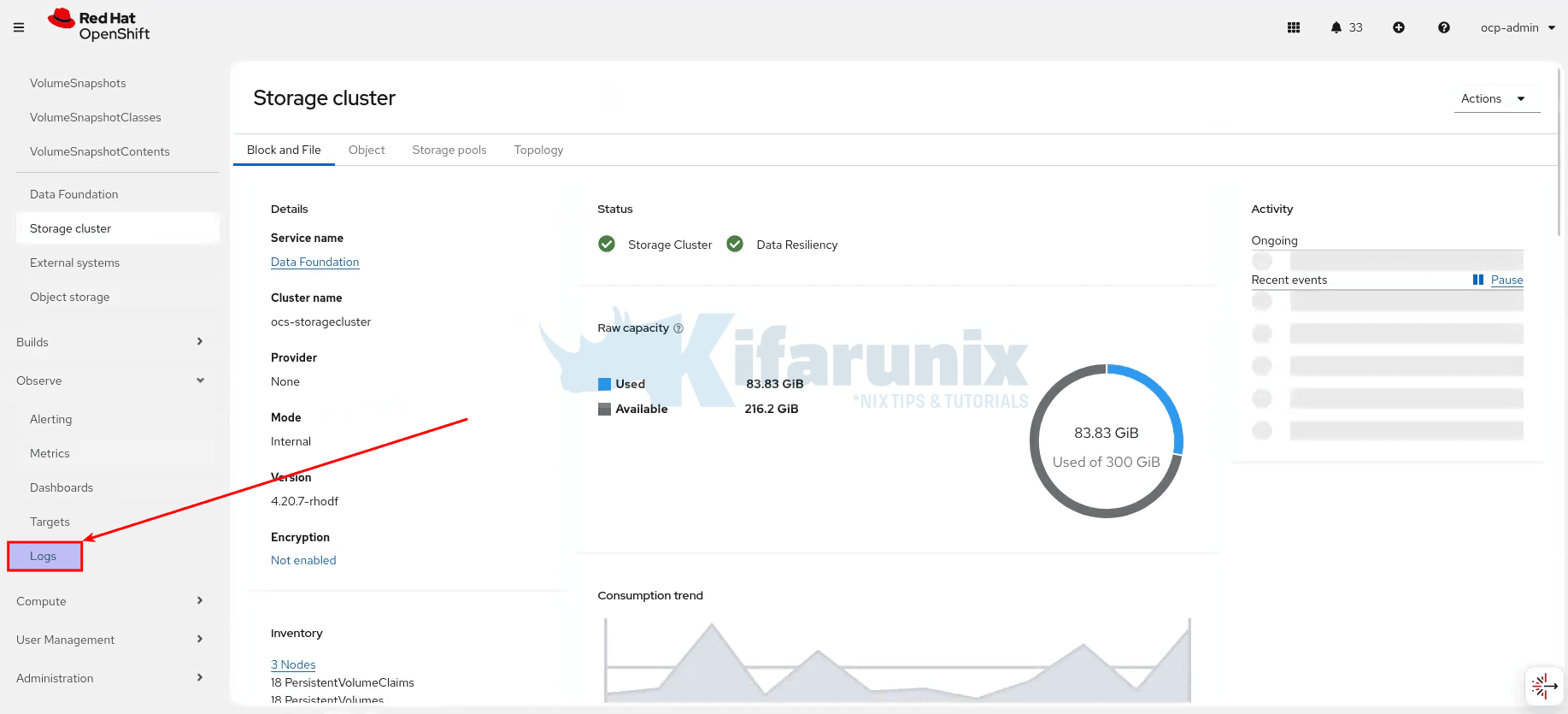
Wait about one minute, then refresh the OpenShift web console. The Observe > Logs menu item should now appear, showing that the console logging plugin is enabled and connected to your LokiStack.
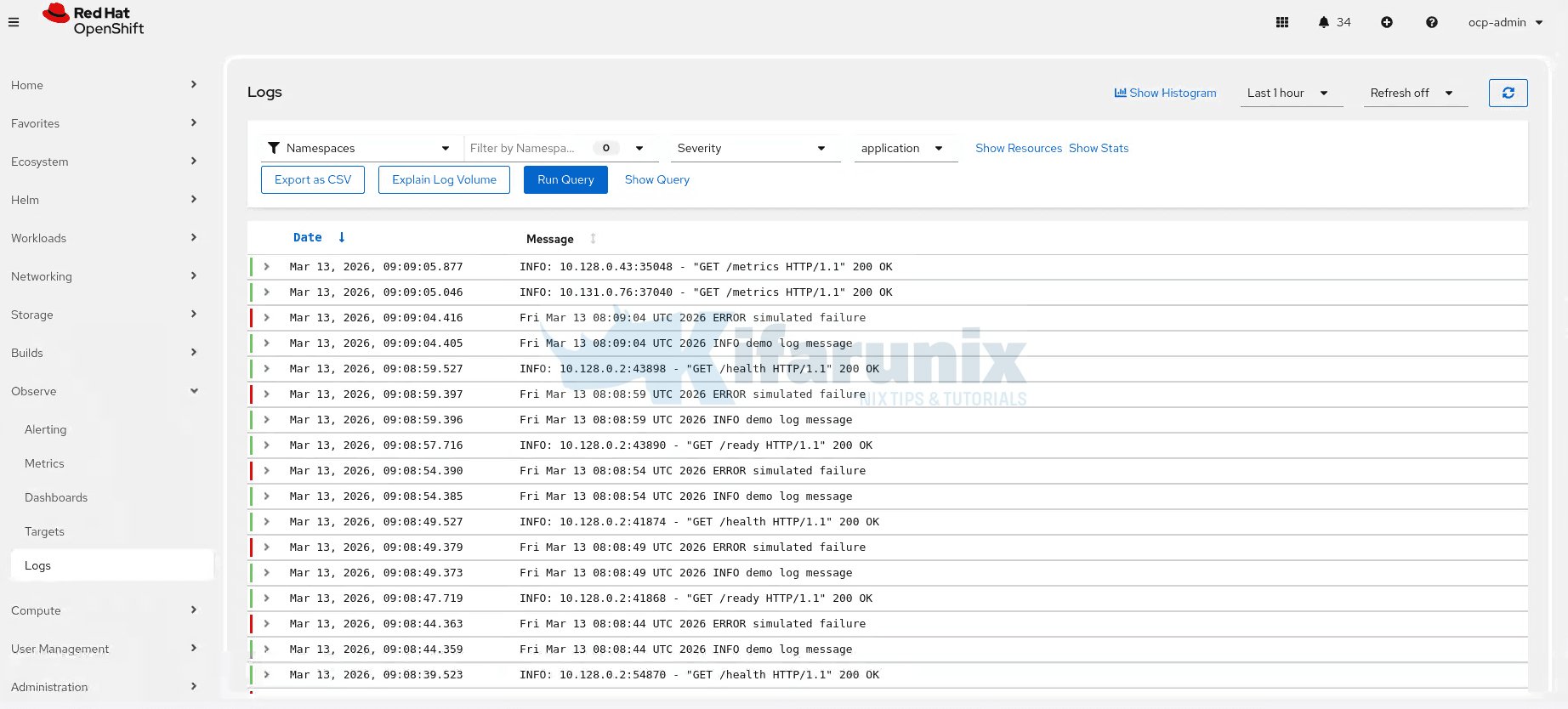
Step 11: Query Logs from the Console
To query logs from the console:
- Navigate to Observe > Logs.
- Select the desired log type from the dropdown (e.g., infrastructure, application, or audit).
- The console will automatically runs the query and displays matching log entries immediately.
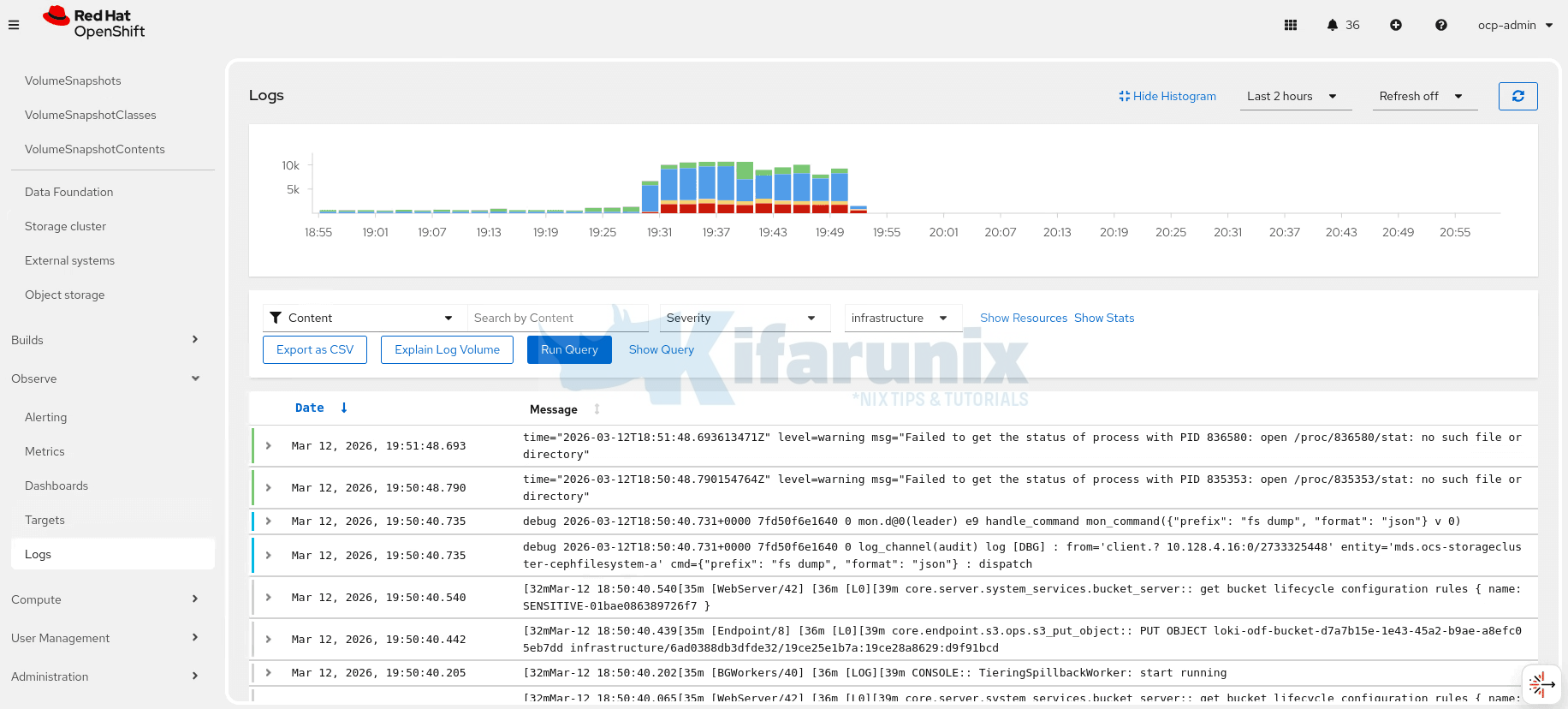
You can refine the results using the available controls:
- Filter selector: choose whether the search applies to Content, Namespaces, Pods, or Containers.
- Search field: enter text to filter logs based on the selected filter type.
- Severity: filter logs by severity level (for example warning, error, info).
- Log type selector: switch between Application, Infrastructure, and Audit logs.
- Show Resources: display additional resource filters.
- Show Stats: display statistics about the query results.
- Histogram: show or hide the log volume histogram.
- Time range: select the query time window (for example Last 2 hours).
- Refresh: configure the automatic refresh interval for the query results.
Sample application logs:
Troubleshooting Common Issues
Start Every Troubleshooting Session with a Full Stack Health Check
- LokiStack overall status
oc get lokistack logging-loki -n openshift-logging -o jsonpath='{.status.conditions}' | jq
- All pods in openshift-logging
oc get pods -n openshift-logging
- CLF pipeline status
oc get clusterlogforwarder instance -n openshift-logging -o jsonpath='{.status}' | jq
- Vector collector errors:
oc logs -n openshift-logging -l app.kubernetes.io/component=collector --tail=20 | grep -i "error\|warn|fail"
Issue 1: Loki Pods Crash with x509 Certificate Error
Loki pods (Compactor, Ingester, Querier, or Index Gateway) crash with the following error in the logs:
tls: failed to verify certificate: x509: certificate signed by unknown authorityCause: The storage.tls block is missing from the LokiStack CR. OpenShift’s internal service CA (self-signed) is used by ODF/NooBaa’s S3 endpoint but is not trusted by Loki by default.
Fix: Apply the patch to the LokiStack CR to specify the CA certificates:
oc patch lokistack logging-loki -n openshift-logging --type=merge \
  -p '{"spec":{"storage":{"tls":{"caName":"openshift-service-ca.crt","caKey":"service-ca.crt"}}}}'
The Loki Operator will restart affected pods automatically. Confirm they have recovered with:
oc get pods -n openshift-logging -w | grep -E "compactor|ingester|querier|index-gateway"Issue 2: LokiStack Not Ready, Storage Secret Error
LokiStack conditions show Failed or events reference a storage secret error.
Diagnosis:
oc get lokistack logging-loki -n openshift-logging -o jsonpath='{.status.conditions}' | jqoc get secret logging-loki-odf -n openshift-logging -o yamlCause: Secret name mismatch or missing/incorrect field. The secret must contain exactly these five fields:
access_key_idaccess_key_secretbucketnamesendpointforcepathstyle
Note: The region field is not required for ODF/NooBaa and must not be present. The most common cause of connection failure is a missing forcepathstyle: "true" field.
Issue 3: Vector 500 Errors, No Schema Config Found
Vector collector logs show:
error=Server responded with an error: 500 Internal Server ErrorAnd the LokiStack gateway logs show:
no schema config found for time <unix-timestamp>Cause: The effectiveDate in the LokiStack CR schema is set too recently (e.g., yesterday). Loki rejects log entries with timestamps that predate the schema’s effective date.
Diagnosis:
oc logs -n openshift-logging -l app.kubernetes.io/component=gateway --tail=50 | grep "schema"Fix: Delete and recreate the LokiStack CR with effectiveDate set at least two months in the past. You cannot patch the effectiveDate retroactively, the operator will reject it with:
Cannot retroactively add schema.To fix:
oc delete lokistack logging-loki -n openshift-loggingWait for all Loki pods to terminate, then recreate with:
effectiveDate: "$(date -d '2 months ago' +%Y-%m-%d)"Issue 4: Loki Pod Stuck in Pending, Insufficient CPU
One or more Loki pods remain in Pending state. oc describe pod shows:
0/9 nodes are available: 3 Insufficient cpu, 3 node(s) didn't match Pod's node affinity/selector.Diagnosis:
oc describe pod <pending-pod-name> -n openshift-logging | grep -A20 Eventsoc describe nodes <infra-node> | grep -A5 "Allocated resources"Cause: The infra/storage nodes do not have enough free CPU requests to fit the LokiStack component, even if actual utilization is low. Kubernetes schedules on requests, not actual usage. This is common when ODF and LokiStack share the same nodes.
Fix: Expand your nodes resources or switch to a smaller LokiStack size. If already on 1x.extra-small, use 1x.pico (available from Logging 6.1+, requires only 7 vCPUs total):
oc delete lokistack logging-loki -n openshift-loggingRecreate with appropriate sizing as per your allocated resources to the nodes
Check available CPU requests before choosing a size:
oc describe nodes <infra-nodes> | grep -A5 "Allocated resources"oc describe nodes <infra-nodes> | grep -A5 "Allocatable"Issue 5: Vector 429 Too Many Requests on Startup
Vector logs show repeated:
error=Server responded with an error: 429 Too Many RequestsCause: This is expected behavior after a LokiStack outage or restart. Vector buffers logs locally while Loki is unavailable, then attempts to push the entire backlog at once when Loki recovers. Loki’s ingestion rate limits throttle the burst.
Fix: This is not an error requiring intervention. Vector retries automatically with exponential backoff. The 429 errors will subside within a few minutes as the backlog drains.
Issue 6: No Logs Visible in Observe > Logs
The Logs UI loads but shows no data points.
Diagnosis: Follow these steps in order:
- Verify the CLF is authorized and all pipelines are valid:
All conditions must show status:oc get clusterlogforwarder instance -n openshift-logging -o jsonpath='{.status}' | jq"True". Look for Authorized, Valid, and Ready. - Check if Vector is actually reaching Loki (no persistent
500errors):oc logs -n openshift-logging -l app.kubernetes.io/component=collector --tail=30 | grep -i "error\|warn" - Verify the CLF output points to the correct LokiStack name:
This must returnoc get clusterlogforwarder instance -n openshift-logging \
-o jsonpath='{.spec.outputs[*].lokiStack.target.name}{"\n"}'logging-loki. A name mismatch causes a DNS resolution failure in Vector, and all writes will fail silently with a connection error. - For application logs showing no data, confirm you have user workloads running (outside
openshift-*andkube-*namespaces):
If no user workloads exist, there are genuinely no application logs to display. Deploy a test workload to generate some.oc get pods -A | grep -v -E "openshift-|kube-|default" - Confirm the UIPlugin is healthy:
oc get uiplugin logging -o jsonpath='{.status}' | jq
Issue 7: Collector Pods Not Running on All Nodes
The command:
oc get pods -n openshift-logging -l app.kubernetes.io/component=collector -o wideshows fewer pods than cluster nodes.
Diagnosis:
oc get pods -n openshift-logging -l app.kubernetes.io/component=collector -o wideoc get nodesCause: The Vector DaemonSet cannot schedule on nodes with taints it does not tolerate. Storage/infra nodes with the node.ocs.openshift.io/storage=true:NoSchedule ODF taint require an explicit toleration in the CLF spec.collector.tolerations.
Fix: Verify that the CLF includes the toleration:
oc get clusterlogforwarder instance -n openshift-logging -o jsonpath='{.spec.collector}' | jqIf missing, fix it accordingly.
So what is next?
- Configure per-tenant retention. The
limits.global.retention.dayssetting applies one retention period to all logs. For granular control, for example, 7 days for application logs but 30 days for audit logs, configure thelimits.tenantssection in the LokiStack CR. - Forward logs to an external system. LokiStack is a short-term store only. For logs beyond 30 days or SIEM integration, add a second output in the ClusterLogForwarder pointing to Splunk, OpenSearch, or an S3 bucket with lifecycle policies. Vector can write to multiple outputs simultaneously.
- Monitor the logging stack. LokiStack, Vector, and ODF all expose Prometheus metrics. Add alerting rules for
loki_distributor_bytes_received_totalstalling (ingestion failure),vector_component_discarded_events_total(collector dropping records), and ODF object bucket capacity. - Confirm the Compactor is running. The Compactor is solely responsible for enforcing retention and deleting expired data from ODF.