
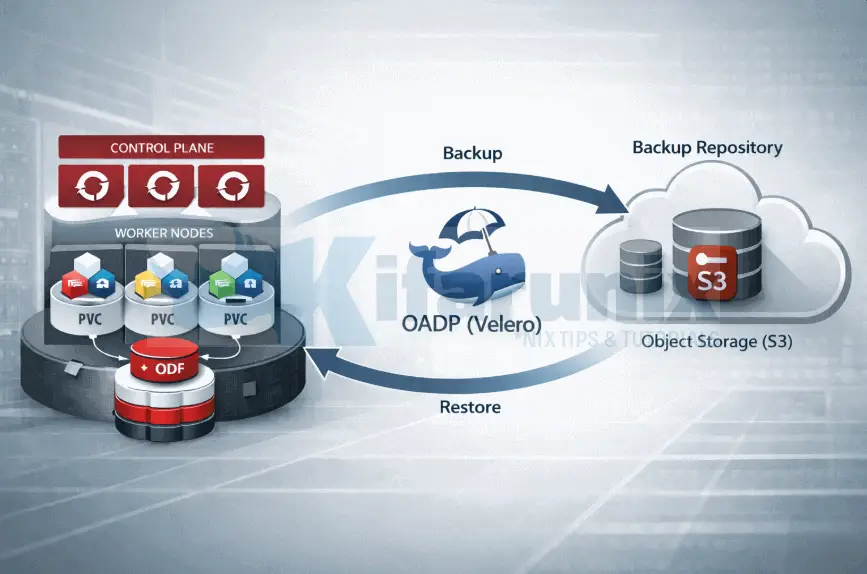
In this blog post, we cover how to install and configure OADP Operator on OpenShift 4 including preparing object storage, configuring credentials, setting up ODF for CSI snapshots, creating the DataProtectionApplication CR, and verifying the deployment. This is Part 1 of a three-part series on how to backup and restore applications in OpenShift 4 with OADP (Velero).
For background on what OADP is, how it differs from etcd backups, and how it backs up persistent volumes, see the series introduction.
Table of Contents
How to Install and Configure OADP Operator on OpenShift 4
Now that we’ve covered the background, let’s walk through the practical setup of OADP on OpenShift 4. The following steps guide you through installing the operator and preparing the required components for application backup and restore.
Step 1: Install the OADP Operator
The OADP Operator can be installed via the OpenShift web console or on CLI.
Via the Web Console
- Log in to your OpenShift web console.
- In the left navigation panel, click Ecosystem > Software Catalog.
- In the search box, type
OADP. From the results, select the OADP Operator published by Red Hat (not the community version).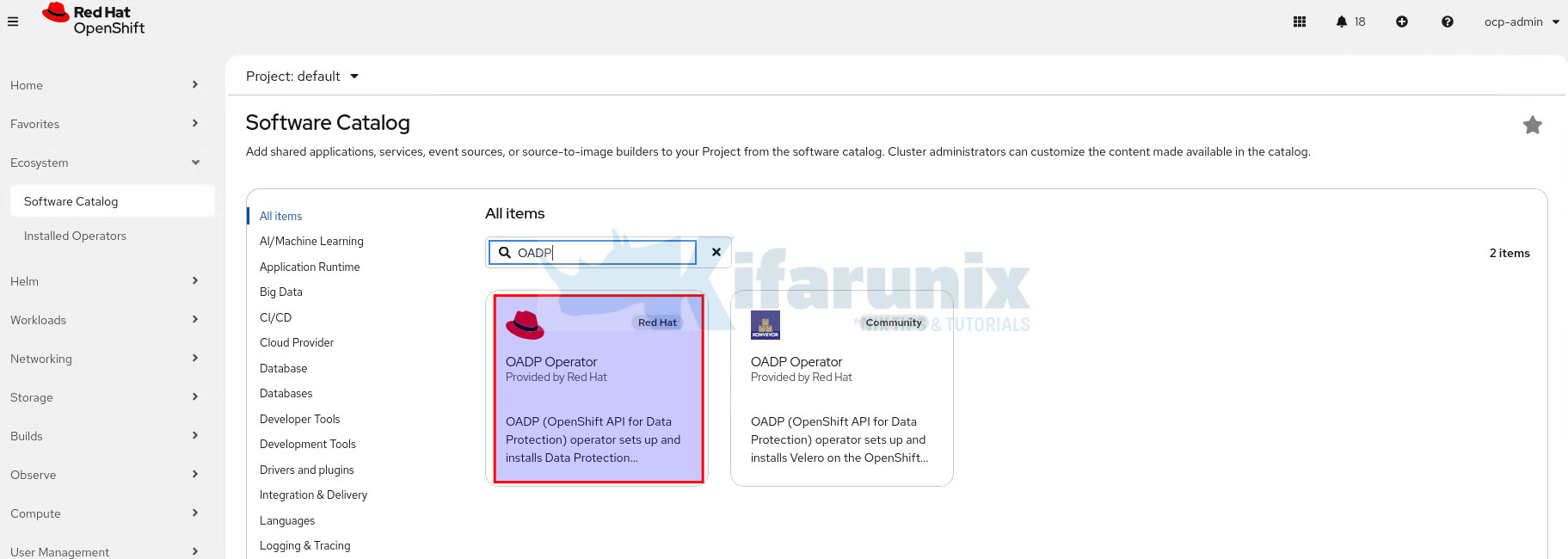
Select it and click Install. - On the installation page:
- Update channel: Select the channel matching your desired OADP version (e.g.,
stable-1.5.4for the latest stable release on OCP 4.20). - Installed Namespace: Leave the default. OADP will be installed into the
openshift-adpnamespace. This namespace is created automatically. - Update approval:
Automaticis fine for most environments; chooseManualif you want to approve each update.
- Update channel: Select the channel matching your desired OADP version (e.g.,
- Click Install and wait for the installation to complete.
- You will see the status change to Succeeded.
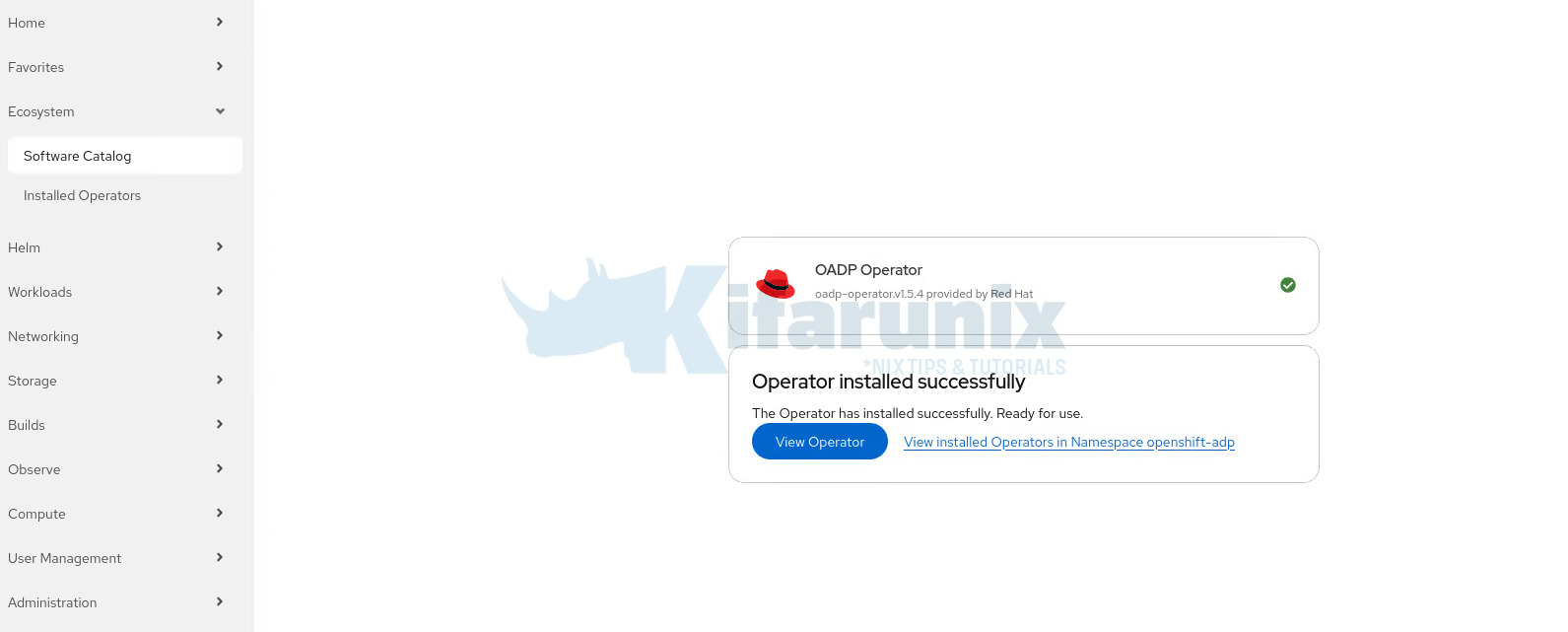
You can also deploy the Operator via the CLI, if you are planning on automating stuff.
Step 2: Prepare Object Storage
Velero requires an S3-compatible object storage bucket to store backup archives. The bucket must be reachable from the OpenShift cluster, specifically, the Velero and Node Agent pods must be able to reach the S3 endpoint over the network.
In this guide, we use MinIO as our backup target. MinIO is running as a standalone instance outside the cluster, which is the recommended approach. If the cluster is lost or being rebuilt, the backup data remains untouched in an external location.
Our cluster runs ODF, which provides Ceph RBD and CephFS for persistent volume storage. When a backup runs, Velero triggers a CSI snapshot against Ceph RBD at the block layer. Data Mover then reads from that snapshot and streams the volume data directly into MinIO over S3. ODF handles the snapshot; MinIO holds the final backup. The two do not need to speak to each other.
Before proceeding, ensure the following:
- MinIO is running and reachable from the cluster nodes
- A dedicated bucket has been created in MinIO for OADP backups
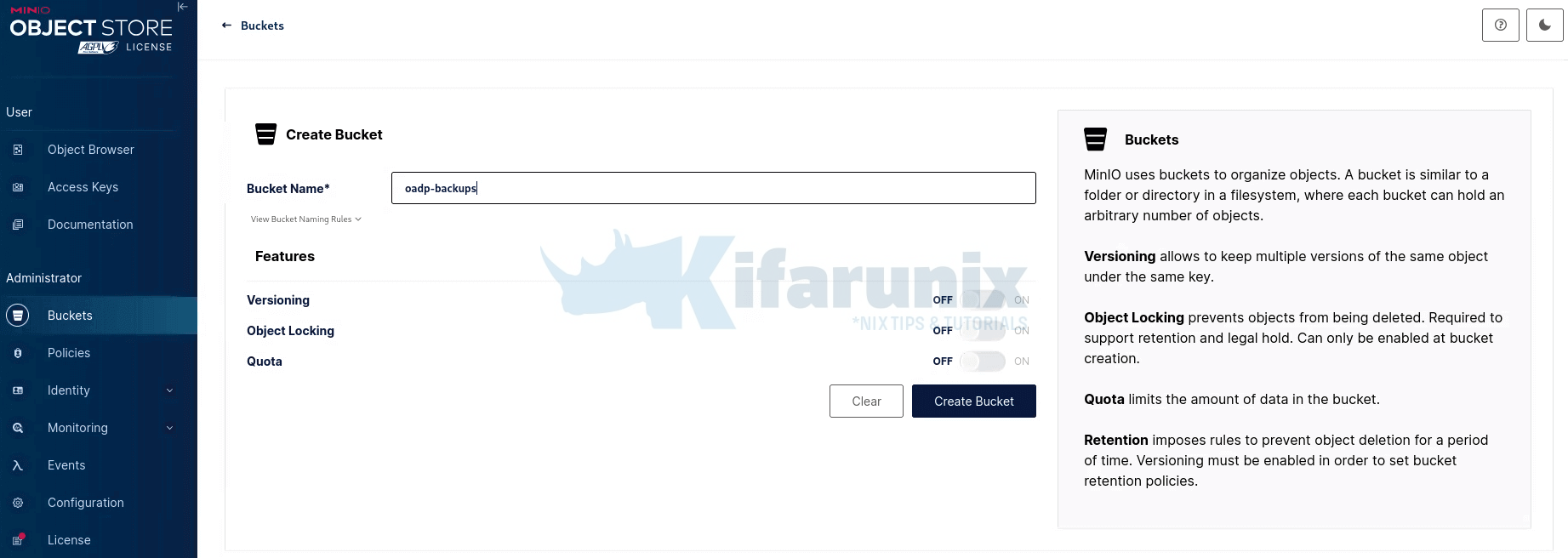
Sample access policy attached to the bucket:{ "Version": "2012-10-17", "Statement": [ { "Effect": "Allow", "Action": [ "s3:GetObject", "s3:DeleteObject", "s3:PutObject", "s3:AbortMultipartUpload", "s3:ListMultipartUploadParts" ], "Resource": [ "arn:aws:s3:::oadp-backups/*" ] }, { "Effect": "Allow", "Action": [ "s3:ListBucket", "s3:GetBucketLocation", "s3:ListBucketMultipartUploads" ], "Resource": [ "arn:aws:s3:::oadp-backups" ] } ] } - Create a user account (AWS_ACCESS_KEY_ID) and its password (AWS_SECRET_ACCESS_KEY) for managing the OADP backups and assign the policy above.
- In general, ensure you have the MinIO endpoint URL, bucket name, Access Key ID, and Secret Access Key available.
These values are required in the next step when creating the credentials secret.
S3 bucket versioning
Using S3 bucket versioning is known to cause failures with OADP backups. The OADP team does NOT recommend the use of S3 bucket versioning.
Errors can include:
- “unable to write blobcfg blob: PutBlob() failed for “kopia.blobcfg”: unable to complete PutBlob”
Step 3: Create the Cloud Credentials Secret
Velero needs credentials to authenticate with your S3 bucket. You provide these as a Kubernetes Secret in the openshift-adp namespace. The secret must contain a file named cloud in the AWS credentials file format.
Hence, let’s create the credentials file locally:
cat > s3-minio-credentials << EOF
[default]
aws_access_key_id=<YOUR_ACCESS_KEY_ID>
aws_secret_access_key=<YOUR_SECRET_ACCESS_KEY>
EOF
Replace <YOUR_ACCESS_KEY_ID> and <YOUR_SECRET_ACCESS_KEY> with the actual values from your IAM user or ODF/NooBaa output.
Create the Kubernetes Secret from this file:
oc create secret generic cloud-credentials \
  -n openshift-adp \
  --from-file cloud=s3-minio-credentials
The command:
- creates a
Secretnamedcloud-credentialsin theopenshift-adpnamespace. - The
--from-file cloud=s3-minio-credentialsflag creates a key namedcloudinside the Secret, with the contents of thes3-minio-credentialsfile as its value. - Velero will reference this key when it authenticates with S3.
Verify the secret was created:
oc get secret cloud-credentials -n openshift-adpOr you can extract them to confirm that the format follows the AWS CLI credentials convention.
oc extract --to=- secret/cloud-credentials -n openshift-adpDelete the local file once the secret is created, as it contains sensitive credentials in plain text:bash
rm -f s3-minio-credentialsStep 4: Prepare ODF for CSI Snapshots
If you are using ODF as your storage platform, like we do, this step is mandatory before any CSI snapshot-based PV backup can work. Velero does not auto-discover snapshot classes. It needs two explicit signals on a VolumeSnapshotClass before it can use it:
- A label telling it which
VolumeSnapshotClassto use - A
deletionPolicy: Retainto prevent snapshot data from being silently destroyed while Data Mover is still uploading
When ODF is installed, it creates two VolumeSnapshotClass resources automatically:
oc get volumesnapshotclassNAME DRIVER DELETIONPOLICY AGE
ocs-storagecluster-cephfsplugin-snapclass openshift-storage.cephfs.csi.ceph.com Delete 35d
ocs-storagecluster-rbdplugin-snapclass openshift-storage.rbd.csi.ceph.com Delete 35docs-storagecluster-rbdplugin-snapclasshandles block storage, used byReadWriteOncePVCs (databases, stateful workloads)ocs-storagecluster-cephfsplugin-snapclasshandles shared file storage, used byReadWriteManyPVCs
Neither class has the Velero label, and both ship with deletionPolicy: Delete.
While you could just patch the VolumeSnapshotClasses to update the labels and deletion policy, the ODF-provided VolumeSnapshotClasses are owned and continuously reconciled by the ODF operator via the StorageClient controller:
oc get volumesnapshotclass ocs-storagecluster-rbdplugin-snapclass -o yaml | grep -A6 ownerReferences ownerReferences:
- apiVersion: ocs.openshift.io/v1alpha1
blockOwnerDeletion: true
controller: true
kind: StorageClient
name: ocs-storagecluster
...This means, any change you make to these classes will be reverted the moment the operator reconciles them. When you apply a patch, the operator sees the drift from its desired state, and it silently sets everything back to default. The changes do not stick.
The clean solution is to create your own VolumeSnapshotClasses using the same CSI drivers, with both signals baked in from the start. Velero matches on the driver field, not the class name, so these work identically.
Create Velero-Specific VolumeSnapshotClasses
You can execute the command below to create the custom Velero CephFS and RBD VolumeSnapshotClasses;
cat <<'EOF' | oc apply -f -
apiVersion: snapshot.storage.k8s.io/v1
kind: VolumeSnapshotClass
metadata:
  name: ocs-rbd-snapclass-velero
  labels:
    velero.io/csi-volumesnapshot-class: "true"
driver: openshift-storage.rbd.csi.ceph.com
deletionPolicy: Retain
---
apiVersion: snapshot.storage.k8s.io/v1
kind: VolumeSnapshotClass
metadata:
  name: ocs-cephfs-snapclass-velero
  labels:
    velero.io/csi-volumesnapshot-class: "true"
driver: openshift-storage.cephfs.csi.ceph.com
deletionPolicy: Retain
EOF
You should now have Velero volumesnapshotclasses:
oc get volumesnapshotclassNAME DRIVER DELETIONPOLICY AGE
ocs-cephfs-snapclass-velero openshift-storage.cephfs.csi.ceph.com Retain 6s
ocs-rbd-snapclass-velero openshift-storage.rbd.csi.ceph.com Retain 6s
ocs-storagecluster-cephfsplugin-snapclass openshift-storage.cephfs.csi.ceph.com Delete 35d
ocs-storagecluster-rbdplugin-snapclass openshift-storage.rbd.csi.ceph.com Delete 35dUnderstanding the two Signals
The label tells Velero this VolumeSnapshotClass is available for use. Velero then picks the correct one automatically based on the CSI driver that provisioned the PVC being backed up. When Velero needs to snapshot a PVC, it reads the CSI driver name from the StorageClass that provisioned it, then matches it against the driver field of the labeled classes:
- A PVC provisioned by
openshift-storage.rbd.csi.ceph.commatchesocs-rbd-snapclass-velero - A PVC provisioned by
openshift-storage.cephfs.csi.ceph.commatchesocs-cephfs-snapclass-velero
Velero never uses both simultaneously. It always selects the one whose driver matches the PVC it is snapshotting.
The deletionPolicy is what protects the snapshot while Data Mover is working. When Data Mover is in use, the CSI snapshot is transient by design. It is not your backup destination, your backup storage is. The snapshot exists purely to give Data Mover a consistent, point-in-time view of the volume to read from. Once Data Mover finishes streaming that data into the backup storage, Velero explicitly deletes the snapshot as part of its own cleanup.
The problem with Delete is timing. If anything triggers VolumeSnapshot deletion while Data Mover is still uploading:
- A TTL race
- A mistaken manual deletion
- A Velero bug
Ceph destroys the snapshot immediately, Data Mover loses its source, and the backup landing in MinIO is incomplete.
With Retain, the VolumeSnapshotContent persists until Velero explicitly removes it after confirming the upload completed successfully. The snapshot does not accumulate indefinitely. In a healthy setup it exists for minutes. But its lifecycle is controlled by Velero, not by a Kubernetes cascade you did not intend.
Verify:
oc get volumesnapshotclass -l velero.io/csi-volumesnapshot-class=trueNAME DRIVER DELETIONPOLICY AGE
ocs-cephfs-snapclass-velero openshift-storage.cephfs.csi.ceph.com Retain 5m39s
ocs-rbd-snapclass-velero openshift-storage.rbd.csi.ceph.com Retain 5m39sBoth classes are labeled, both have deletionPolicy: Retain, and neither is owned by the ODF operator. Velero will use these for all CSI snapshot operations going forward.
Step 5: Create the DataProtectionApplication (DPA) Custom Resource
The DataProtectionApplication CR is the master configuration object for OADP. It tells Velero how to deploy, which plugins to load, where to store backups, and how to handle PV data.
Before looking at the manifest, it is worth being clear about the two distinct roles in our setup:
- ODF is where our data lives. It provides the CSI storage driver and fulfills
VolumeSnapshotrequests via Ceph RBD and CephFS - MinIO is where our backups go. It is the external S3-compatible target that Velero and Data Mover write to
These are not interchangeable. ODF handles the snapshot. Data Mover moves it to MinIO.
Here is our sample DPA manifest:
cat oadp-minio-dpa.yamlapiVersion: oadp.openshift.io/v1alpha1
kind: DataProtectionApplication
metadata:
name: oadp-minio
namespace: openshift-adp
spec:
configuration:
nodeAgent:
enable: true
uploaderType: kopia
velero:
defaultPlugins:
- openshift
- aws
- csi
defaultSnapshotMoveData: true
defaultVolumesToFsBackup: false
resourceTimeout: 10m
backupLocations:
- name: default
velero:
provider: aws
default: true
objectStorage:
bucket: oadp-backups
prefix: velero
config:
profile: default
region: minio
s3Url: http://<MINIO_HOST>:9000
s3ForcePathStyle: "true"
insecureSkipTLSVerify: "true"
checksumAlgorithm: ""
credential:
name: cloud-credentials
key: cloudWhere:
nodeAgent.enable: true: required for Data Mover to function. The Node Agent is the component that reads snapshot data and streams it to the configuredBackupStorageLocationvia Kopia. In our setup, that is MinIOnodeAgent.uploaderType: kopia: Kopia is the only recommended uploader in OADP 1.5. Restic is deprecateddefaultPlugins:openshift: mandatory for all OpenShift clusters. Handles SCCs, Routes, and namespace UID/GID annotations on restoreaws: required for any S3-compatible backend. In our setup, this is what allows Velero to communicate with MinIOcsi: required for CSI snapshot support via the Kubernetes VolumeSnapshot API. In our setup, this enables ODF to fulfill snapshot requests
defaultSnapshotMoveData: true: activates Data Mover. Without this, CSI snapshots stay local inside the storage backend and never reach object storage. In our setup, snapshots would remain inside Ceph and never reach MinIOdefaultVolumesToFsBackup: false: we are using CSI snapshots, not file system backup. Any PVC without a matching labeled VolumeSnapshotClass will be skipped with a warning rather than silently falling back to FSBbucket: oadp-backups: the object storage bucket where all backup data lands. In our setup, this is the MinIO bucket created in Step 2prefix: velero: a subfolder within the bucket. Useful for keeping Velero objects organized, especially if the bucket is sharedprofile: default: references the credentials profile in the secret created in Step 3. This matches[default]in thes3-minio-credentialsfile.region: object storage does not always enforce a region string. For real AWS S3 this must be a valid region. For S3-compatible stores like MinIO, any value works.miniois the conventional choice in our setups3Url: the full endpoint of your S3-compatible object storage backend. Only required for non-AWS S3 stores. In our setup, this points to our MinIO instance e.g.http://minio.example.com:9000. Usehttps://if TLS is configureds3ForcePathStyle: "true": forces path-style URL addressing (http://host/bucket) instead of virtual-hosted style (http://bucket.host). Required for most S3-compatible stores including MinIOchecksumAlgorithm: "": disables the CRC32C checksum header introduced in Velero 1.14. Real AWS S3 supports it but most S3-compatible stores including MinIO do not, returning HTTP 400 on every object write if presentinsecureSkipTLSVerify: "true": skips TLS certificate verification. Set tofalseand provide acaCertif your object storage endpoint has a valid signed certificatecredential.name: cloud-credentials: references the Secret containing the object storage access and secret keys. In our setup, this is the MinIO secret created in Step 3credential.key: cloud: the key within that Secret that holds the credentials file
Resource Sizing for Velero and Node Agent
By default, OADP sets CPU requests of 500m and memory requests of 128Mi on the Velero and Node Agent pods. These defaults are suitable for light to moderate workloads but may result in scheduling failures or OOM kills in busy clusters or environments with large persistent volumes.
The following table summarizes Red Hat’s recommended sizing based on scale and performance lab testing:
| Configuration | Average Usage | Large Usage |
|---|---|---|
| CSI (Velero) | CPU: 200m req / 1000m limit, Memory: 256Mi req / 1024Mi limit | CPU: 200m req / 2000m limit, Memory: 256Mi req / 2048Mi limit |
| Restic (legacy) | CPU: 1000m req / 2000m limit, Memory: 16Gi req / 32Gi limit | CPU: 2000m req / 8000m limit, Memory: 16Gi req / 40Gi limit |
| Data Mover | resourceTimeout: 10m | resourceTimeout: 60m (e.g. restoring a 500GB PV) |
Average usage covers most environments. Large usage applies to scenarios such as PVCs over 500GB, 100+ namespaces, or thousands of pods in a single namespace.
Both Velero and Node Agent resources can be tuned in the DataProtectionApplication using podConfig.resourceAllocations:
configuration:
  velero:
    podConfig:
      resourceAllocations:
        requests:
          cpu: 200m
          memory: 256Mi
        limits:
          cpu: "2"
          memory: 2Gi
  nodeAgent:
    enable: true
    uploaderType: kopia
    podConfig:
      resourceAllocations:
        requests:
          cpu: 500m
          memory: 512Mi
        limits:
          cpu: "4"
          memory: 16Gi
A few points to note:
- Node-agent sizing matters most. Node agents run on every worker node and perform the actual data movement via Kopia. For large PVCs or many concurrent backups, memory is the more common bottleneck. Size them based on the largest single PVC in the environment.
- Velero sizing is less critical because Velero itself only orchestrates. The heavy lifting is delegated to node-agent. The default
500m/512Miis usually fine unless backing up a very large number of namespaces or resources simultaneously. - Resource Requests drive scheduling. The Kubernetes scheduler only looks at requests, not limits. If worker nodes are heavily utilized, even a modestly sized request can cause a node-agent pod to go Pending. Lower requests let the pod schedule; set limits generously to allow bursting during active backups.
- Do not omit
limitsin production. Without limits, a Kopia upload from a large PVC can consume unbounded memory and trigger an OOM kill of the node-agent pod, causing the backup to fail mid-transfer.
In our lab environment, worker capacity is constrained. A such, I reduced both Velero and Node Agent requests to 200m CPU and 128Mi memory to ensure reliable scheduling while maintaining acceptable performance for the workloads tested here.
See my updated DPA manifest:
apiVersion: oadp.openshift.io/v1alpha1
kind: DataProtectionApplication
metadata:
  name: oadp-minio
  namespace: openshift-adp
spec:
  configuration:
    nodeAgent:
      enable: true
      uploaderType: kopia
      podConfig:
        resourceAllocations:
          requests:
            cpu: 200m
            memory: 128Mi
          limits:
            cpu: 500m
            memory: 512Mi
    velero:
      defaultPlugins:
        - openshift
        - aws
        - csi
      defaultSnapshotMoveData: true
      defaultVolumesToFsBackup: false
      resourceTimeout: 10m
      podConfig:
        resourceAllocations:
          requests:
            cpu: 200m
            memory: 128Mi
          limits:
            cpu: 500m
            memory: 512Mi
  backupLocations:
    - name: default
      velero:
        provider: aws
        default: true
        objectStorage:
          bucket: oadp-backups
          prefix: velero
        config:
          profile: default
          region: minio
          s3Url: http://<MINIO_HOST>:9000
          s3ForcePathStyle: "true"
          insecureSkipTLSVerify: "true"
          checksumAlgorithm: ""
        credential:
          name: cloud-credentials
          key: cloud
Let’s create the DPA CR;
oc apply -f oadp-minio-dpa.yamlStep 6: Verify the OADP Deployment
With the DPA applied, the OADP operator immediately begins reconciling. It deploys the Velero server, the Node Agent DaemonSet, and validates the connection to the configured BackupStorageLocation.
Before proceeding, it is worth confirming that all three are healthy.
Start by confirming the DPA has been successfully reconciled:
oc get dpa -n openshift-adpNAME RECONCILED AGE
oadp-minio True 22sRECONCILED: True confirms the OADP operator has successfully processed the DPA and deployed all required components.
If RECONCILED shows False, describe the DPA for error details:
oc describe dpa oadp-minio -n openshift-adpYou can verify what was deployed:
oc get all -n openshift-adpNAME READY STATUS RESTARTS AGE
pod/node-agent-krpfx 1/1 Running 0 42s
pod/node-agent-lgpc9 1/1 Running 0 42s
pod/node-agent-zlxz7 1/1 Running 0 42s
pod/openshift-adp-controller-manager-6b9ddbc94b-l9zzs 1/1 Running 0 16h
pod/velero-7864774c44-b4jw5 1/1 Running 0 42s
NAME TYPE CLUSTER-IP EXTERNAL-IP PORT(S) AGE
service/openshift-adp-controller-manager-metrics-service ClusterIP 172.30.71.229 <none> 8443/TCP 16h
service/openshift-adp-velero-metrics-svc ClusterIP 172.30.5.161 <none> 8085/TCP 42s
NAME DESIRED CURRENT READY UP-TO-DATE AVAILABLE NODE SELECTOR AGE
daemonset.apps/node-agent 3 3 3 3 3 kubernetes.io/os=linux 42s
NAME READY UP-TO-DATE AVAILABLE AGE
deployment.apps/openshift-adp-controller-manager 1/1 1 1 16h
deployment.apps/velero 1/1 1 1 42s
NAME DESIRED CURRENT READY AGE
replicaset.apps/openshift-adp-controller-manager-6b9ddbc94b 1 1 1 16h
replicaset.apps/velero-7864774c44 1 1 1 42sSome of the things to confirm:
- One
veleropod running. This is the backup engine that processes Backup and Restore objects. - One
node-agentpod per worker node, all Running. These handle Data Mover uploads to your backup storage. In our setup we have three worker nodes, so three node-agent pods are expected. If any are Pending, see the troubleshooting section below. - The
openshift-adp-controller-managerpod is the OADP operator itself. It was running before the DPA was created and should be ignored when assessing DPA deployment health. - No pods in
CrashLoopBackOfforError.
Check the BackupStorageLocation is Available:
oc get backupstoragelocation -n openshift-adpNAME PHASE LAST VALIDATED AGE DEFAULT
default Available 33s 9m44s trueThe BSL phase reflects whether Velero can successfully reach and authenticate to your backup storage. If it shows Unavailable, the problem is almost always one of:
- incorrect
s3Url - wrong bucket name
- bucket does not exist, or
- invalid credentials in the
cloud-credentialsSecret.
Check Velero logs with:
oc logs deployment/velero -n openshift-adp | grep -i "error\|unavailable\|failed"Do not proceed to running backups until the BSL shows Available.
Continue to Part 2: How to Back Up Applications and Persistent Volumes in OpenShift with OADP
Conclusion
At this point, you should have a fully operational OADP deployment:
- The Operator is installed
- target object storage (MinIO in this guide series) is configured as the backup target,
- the cloud credentials secret is in place,
- the Velero-specific
VolumeSnapshotClassresources are properly configured to work with ODF without interfering with the operator reconciliation process. - The
BackupStorageLocationreports Available, confirming that Velero can successfully authenticate and communicate with the object storage backend.
Everything that follows in this series builds on this foundation. Misconfigurations in the DataProtectionApplication, incorrect snapshot class settings, or an unavailable backup storage location can cause backups to fail silently, issues that often surface only during a restore. Ensuring that this initial setup is correct is critical for reliable backup and recovery operations.