

In this tutorial, you will learn how to install Gitlab on Debian 13. GitLab is an open source end-to-end software development platform with built-in version control, issue tracking, code review, CI/CD, etc. It is is a complete DevOps platform, delivered as a single application.
Table of Contents
How to Install Gitlab on Debian 13 with SSL/TLS
System Requirements
Below are the bare minimum software and hardware system requirements to install Gitlab with SSL/TLS certificates on Debian 13.
Hardware Requirements
Ensure the system you want to host with Gitlab has met the following minimum hardware requirements;
- Storage: Enough storage depending on the size of the repositories you want to store in GitLab.
- CPU: At least 4 cores. (supports up to 500 users).
- Memory: At least 4GB RAM (supports up to 500 users).
- Swap: At least 2GB of swap memory.
For other system requirements, the package installer will take care of it, unless you are doing self compilation.
Read more about the requirements of installing Gitlab on Requirements page.
Install Gitlab on Debian 13
Run system update;
sudo apt updateRun the command below to install some required package dependencies.
sudo apt install curl tzdata ca-certificatesIn this tutorial, we are installing Gitlab Community Edition, CE. There are two ways in which you can install Gitlab.
Install Gitlab on Debian 13 using DEB Binary package
To install Gitlab using DEB binary package, download the binary from the Gitlab packages page and install it manually using apt or dpkg commands;
Replace the value of the VER above with the current Gitlab ce release version.
VER=18.8.7Then download and install the binary.
wget --content-disposition https://packages.gitlab.com/gitlab/gitlab-ce/packages/debian/noble/gitlab-ce_${VER}-ce.0_amd64.deb/download.debsudo apt install ./gitlab-ce_${VER}-ce.0_amd64.debsudo EXTERNAL_URL="https://gitlab.kifarunix.com" apt install ./gitlab-ce_${VER}-ce.0_amd64.debWe will configure Gitlab in the next steps.
Install Gitlab on Debian 13 from APT Repository
To install Gitlab from APT repository on Debian 13, you need to install the Gitlab repo by running the command below;
curl -sS https://packages.gitlab.com/install/repositories/gitlab/gitlab-ce/script.deb.sh | sudo bashOnce the Gitlab package repo is done, install Gitlab CE on Debian 13;
sudo apt updateReplace the domain name accordingly.
sudo EXTERNAL_URL="https://gitlab.kifarunix.com" apt install gitlab-ceConfigure Gitlab on Debian 13
Set External URL for GitLab Server
If you didn’t specify the Gitlab URL during installation, you can edit the /etc/gitlab/gitlab.rb configuration file and replace the value of the external_url parameter with your Gitlab server URL.
sudo grep "^external_url" /etc/gitlab/gitlab.rbOutput;
external_url 'http://gitlab.example.com'Replace the Gitlab external URL domain.
sudo vim /etc/gitlab/gitlab.rb#external_url 'http://gitlab.example.com'
external_url 'https://gitlab.kifarunix.com'Notice that I also enabled HTTPS for the domain.
Enable Gitlab SSL/TLS Settings
Once the Gitlab package is installed, you can configure it to use SSL/TLS certificates. There are two ways in which you can configure Gitlab with SSL/TLS certificates;
- Using free and automated HTTPS with Let’s Encrypt
- Manually configuring HTTPS with your own self signed certificates
Assuming you have already have generated Let’s Encrypt SSL certs;
sudo ls -1 /etc/letsencrypt/live/kifarunix.comcert.pem
chain.pem
fullchain.pem
privkey.pem
README
You can configure Gitlab to use Let’s Encrypt certs as follows;
sudo vim /etc/gitlab/gitlab.rbNext, scroll down to Gitlab NGINX section and make the following adjustments (as per your setup).
################################################################################
## GitLab NGINX
##! Docs: https://docs.gitlab.com/omnibus/settings/nginx.html
################################################################################

nginx['enable'] = true
nginx['client_max_body_size'] = '250m'
nginx['redirect_http_to_https'] = true
...
...
nginx['ssl_certificate'] = "/etc/letsencrypt/live/kifarunix.com/fullchain.pem"
nginx['ssl_certificate_key'] = "/etc/letsencrypt/live/kifarunix.com/privkey.pem"

...
...
nginx['ssl_protocols'] = "TLSv1.2 TLSv1.3"
Save the file and exit.
If you want to use your own self signed SSL/TLS certs, you can generate and use them as follows.
Create a directory to store the SSL certs;
mkdir /etc/gitlab/sslNext, generate the self signed SSL certs by running the command below. Be sure to replace the certificates details accordingly in the command below;
openssl req -newkey rsa:4096 -x509 -sha512 -days 3650 \
        -nodes -out /etc/gitlab/ssl/kifarunix-demo.crt \
        -keyout /etc/gitlab/ssl/kifarunix-demo.key \
        -subj "/C=US/ST=California/L=San Francisco/O=Kifarunix-demo Ltd/CN=*.kifarunix-demo.com/"
Copy the public certificate file only into the /etc/gitlab/trusted-certs directory.
mkdir /etc/gitlab/trusted-certscp /etc/gitlab/ssl/kifarunix-demo.crt /etc/gitlab/trusted-certs/Other Gitlab Configurations
There are quite number of configuration options in the /etc/gitlab/gitlab.rb configuration. Go through the configuration and make appropriate changes that suits your needs.
Save and exit the configuration file once you are done with the configurations.
Reconfigure Omnibus GitLab
Once the setup is done, reconfigure Omnibus Gitlab. Reconfiguration is needed whenever there is any configuration changes.
sudo gitlab-ctl reconfigure
Sample command output;
Are you experiencing long wait to time outs waiting for logrotate socket to appear?
...
* ruby_block[wait for logrotate service socket] action run...
Ensure that the Gitlab runit service supervisor (runsvdir) is running;
systemctl status gitlab-runsvdir.serviceIf it is not running, restart it;
sudo systemctl restart gitlab-runsvdir.serviceConfirm status again!
systemctl status gitlab-runsvdir.serviceAfter that, re-run the reconfiguration.
Based on the summary of reconfiguration, Gitlab login username is root and the password is stored in the file, /etc/gitlab/initial_root_password.
sudo grep Password: /etc/gitlab/initial_root_passwordPassword: 5KLL7fXIMWPuaSf1qANpKs6scO0ZwwOxY6UhvRiG4NQ=Reset Gitlab User Password
If you want to reset Gitlab user password, run the command below;
sudo gitlab-rake "gitlab:password:reset"The command will prompt to enter the username and password.
You can specify the username in command line. Replace the username with respective username.
sudo gitlab-rake "gitlab:password:reset[username]"Like;
sudo gitlab-rake "gitlab:password:reset[root]"Check Status of Gitlab Services
Check the status of Gitlab services;
gitlab-ctl statusrun: alertmanager: (pid 2380) 407s; run: log: (pid 2072) 468s
run: gitaly: (pid 2415) 406s; run: log: (pid 1507) 1209s
run: gitlab-exporter: (pid 2350) 410s; run: log: (pid 2012) 485s
run: gitlab-workhorse: (pid 2327) 411s; run: log: (pid 1917) 545s
run: grafana: (pid 2400) 407s; run: log: (pid 2283) 427s
run: logrotate: (pid 1430) 1222s; run: log: (pid 1438) 1221s
run: nginx: (pid 1951) 511s; run: log: (pid 1962) 507s
run: node-exporter: (pid 2342) 410s; run: log: (pid 1993) 493s
run: postgres-exporter: (pid 2392) 407s; run: log: (pid 2110) 461s
run: postgresql: (pid 1644) 1129s; run: log: (pid 1656) 1126s
run: prometheus: (pid 2364) 409s; run: log: (pid 2049) 475s
run: puma: (pid 1870) 560s; run: log: (pid 1878) 557s
run: redis: (pid 1465) 1216s; run: log: (pid 1476) 1215s
run: redis-exporter: (pid 2352) 409s; run: log: (pid 2037) 480s
run: sidekiq: (pid 1888) 554s; run: log: (pid 1899) 551s
Managing Gitlab Services
If you need to restart all Gitlab services;
sudo gitlab-ctl restart
You can as well use start|stop command options to control Gitlab services.
To start, stop or restart an individual component, eg nginx;
sudo gitlab-ctl start|stop|restart nginx
Accessing Gitlab Web Interface
The basic install of Gitlab on Debian 13 is now done. All you can do now is to access the Gitlab web interface, https://server-IP-or-domain. Of course, just use http:// if you didnt configure Gitlab with SSL/TLS certificates.
If UFW is running, you need to open port 443/80 to allow external access.
sudo ufw allow "Apache Full"
You can also allow access from specific IPs. Replace the IP accordingly.
sudo ufw allow from 203.0.113.25 to any port 443 proto tcpsudo ufw allow from 203.0.113.25 to any port 80 proto tcpIf you are not using UFW, you can also open ports using iptables.
sudo iptables -A INPUT -p tcp --dport 80 -j ACCEPT
sudo iptables -A INPUT -p tcp --dport 443 -j ACCEPTOptional: Allow only specific IP. Replace the IP addresses.
sudo iptables -A INPUT -p tcp -s 203.0.113.25 --dport 80 -j ACCEPT
sudo iptables -A INPUT -p tcp -s 203.0.113.25 --dport 443 -j ACCEPTSave iptables rules so they persist after reboot:
sudo apt install iptables-persistent -ysudo netfilter-persistent saveLogin to Gitlab web user interface as root user with password provided above.
Upon successful login, such an interface welcomes you.
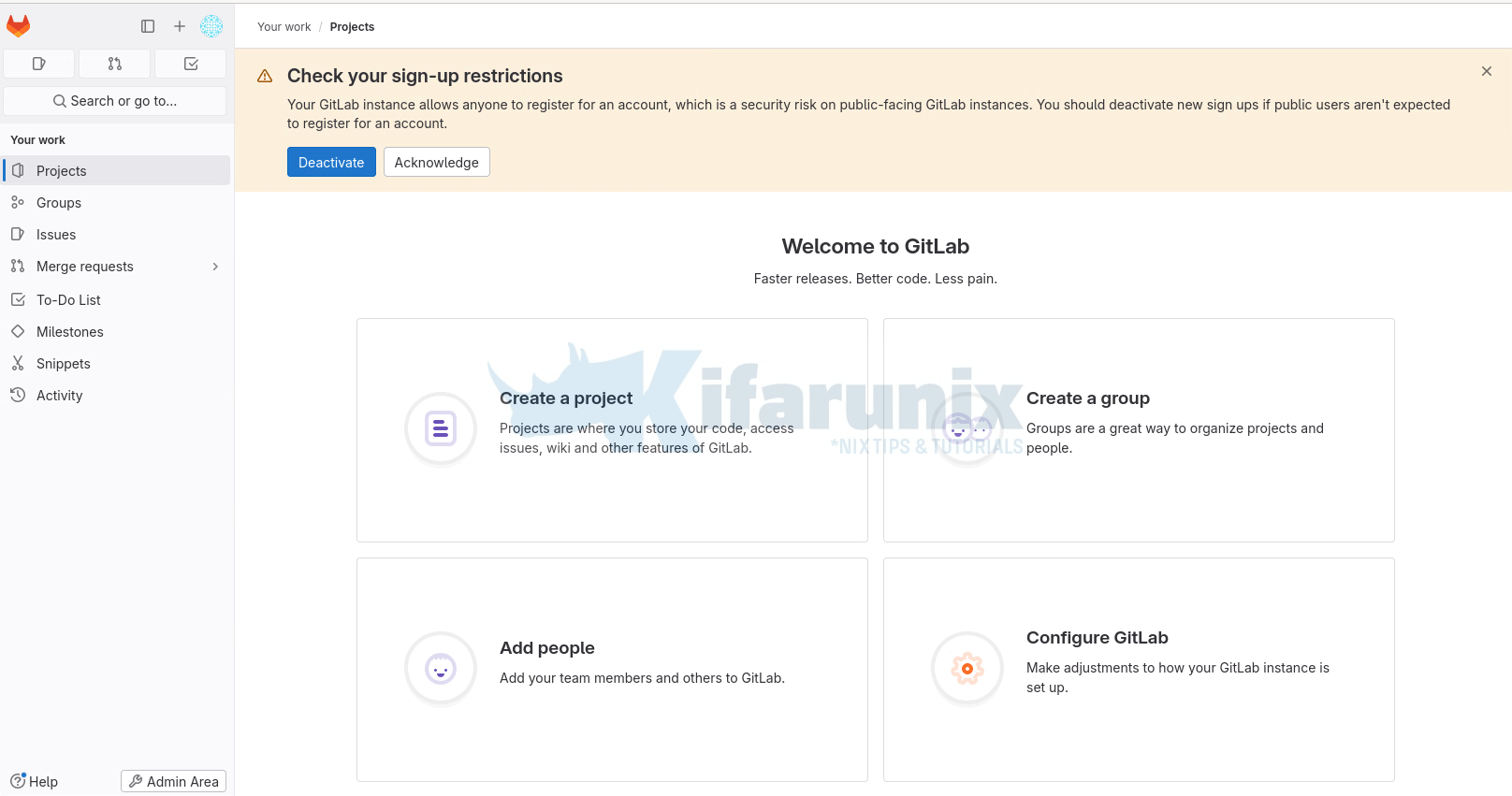
Gitlab web dashboard for user root. You can access by clicking Admin Area at the top right;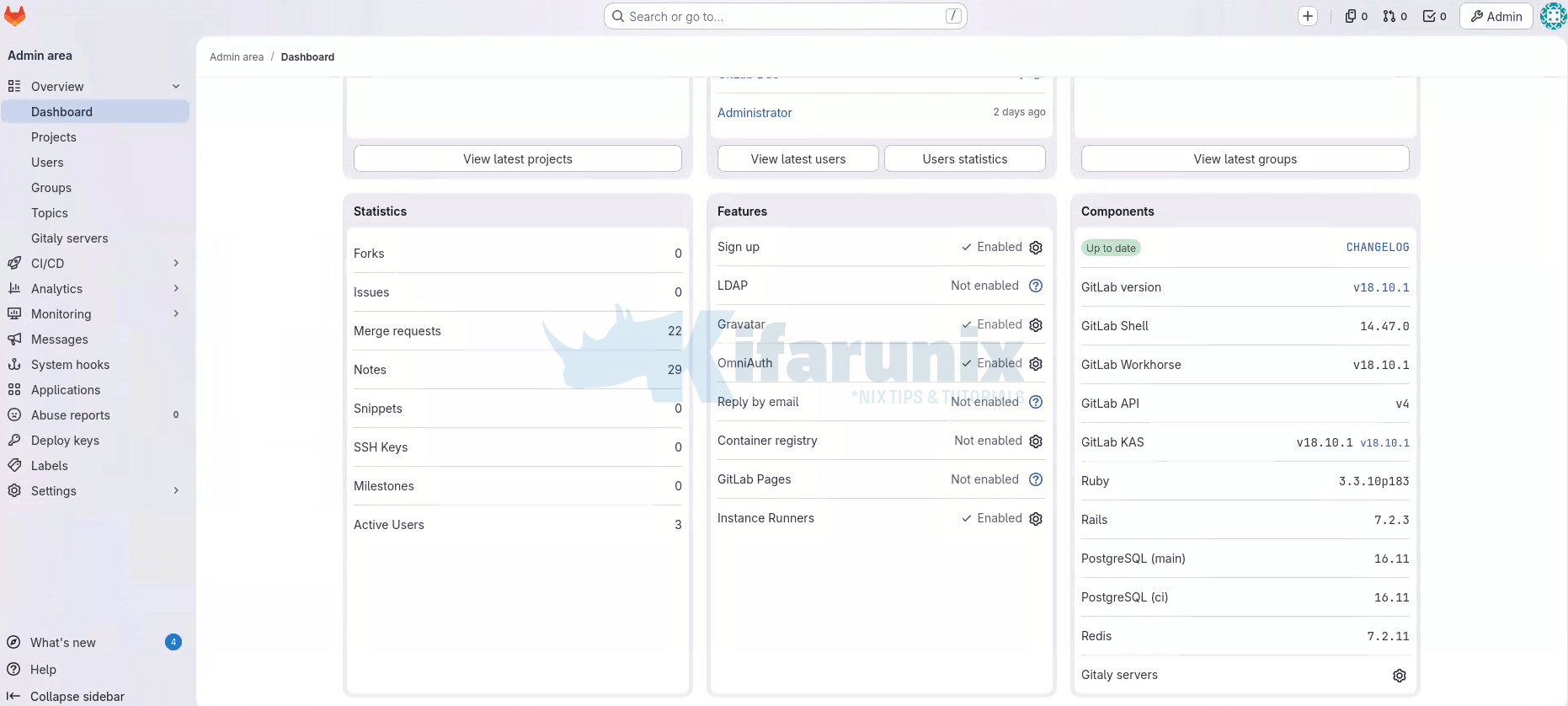
Gitlab is now installed and setup, basically. That marks the end of our tutorial on how to install Gitlab.
What is next after Installation?
Once Gitlab is up and running, you can now proceed with the next steps outlined on the documentation page.
Other Tutorials
Automate OpenShift Deployments with GitLab CI/CD Pipelines
How to Install Gitlab on Rocky Linux 10 with Let’s Encrypt SSL