
In this blog post, we will walk through how to backup and restore etcd in OpenShift 4, including setting up automated scheduled backups with S3 storage integration using MinIO. etcd is the distributed key-value store that maintains the state of an entire OpenShift cluster. Every Kubernetes object, every configuration setting, and every piece of cluster metadata lives in etcd. If etcd fails or becomes corrupted, your cluster stops functioning. This makes etcd backup seem like an obvious requirement, but the reality is more nuanced.
Red Hat’s documentation explicitly states that etcd restore is a “destructive and destabilizing action” and should only be used “as a last resort.” Understanding why this warning exists, and what alternatives you should prioritize, is just as important as knowing how to perform the backup itself.
Table of Contents
Backup and Restore etcd in OpenShift 4
Understanding etcd and What Backup Protects
Before diving into the technical implementation, let’s establish what we’re actually backing up and what scenarios it addresses.
As you already know, etcd is a distributed, consistent key-value store used by Kubernetes (and therefore OpenShift) as the cluster’s primary data store. It holds the entire control plan state of the cluster. This includes:
- All Kubernetes API objects (Pods, Services, Deployments, StatefulSets, ConfigMaps, Secrets, etc.)
- Cluster configuration and operational state
- Network policies and service definitions
- RBAC rules, role bindings and service account tokens
- Custom Resource Definitions (CRDs) and custom resources
- Operator configurations and their managed resources
- PVs and PVCs definitions (butnot the actual data in the PV)
What etcd does NOT contain:
- Application data stored in PersistentVolumes (the actual storage backend data)
- Container images (stored in registries)
- Application logs (unless you’ve configured log forwarding to store logs as Kubernetes objects)
- Metrics and monitoring data (these live in Prometheus, not etcd)
- External database contents.
This distinction is crucial. When you restore an etcd backup, you restore the cluster’s understanding of what should exist, not the actual application data.
What etcd Backup Actually Provides
An etcd backup creates two artifacts:
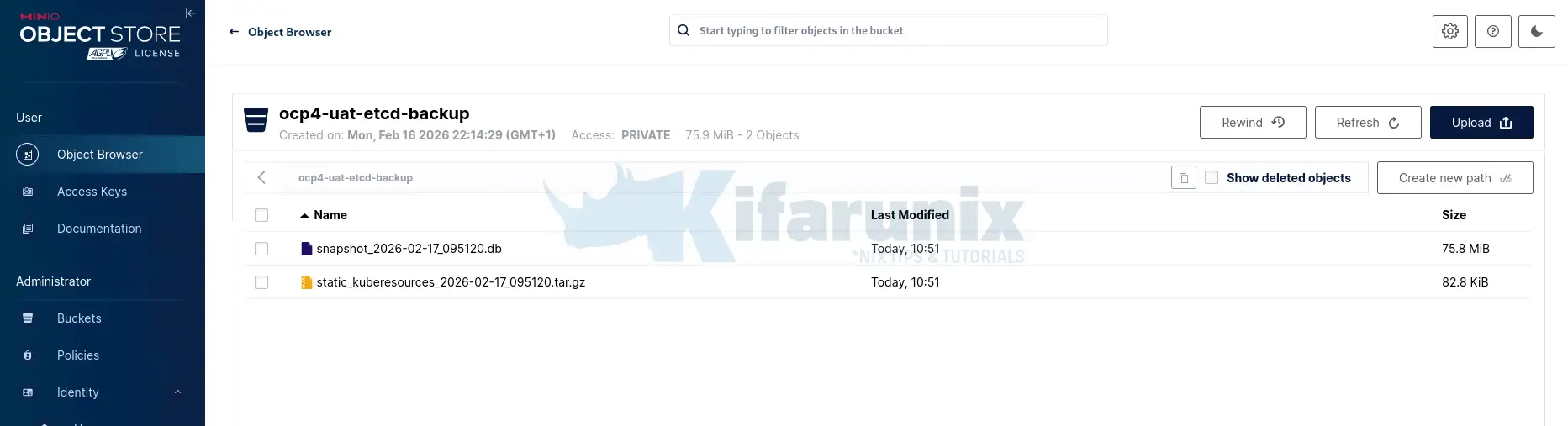
- etcd snapshot database (snapshot_TIMESTAMP.db): A point-in-time snapshot of all data in etcd
- Static pod resources (static_kuberesources_TIMESTAMP.tar.gz): The static pod manifests and certificates for control plane components
These files allow you to restore your cluster to a previous state, but with significant caveats that we’ll explore throughout this post.
When etcd Backup is Actually Necessary
etcd backup is only useful in specific scenarios where the control plane state must be restored. Let’s look at the primary cases.
Scenario 1: Loss of Quorum with Infrastructure Intact
Assume a hardware failure destroyed 2 out of 3 control plane nodes on your cluster, but the underlying infrastructure is intact and can be recreated with identical specifications (same hostnames, IP addresses, and network configuration).
You can restore etcd on the surviving control plane node. Once restored, the etcd operator automatically recreates the missing control plane nodes, preserving your cluster state exactly as it was.
In such a scenario, some of the requirements for a possible restore include:
- At least one healthy control plane node
- SSH access to all control plane nodes
- Ability to recreate infrastructure with identical networking
- Backup from the exact same OpenShift version (z-stream must match, e.g., 4.20.1 > 4.20.1)
Scenario 2: Graceful Cluster Shutdown
In some situations, you may need to shut down the entire cluster for maintenance, cost savings (non-production environments), or planned outages.
In such a scenario, etcd backup acts as insurance in case the cluster fails to restart cleanly. Take the etcd backup before shutdown so you have a recovery path if needed.
Note that you cannot backup a stopped cluster; backup must occur while the cluster is running.
Scenario 3: Accidental Critical Deletion
In some situations, an administrator may accidentally delete critical cluster-wide resources, such as essential namespaces containing cluster operators, core RBAC configurations, or critical networking components.
Restoring from backup is faster than manually reconstructing complex interdependent configurations.
This only makes sense if the deletion happened recently (within a few hours). The longer you wait, the more cluster changes occur that will be lost during restore. After a certain point, rebuilding the deleted components manually is faster and safer.
When etcd Backup is the Wrong Tool
Many disaster scenarios may seem like they require an etcd backup, but in reality, different approaches are needed.
Scenario 1: Total Infrastructure Loss
A catastrophic event (fire, flood, natural disaster) destroyed the data center, or you are migrating to completely different infrastructure with new IP addresses, hostnames, or network topology.
In such scenario, etcd backups won’t help much since etcd restore requires identical infrastructure. Restoring to different hostnames, IPs, or network configurations will fail or produce an unstable cluster.
As such, you may want to:
- Install a fresh OpenShift cluster
- Use OADP to restore applications and PersistentVolumes
- Use GitOps (ArgoCD) to restore cluster configurations
Attempting etcd restore in such a scenario may result in days of troubleshooting and likely failure.
Scenario 2: Single Control Plane Node Failure
In such a scenario, one etcd pod fails or crashes, but the other control plane nodes remain healthy. This means that the quorum is not lost (you still have 2 of 3 nodes) and hence, you don’t really need the use of etcd backup. The etcd operator will automatically recover the failed member using data from the healthy nodes.
Correct approach would be like:
- Remove the failed etcd member from the cluster
- Let the etcd operator recreate it automatically
- Data replicates from healthy members
Using etcd backup here adds unnecessary risk and complexity.
Scenario 3: Failed Cluster Upgrade
An upgrade from OpenShift 4.19 to 4.20 failed, leaving your cluster in a partially-upgraded, broken state.
etcd backup won’t help because OpenShift does not support downgrade. You cannot restore a 4.19 etcd backup to a partially-upgraded 4.20 cluster. The version mismatch will cause failures.
Red Hat documentation explicitly states: “Downgrading a cluster after a faulty upgrade isn’t supported. An unrecoverable cluster upgrade failure is effectively a complete loss of the old cluster.“
In such a situation, the correct approach would be:
- Attempt to complete the upgrade if possible
- If unrecoverable, build a new cluster at the old version
- Use OADP to restore applications
- Carefully re-attempt upgrade with proper testing
Scenario 4: Application Data Loss or Corruption
Your application database is corrupted, or you’ve lost data in PersistentVolumes.
etcd backup won’t help because etcd does not contain application data. It only contains the Kubernetes object definitions that describe your PersistentVolumeClaims, but not the actual data in the volumes.
Correct approach would be:
- Use OADP/Velero for application-level backups (includes PV data)
- Use volume snapshots from your storage provider
- Use application-specific backup tools (pg_dump, mysqldump, etc.)
Why Red Hat Calls etcd Restore “Last Resort”
Understanding this warning is critical to using etcd backup correctly.
The Time Travel Problem
When you restore etcd, you’re taking your cluster back in time. This creates a fundamental conflict between what exists in reality versus what the cluster believes should exist:
In reality (what actually exists after backup):
- Pods created and running on nodes
- PersistentVolumes with current data
- Load balancers configured for current services
- Certificates that have been rotated
etcd (after restore to old state):
- Old pod definitions
- Old PV bindings
- Old network configurations
- Old (possibly expired) certificates
This mismatch causes operators and controllers to attempt reconciliation, often creating more problems than it solves.
Operator Reconciliation Conflicts
After restore, every operator in your cluster sees discrepancies and tries to fix them:
- The Kubernetes controller manager sees pods in etcd that don’t exist on nodes and tries to recreate them
- The network operator sees old network configurations and tries to apply them, conflicting with actual network state
- The storage operator sees old PV claims and tries to bind them, potentially to wrong volumes
- The machine API sees machines that were replaced and may try to recreate or delete infrastructure
These conflicts can create cascading failures requiring significant manual intervention.
API Server Unavailability During Restore
This is a critical operational limitation: once you start the etcd restore process, the Kubernetes API server becomes completely unavailable. You cannot use kubectl or oc commands. You lose all cluster management capability except for direct SSH to nodes.
This means:
- You must have SSH access to all control plane nodes BEFORE starting restore
- If you lose SSH access during restore, recovery is impossible
- You cannot monitor cluster state during restore through normal tools
- Any automation that depends on the API will fail
Potential Data Loss
Even successful etcd restores can cause data loss:
- PersistentVolumes created after the backup may be “forgotten” by the cluster
- Workloads created after backup may be deleted as the cluster realizes they “shouldn’t exist”
- Machines created after backup may be destroyed by the machine API to match restored state
- Certificates rotated after backup may be replaced with expired versions
Defining RPO and RTO for OpenShift Disaster Recovery
Before implementing any backup strategy, you need to define your recovery objectives. These determine your backup frequency, retention policy, and which tools you use.
Recovery Point Objective (RPO)
RPO defines the maximum acceptable amount of data loss measured in time. In other words, if disaster strikes, how much work are you willing to lose?
For OpenShift clusters, consider these different RPO requirements:
For etcd backups:
- Production clusters: If you have an RPO of 24 hours, then considerdaily backups.
- Critical production: RPO of 12 hours (twice-daily backups)
- Development/test: RPO of 7 days (weekly backups)
Why not more frequent? Taking an etcd snapshot temporarily generates high I/O, which can impact cluster performance. Red Hat recommends performing backups during non-peak usage hours to minimize disruption. Additionally, etcd backups are only necessary for specific disaster scenarios, so very frequent snapshots (e.g., hourly) are usually unnecessary.
For application data (OADP/Velero):
- Stateful applications: RPO of 6-12 hours
- Databases: RPO of 1-4 hours (often supplemented with database-specific backup tools)
- Stateless applications: RPO of 24 hours (or rely on GitOps for recreation)
Recovery Time Objective (RTO)
RTO defines the maximum acceptable downtime. How long can your cluster be offline before business impact becomes unacceptable?
Typical RTOs for different scenarios:
- etcd restore (quorum loss): 1-2 hours
- Full cluster rebuild with OADP restore: 4-8 hours
- Application restore from OADP: 30 minutes to 2 hours (depending on data size)
- Individual namespace restore: 10-30 minutes
Your RTO drives architectural decisions:
- Multi-cluster deployments for RTO < 1 hour
- Automated backup/restore pipelines for RTO < 4 hours
- Documented runbooks and trained staff for any reasonable RTO
Setting Up Automated etcd Backup on OpenShift
While setting up our OpenShift etcd backup, we’ll use MinIO for S3-compatible storage, but the approach works with any S3-compatible backend (AWS S3, Google Cloud Storage, Azure Blob Storage with S3 API, etc.).
Prerequisites
Before starting, verify these requirements:
- Cluster age: Your cluster must be at least 24 hours old. OpenShift generates temporary certificates during installation that expire after 24 hours. The first certificate rotation happens at the 24-hour mark. If you take a backup before this rotation, it will contain expired certificates, and restore will fail. Verify cluster age:
oc get clusterversion -o jsonpath='{.items[0].metadata.creationTimestamp}{"\n"}'
- Permissions: You need cluster-admin access (Command below must give yes as the output):
oc auth can-i '*' '*' --all-namespaces
- SSH access: Verify you can SSH to all control plane nodes (Replace /PATH/TO/SSH_KEY with the full path to your private SSH key):
for node in $(oc get nodes -l node-role.kubernetes.io/master -o jsonpath='{.items[*].metadata.name}'); do
    echo "Testing $node"
    ssh -o ConnectTimeout=5 -o StrictHostKeyChecking=no -o UserKnownHostsFile=/dev/null -i /PATH/TO/SSH_KEY core@$node "hostname"
done
Architecture Overview
Our etcd backup process consists of:
- A CronJob running in a dedicated namespace
- The job runs on a control plane node (using node selector and tolerations)
- It executes the built-in cluster-backup.sh script
- Uploads backup files to S3 storage. We are using external Minio S3 storage, outside the OCP cluster.
- Implements retention policy (keep last 7 days by default)
- Sends alerts on failure
Step 1: Create a Dedicated Namespace and Configure RBAC for etcd Backup
Before creating the backup CronJob, we need a dedicated namespace and proper RBAC permissions. This ensures that:
- The backup process is isolated from other workloads for security and operational hygiene.
- The backup job has the necessary permissions to access etcd, pods, secrets, and the host filesystem.
- Privileged operations (like mounting the host filesystem to run the backup script) are allowed, but only for this controlled service account.
Create a dedicated backup namespace:
oc new-project etcd-backupCreate a service account for the backup job:
oc create serviceaccount etcd-backup-sa -n etcd-backupNext, create a ClusterRole with the necessary permissions to run the backup. In most cases, the service account to be used by the CronJob should have the ability to:
- Identify master nodes where etcd runs so backups run on the correct nodes.
- Permissions needed: get and list on nodes resources.
- Create backup Pods, monitor their status, clean up old Pods, and read logs for auditing or debugging.
- Permissions needed: get, list, create, delete, and watch on pods and pods/log resources.
Here is our sample clusterrole manifest for the CronJob service account created above.
cat etcd-backup-sa-cluster-role.yamlapiVersion: rbac.authorization.k8s.io/v1
kind: ClusterRole
metadata:
name: etcd-backup-role
rules:
- apiGroups:
- ""
resources:
- "nodes"
verbs:
- "get"
- "list"
- apiGroups:
- ""
resources:
- "pods"
- "pods/log"
verbs:
- "get"
- "list"
- "create"
- "delete"
- "watch"Apply the manifest to create the cluster role;
oc apply -f etcd-backup-sa-cluster-role.yamlOnce you have the clusterrole created, bind it to the service account so that the backup CronJob can use the permissions defined. This allows the service account to execute the backup Pods with the required privileges.
The ClusterRoleBinding associates the etcd-backup-role ClusterRole created with the etcd-backup-sa service account in the etcd-backup namespace created above:
oc create clusterrolebinding <name-of-role-binding> \
  --clusterrole=<cluster-role> \
  --serviceaccount=<namespace>:<serviceaccount>
For example;
oc create clusterrolebinding etcd-backup-rolebinding \
  --clusterrole=etcd-backup-role \
  --serviceaccount=etcd-backup:etcd-backup-sa
The backup pod also needs to access the host filesystem and run as root to execute cluster-backup.sh. As such, you need to assign the privileged SCC to ensure that the job can perform these actions safely within its dedicated namespace.
oc adm policy add-scc-to-user privileged -z etcd-backup-sa -n etcd-backupStep 2: Configure S3 Storage Backend
As already mentioned, we will backup our cluster etcd into our MinIO s3 storage. This guide assumes you already have an S3-compatible object storage configured and accessible from your OpenShift cluster.
If you are using MinIO, and need guidance on deploying or integrating it with Kubernetes/OpenShift, refer to the detailed guide below:
https://kifarunix.com/integrate-minio-s3-storage-with-kubernetes-openshift/
Once your MinIO server is ready and the backup bucket has been created with the appropriate policy and user permissions, you can proceed to create the S3 credentials secret for the etcd backup job.
Step 3: Create S3 Credentials Secret
Before creating the S3 secret, confirm that your OpenShift cluster can reach your MinIO server.
Start a temporary debug pod:
oc run -i --tty --rm debug \
     --image=quay.io/openshift/origin-cli:latest \
     --restart=Never \
     -- bash
Inside the pod, test the MinIO health endpoint. Replace <MINIO_API_ENDPOINT> with your actual MinIO server address
curl -sI https://<MINIO_API_ENDPOINT>/minio/health/liveSample output from my MinIO server;
HTTP/2 200
server: nginx
date: Mon, 16 Feb 2026 19:06:14 GMT
content-length: 0
accept-ranges: bytes
strict-transport-security: max-age=31536000; includeSubDomains
vary: Origin
x-amz-id-2: dd9025bab4ad464b049177c95eb6ebf374d3b3fd1af9251148b658df7ac2e3e8
x-amz-request-id: 1894CF90F1EA112C
x-content-type-options: nosniff
x-xss-protection: 1; mode=block
A response with HTTP 200 OK confirms that the server is online and reachable. Exit the debug pod when done:
exitIf your MinIO server uses a self-signed certificate, you can test with:
curl -k -sI https://<MINIO_API_ENDPOINT>/minio/health/liveAfter verifying connectivity, create a secret in the etcd-backup namespace:
MINIO_API="https://<MINIO_API_ENDPOINT>"oc create secret generic etcd-backup-s3-credentials \
-n etcd-backup \
--from-literal=AWS_ACCESS_KEY_ID=<MINIO_ACCESS_KEY> \
--from-literal=AWS_SECRET_ACCESS_KEY=<MINIO_SECRET_KEY> \
--from-literal=S3_ENDPOINT=$MINIO_API \
--from-literal=S3_BUCKET=<MINIO_BUCKET_NAME>- Replace placeholders with your actual values:
<MINIO_API_ENDPOINT>with your MinIO API server URL<MINIO_ACCESS_KEY>/<MINIO_SECRET_KEY>MinIO user credentials<MINIO_BUCKET_NAME>e.g.,ocp4-uat-etcd-backup
This secret will be used by the etcd backup CronJob to access the S3 storage.
Step 4: Create the Backup Script ConfigMap
Instead of embedding the backup commands directly in the CronJob, we store them in a ConfigMap as a standalone script. This keeps the CronJob clean, makes the backup workflow easy to update without updating the CronJob, and ensures the logic is version-controlled.
Here is our sample backup script config map:
cat backup-cm.yamlapiVersion: v1
kind: ConfigMap
metadata:
name: etcd-backup-script
namespace: etcd-backup
data:
backup.sh: |
#!/bin/bash
set -euo pipefail
echo "Starting etcd backup: $(date +%Y-%m-%d_%H%M%S)"
BACKUP_DIR="/home/core/etcd-backup/$(date +%F_%H%M%S)"
echo "Creating backup directory: $BACKUP_DIR"
mkdir -p $BACKUP_DIR
echo "Executing cluster-backup.sh..."
/usr/local/bin/cluster-backup.sh $BACKUP_DIR
SNAPSHOT=$(ls -t $BACKUP_DIR/snapshot_*.db 2>/dev/null | head -1)
STATIC=$(ls -t $BACKUP_DIR/static_kuberesources_*.tar.gz 2>/dev/null | head -1)
if [[ ! -f "$SNAPSHOT" ]] || [[ ! -f "$STATIC" ]]; then
echo "ERROR: Backup files not found"
exit 1
fi
echo "Backup files created:"
echo " Snapshot: $(basename $SNAPSHOT) - $(du -h $SNAPSHOT | cut -f1)"
echo " Static_Kuberesources: $(basename $STATIC) - $(du -h $STATIC | cut -f1)"
echo "Backup completed: $(date +%Y-%m-%d_%H%M%S)"
s3-upload.sh: |
#!/bin/bash
set -euo pipefail
echo "Starting S3 upload: $(date +%Y-%m-%d_%H%M%S)"
BACKUP_DIR="/host/home/core/etcd-backup"
TIMESTAMP=$(date +%Y-%m-%d_%H%M%S)
echo "Waiting for backup files..."
TIMEOUT=300
ELAPSED=0
while true; do
if [[ $(find $BACKUP_DIR -type d -cmin -1 2>/dev/null) ]]; then
echo "Backup files found, proceeding with upload..."
break
fi
if [[ $ELAPSED -ge $TIMEOUT ]]; then
echo "ERROR: Timed out waiting for backup files after ${TIMEOUT}s"
exit 1
fi
sleep 5
ELAPSED=$((ELAPSED + 5))
done
SNAPSHOT=$(ls -t $BACKUP_DIR/*/snapshot_*.db 2>/dev/null | head -1)
STATIC=$(ls -t $BACKUP_DIR/*/static_kuberesources_*.tar.gz 2>/dev/null | head -1)
if [[ ! -f "$SNAPSHOT" ]] || [[ ! -f "$STATIC" ]]; then
echo "ERROR: Backup files not found for upload"
exit 1
fi
# The following environment variables are provided by the CronJob from the etcd-backup-s3-credentials secret:
# AWS_ACCESS_KEY_ID, AWS_SECRET_ACCESS_KEY, S3_BUCKET, S3_ENDPOINT
echo "Uploading to S3..."
# add --no-verify-ssl if using self-signed ssl certs
aws s3 cp "$SNAPSHOT" "s3://${S3_BUCKET}/$(basename $SNAPSHOT)" --endpoint-url "$S3_ENDPOINT" --metadata "cluster=openshift,type=snapshot,timestamp=$TIMESTAMP"
aws s3 cp "$STATIC" "s3://${S3_BUCKET}/$(basename $STATIC)" --endpoint-url "$S3_ENDPOINT" --metadata "cluster=openshift,type=static,timestamp=$TIMESTAMP"
# Verify uploads
for FILE in "$SNAPSHOT" "$STATIC"; do
if ! aws s3 ls "s3://${S3_BUCKET}/$(basename $FILE)" --endpoint-url "$S3_ENDPOINT" > /dev/null 2>&1; then
echo "ERROR: Upload verification failed for $(basename $FILE)"
exit 1
fi
done
rm -f "$SNAPSHOT" "$STATIC"
echo "Local backup files removed"
# Apply retention policy (delete backups older than 7 days)
# However, it is better to define on the s3 bucket level
echo "Applying retention policy (7 days)..."
CUTOFF_DATE=$(date -d "7 days ago" +%Y-%m-%d)
aws s3 ls "s3://${S3_BUCKET}/" --endpoint-url "$S3_ENDPOINT" | while read -r line; do
FILE_DATE=$(echo "$line" | awk '{print $1}')
FILE_NAME=$(echo "$line" | awk '{print $4}')
if [[ "$FILE_DATE" < "$CUTOFF_DATE" ]] && [[ -n "$FILE_NAME" ]]; then
echo "Deleting old backup: $FILE_NAME (date: $FILE_DATE)"
aws s3 rm "s3://${S3_BUCKET}/${FILE_NAME}" --endpoint-url "$S3_ENDPOINT" --no-verify-ssl
fi
done
echo "S3 upload completed successfully: $(date +%Y-%m-%d_%H%M%S)"
The ConfigMap contains two scripts:
- backup.sh which:
- Creates a timestamped backup directory on the host at
/home/core/etcd-backup/ - Runs OpenShift's built-in
cluster-backup.shto take the etcd snapshot - Verifies both backup files were created (snapshot + static resources)
- Exits with error if files are missing
- Creates a timestamped backup directory on the host at
- s3-upload.sh which:
- Waits up to 5 minutes for backup files to appear on the host
- Uploads both backup files to S3 with metadata tags
- Verifies each upload was successful
- Deletes local backup files after successful upload
- Applies 7-day retention policy by deleting old files from S3
So, let's create this configmap;
oc apply -f backup-cm.yamlStep 5: Create the CronJob for Automated Backups
Next, we create a CronJob that automatically runs the backup script on a defined schedule. This CronJob ensures:
- The backup runs safely on control plane nodes where etcd resides.
- Jobs do not overlap or run concurrently.
- A history of successful and failed backups is maintained for troubleshooting.
- Resource usage and node scheduling are controlled to minimize cluster impact.
Here is our sample CronJob;
cat etcd-backup-cronjob.yamlapiVersion: batch/v1
kind: CronJob
metadata:
name: etcd-backup
namespace: etcd-backup
labels:
app: etcd-backup
spec:
schedule: "0 2 * * *"
concurrencyPolicy: Forbid
successfulJobsHistoryLimit: 5
failedJobsHistoryLimit: 3
startingDeadlineSeconds: 1800
jobTemplate:
metadata:
labels:
app: etcd-backup
spec:
backoffLimit: 0
template:
metadata:
labels:
app: etcd-backup
spec:
serviceAccountName: etcd-backup-sa
restartPolicy: Never
nodeSelector:
node-role.kubernetes.io/control-plane: ""
tolerations:
- key: node-role.kubernetes.io/master
operator: Exists
effect: NoSchedule
hostNetwork: true
hostPID: true
hostIPC: true
terminationGracePeriodSeconds: 30
containers:
- name: backup
image: registry.redhat.io/openshift4/ose-cli
securityContext:
privileged: true
runAsUser: 0
capabilities:
add:
- SYS_CHROOT
volumeMounts:
- name: host
mountPath: /host
- name: backup-script
mountPath: /scripts
command:
- /bin/bash
- -c
- |
cp /scripts/backup.sh /host/tmp/backup.sh
chroot /host /bin/bash /tmp/backup.sh
resources:
requests:
memory: "256Mi"
cpu: "250m"
limits:
memory: "2Gi"
cpu: "1000m"
- name: aws-cli
image: amazon/aws-cli:latest
securityContext:
runAsUser: 0
volumeMounts:
- name: host
mountPath: /host
- name: backup-script
mountPath: /scripts
command:
- /bin/bash
- -c
- |
/bin/bash /scripts/s3-upload.sh
env:
- name: AWS_ACCESS_KEY_ID
valueFrom:
secretKeyRef:
name: etcd-backup-s3-credentials
key: AWS_ACCESS_KEY_ID
- name: AWS_SECRET_ACCESS_KEY
valueFrom:
secretKeyRef:
name: etcd-backup-s3-credentials
key: AWS_SECRET_ACCESS_KEY
- name: S3_BUCKET
valueFrom:
secretKeyRef:
name: etcd-backup-s3-credentials
key: S3_BUCKET
- name: S3_ENDPOINT
valueFrom:
secretKeyRef:
name: etcd-backup-s3-credentials
key: S3_ENDPOINT
resources:
requests:
memory: "128Mi"
cpu: "100m"
limits:
memory: "512Mi"
cpu: "500m"
volumes:
- name: host
hostPath:
path: /
- name: backup-script
configMap:
name: etcd-backup-script
defaultMode: 0755The CronJob:
- Runs daily at 2:00 AM. Update the schedule as per your RPO/RTO policies.
- Schedules directly on a master node using nodeSelector and toleration
- Mounts the entire host filesystem at
/hostand the ConfigMap scripts at/scriptsRuns two containers: - backup (
ose-cli): copiesbackup.shto the host and runs it viachrootto perform the etcd backup - aws-cli (
amazon/aws-cli): runss3-upload.shto upload backup files to S3 - Never retries on failure (
backoffLimit: 0) - Keeps last 5 successful and 3 failed job records
Apply the YAML file to create the backup schedule.
oc apply -f etcd-backup-cronjob.yamlStep 6: Test the Backup Job
To confirm that the CronJob is functioning as expected, manually trigger a one-time Job from it. This allows you to validate the backup process immediately instead of waiting for the next scheduled run.
Create a test Job from the existing CronJob:
oc create job etcd-backup-test --from=cronjob/etcd-backup -n etcd-backupMonitor the Job execution:
oc get jobs -n etcd-backup -wSample output;
NAME               STATUS    COMPLETIONS   DURATION   AGE
etcd-backup-test   Running   0/1           2s         2s
etcd-backup-test   Running   0/1           4s         4s
etcd-backup-test   Running   0/1           5s         5s
etcd-backup-test   Running   0/1           46s        46s
etcd-backup-test   Complete   1/1           46s        46s
On another terminal, you can view the logs to verify that the backup completed successfully:
oc logs -f job/etcd-backup-test -n etcd-backupA successful execution should produce output similar to the following:
Defaulted container "backup" out of: backup, aws-cli
Starting etcd backup: 2026-02-17_095120
Creating backup directory: /home/core/etcd-backup/2026-02-17_095120
Executing cluster-backup.sh...
Certificate /etc/kubernetes/static-pod-certs/configmaps/etcd-all-bundles/server-ca-bundle.crt is missing. Checking in different directory
Certificate /etc/kubernetes/static-pod-resources/etcd-certs/configmaps/etcd-all-bundles/server-ca-bundle.crt found!
found latest kube-apiserver: /etc/kubernetes/static-pod-resources/kube-apiserver-pod-16
found latest kube-controller-manager: /etc/kubernetes/static-pod-resources/kube-controller-manager-pod-6
found latest kube-scheduler: /etc/kubernetes/static-pod-resources/kube-scheduler-pod-6
found latest etcd: /etc/kubernetes/static-pod-resources/etcd-pod-10
9de27029d0586fab448df105846af1eab5dab664bd7d26e783eb911fffd8d036
etcdctl version: 3.5.24
API version: 3.5
{"level":"info","ts":"2026-02-17T09:51:22.694780Z","caller":"snapshot/v3_snapshot.go:65","msg":"created temporary db file","path":"/home/core/etcd-backup/2026-02-17_095120/snapshot_2026-02-17_095120.db.part"}
{"level":"info","ts":"2026-02-17T09:51:22.714941Z","logger":"client","caller":"[email protected]/maintenance.go:212","msg":"opened snapshot stream; downloading"}
{"level":"info","ts":"2026-02-17T09:51:22.715194Z","caller":"snapshot/v3_snapshot.go:73","msg":"fetching snapshot","endpoint":"https://10.185.10.210:2379"}
{"level":"info","ts":"2026-02-17T09:51:24.219832Z","logger":"client","caller":"[email protected]/maintenance.go:220","msg":"completed snapshot read; closing"}
{"level":"info","ts":"2026-02-17T09:51:24.453361Z","caller":"snapshot/v3_snapshot.go:88","msg":"fetched snapshot","endpoint":"https://10.185.10.210:2379","size":"80 MB","took":"1 second ago"}
{"level":"info","ts":"2026-02-17T09:51:24.453587Z","caller":"snapshot/v3_snapshot.go:97","msg":"saved","path":"/home/core/etcd-backup/2026-02-17_095120/snapshot_2026-02-17_095120.db"}
Snapshot saved at /home/core/etcd-backup/2026-02-17_095120/snapshot_2026-02-17_095120.db
{"hash":264054122,"revision":24388103,"totalKey":13140,"totalSize":79458304}
snapshot db and kube resources are successfully saved to /home/core/etcd-backup/2026-02-17_095120
Backup files created:
  Snapshot: snapshot_2026-02-17_095120.db - 76M
  Static_Kuberesources: static_kuberesources_2026-02-17_095120.tar.gz - 84K
Backup completed: 2026-02-17_095124
Note, that the command above, oc logs -f job/etcd-backup-test, will only show logs for the primary container, which is the backup container. To see logs from the upload container, run;
oc logs -f job/etcd-backup-test -n etcd-backup -c aws-cliSample logs:
Starting S3 upload: 2026-02-17_095123
Waiting for backup files...
Backup files found, proceeding with upload...
Uploading to S3...
upload: ../host/home/core/etcd-backup/2026-02-17_095120/snapshot_2026-02-17_095120.db to s3://ocp4-uat-etcd-backup/snapshot_2026-02-17_095120.db
upload: ../host/home/core/etcd-backup/2026-02-17_095120/static_kuberesources_2026-02-17_095120.tar.gz to s3://ocp4-uat-etcd-backup/static_kuberesources_2026-02-17_095120.tar.gz
Local backup files removed
Applying retention policy (7 days)...
S3 upload completed successfully: 2026-02-17_095203
Or via logs from all containers at once:
oc logs job/etcd-backup-test -n etcd-backup -f --all-containersVerifying data on the S3 bucket;
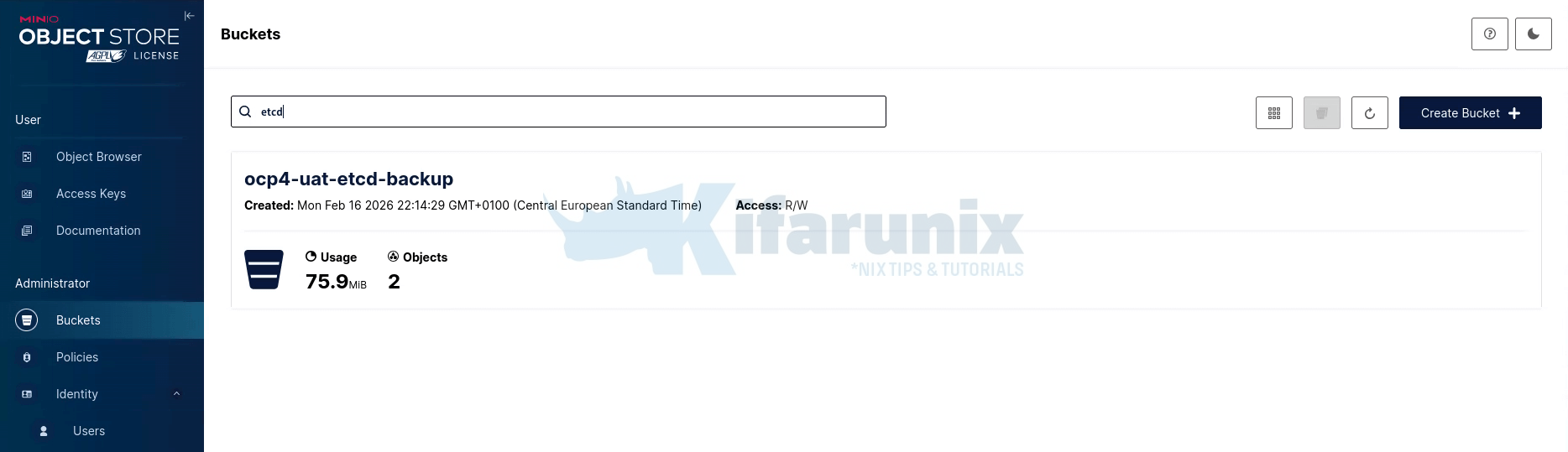
Browse the content from the object browser;
Monitor and Alert on Backup Failures
Backups are only useful if you know they're actually working. Without monitoring, silent failures can leave you without a recoverable etcd snapshot when disaster strikes.
In this setup, we monitor the following critical conditions:
- No recent successful backup: Last successful run is older than ~26 hours (critical for daily schedules).
- Backup job failed: The CronJob-created Job completed with failure (e.g., script error, upload failure).
- Backup job running too long: Job is stuck or excessively slow (>30 minutes).
- Backup not scheduled: CronJob is not creating Jobs at all (e.g., suspended, misconfigured).
Configure Prometheus Alerts
To begin with, enable user workload monitoring if not already active.
Check our guide on how to enable user workload monitoring on OpenShift cluster:
How to Enable User Workload Monitoring in OpenShift 4
Next, let's create a Prometheus rules to evaluate our alerting conditions above. Here is our sample PrometheusRule:
cat etcd-backup-rules.yamlapiVersion: monitoring.coreos.com/v1
kind: PrometheusRule
metadata:
name: etcd-backup-alerts
namespace: etcd-backup
spec:
groups:
- name: ectd-backup.rules
rules:
- alert: EtcdBackupNoRecentSuccess
expr: (time() - kube_cronjob_status_last_successful_time{namespace="etcd-backup", cronjob="etcd-backup"}) > 90000
for: 10m
labels:
severity: critical
annotations:
summary: "No successful etcd backup in over 26 hours"
description: "Last successful backup was {{ $value | humanizeDuration }} ago. Immediate investigation required!"
- alert: EtcdBackupJobFailed
expr: kube_job_status_failed{namespace="etcd-backup", job_name=~".*etcd-backup.*"} > 0
for: 5m
labels:
severity: critical
annotations:
summary: "Etcd backup job failed"
description: "Job {{ $labels.job_name }} failed. Check: oc logs -n etcd-backup job/{{ $labels.job_name }}"
- alert: EtcdBackupJobRunningTooLong
expr: |
kube_job_status_active{namespace="etcd-backup", job_name=~".*etcd-backup.*"} > 0
and
(time() - kube_job_status_start_time{namespace="etcd-backup", job_name=~".*etcd-backup.*"}) > 1800
for: 5m
labels:
severity: warning
annotations:
summary: "Etcd backup job running too long"
description: "Job {{ $labels.job_name }} active for >30 min. Possible stuck backup or upload."
- alert: EtcdBackupNotScheduled
expr: (time() - kube_cronjob_status_last_schedule_time{namespace="etcd-backup", cronjob="etcd-backup"}) > 90000
for: 10m
labels:
severity: critical
annotations:
summary: "Etcd backup CronJob not scheduling"
description: "No jobs created in >25 hours. Check: oc describe cronjob etcd-backup -n etcd-backup"oc apply -f etcd-backup-rules.yamlYou would need to configure Alertmanager to deliver your alerts to wherever you want. We are using Slack and Email in our setup.
Check how to set up alerting in OpenShift 4: Alertmanager, Alert Rules & Notifications
To simulate the failed backups, I just edited by configMap above and changed the line:
/usr/local/bin/cluster-backup.sh $BACKUP_DIRTo:
/usr/local/bin/cluster-backup.sh $BACKUP_DI # typo here $BACKUP_DI is not definedThen run the text job. These are the logs:
oc get jobs -n etcd-backup -wNAME STATUS COMPLETIONS DURATION AGE
etcd-backup-test Running 0/1 5s 5s
etcd-backup-test FailureTarget 0/1 5m7s 5m7s
etcd-backup-test Failed 0/1 5m7s 5m7soc logs -f job/etcd-backup-test -n etcd-backup --all-containersStarting etcd backup: 2026-02-17_180657
Creating backup directory: /home/core/etcd-backup/2026-02-17_180657
Executing cluster-backup.sh...
/tmp/backup.sh: line 12: BACKUP_DI: unbound variable
Starting S3 upload: 2026-02-17_180659
Waiting for backup files...
ERROR: Timed out waiting for backup files after 300sAnd here is the alert delivered to mailbox and slack.
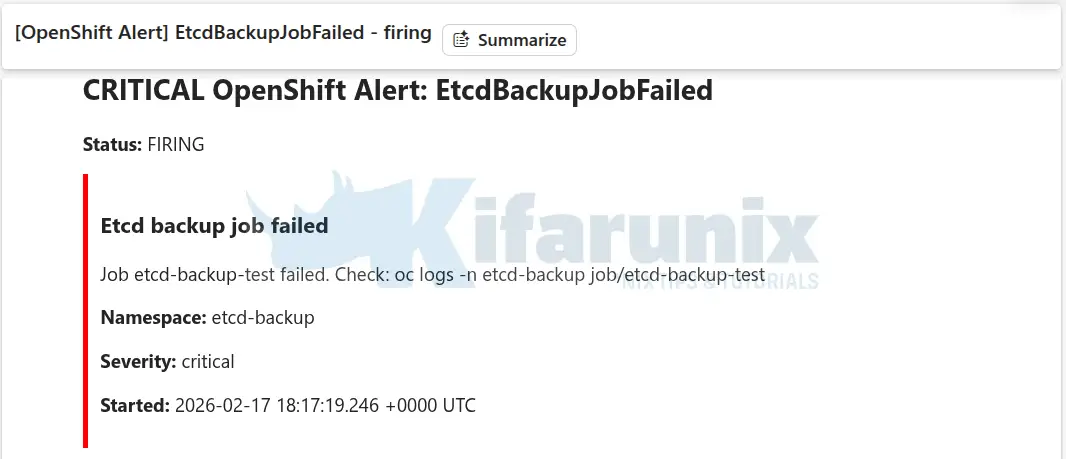
When resolved, you should also receive an alert.
etcd Restore Scenario: Quorum Loss Example
There are several situations that may require restoring from an etcd backup, including:
- Accidental data deletion
- Corruption of the etcd database
- Control plane node failure
- Full cluster control plane loss
- Quorum loss
In this demo, we will simulate a cluster quorum loss (2 control planes, out of 3, out) and try to recover from it.
Before starting, verify all of these:
- You have lost quorum (2 of 3 control plane nodes are down/inaccessible)
- You have your original agent-config.yaml and install-config.yaml
- You can provision new machines with IDENTICAL network configuration
- You have SSH access to the surviving control plane node
- You have the backup files from the same OpenShift version (z-stream must match)
- You understand that this is a destructive operation
- You have communicated the planned downtime to stakeholders
- You have a backup of the current broken state (for forensics)
If any of these is false, STOP and consider other alternative restore methods.
Example Scenario: Loss of Two Control Plane Nodes
Assume a three-node control plane cluster. If two control plane nodes are permanently lost, etcd quorum is lost.
Current state:
oc get nodeserror: You must be logged in to the server (Unauthorized)oc login -u ocp-admin https://api.ocp.comfythings.com:6443Error from server (InternalError): Internal error occurred: unexpected response: 400Sample alerts:
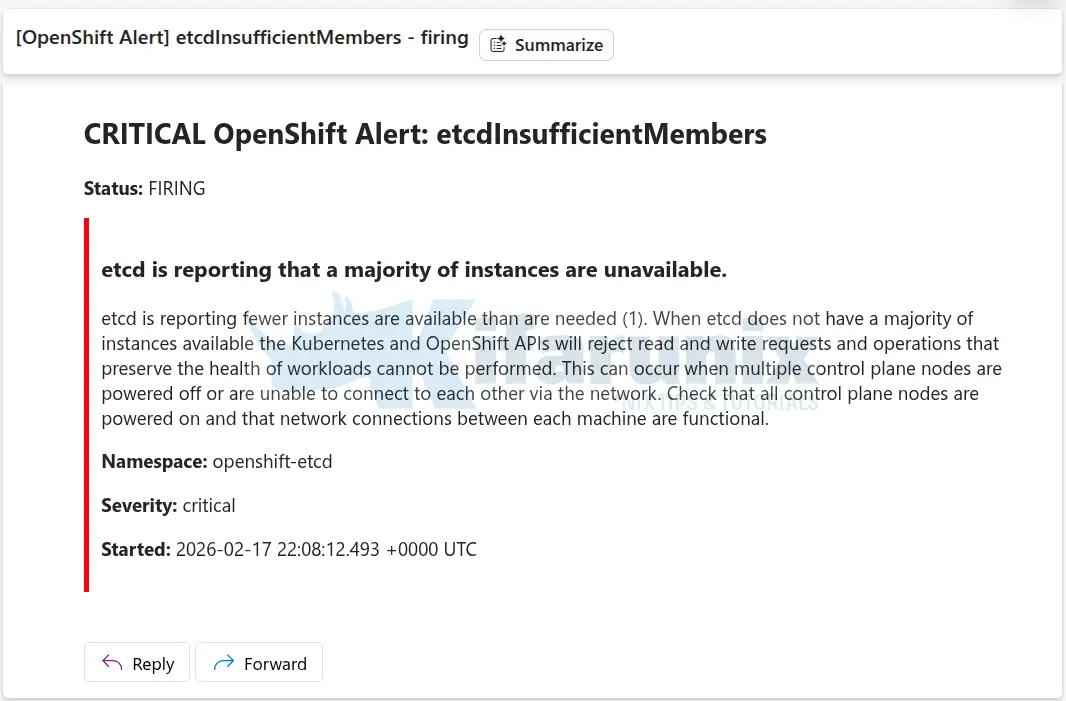
In a three-member etcd cluster:
- Quorum requires at least 2 healthy members
- Losing 2 members means quorum cannot be achieved
- The cluster API becomes unavailable
At this point, the cluster cannot recover automatically.
Step 1: Retrieve the Latest Valid etcd Backup
From your backup storage:
- Download the latest verified snapshot
- Make sure it is not corrupted
We have access to our latest etcd cluster backup on our MinIO S3 storage;
aws s3 ls s3://ocp4-uat-etcd-backupSample output;
2026-02-17 10:51:38   79458336 snapshot_2026-02-17_105120.db
2026-02-17 12:46:49   83824672 snapshot_2026-02-17_124631.db
2026-02-17 19:21:54   98132000 snapshot_2026-02-17_192136.db
2026-02-17 10:51:47      84775 static_kuberesources_2026-02-17_105120.tar.gz
2026-02-17 12:46:57      84775 static_kuberesources_2026-02-17_124631.tar.gz
2026-02-17 19:22:03      84775 static_kuberesources_2026-02-17_192136.tar.gz
Therefore, let's download the backup to our bastion host:
aws s3 cp s3://ocp4-uat-etcd-backup/snapshot_2026-02-17_192136.db ./etcd-backup-restore/aws s3 cp s3://ocp4-uat-etcd-backup/static_kuberesources_2026-02-17_192136.tar.gz ./etcd-backup-restore/The backup file are here:
tree etcd-backup-restore/etcd-backup-restore/
├── snapshot_2026-02-17_192136.db
└── static_kuberesources_2026-02-17_192136.tar.gz
0 directories, 2 filesOnce you have the files, copy them to the surviving control-plane node:
ssh -i .ssh/id_rsa [email protected] "mkdir ~/etcd-restore"rsync -avP etcd-backup-restore/ -e "ssh -i ~/.ssh/id_rsa" [email protected]:"~/etcd-restore/"Step 2: Run OpenShift etcd Restore Script
Login to the surviving control plane node:
ssh -i .ssh/id_rsa [email protected]Verify the backup files;
find etcd-restore/etcd-restore/
etcd-restore/snapshot_2026-02-17_192136.db
etcd-restore/static_kuberesources_2026-02-17_192136.tar.gzGreat! Let's proceed to restore etcd!
etcdctl restore manually. Use only the supported OpenShift restore script.sudo -E /usr/local/bin/cluster-restore.sh /path/to/backup-filese.g
sudo -E /usr/local/bin/cluster-restore.sh ./etcd-restoreThis script:
- Stops all static control plane pods - Shuts down etcd, kube-apiserver, kube-controller-manager, and kube-scheduler on the recovery node
- Backs up current etcd data - Moves existing
/var/lib/etcd/memberto/var/lib/etcd-backupfor safety - Restores the etcd snapshot - Uses
etcdctl snapshot restoreto restore your backup file to/var/lib/etcd/member - Reconfigures etcd as single-member cluster - Rewrites etcd membership to include ONLY ms-01, removes ms-02 and ms-03 from the member list
- Restores static pod resources - Extracts the
static_kuberesources_*.tar.gzfile containing PKI certificates, keys, and control plane pod manifests - Restarts control plane components - Brings up etcd (as single member), then kube-apiserver, kube-controller-manager, and kube-scheduler in sequence
After the restore completes, you now have
- Working API server (can run
occommands) - Single-member etcd cluster on ms-01
- Cluster state restored to backup timestamp
- Functional control plane
Sample restore output;
4eacd666e64e6d27f7f47a1f7d28b35aeb767bbfb87447bc6122d97c0a04ef1b
etcdctl version: 3.5.24
API version: 3.5
{"hash":929737968,"revision":24669391,"totalKey":13426,"totalSize":98131968}
...stopping etcd-pod.yaml
Waiting for container etcd to stop
..........................complete
Waiting for container etcdctl to stop
...complete
Waiting for container etcd-metrics to stop
complete
Waiting for container etcd-readyz to stop
complete
Waiting for container etcd-rev to stop
complete
Waiting for container etcd-backup-server to stop
complete
Moving etcd data-dir /var/lib/etcd/member to /var/lib/etcd-backup
starting restore-etcd static pod
Step 3: Wait for API to Recover
Exit the control plane node and return to the bastion host. On the bastion, run the command below to check the status of the nodes (to run oc commands you will need valid cluster credentials):
oc login -u <username> API_ENDPOINToc get nodesIf the restore is not complete, the command may time out. Otherwise, you should see only the surviving control plane node in Ready state.
If you do not have valid credentials available, you can retrieve the kubeconfig directly from the surviving control plane node:
ssh -i .ssh/id_rsa [email protected] "sudo cat /etc/kubernetes/static-pod-resources/kube-apiserver-certs/secrets/node-kubeconfigs/lb-ext.kubeconfig" > ~/etcd-backup-restore/kubeconfigThen export it on the bastion:
export KUBECONFIG=~/etcd-backup-restore/kubeconfigAlternatively, you can run the commands directly on the surviving control plane node, use:
sudo -iexport KUBECONFIG=/etc/kubernetes/static-pod-resources/kube-apiserver-certs/secrets/node-kubeconfigs/localhost.kubeconfigThen:
oc get nodesSample output;
NAME                        STATUS     ROLES                  AGE   VERSION
ms-01.ocp.comfythings.com   Ready      control-plane,master   36d   v1.33.6
ms-02.ocp.comfythings.com   NotReady   control-plane,master   36d   v1.33.6
ms-03.ocp.comfythings.com   NotReady   control-plane,master   36d   v1.33.6
wk-01.ocp.comfythings.com   Ready      worker                 36d   v1.33.6
wk-02.ocp.comfythings.com   Ready      worker                 36d   v1.33.6
wk-03.ocp.comfythings.com   Ready      worker                 36d   v1.33.6
ClusterOperators may show as degraded at this stage;
oc get co etcdNAME VERSION AVAILABLE PROGRESSING DEGRADED SINCE MESSAGE
etcd 4.20.8 True False True 9d NodeControllerDegraded: The master nodes not ready: node "ms-02.ocp.comfythings.com" not ready since 2026-02-18 10:22:25 +0000 UTC because NodeStatusUnknown (Kubelet stopped posting node status.), node "ms-03.ocp.comfythings.com" not ready since 2026-02-18 10:22:25 +0000 UTC because NodeStatusUnknown (Kubelet stopped posting node status.)...This is expected and normal.
Wait until oc command returns successfully without error or timeout before proceeding to the next step. That's your signal the API is stable and you can proceed.
Step 4: Rebuilding Control Plane Nodes
When restoring etcd in a quorum-loss scenario, the new control plane nodes must be identical to the original ones. This applies regardless of how the cluster was deployed:
- Agent-based installation
- Assisted Installer
- UPI (User-Provisioned Infrastructure)
- IPI (Installer-Provisioned Infrastructure)
Each deployment method differs in provisioning mechanics, but the restore principle is the same: The replacement control plane nodes must match the original cluster configuration exactly.
This includes:
- Hostnames
- IP addresses
- MAC addresses (if DHCP reservations were used)
- Ignition configuration
- Infrastructure layout
- Certificates and cluster identity
If these do not match, restore will fail or the cluster will not re-form correctly.
In our case:
- the cluster was deployed using the agent-based installer in KVM environment.
- Two control plane nodes were permanently lost; disks wiped, nodes gone.
The goal is not to create new control plane nodes, but to recreate the exact same nodes from etcd's perspective.
Generating a Node ISO for Agent-Based Installs
For clusters deployed with the agent-based installer where nodes were permanently lost, the correct supported method to rejoin them is using oc adm node-image create. This command, generates a bootable ISO using the running cluster's own information to add nodes, no rendezvous service required.
First, delete the stale node objects from the cluster so the tool does not report an address conflict:
oc delete node ms-02.ocp.comfythings.com ms-03.ocp.comfythings.comCreate a nodes-config.yaml file describing the nodes to be added. You can extract the affected nodes host configuration information from the original agent-config.yaml.
cat nodes-config.yamlhosts:
- hostname: ms-02.ocp.comfythings.com
role: master
interfaces:
- name: enp1s0
macAddress: 02:AC:10:00:00:02
rootDeviceHints:
deviceName: /dev/vda
networkConfig:
interfaces:
- name: enp1s0
type: ethernet
state: up
mac-address: 02:AC:10:00:00:02
ipv4:
enabled: true
address:
- ip: 10.185.10.211
prefix-length: 24
dhcp: false
dns-resolver:
config:
server:
- 10.184.10.51
routes:
config:
- destination: 0.0.0.0/0
next-hop-address: 10.185.10.10
next-hop-interface: enp1s0
- hostname: ms-03.ocp.comfythings.com
role: master
interfaces:
- name: enp1s0
macAddress: 02:AC:10:00:00:03
rootDeviceHints:
deviceName: /dev/vda
networkConfig:
interfaces:
- name: enp1s0
type: ethernet
state: up
mac-address: 02:AC:10:00:00:03
ipv4:
enabled: true
address:
- ip: 10.185.10.212
prefix-length: 24
dhcp: false
dns-resolver:
config:
server:
- 10.184.10.51
routes:
config:
- destination: 0.0.0.0/0
next-hop-address: 10.185.10.10
next-hop-interface: enp1s0If you check our previous guide on how to deploy OpenShift via Agent-based installer, you will see that the above nodes-config.yaml is the same content of the agent-config.yaml.
Copy nodes-config.yaml above to the restore directory and generate the ISO:
cp nodes-config.yaml ./etcd-backup-restore/oc adm node-image create --dir=./etcd-backup-restore/Sample output:
2026-02-19T08:47:22Z [node-image create] installer pullspec obtained from installer-images configMap quay.io/openshift-release-dev/ocp-v4.0-art-dev@sha256:b4c1013e373922d721b12197ba244fd5e19d9dfb447c9fff2b202ec5b2002906
2026-02-19T08:47:23Z [node-image create] Launching command
2026-02-19T08:47:28Z [node-image create] Gathering additional information from the target cluster
2026-02-19T08:47:28Z [node-image create] Creating internal configuration manifests
2026-02-19T08:47:28Z [node-image create] Rendering ISO ignition
2026-02-19T08:47:28Z [node-image create] Retrieving the base ISO image
2026-02-19T08:47:28Z [node-image create]   Extracting base image from release payload
2026-02-19T08:48:13Z [node-image create]   Verifying base image version
2026-02-19T08:49:08Z [node-image create] Creating agent artifacts for the final image
2026-02-19T08:49:08Z [node-image create]   Extracting required artifacts from release payload
2026-02-19T08:49:28Z [node-image create]   Preparing artifacts
2026-02-19T08:49:28Z [node-image create] Assembling ISO image
2026-02-19T08:49:33Z [node-image create] Saving ISO image to ./etcd-backup-restore/
2026-02-19T08:49:53Z [node-image create] Command successfully completed
A node.x86_64.iso file will be downloaded to ~/etcd-backup-restore/.
tree ~/etcd-backup-restore//home/kifarunix/etcd-backup-restore/
├── localhost.kubeconfig
├── nodes-config.yaml
├── node.x86_64.iso
├── snapshot_2026-02-17_182136.db
└── static_kuberesources_2026-02-17_182136.tar.gz
0 directories, 5 filesBoot ms-02 and ms-03 from this ISO via your hypervisor or virtual media.
So, for my case, I will redeploy the two nodes, with exact details as they were before the disaster struck, as contained in the generated ISO!
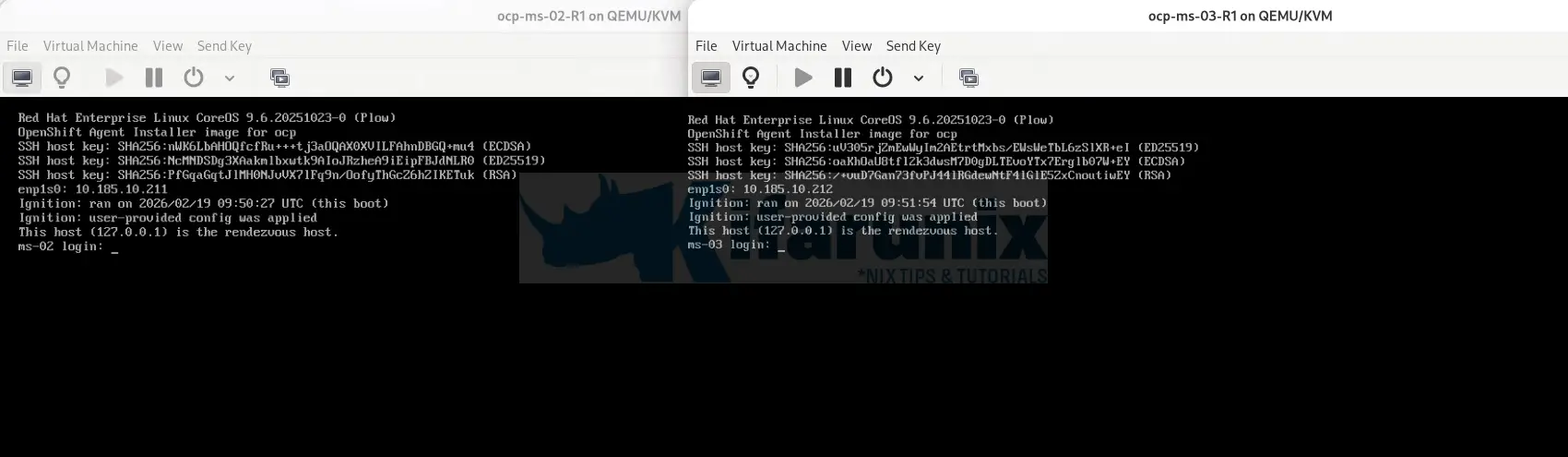
After a few mins, the nodes are back!
Step 5: Approve CSRs and Verify Node Recovery
As the nodes boot and begin joining the cluster, they will submit Certificate Signing Requests (CSRs). You need to monitor and approve them to allow the nodes join the cluster:
Before we can proceed, the cluster now looks like:
oc get nodesNAME STATUS ROLES AGE VERSION
ms-01.ocp.comfythings.com Ready control-plane,master 37d v1.33.6
wk-01.ocp.comfythings.com Ready worker 37d v1.33.6
wk-02.ocp.comfythings.com Ready worker 37d v1.33.6
wk-03.ocp.comfythings.com Ready worker 37d v1.33.6So, on your bastion host, or the surviving control plane node, run;
oc get csrSample output;
NAME        AGE     SIGNERNAME                                    REQUESTOR                                                                   REQUESTEDDURATION   CONDITION
csr-5wgfz   5m29s   kubernetes.io/kube-apiserver-client-kubelet   system:serviceaccount:openshift-machine-config-operator:node-bootstrapper   <none>              Pending
csr-9bglp   4m53s   kubernetes.io/kube-apiserver-client-kubelet   system:serviceaccount:openshift-machine-config-operator:node-bootstrapper   <none>              Pending
Approve all pending CSRs:
oc get csr -o go-template='{{range .items}}{{if not .status}}{{.metadata.name}}{{"\n"}}{{end}}{{end}}' | xargs oc adm certificate approveWatch the nodes return to Ready:
watch oc get nodesSample output once recovery is complete:

And there we go! The nodes are back in the cluster and we have the quorum back!
Step 6: Verify Full Cluster Recovery
Once all three control plane nodes are Ready, verify etcd has three healthy members:
oc get etcd -o=jsonpath='{range .items[0].status.conditions[?(@.type=="EtcdMembersAvailable")]}{.message}{"\n"}'If the command says 1 or 2 members available:
1 members are availableIt is because etcd operator has not yet redeployed etcd to ms-02 and ms-03. You can watch etcd pods redeploy across all three control plane nodes:
watch oc get pods -n openshift-etcdOnce all three etcd pods are running, verify etcd membership:
oc get etcd -o=jsonpath='{range .items[0].status.conditions[?(@.type=="EtcdMembersAvailable")]}{.message}{"\n"}'It should return 3 members are available.
oc patch etcd cluster -p='{"spec": {"forceRedeploymentReason": "recovery-'"$( date --rfc-3339=ns )"'"}}' --type=mergeVerify all ClusterOperators have recovered:
watch oc get coAll ClusterOperators should show Available=True and Degraded=False. Some operators such as etcd, kube-apiserver, and authentication may show Progressing=True for a period. This is expected as they roll out to the newly re-joined control plane nodes. Simply wait until Progressing returns to False across all operators before considering the recovery complete.
Some of the cluster restore alerts:
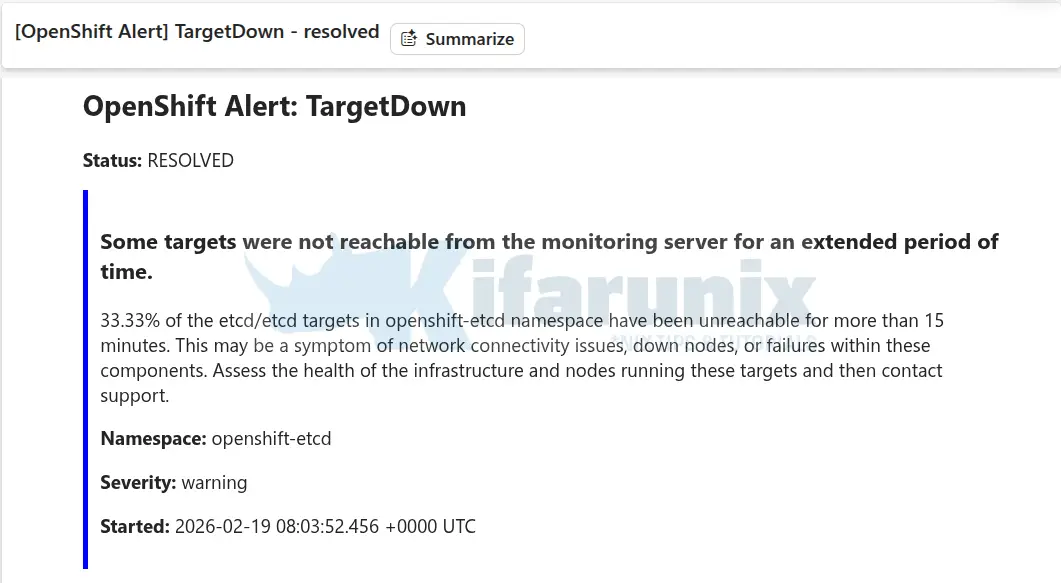
Conclusion
That's it! Your OpenShift cluster has been fully recovered from a quorum loss event. To summarize what we achieved:
- Restored etcd from a known-good backup on the surviving control plane node
- Rebuilt the two permanently lost control plane nodes using
oc adm node-image create - Re-established etcd quorum with all three members healthy
- Verified all ClusterOperators are available and stable
A few final reminders:
- Take a fresh etcd backup immediately now that the cluster is healthy, so you have a clean post-recovery snapshot
- Review what caused the quorum loss and address the root cause to prevent recurrence
- Verify your applications are running as expected, since workloads on the lost nodes may have been rescheduled during the outage.
References